Skip to content
StudyFetch Academy

Product Tutorials

Create a Tutor Me Session

Create a Tutor Me session from uploaded materials, a topic prompt, or Screenshare. After choosing a source, set your learning mode, goal, and language, then generate the lesson.

Create from materials

Build a session from study materials you already uploaded or add a new file.

Create from topic

Enter what you want to learn and StudyFetch creates a presentation for the lesson.

Use Screenshare

Let Sparky help with what is on your screen after you allow microphone access.

Start a new session

  1. From the Tutor Me page, select + New Session (either the card on the left, or the button in the top right).

  2. Choose whether to create the session from Materials, a Topic, Screenshare, or Share Camera. Screenshare and Share Camera are Pro features.
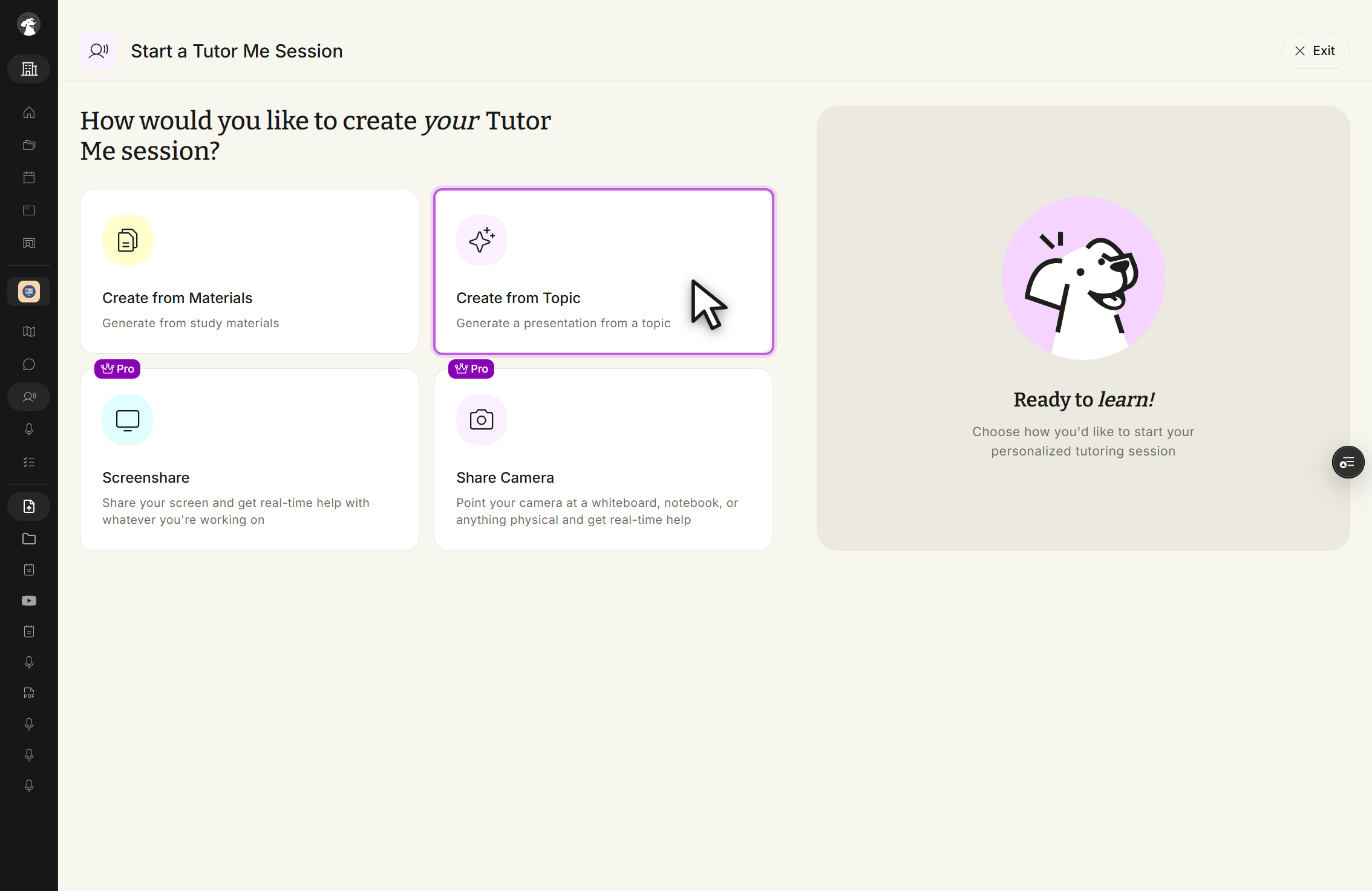
    Start a Tutor Me Session screen headed How would you like to create your Tutor Me session? Four cards are shown: Create from Materials, Generate from study materials; Create from Topic, Generate a presentation from a topic, outlined in purple with the cursor on it; Screenshare, marked Pro, Share your screen and get real-time help with whatever you're working on; and Share Camera, marked Pro, Point your camera at a whiteboard, notebook, or anything physical and get real-time help. A side panel reads Ready to learn! Choose how you'd like to start your personalized tutoring session, and an Exit button sits at the top right.
    Start a Tutor Me Session. Pick Create from Materials, Create from Topic, Screenshare, or Share Camera.

Create from materials

Choose the materials you want to include, or select + Upload New Material to add a new file, then click Next. On the following step, select the page range you want the Tutor Me session to cover.

Create from topic

Select Create from Topic, then type what you want to learn in Topic Description. Be as specific as possible — include key concepts or areas you'd like to focus on.
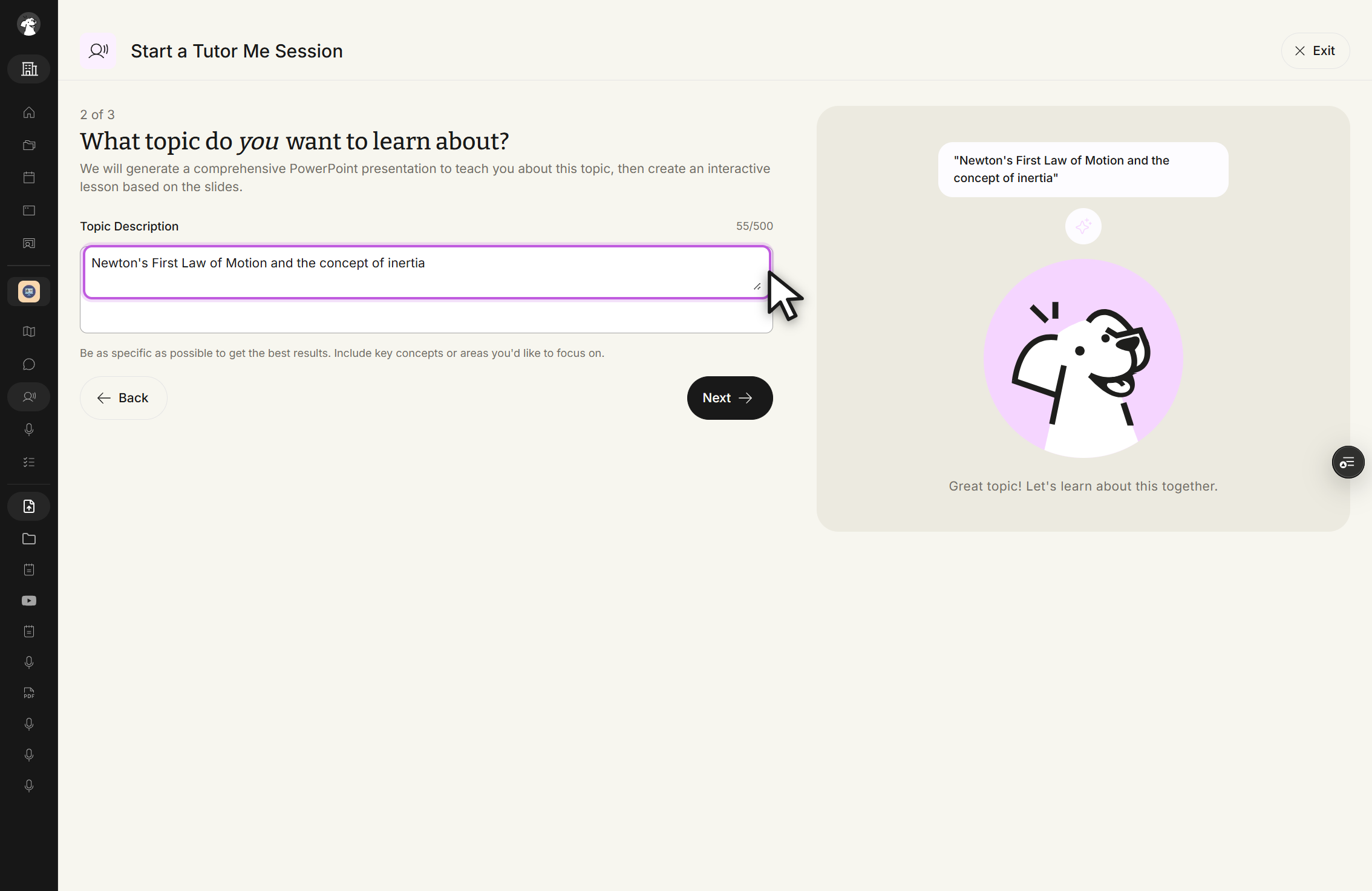
Start a Tutor Me Session screen, step 2 of 3, headed What topic do you want to learn about? The Topic Description field contains Newton's First Law of Motion and the concept of inertia, with the character counter at 55/500 and the cursor at the field's edge. Helper text reads Be as specific as possible to get the best results. Include key concepts or areas you'd like to focus on. Back and Next buttons sit below, and the side panel repeats the topic under the line Great topic! Let's learn about this together.
Start a Tutor Me Session, 2 of 3. The Topic Description field holds Newton's First Law of Motion and the concept of inertia.

Click Next, then continue to setting your learning goals.

Use Screenshare

After selecting Screenshare, allow microphone access when prompted. The setup screen checks your microphone before you join — if the check is red and the mic button says Mic Off, click the mic button until both indicators turn green, then click Join Session.

Set goals and create the session

Select a learning mode — Explore for flexible, self-paced learning, or Mastery for a more guided session — optionally describe your learning goal, and choose the session language. All three fields live on the same screen:
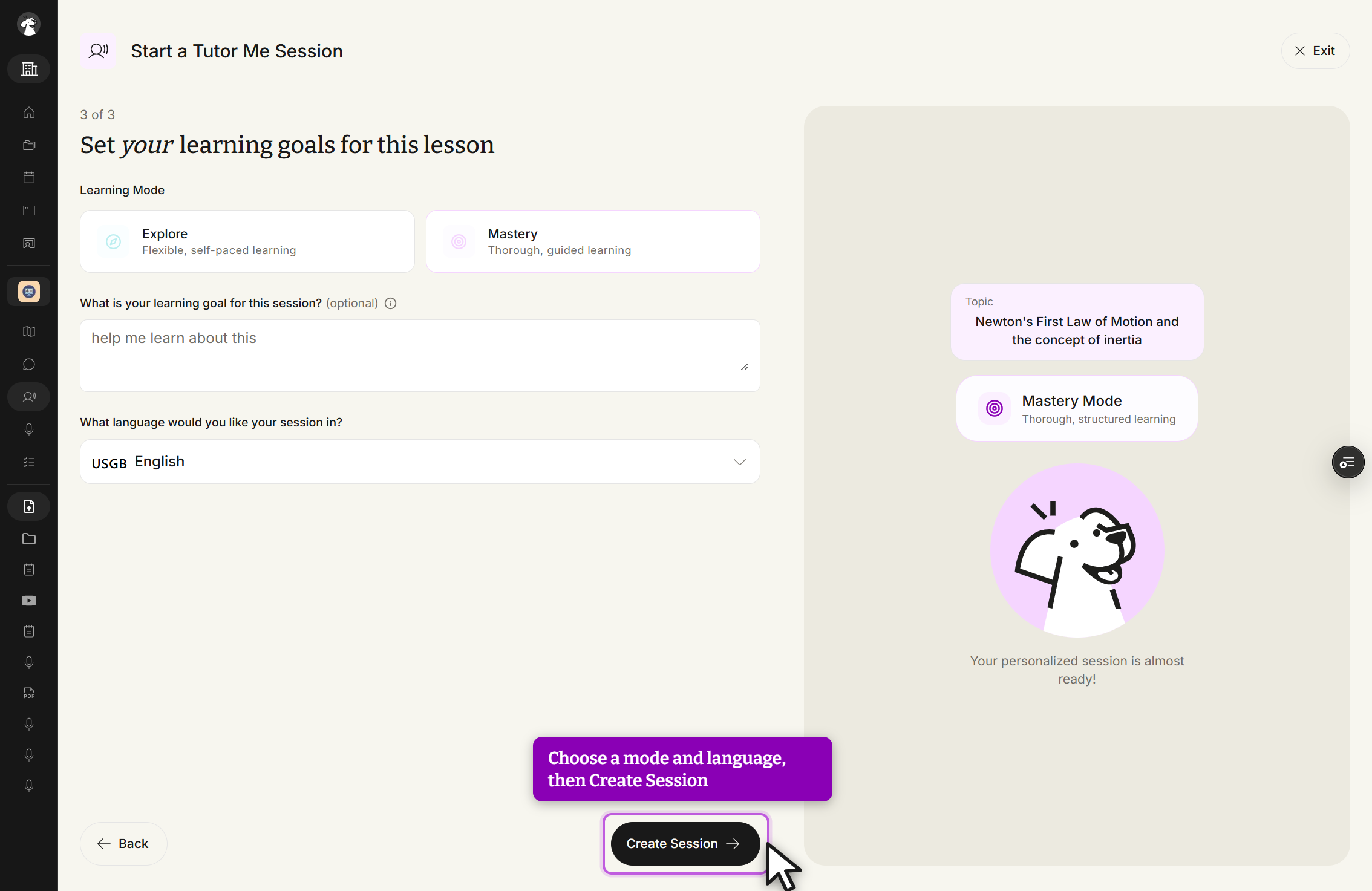
Start a Tutor Me Session screen, step 3 of 3, headed Set your learning goals for this lesson. Learning Mode offers two cards, Explore, Flexible, self-paced learning, and Mastery, Thorough, guided learning. Below them, the optional field What is your learning goal for this session? shows the placeholder help me learn about this, and the language selector reads English. A Back button sits at the bottom left; the Create Session button at the bottom right is outlined in purple with the cursor on it. The side panel shows the Topic Newton's First Law of Motion and the concept of inertia and Mastery Mode, Thorough, structured learning.
Start a Tutor Me Session, 3 of 3. Choose a Learning Mode and a language, then click Create Session.

Click Create Session. StudyFetch prepares the personalized tutoring experience — this can take up to a minute for a full lesson plan.
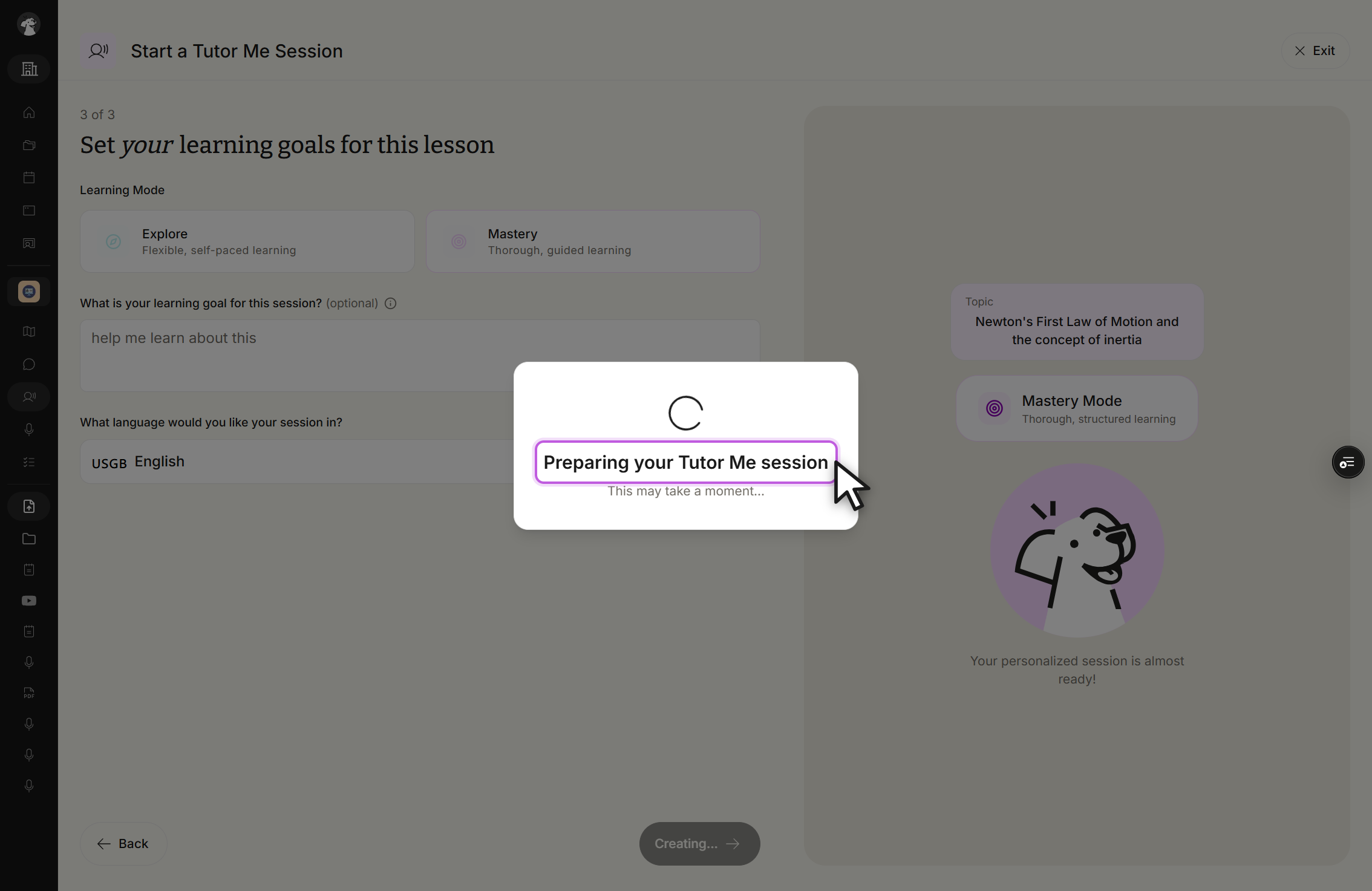
The Set your learning goals for this lesson screen, step 3 of 3, dimmed behind a centered dialog. The dialog shows a spinner, the heading Preparing your Tutor Me session, and the line This may take a moment... The button behind the dialog now reads Creating... instead of Create Session.
Preparing your Tutor Me session. The dialog shows a spinner and the line This may take a moment..., and the button behind it reads Creating...

When the session is ready, review the title, goals, progress bar, and lesson plan, then click Start Session.
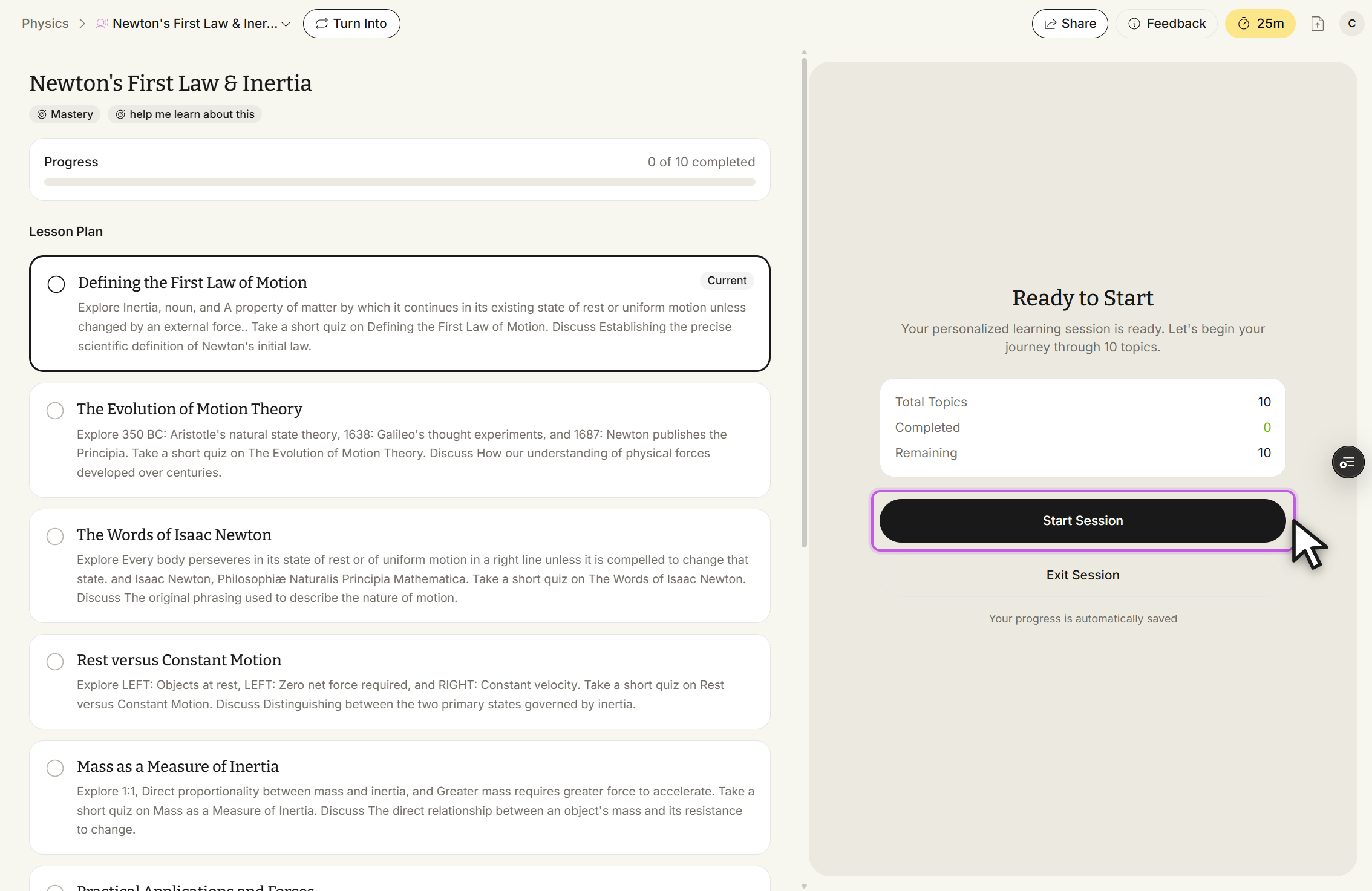
Session page titled Newton's First Law & Inertia, with the breadcrumb Physics and the session name plus a Turn Into button. Chips under the title read Mastery and help me learn about this. Progress shows 0 of 10 completed. The Lesson Plan lists Defining the First Law of Motion, tagged Current, then The Evolution of Motion Theory, The Words of Isaac Newton, Rest versus Constant Motion, and Mass as a Measure of Inertia. The right panel is headed Ready to Start with Total Topics 10, Completed 0, Remaining 10, a Start Session button outlined in purple with the cursor on it, an Exit Session link, and the note Your progress is automatically saved.
Newton's First Law & Inertia, Ready to Start. Review the Lesson Plan, then click Start Session.