
Product Tutorials
Manage and Share QuizFetch Quizzes
Managing Your Quiz
Rate Your Questions
Use the thumbs up or thumbs down buttons in the top right above each question to give feedback on your AI-generated quiz questions — a thumbs up means the question is helpful, a thumbs down means it needs improvement. The more feedback you give, the better future questions become.
Rename, Share, and View Stats
Click the quiz name at the top of the page (or the dropdown arrow next to your quiz name while taking it or on the Stats page) to open a menu with Rename, Share, Stats, and Create Practice Quiz.
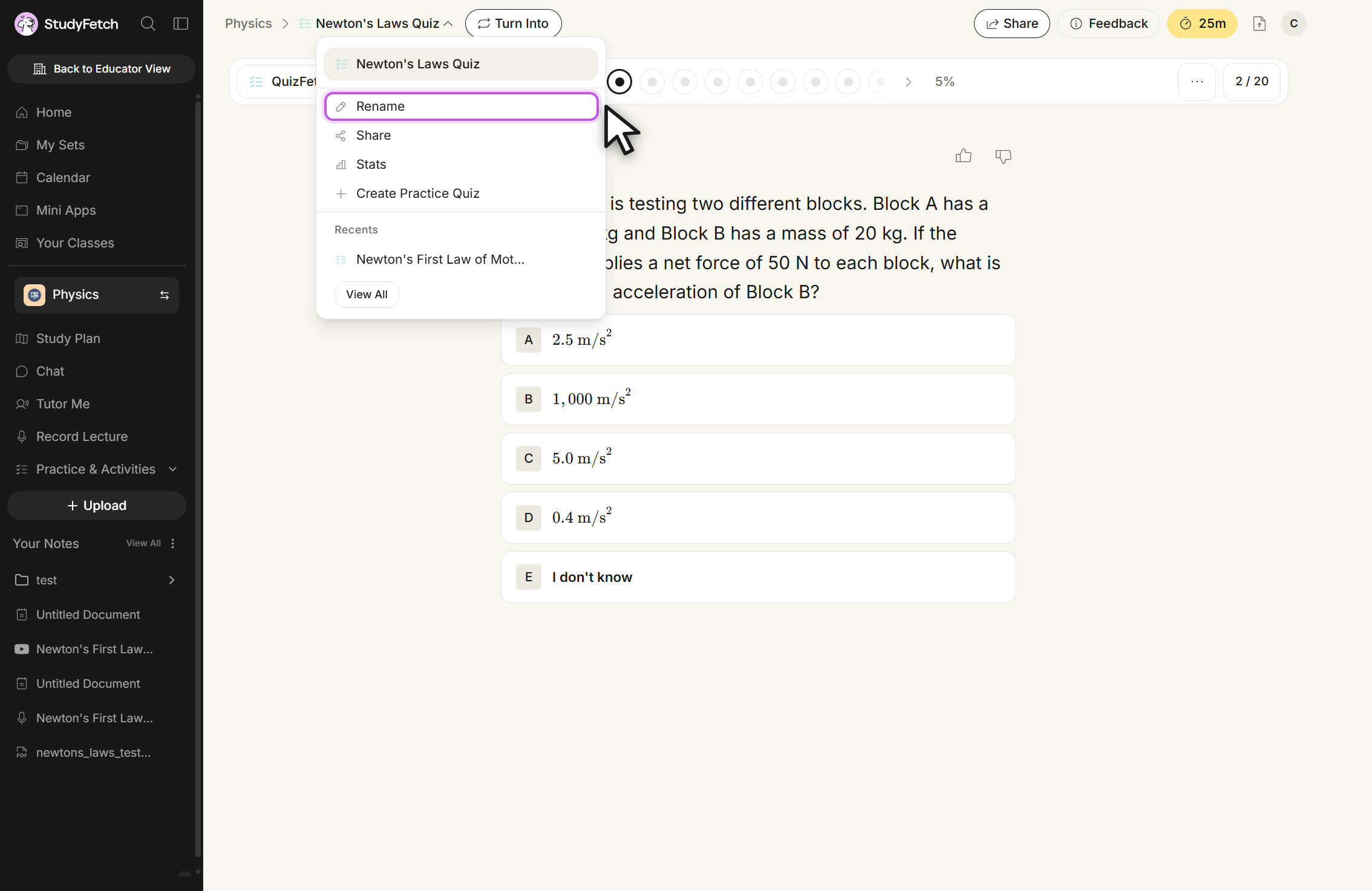
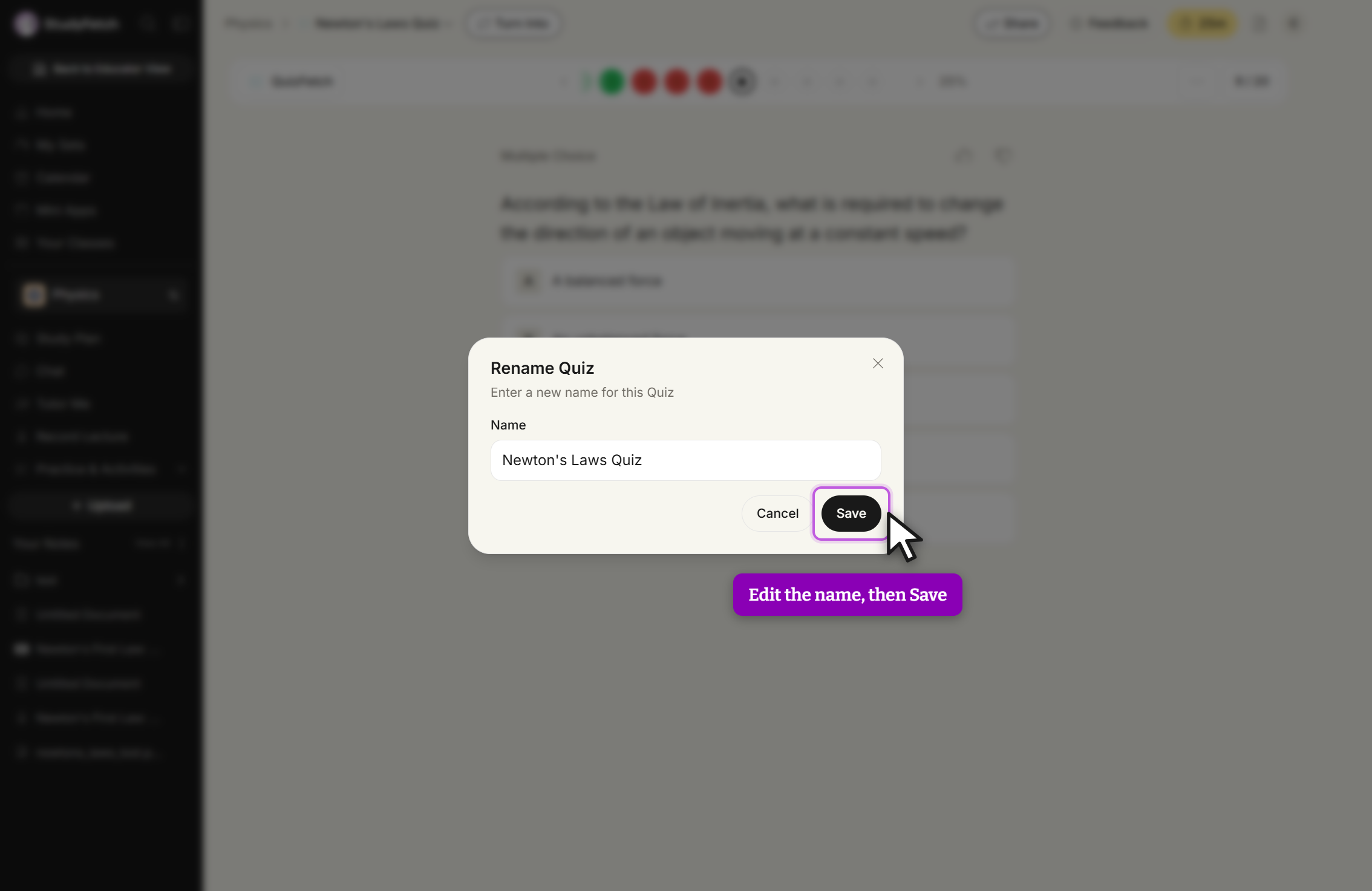
Selecting Rename opens a dialog where you can edit the quiz name and click Save.
Share Your Quiz
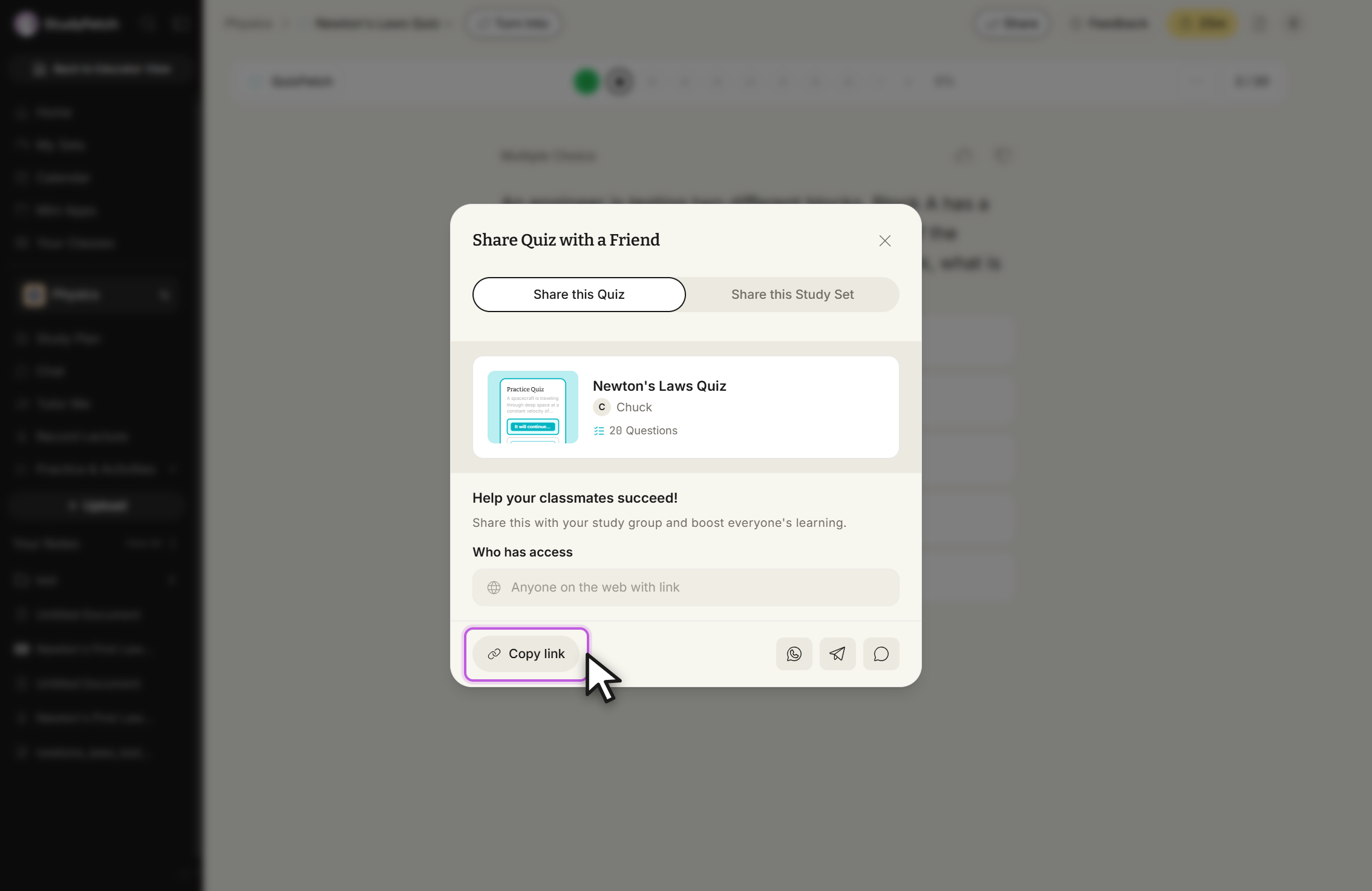
Found your quiz helpful? Select Share to open the share dialog, where you can share the quiz itself or the underlying study set, copy the link directly, or share through WhatsApp, Telegram, or text. Recipients can view the quiz without needing to sign up.
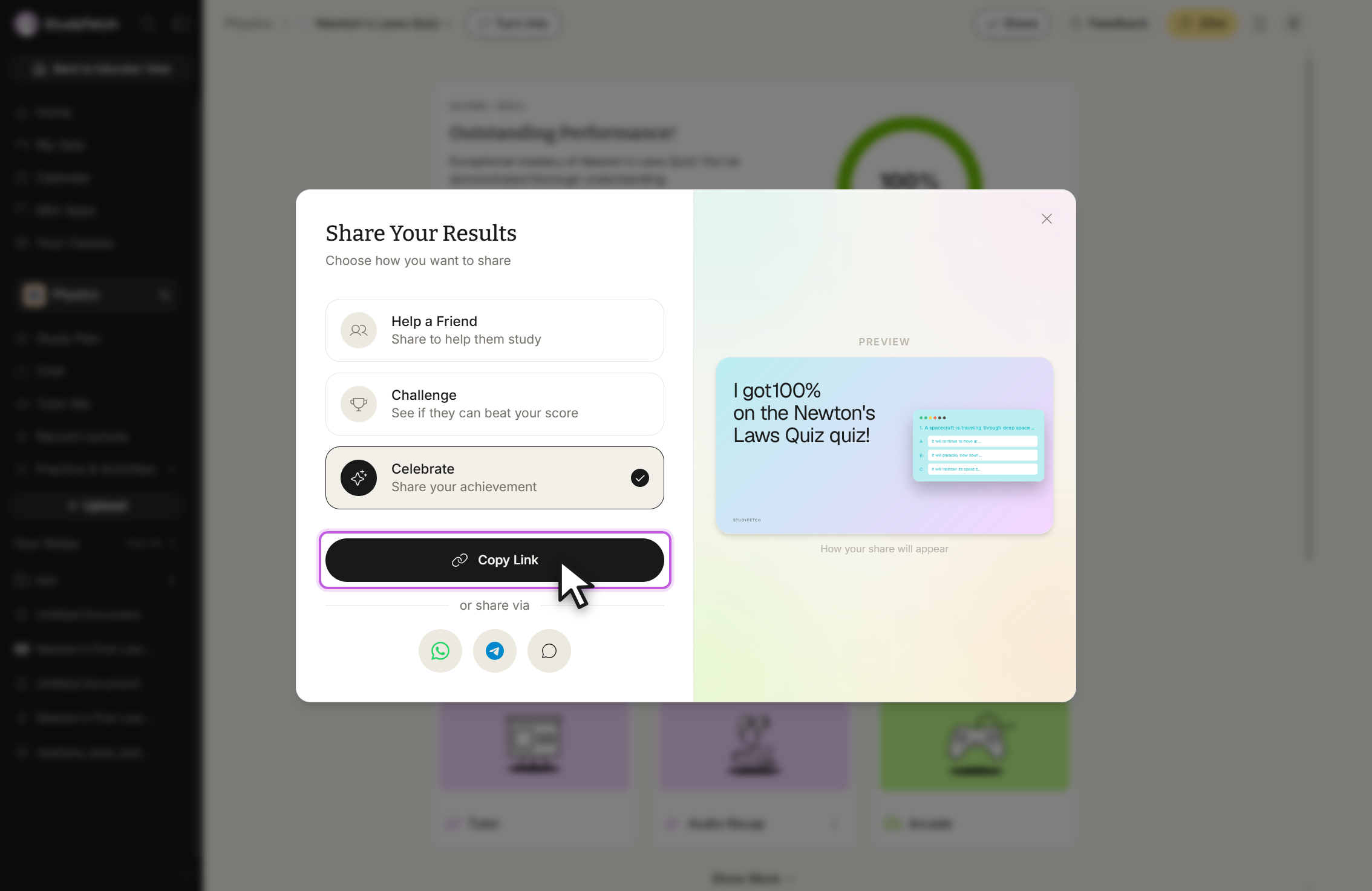
From the Quiz Results page you can also share your quiz along with your score to challenge friends: choose Help a Friend to share without your results, Challenge to share your score and see if a friend can beat it, or Celebrate to highlight your achievement — then copy the link or share directly through the same social options.
Share Your Results
From the Quiz Results page, select Share your results to choose how to share: Help a Friend shares the quiz without your score, Challenge shares your score so a friend can try to beat it, and Celebrate highlights your achievement. Each option shows a live preview of the share card before you copy the link or send it via WhatsApp, Telegram, or text.
Delete Your Quiz
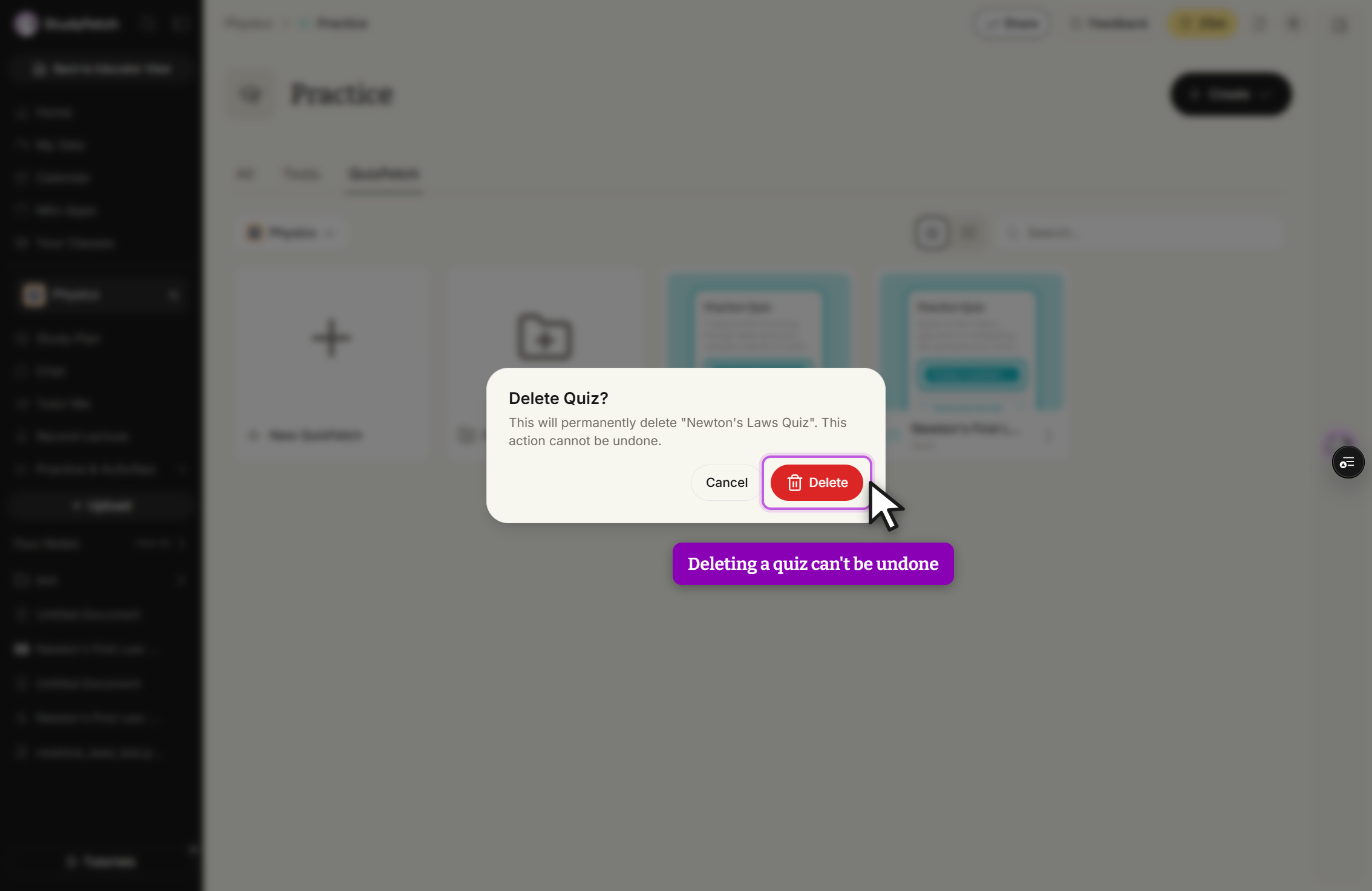
From the QuizFetch feature page (Practice > QuizFetch), select the ⋮ button next to the quiz you want to remove and choose Delete. You'll be asked to confirm, since deleting a quiz cannot be undone.
Turn Your Quiz Into Other Study Materials
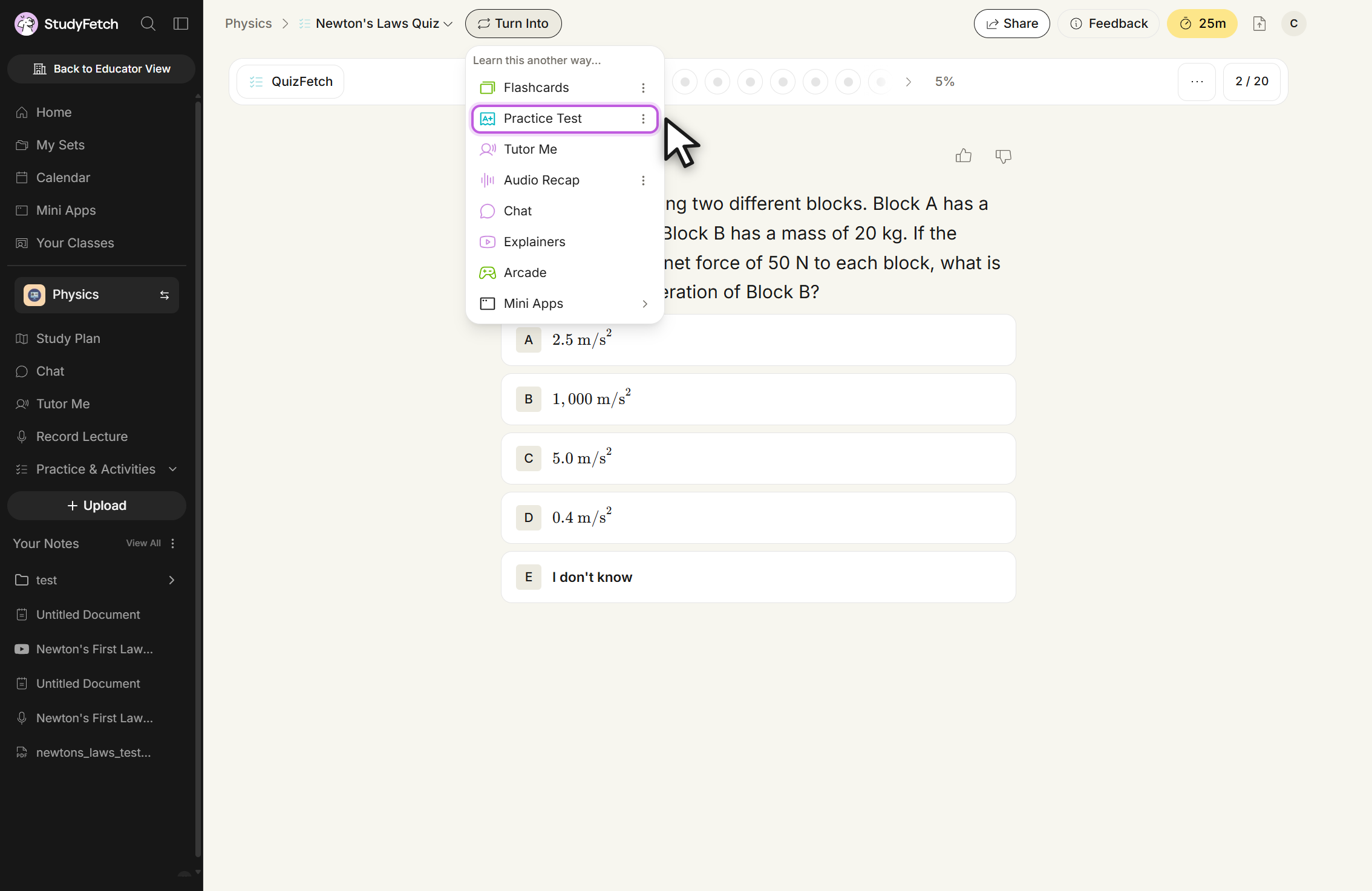
Use the Turn Into button at the top of the quiz (available while taking a quiz or reviewing your stats) to generate new study materials from the same source: Flashcards, a Practice Test, a Tutor Me session, an Audio Recap, Chat, Explainers, Arcade, or Mini Apps.
Benefits of QuizFetch
QuizFetch combines confidence ratings (so you can see which topics you're truly comfortable with), interactive feedback with immediate explanations, progress tracking over time, AI-powered help from Sparky whenever you're stuck, and customized learning-path recommendations based on your performance.
Related Features
After using QuizFetch, you might want to try Practice Tests for a more formal assessment experience, Flashcards to reinforce concepts you struggled with, or Tutor Me for personalized instruction on difficult topics.