Skip to content
StudyFetch Academy

Product Tutorials

Upload study materials

Uploading Study Materials

  1. Add your materials by selecting + Upload from the lefthand sidebar, or from the Upload prompt on your Study Set's dashboard. Just pick the option that works best for you.
  2. On a brand-new Study Set, you may first see a Sync with your Class step offering to derive your topics from a syllabus — choose Skip and Upload Documents if you'd rather go straight to uploading materials.
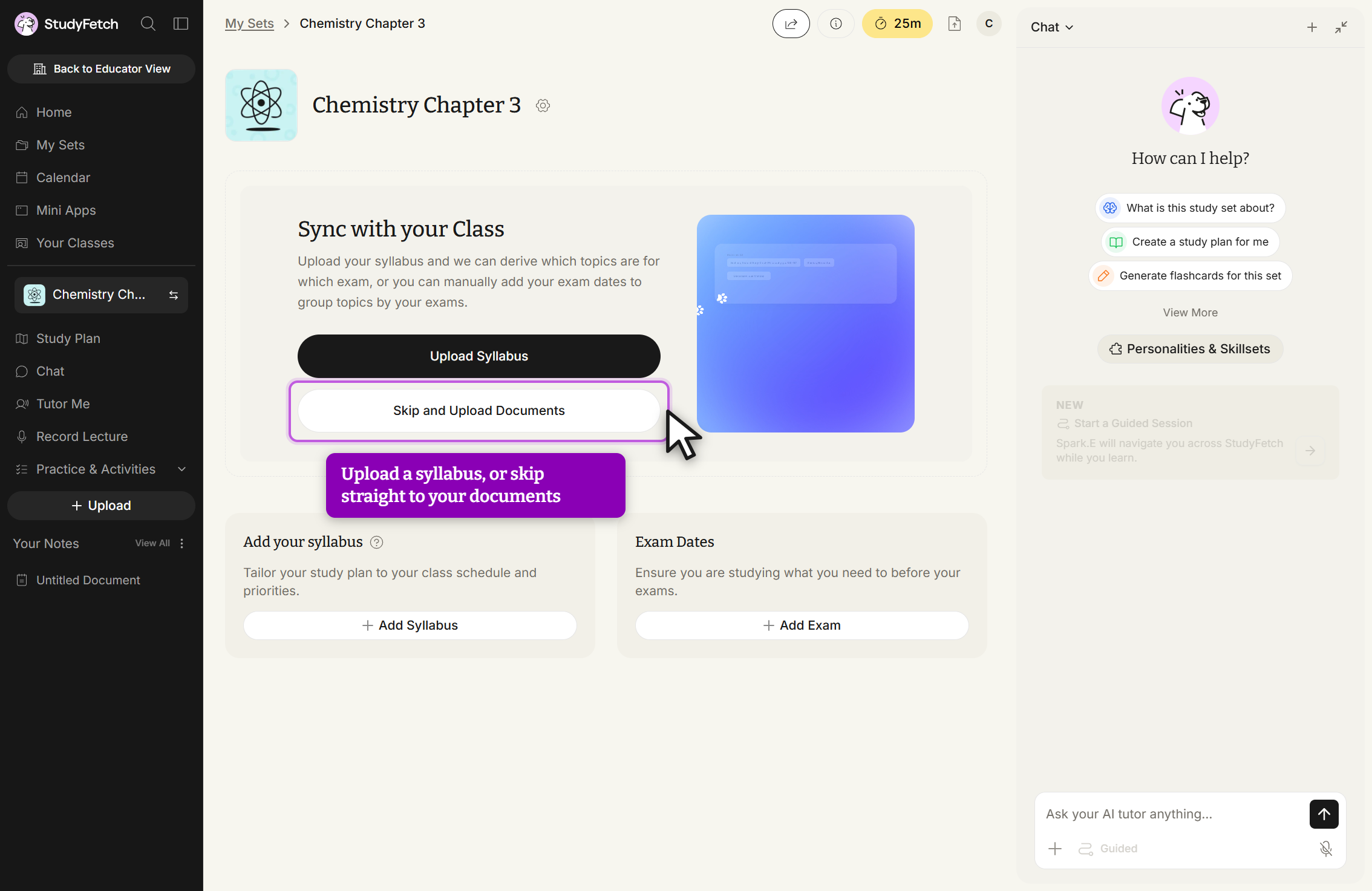
A study set page reached from the My Sets breadcrumb. A Sync with your Class panel explains that uploading a syllabus lets StudyFetch derive which topics belong to which exam, and offers an Upload Syllabus button and a Skip and Upload Documents button. Below it are an Add your syllabus card with an Add Syllabus button and an Exam Dates card with an Add Exam button. The left sidebar lists Study Plan, Chat, Tutor Me, Record Lecture, Practice & Activities and an Upload button, and a Chat panel is open on the right.
Study set page, Sync with your Class. Click Skip and Upload Documents to go straight to uploading materials.
  1. Select the desired file type from the listed material upload options in the Upload any files from Class box.
  2. Click anywhere in the box to open your device's file finder and select a file, or drag and drop your file directly.
  3. Below, you'll find step-by-step guides for each specific material upload method.
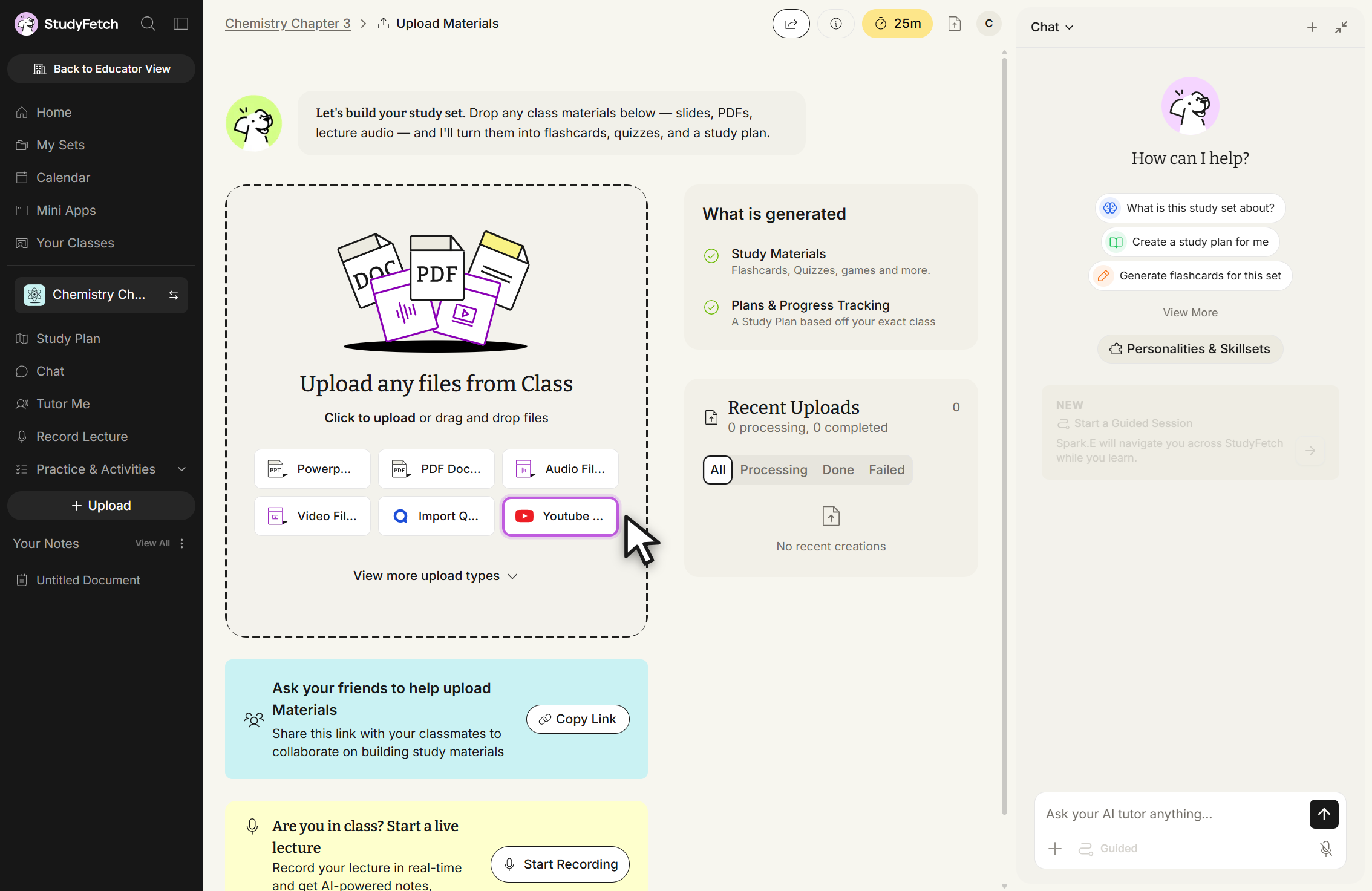
The Upload Materials page, reached from the study set breadcrumb. A dashed drop zone headed Upload any files from Class reads "Click to upload or drag and drop files" and holds six file type tiles with truncated labels: Powerp..., PDF Doc..., Audio Fil..., Video Fil..., Import Q... and Youtube..., above a View more upload types link. To the right are a What is generated panel listing Study Materials and Plans & Progress Tracking, and a Recent Uploads panel in its empty state with All, Processing, Done and Failed filters and the message No recent creations.
Upload Materials, Upload any files from Class. Click a file type tile, or click anywhere in the box to upload or drag and drop files.