
Product Tutorials
Track QuizFetch Progress and Stats
Tracking Your Progress
A key feature of QuizFetch is the ability to review your performance statistics at any time — while taking the quiz, if the system pauses progression due to repeated incorrect answers, or after completing the quiz.
Step 1: Open Your Stats
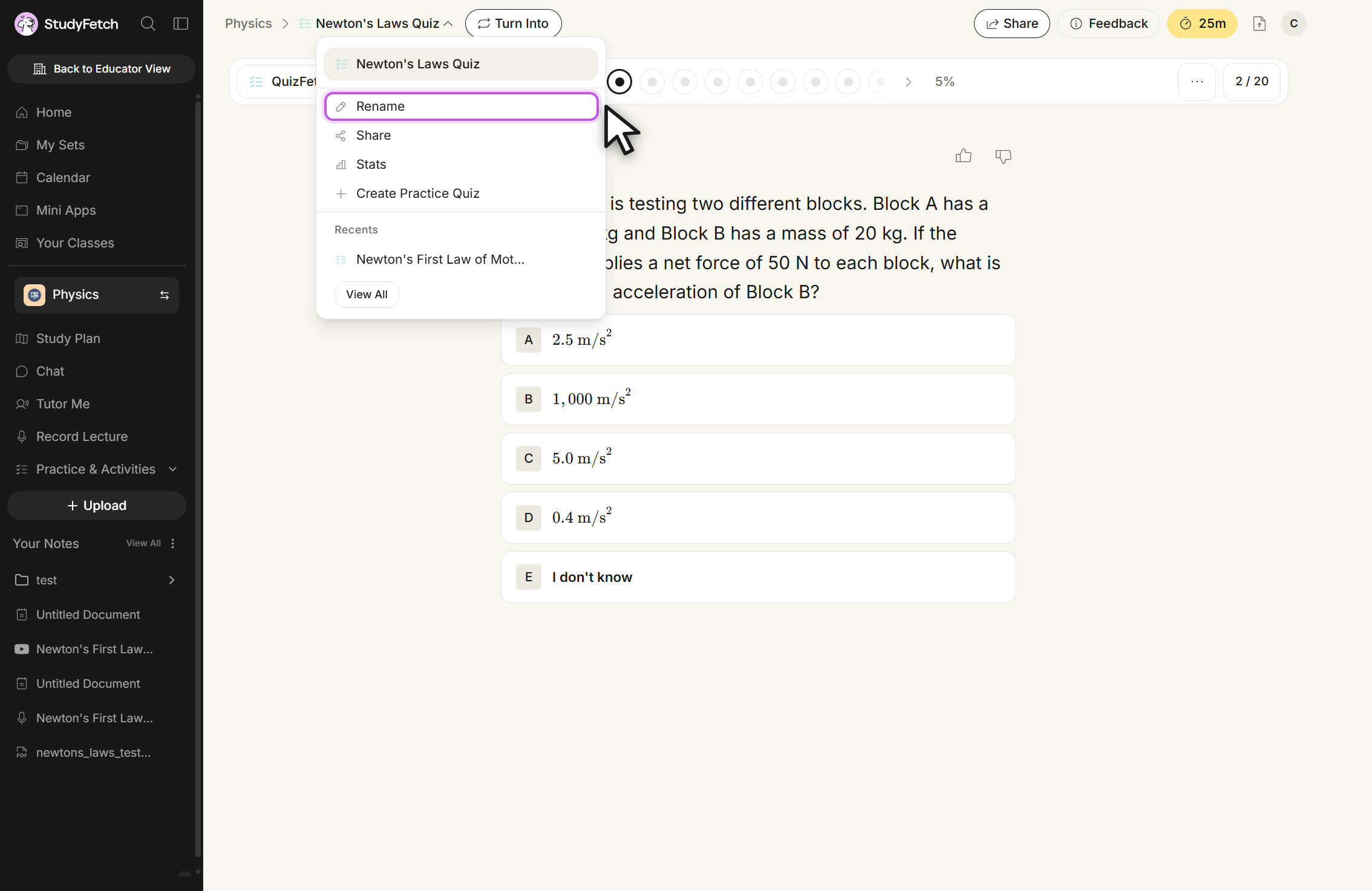
Click the dropdown arrow next to your quiz name and select Stats.
Step 2: Review Your Performance
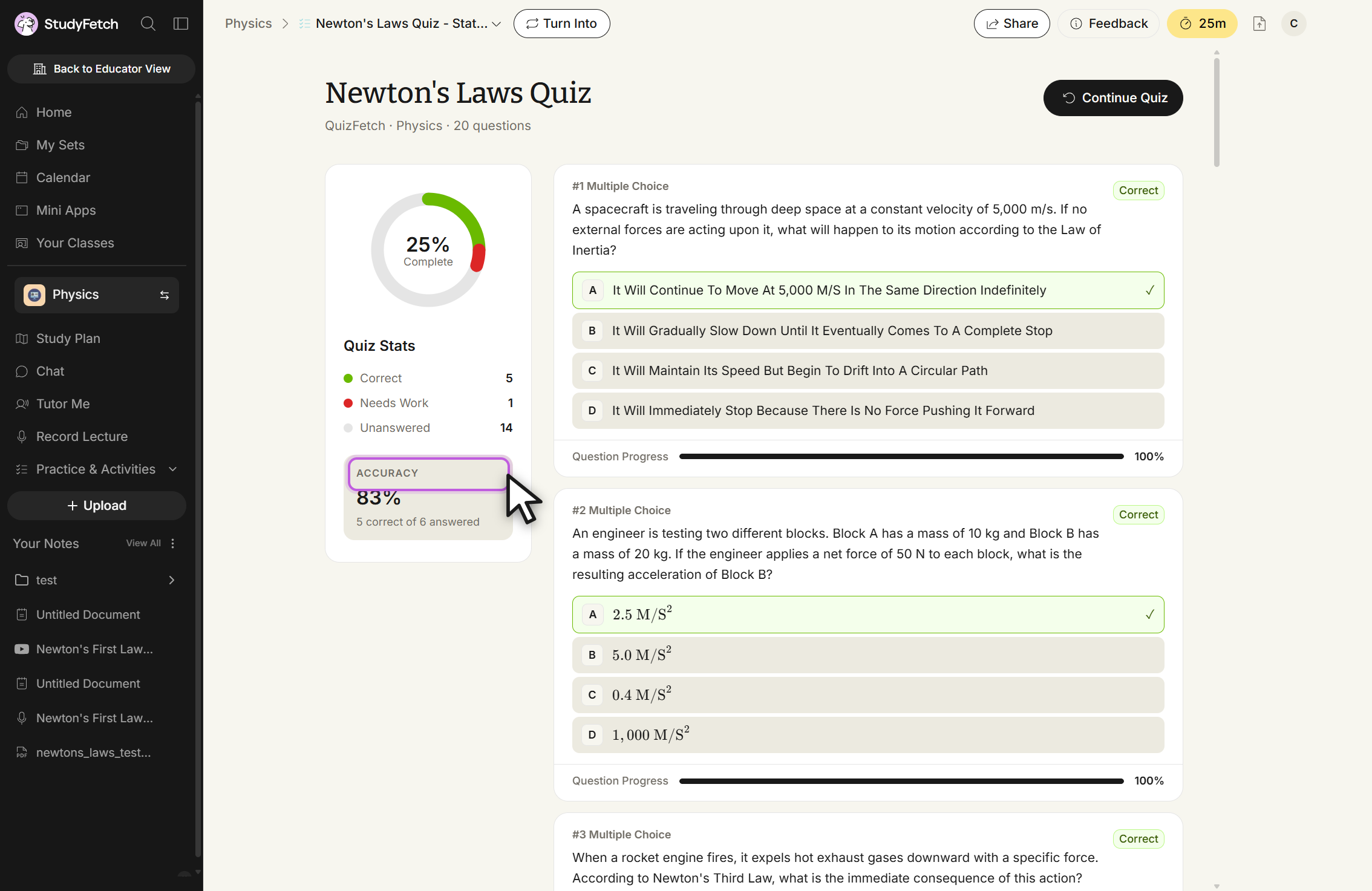
The Stats page opens with a completion ring, a running tally of Correct, Needs Work, and Unanswered questions, and your overall Accuracy percentage.
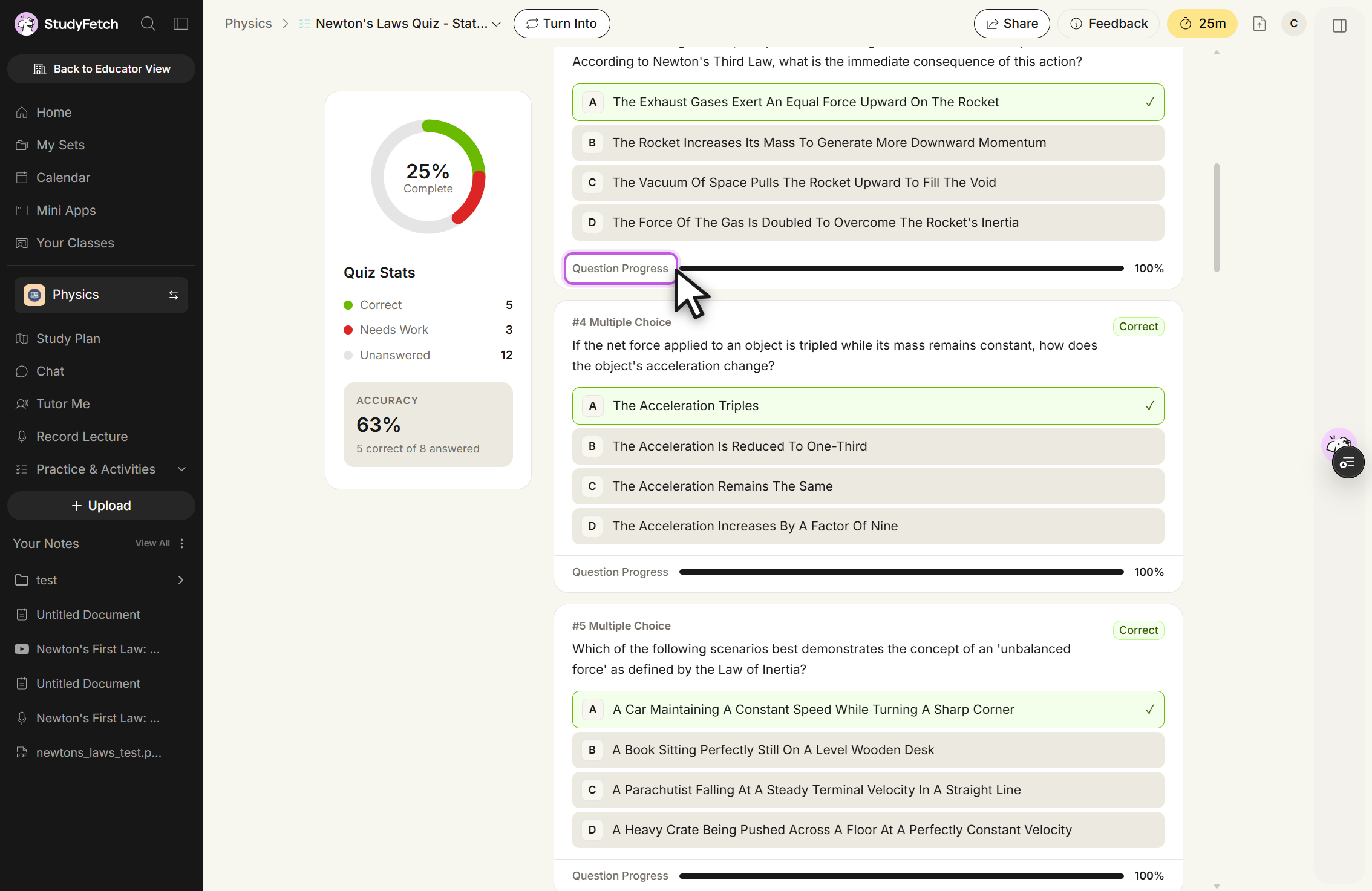
Scroll down to review each question individually — whether it's been answered, whether it was correct, and its Question Progress bar showing confidence-rating history. Hover over a shaded segment to see the confidence rating and date it was recorded.
Step 3: Continue Your Quiz
Select Continue Quiz at the top of the Stats page to pick back up where you left off. Once you've answered every question correctly, this button updates to Continue Learning, and every question shows a green checkmark alongside a 100% completion ring.
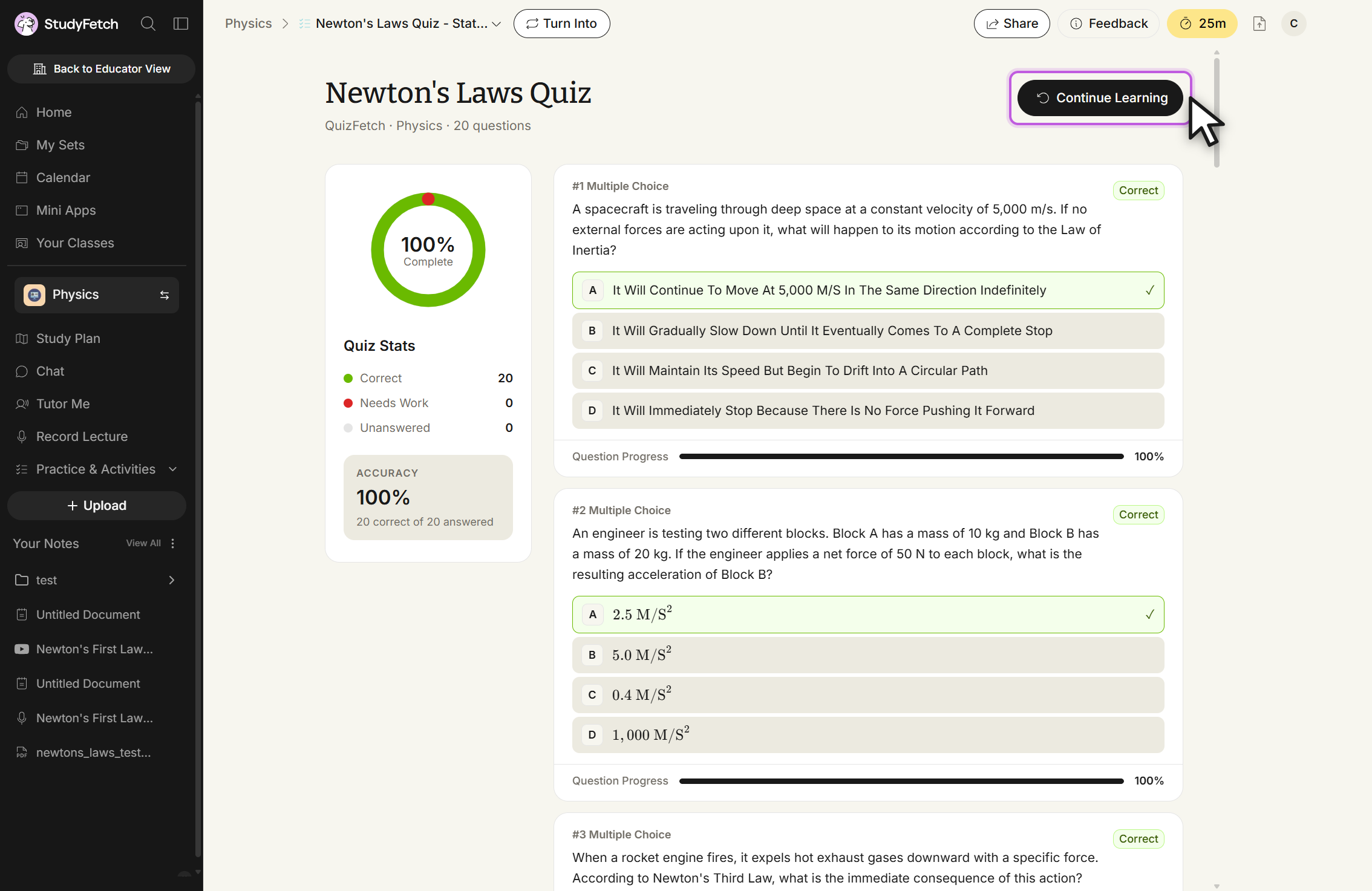
Selecting Continue Learning guides you back to your Study Set dashboard. From there, you can return to Practice > QuizFetch at any time and select a quiz to keep working toward full mastery.