Skip to content
StudyFetch Academy

Product Tutorials

Accessing Spark.E Chat

Accessing Sparky Chat

Sparky is your AI tutor, available throughout StudyFetch. Select Chat from the left navigation sidebar to open a new conversation.
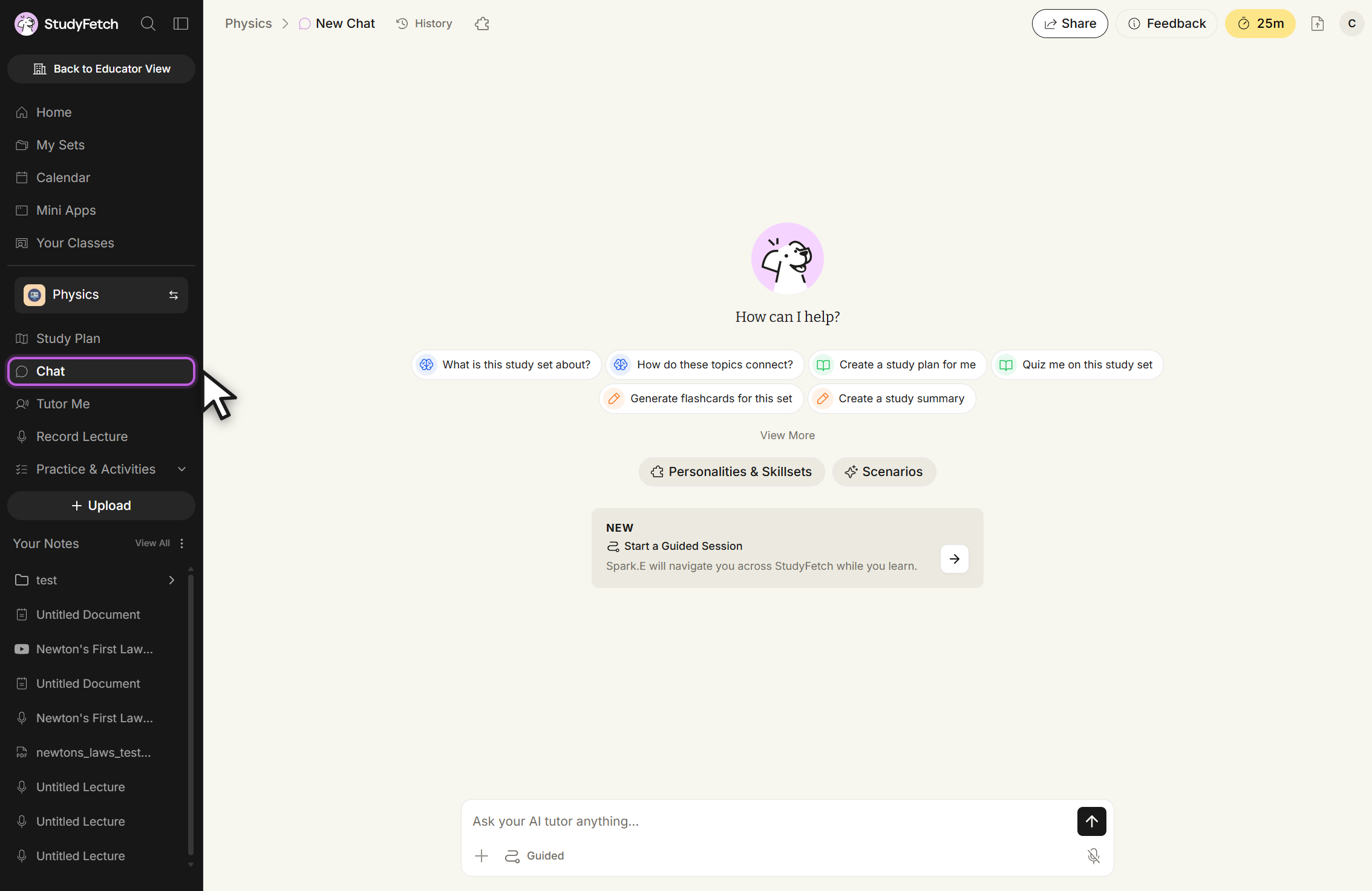
StudyFetch New Chat screen for the Physics class. Chat is highlighted in the left sidebar with the cursor pointing at it. The center reads How can I help? above six suggested prompts: What is this study set about?, How do these topics connect?, Create a study plan for me, Quiz me on this study set, Generate flashcards for this set, and Create a study summary, followed by View More and the Personalities and Skillsets and Scenarios buttons. A card labeled NEW reads Start a Guided Session, Spark.E will navigate you across StudyFetch while you learn. The message box at the bottom shows the placeholder Ask your AI tutor anything... with a Guided toggle.
New Chat, opened from the sidebar. Select Chat in the left sidebar to reach the suggested prompts and the Personalities & Skillsets and Scenarios buttons.

From here, you can ask Sparky anything, select a suggested prompt, or start a Guided Session. Continue to Using Sparky Chat for how to send messages and use chat tools.

Accessing Sparky Chat Within Platform Features

Sparky's chat panel is also available inside most StudyFetch features, so you can ask questions without leaving what you're working on. Select the Sparky icon in the bottom-right corner of the screen to open the chat panel.

Notes & Materials

Open a study material, then select the Sparky icon to ask questions about the document you're viewing.
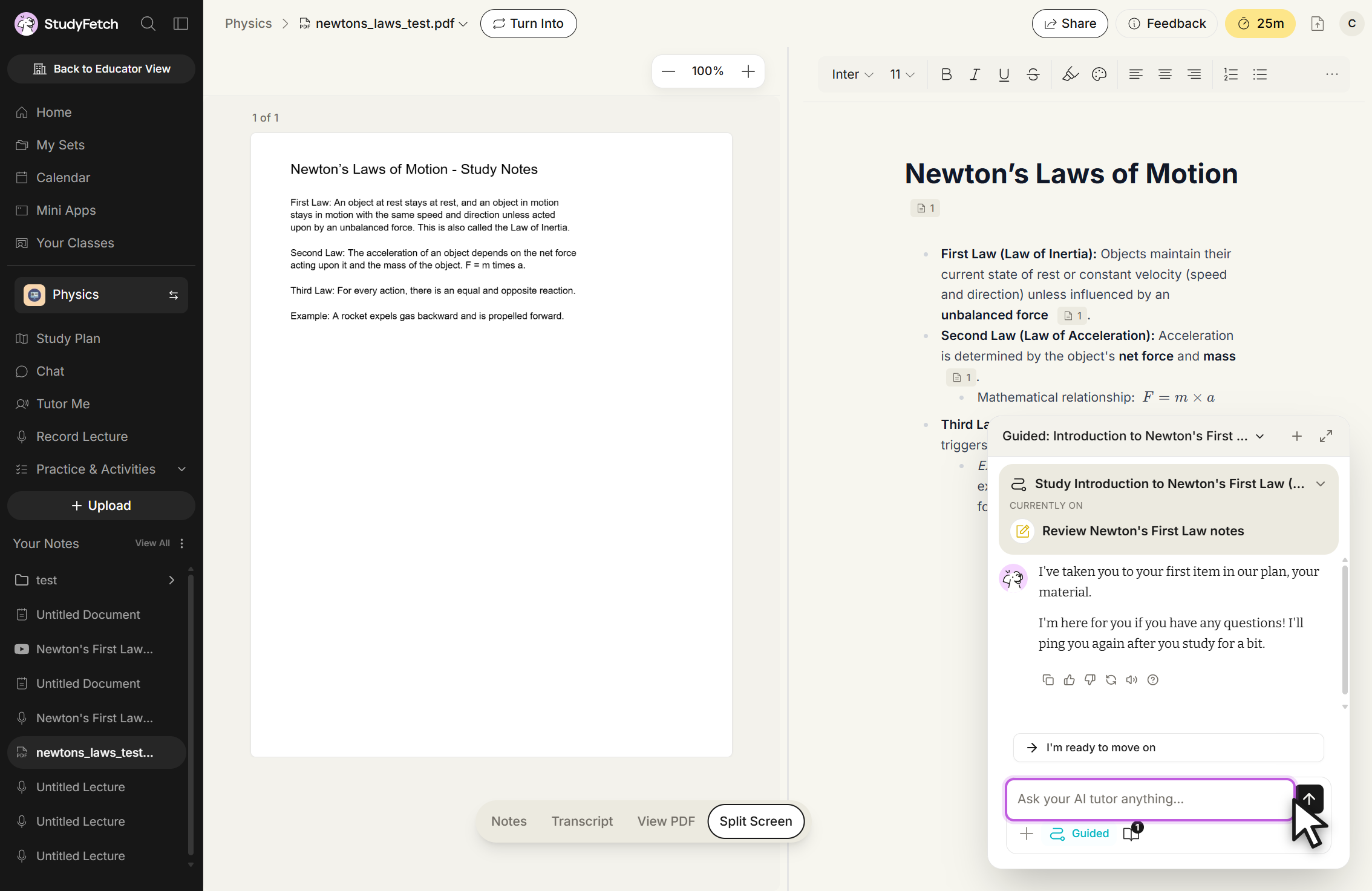
StudyFetch material view for newtons_laws_test.pdf in Split Screen. The left pane shows the PDF page Newton's Laws of Motion - Study Notes at 100 percent zoom, page 1 of 1. The right pane shows the generated notes titled Newton's Laws of Motion. A chat panel titled Guided: Introduction to Newton's First ... overlays the lower right, listing the plan step Review Newton's First Law notes under CURRENTLY ON, an assistant message, an I'm ready to move on button, and a message box with the placeholder Ask your AI tutor anything... The cursor rests on the send arrow. Notes, Transcript, View PDF and Split Screen tabs sit at the bottom, with Split Screen selected.
newtons_laws_test.pdf, Split Screen view. The chat panel opens over the notes pane while the PDF stays on the left.

Tutor Me

During a Tutor Me session, the chat panel stays open so you can ask Sparky for help with the current lesson topic. See the Tutor Me tutorial for more.
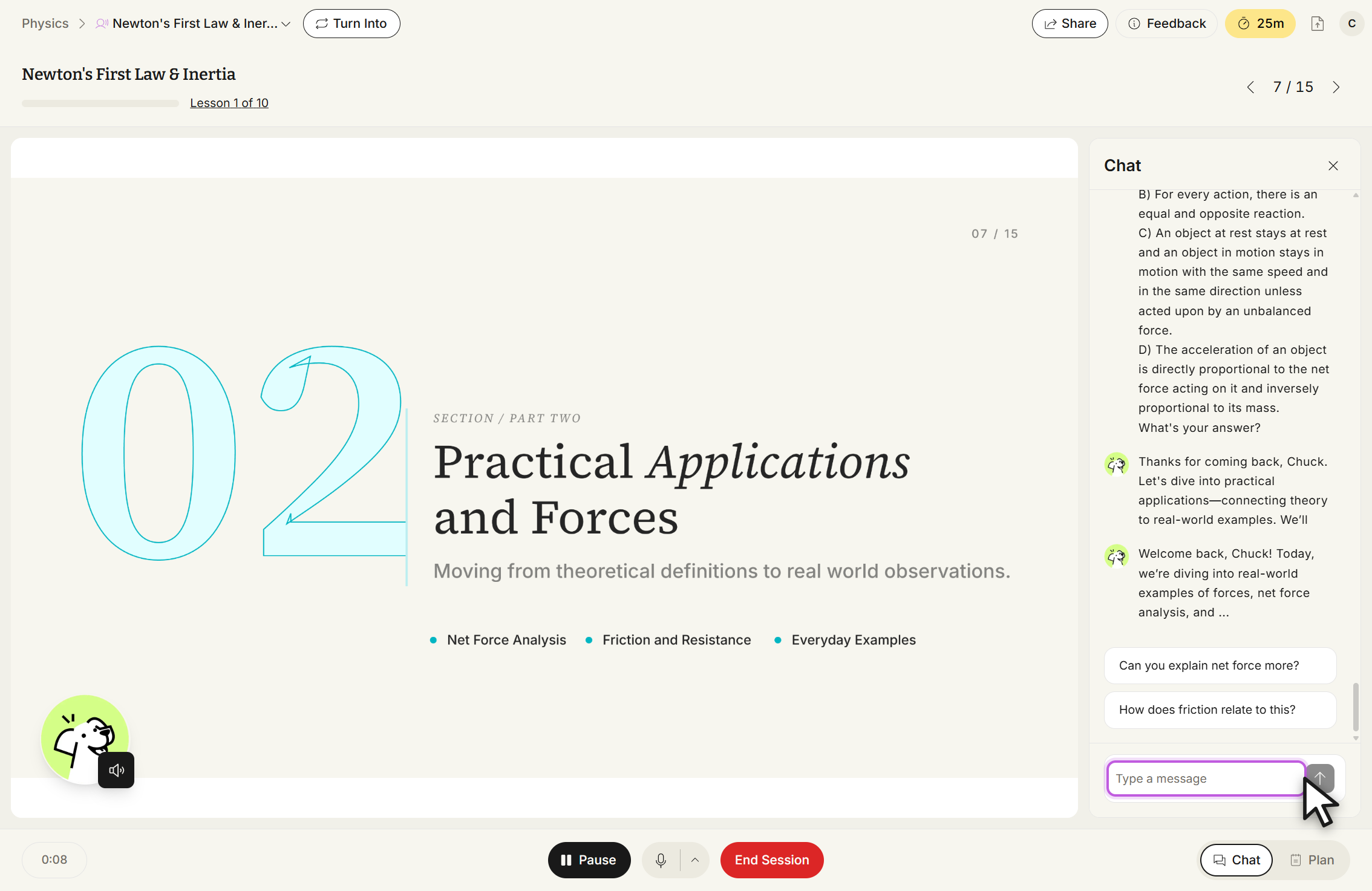
StudyFetch Tutor Me session titled Newton's First Law & Inertia, Lesson 1 of 10, on slide 7 / 15. The slide reads SECTION / PART TWO, Practical Applications and Forces, with the bullets Net Force Analysis, Friction and Resistance, and Everyday Examples. A panel titled Chat is open on the right with assistant messages, the suggested replies Can you explain net force more? and How does friction relate to this?, and a message box with the placeholder Type a message. The cursor rests on the send arrow. Pause, microphone and End Session controls sit along the bottom, with Chat and Plan toggles at the bottom right.
Newton's First Law & Inertia, slide 07 / 15. The Chat panel stays open on the right beside the lesson slide.

QuizFetch

From your QuizFetch practice list, open the chat panel to ask Sparky about a quiz topic before or after practicing. See the QuizFetch tutorial for more.
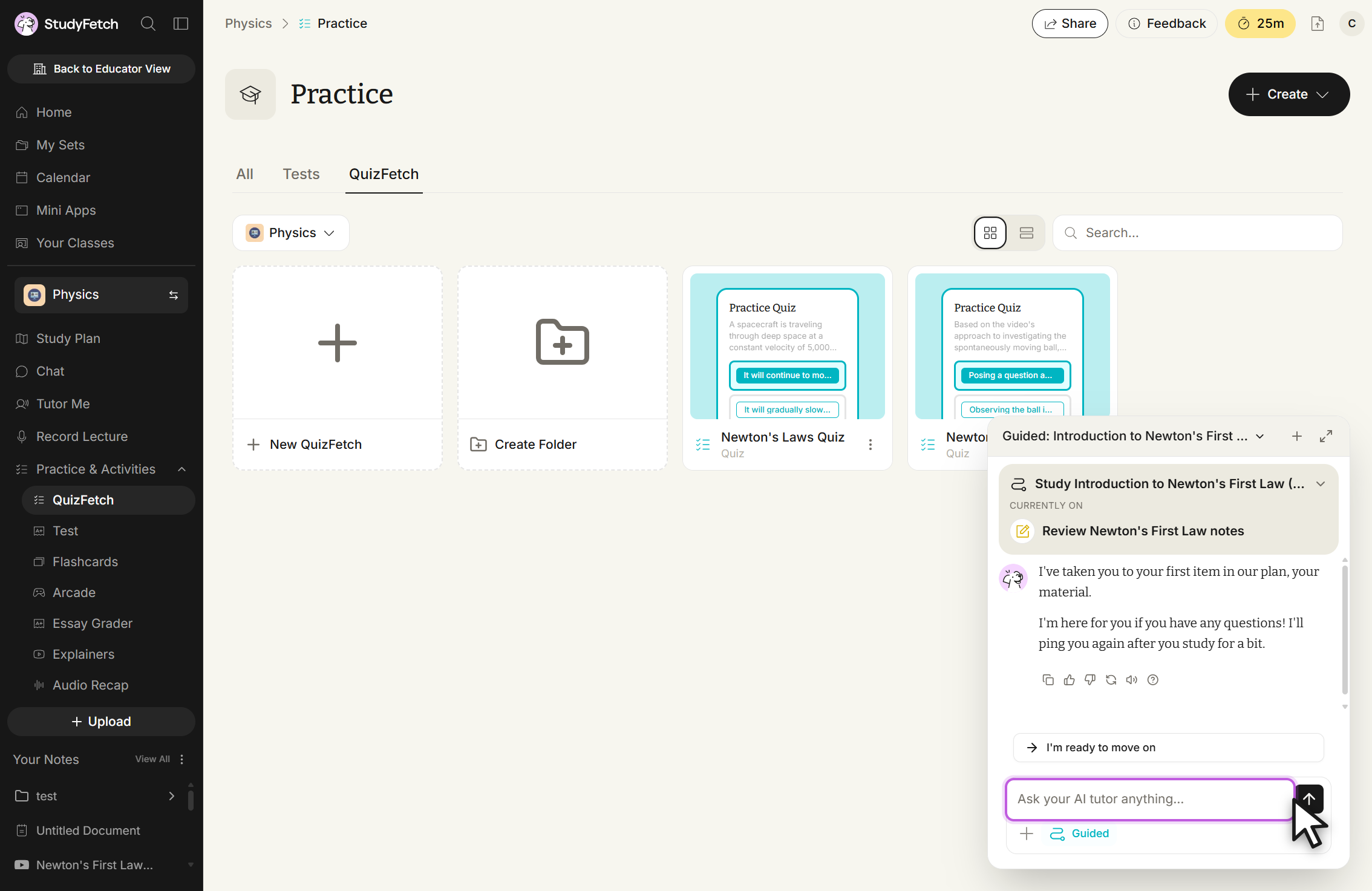
StudyFetch Practice page for the Physics class with the QuizFetch tab selected and QuizFetch highlighted under Practice & Activities in the left sidebar. The grid shows New QuizFetch, Create Folder, and quiz cards including Newton's Laws Quiz. A chat panel titled Guided: Introduction to Newton's First ... overlays the lower right, listing the plan step Review Newton's First Law notes under CURRENTLY ON, an assistant message, an I'm ready to move on button, and a message box with the placeholder Ask your AI tutor anything... The cursor rests on the send arrow.
Practice, QuizFetch tab. The chat panel opens over the quiz cards.

Test

From your Test list, open the chat panel to get help understanding a topic before or after a practice test. See the Test tutorial for more.
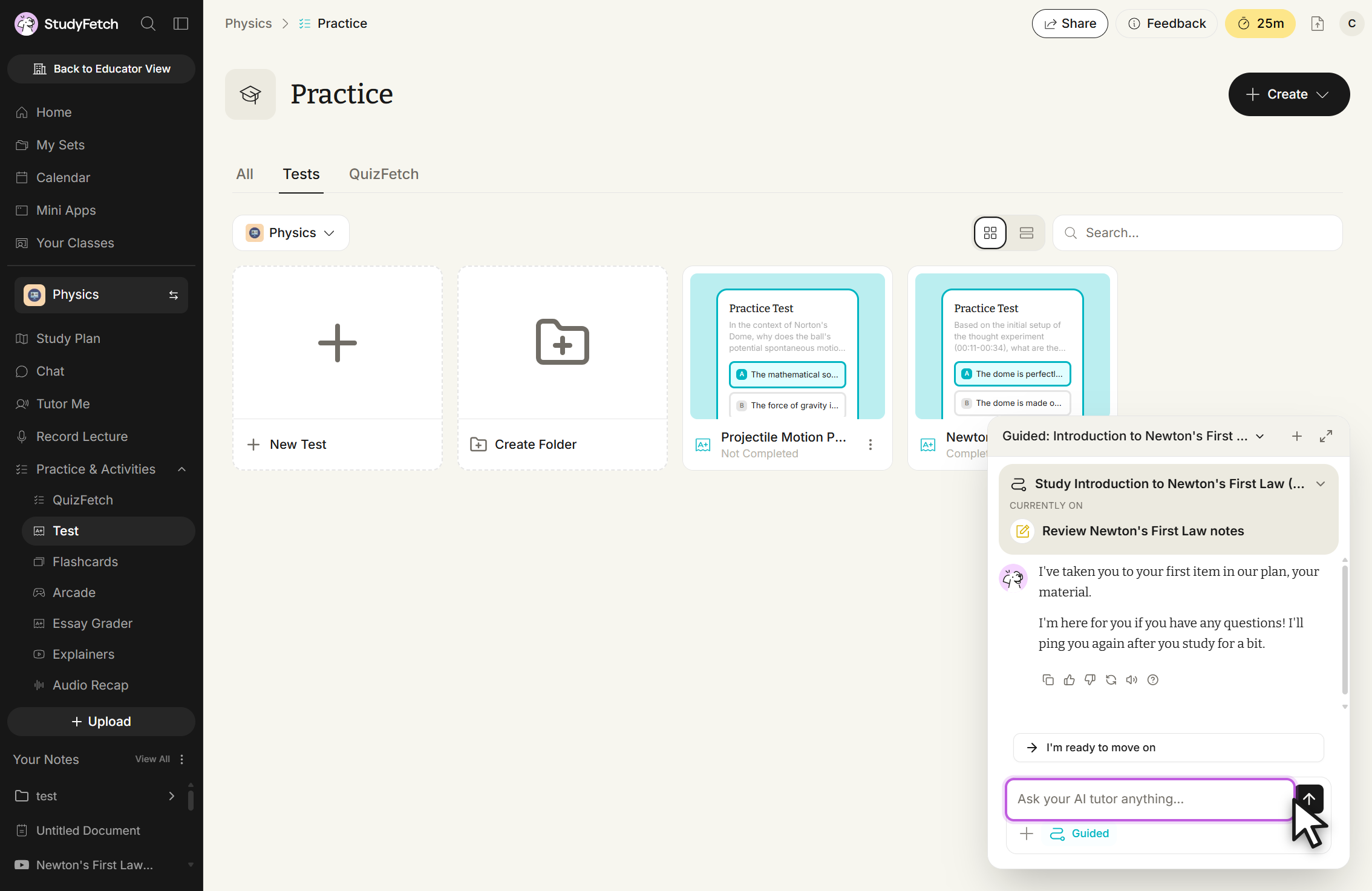
StudyFetch Practice page for the Physics class with the Tests tab selected and Test highlighted under Practice & Activities in the left sidebar. The grid shows New Test, Create Folder, and practice test cards including Projectile Motion P... marked Not Completed. A chat panel titled Guided: Introduction to Newton's First ... overlays the lower right, listing the plan step Review Newton's First Law notes under CURRENTLY ON, an assistant message, an I'm ready to move on button, and a message box with the placeholder Ask your AI tutor anything... The cursor rests on the send arrow.
Practice, Tests tab. The chat panel opens over the practice test cards.

Flashcards

From your Flashcards list, open the chat panel to ask Sparky about a set before or after studying. See the Flashcards tutorial for more.
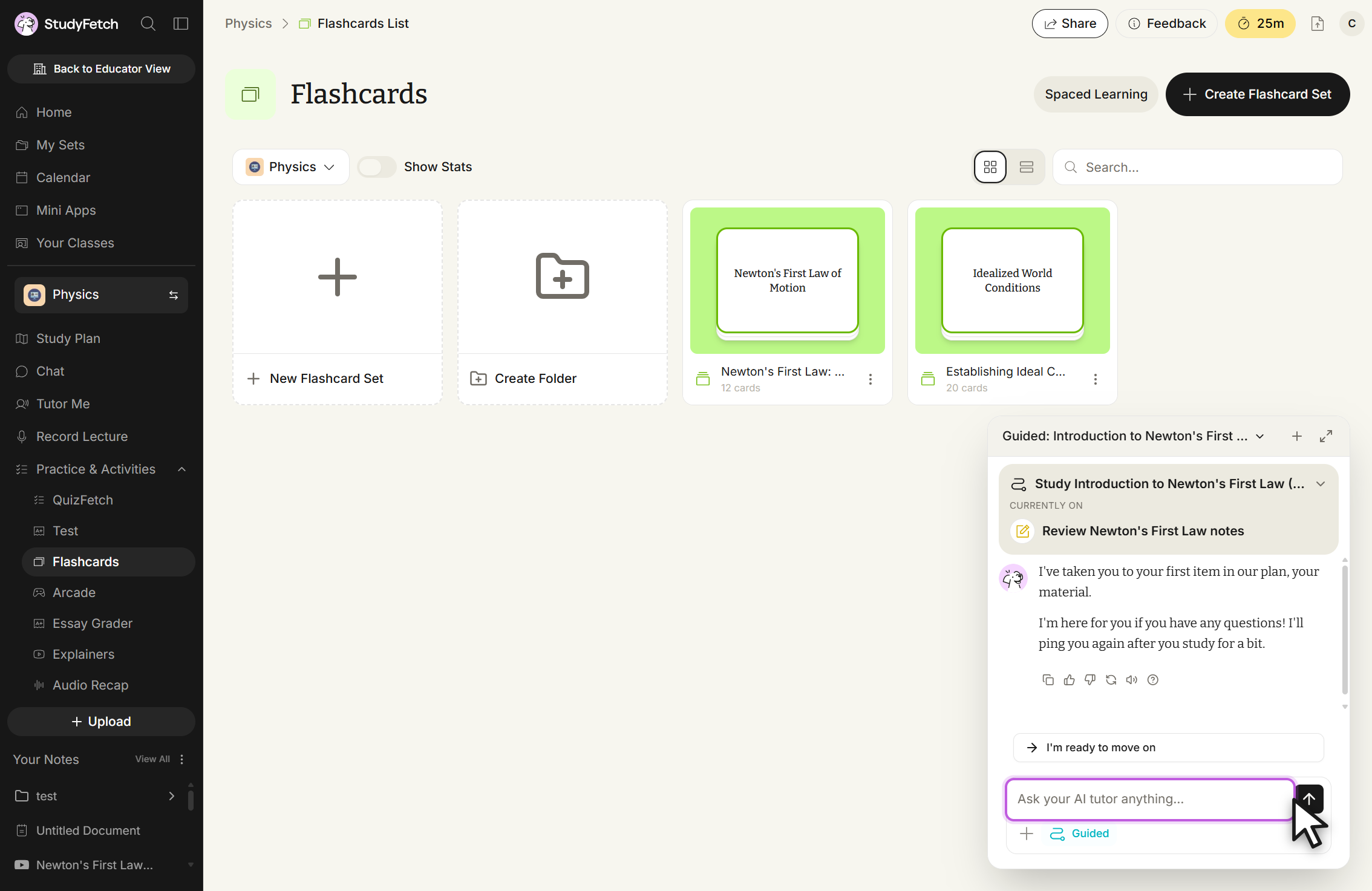
StudyFetch Flashcards page for the Physics class, reached from the Flashcards List breadcrumb, with Flashcards highlighted under Practice & Activities in the left sidebar. Spaced Learning and Create Flashcard Set buttons sit at the top right, and the grid shows New Flashcard Set, Create Folder, Newton's First Law: ... with 12 cards, and Establishing Ideal C... with 20 cards. A chat panel titled Guided: Introduction to Newton's First ... overlays the lower right, listing the plan step Review Newton's First Law notes under CURRENTLY ON, an assistant message, an I'm ready to move on button, and a message box with the placeholder Ask your AI tutor anything... The cursor rests on the send arrow.
Flashcards, list view. The chat panel opens over the flashcard sets.