Use the Audio Recap menu to rename, share, delete, and turn a recap into other study tools.
Rename
Edit the recap name from the dropdown next to the title.
Share
Copy a link or share through supported apps.
Delete
Remove an Audio Recap from the Audio Recaps page.
Change the name or share from inside a recap
While viewing a recap, click the dropdown arrow next to its name in the breadcrumb to open Rename, Share, and Create Audio Recap.
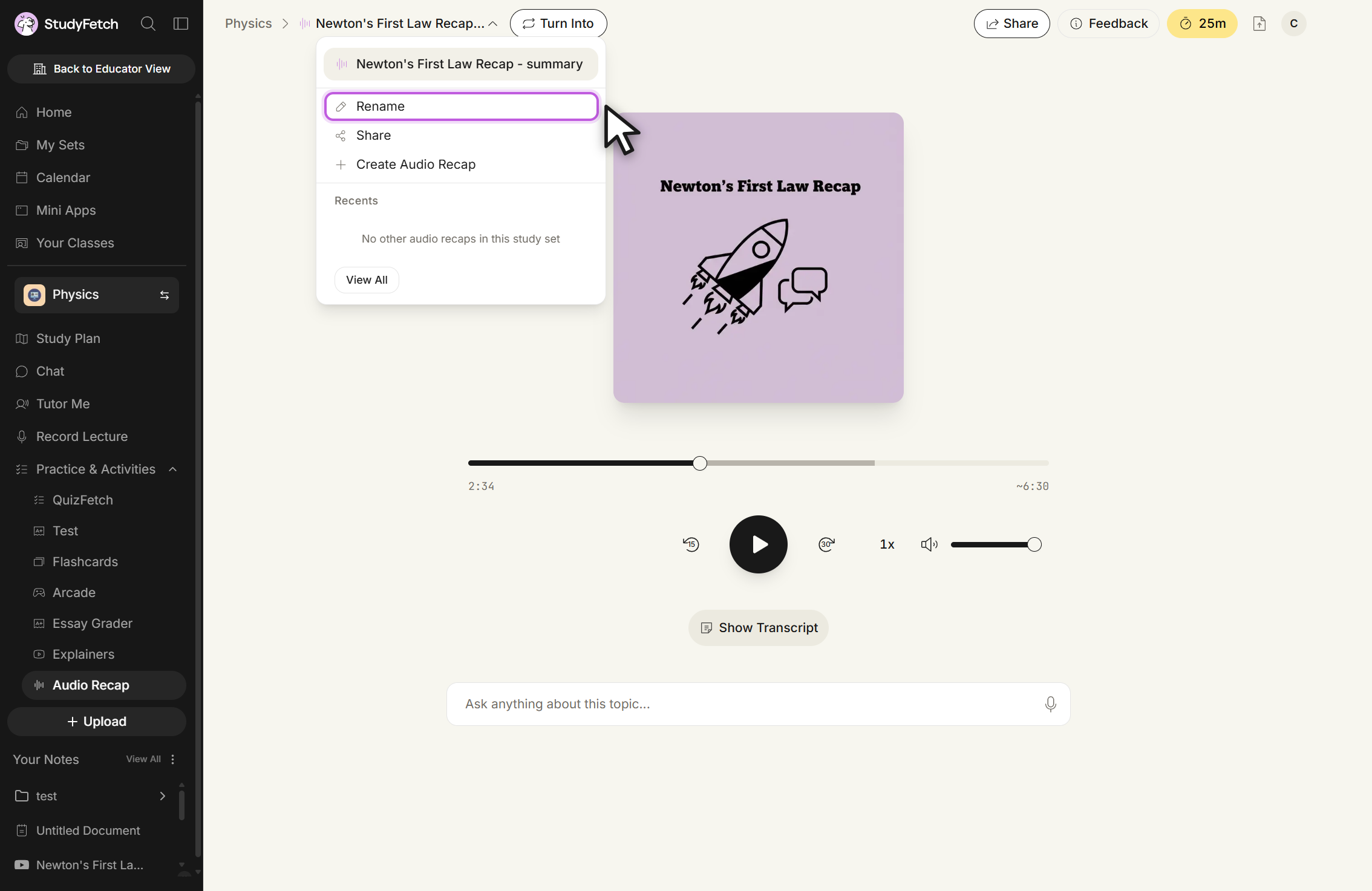
Audio Recap player, breadcrumb menu open. The menu lists Rename, Share, and Create Audio Recap.
Selecting Rename opens a dialog where you can edit the name and click Save.
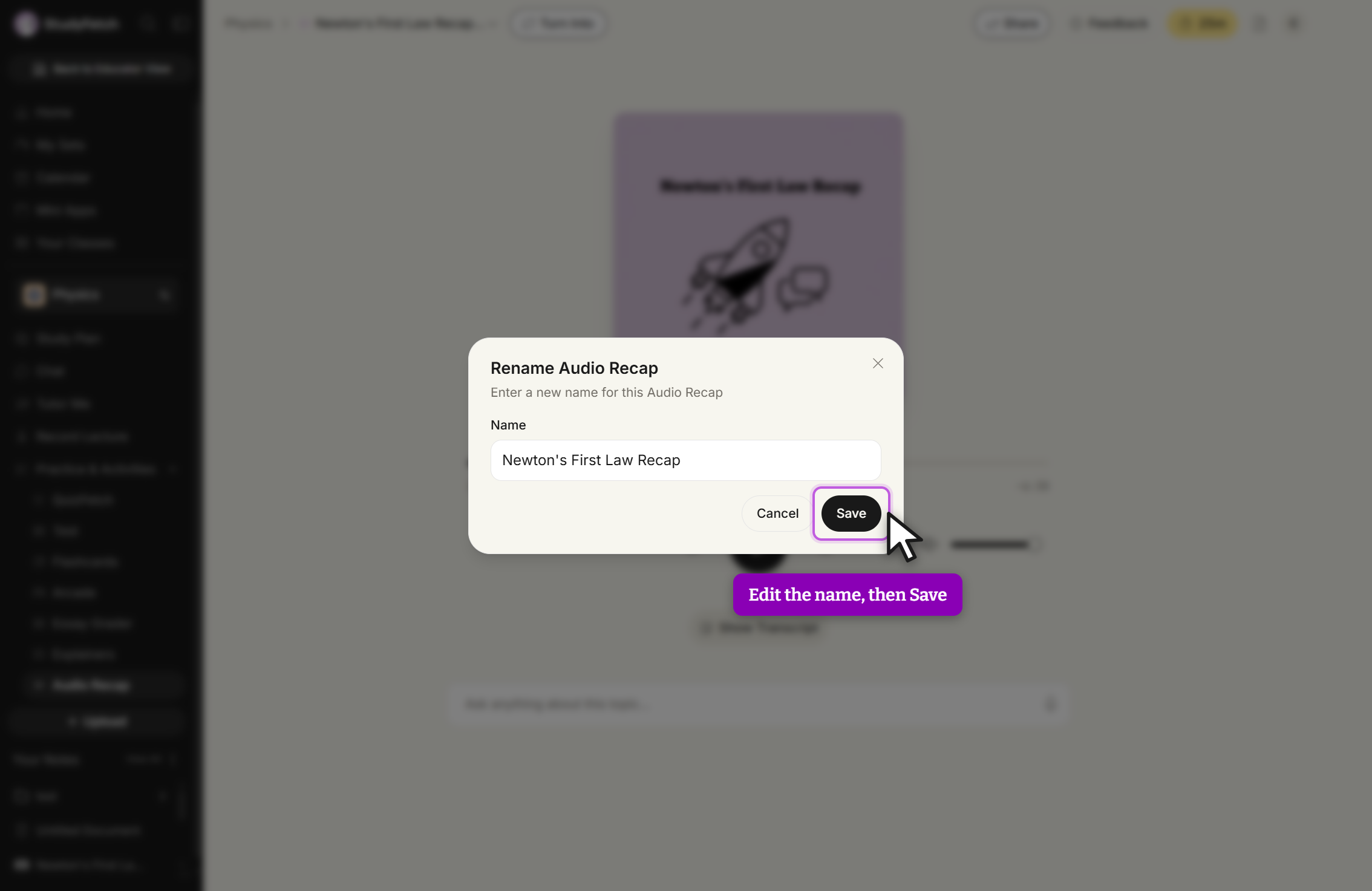
Rename Audio Recap. Edit the Name field, then click Save.
Selecting Share (also available from the top-right Share button) opens a dialog to copy a link, share to WhatsApp/Telegram/Text, and control who has access.
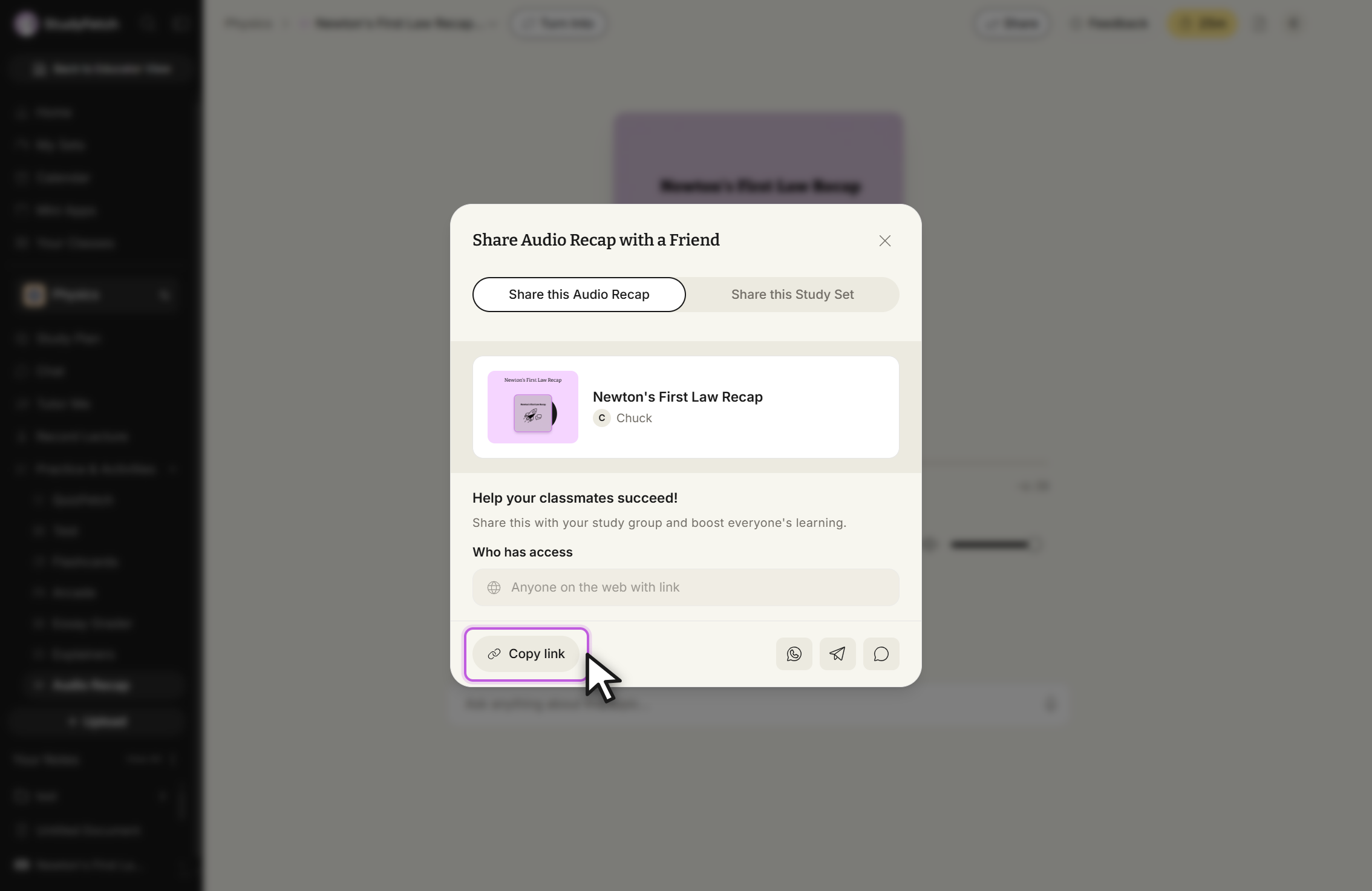
Share Audio Recap with a Friend, Share this Audio Recap tab. Click Copy link, or use one of the messaging icons.
Manage recaps from the Audio Recaps list
From the left-hand sidebar, click Audio & Video, then Audio Recap, to see every recap for the current study set. Click the three-dot menu on a card for Play, Rename, Share, or Delete.
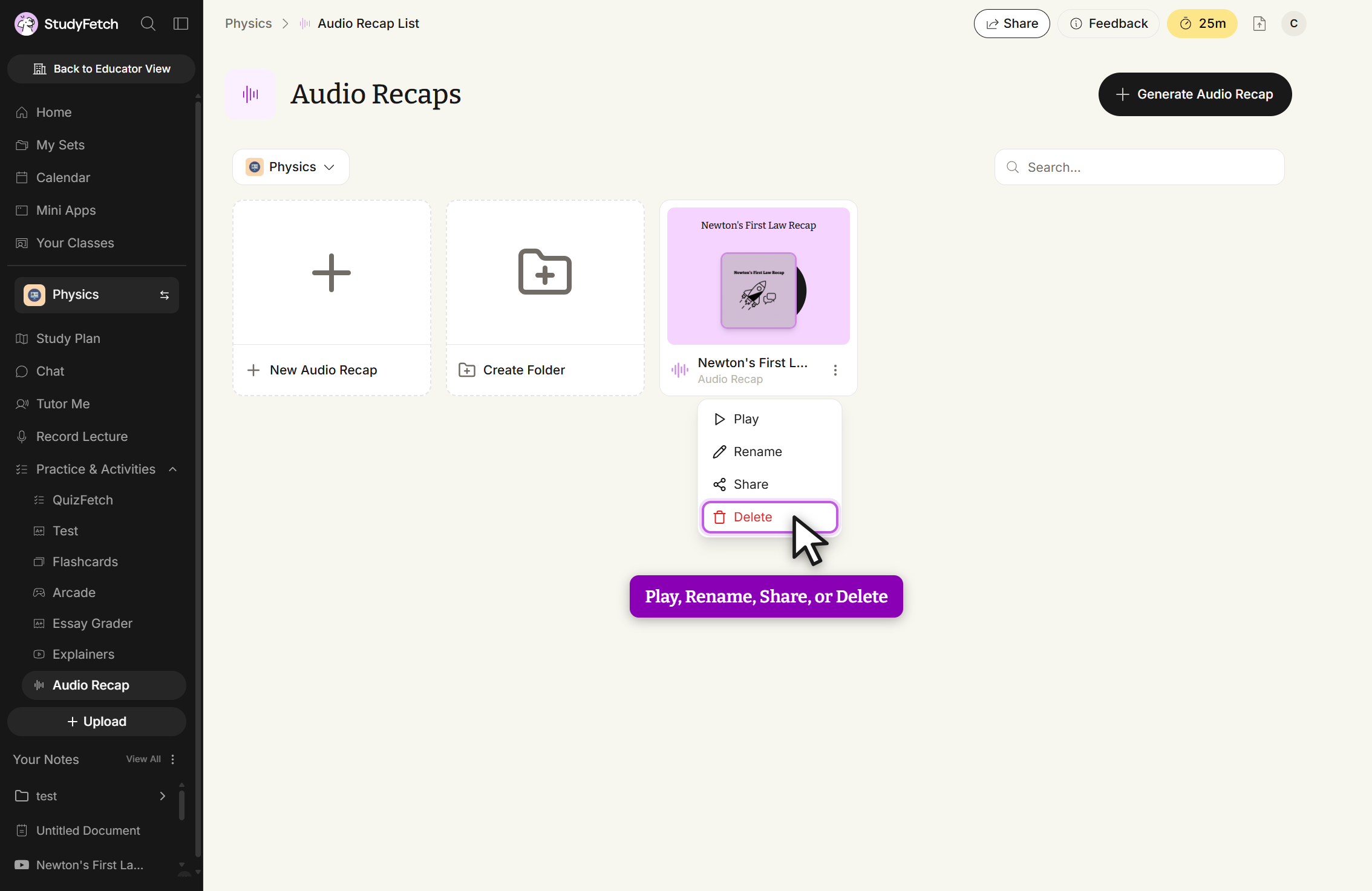
Audio Recaps, card menu open. The three-dot menu on a recap card offers Play, Rename, Share, and Delete.
Choosing Delete asks you to confirm — this action is permanent.
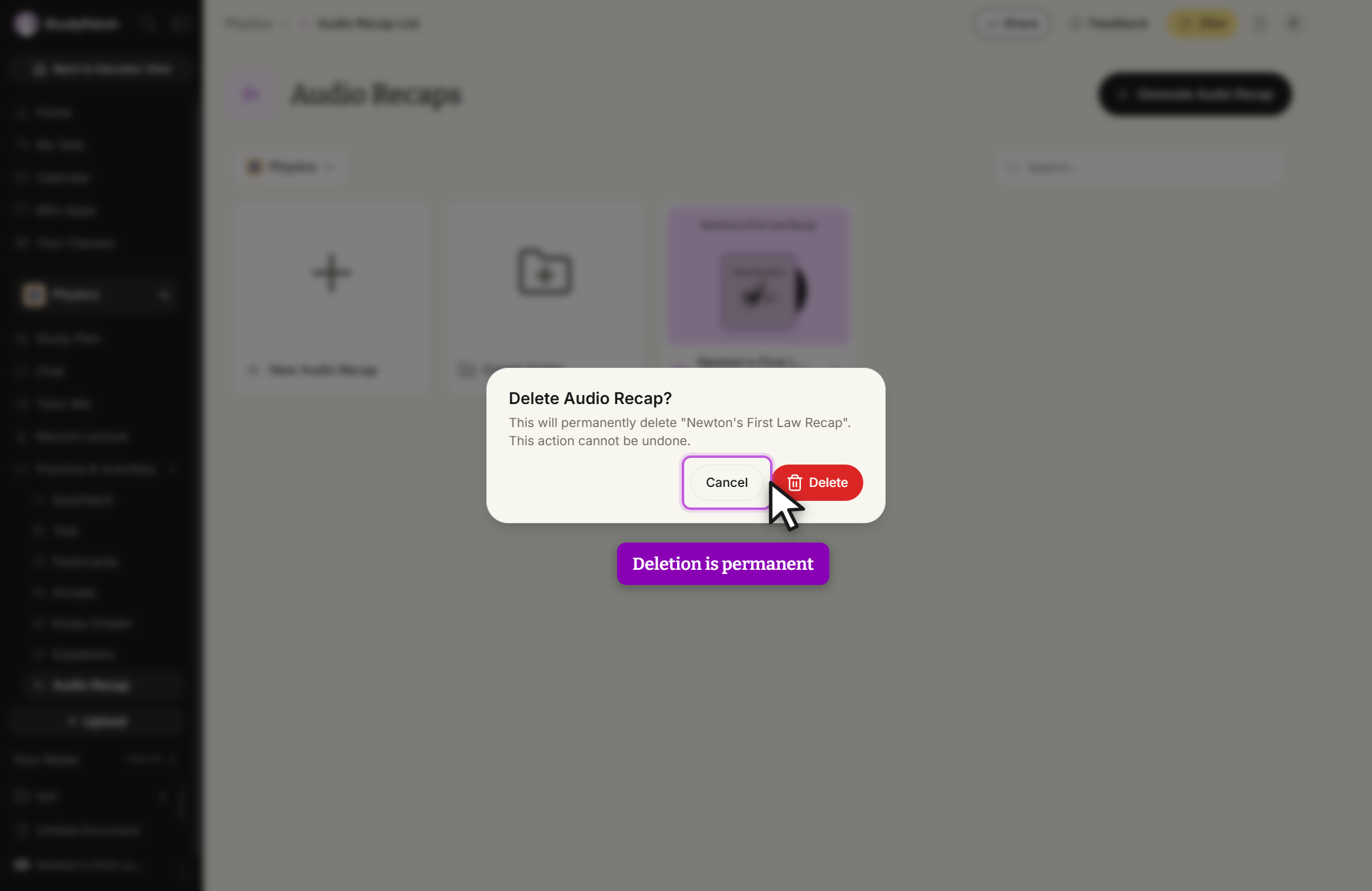
Delete Audio Recap?, confirmation. Click Delete to remove the recap, or Cancel to keep it.
Turn an Audio Recap into other study tools
The Turn Into button next to the recap title (visible in the dropdown screenshot above) converts a recap's content into other StudyFetch formats — flashcards, quizzes, and more — without starting over from your source materials.
Benefits of Audio Recap
Mobile learning: Study while commuting, exercising, or doing other activities.
Auditory learning: Review in a format that works well for students who learn by listening.
Customization: Choose voice, language, format, and length to match your preferences.
Transcript included: Reinforce learning with both audio and text.
Variable playback: Use playback controls to move through the recap at your own pace.
Integration with other tools: Turn an Audio Recap into practice tests, quizzes, and other study materials.
When to use Audio Recap
You are preparing for exams and want to review on the go.
You want to reinforce learning through a different format.
You are an auditory learner who prefers hearing information.
You want to make use of time spent commuting or exercising.
You want to create a podcast-like experience from study materials.
Related StudyFetch features
After creating an Audio Recap, you can also use Notes for text-based study materials, Flashcards to test recall, and QuizFetch to check understanding.