Open Flashcards
Go to Practice, then Flashcards, to see all your sets for the current Study Set.
 StudyFetch Academy
Product Tutorials
Create a new flashcard set from existing materials, a topic, Quizlet, Anki, or a blank set.
Go to Practice, then Flashcards, to see all your sets for the current Study Set.
Create cards from materials, a topic, Quizlet, or an Anki deck.
Manually build cards term-by-term when you want full control.
On the left-hand side of your dashboard, click Practice, then select Flashcards.
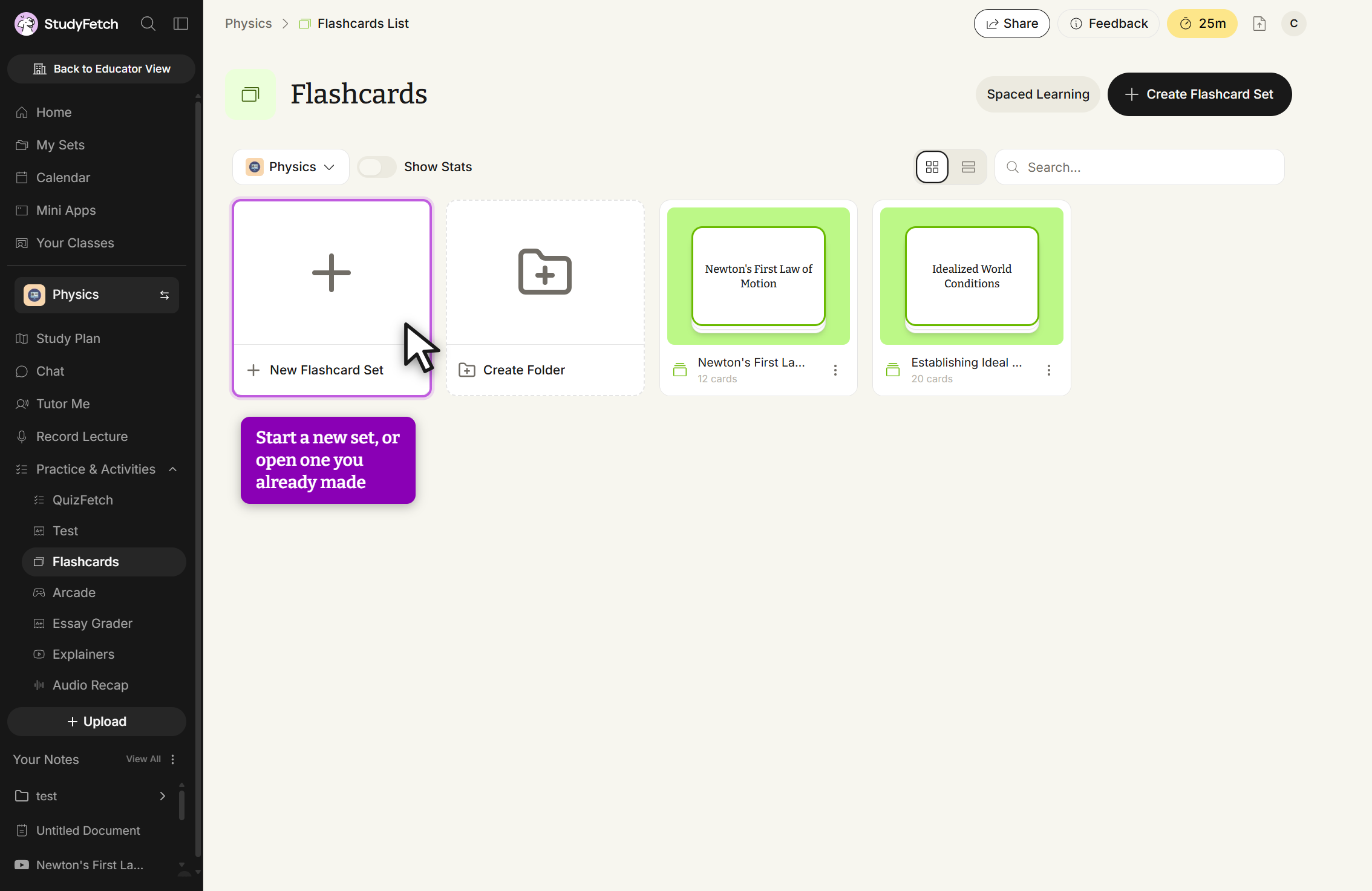
Click any existing set to study it, or click New Flashcard Set to create one.
Click Create Flashcard Set, then choose how you'd like to build your set: Create from Scratch, Create from Materials, Create from Topic, Import Quizlet, or Import from Anki.
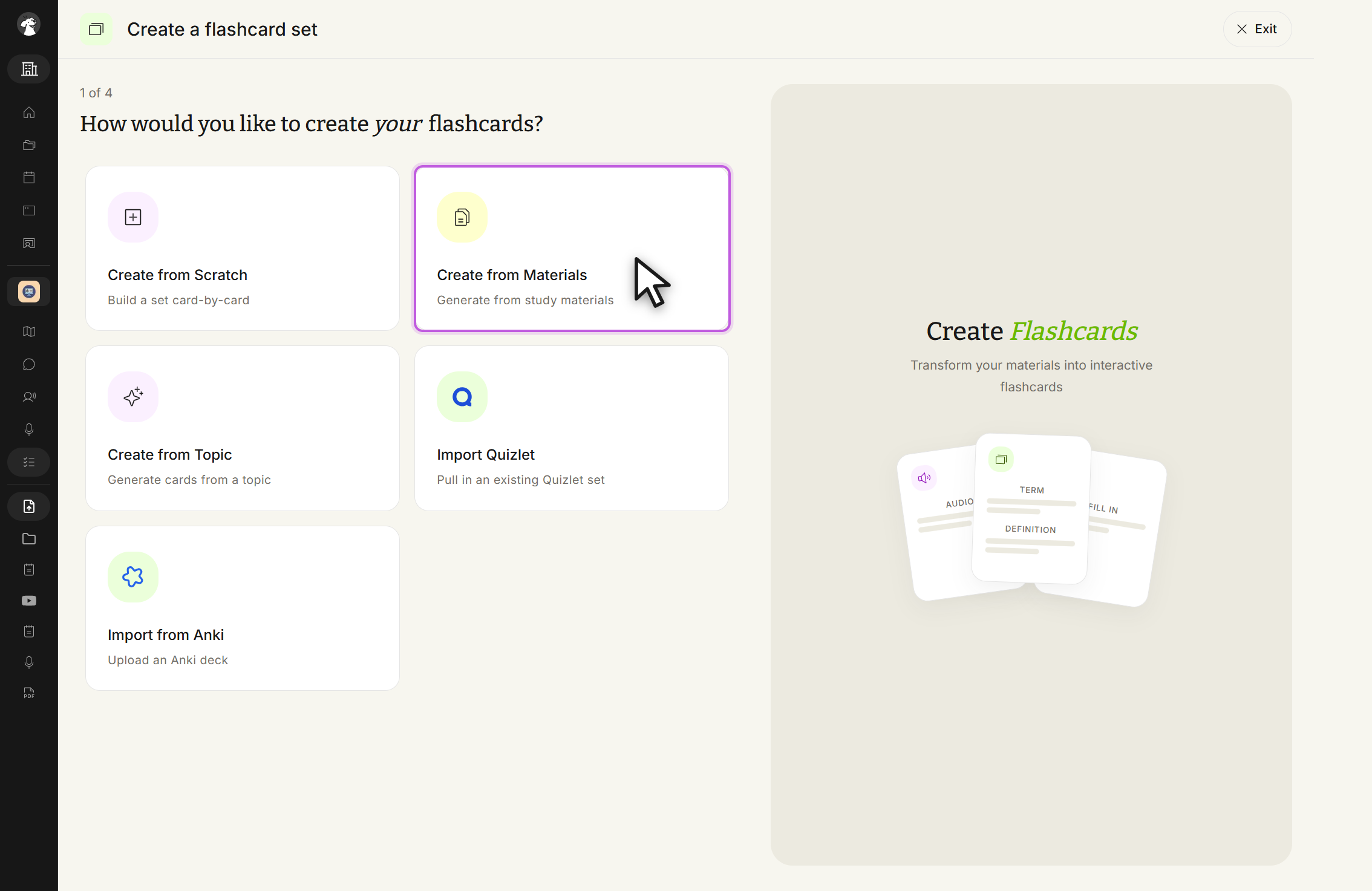
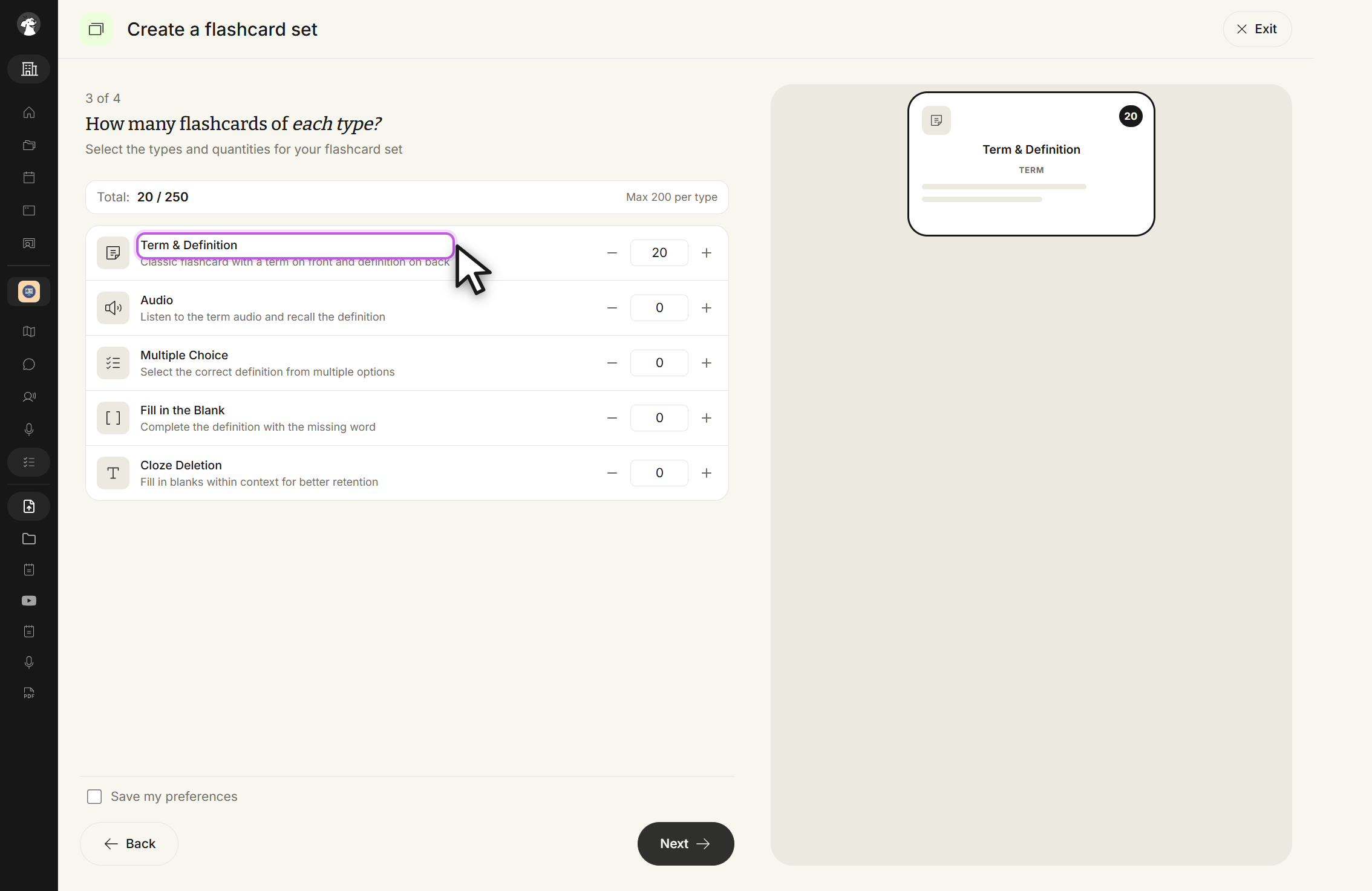
For Create from Materials or Create from Topic, select your materials (or type a topic), then choose the type and quantity of each flashcard type you want generated — Term & Definition, Audio, Multiple Choice, Fill in the Blank, or Cloze Deletion.
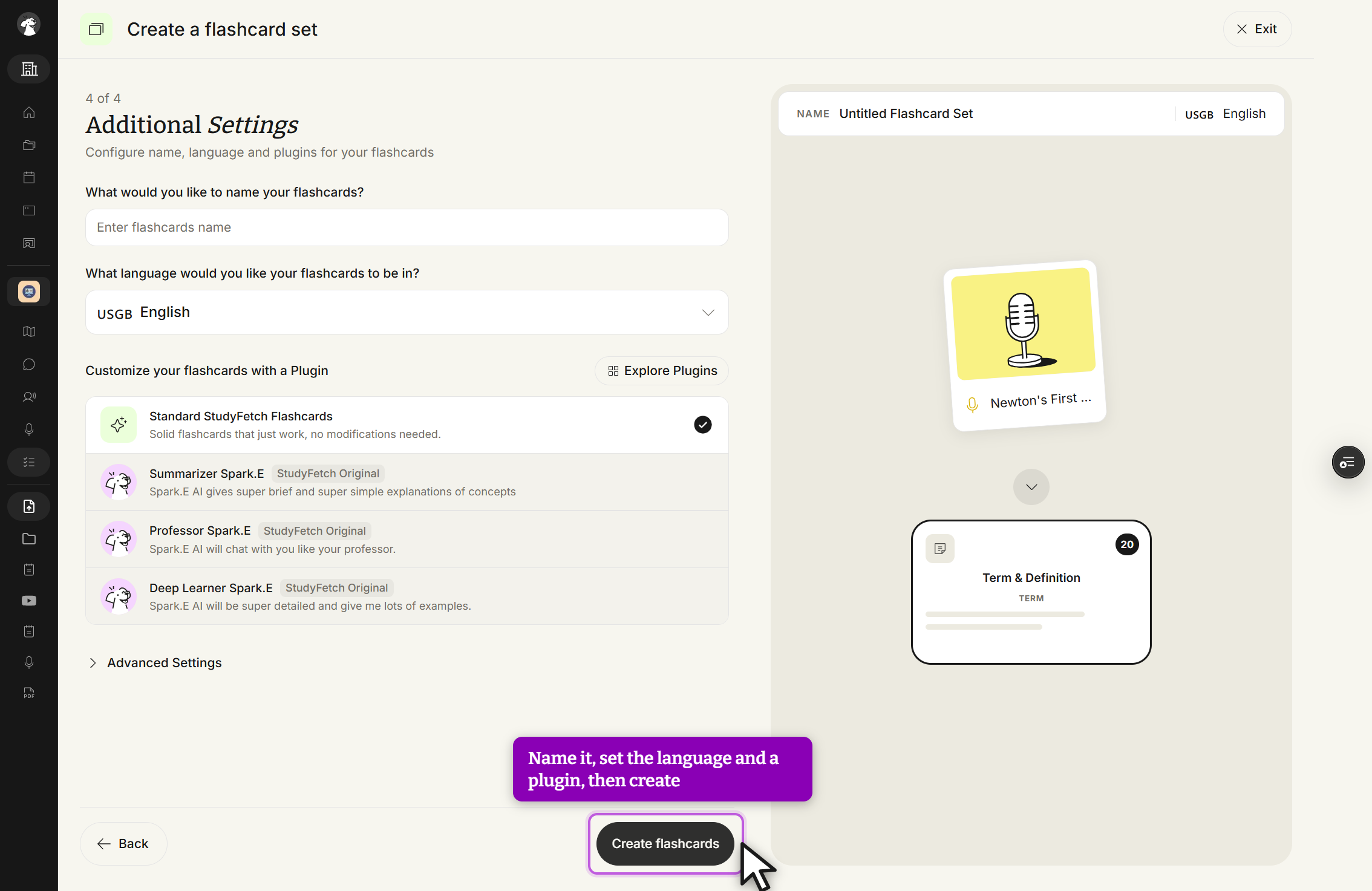
On the final step, optionally name your set, choose its language, and select a customization plugin (like Sparky variants) to tailor how cards are generated. Click Create flashcards when ready.
Choose Create from Scratch to build cards manually. Type a term and definition into each row, or click Add card for more.
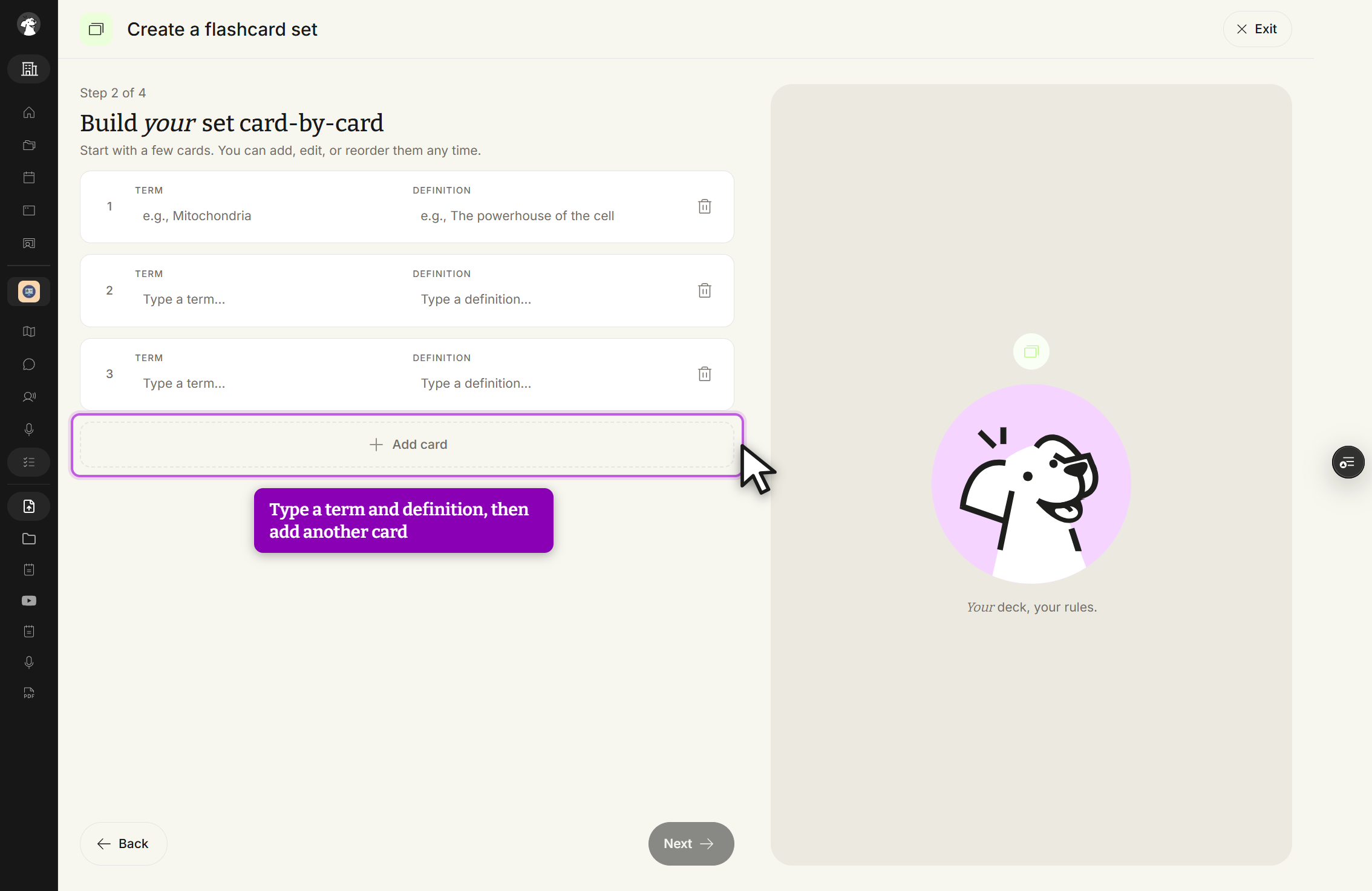
When you're done adding cards, click Next to finish and save your set.