
Product Tutorials
Notes Tutorial
Notes turns any uploaded material — a PDF, slide deck, video, or audio recording — into a clean, structured study document. StudyFetch reads the source, pulls out the key ideas, and organizes them with headings, bullet points, and bolded terms so you can study the material without re-reading the whole thing.
Creating Notes
There are two ways to get Notes for a piece of material.
During material upload
When you upload a file from Add Material, the upload dialog includes a Generate Study Notes toggle. Turn it on and you're asked what depth of notes to generate: Summarized Notes, In-Depth Notes, or Comprehensive Notes. An Advanced section below the format choices lets you control Chapter Splitting (Auto / On / Off) — whether a long document gets broken into separate materials by chapter before notes are generated.

From an existing material
If a material was uploaded without notes, or you want to regenerate them, open the material and use the Turn Into menu to generate a Notes document from it — the same way you'd turn a material into Flashcards or a Practice Test.
Using your generated notes
Once generated, Notes open in a document-style editor with a toolbar for formatting (bold, italic, lists, alignment) alongside history, print, and full-screen controls. You can view Notes on their own, or in Split Screen next to the source material — handy for checking a note against the original page it came from.
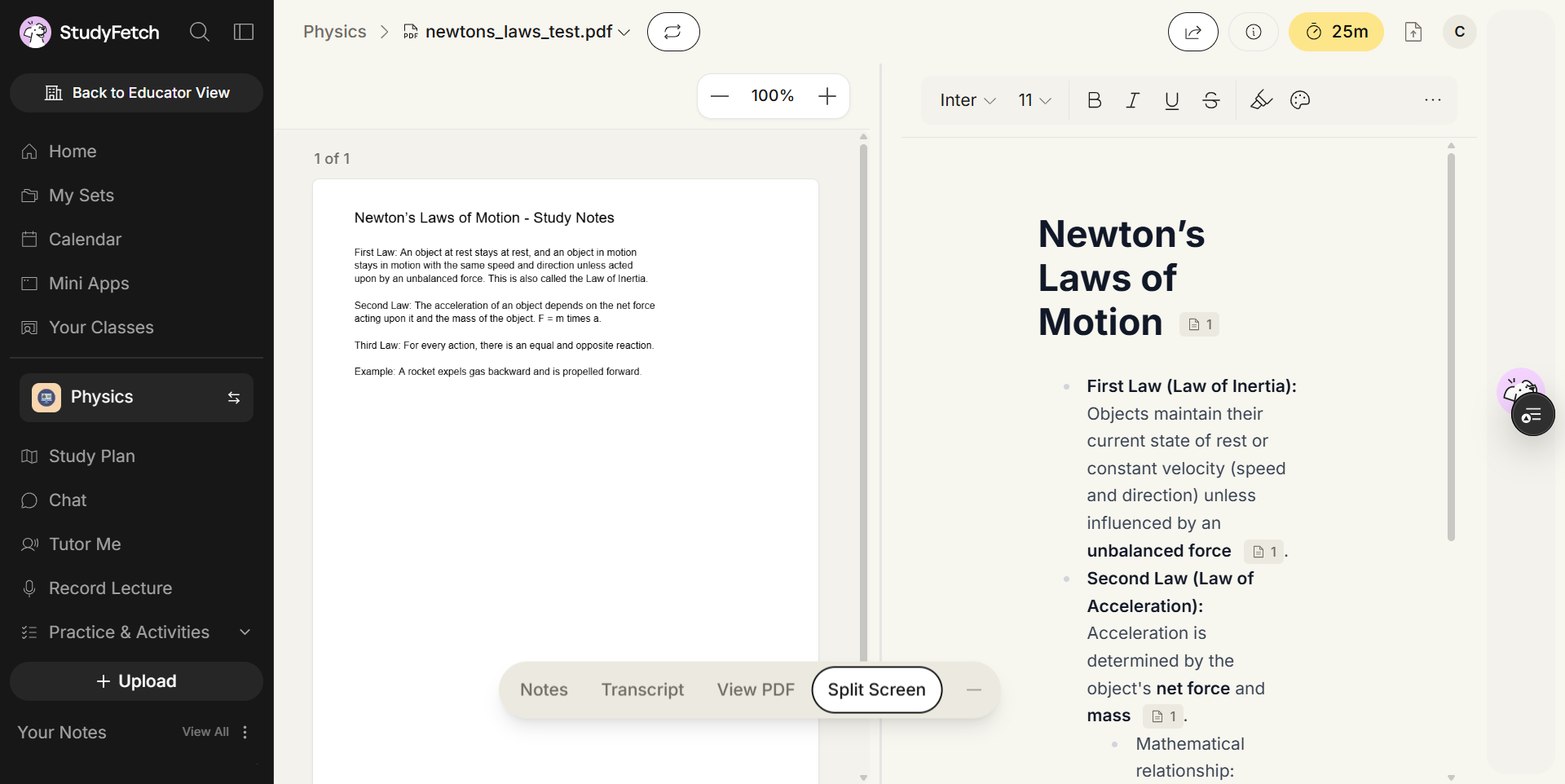
Notes are fully editable — click in and type just like a regular document. Smart formatting (headings, bullets, bold key terms) and math notation are preserved even after you edit, and a Notes document can include images extracted from the source material if you enabled that option at upload.
Restoring a previous version
Every edit is saved automatically. Click the history icon in the toolbar to open Version history, which lists versions grouped by day and timestamp. Selecting a version shows its full content on the right; Show changes compares two versions, and Restore this version rolls the document back.

Clarify and explore with Sparky
Highlight any passage in your notes and an Edit With Sparky action appears above the selection — use it to have Sparky rewrite, expand, or simplify that passage in place, without leaving the notes editor.
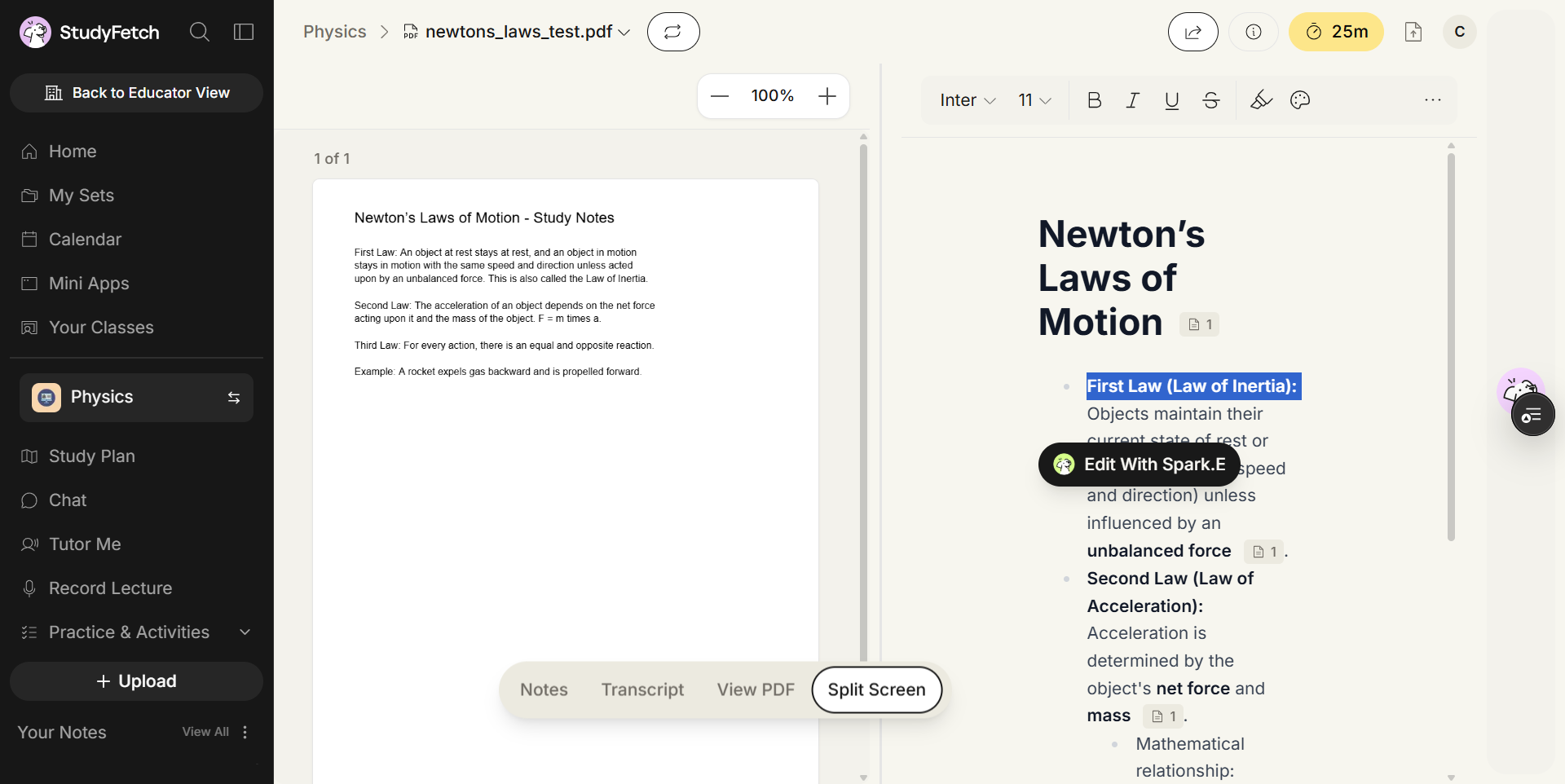
You can also open the Sparky chat directly and ask questions about the material generally — the same Sparky chat available throughout a Study Set.
Features and capabilities
Notes documents include smart formatting (headings, bullets, bold key terms) applied automatically during generation, page-citation links back to the source material, support for math notation, and full text editability. Because Notes are just another material in your Study Set, you can use Turn Into to generate Flashcards, a Practice Test, QuizFetch questions, an Audio Recap, or other formats directly from your notes.