Skip to content
StudyFetch Academy

Product Tutorials

Take and Review a Practice Test

Taking Your Test

Step 1: Choose your layout

  1. By default, questions are presented one at a time.
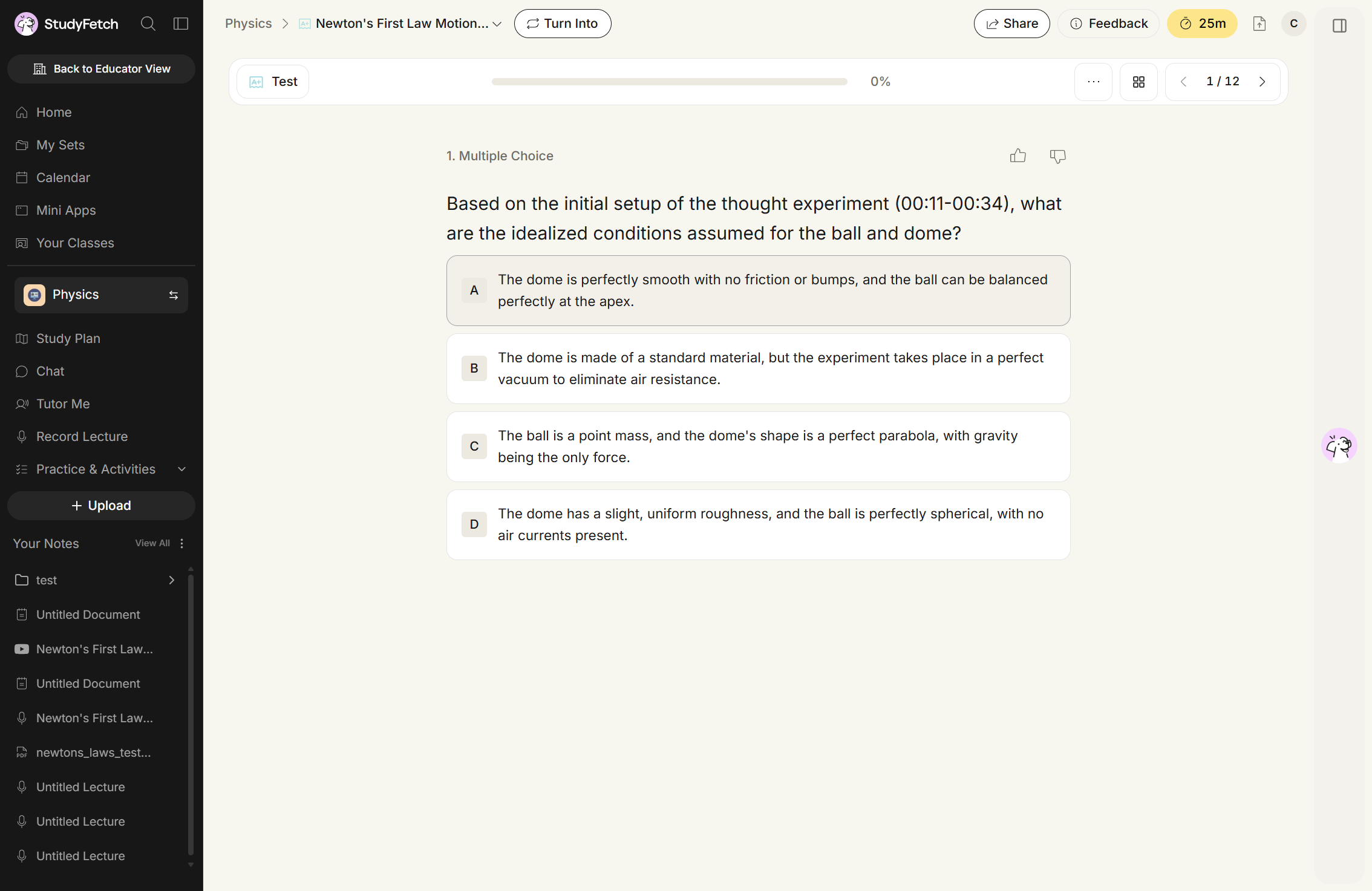
The Test view for Newton's First Law Motion showing question 1 / 12, a Multiple Choice question about the thought experiment at 00:11-00:34, with four lettered options A to D. The toolbar above holds a progress bar at 0%, a three-dot menu, a grid button, and previous and next arrows.
Test, question 1 / 12. Questions appear one at a time, with the progress bar at 0%.
  1. To view all practice test questions at once, select the ... (Settings) button and choose View all questions. Select it again to remove the checkmark and return to single-question view.
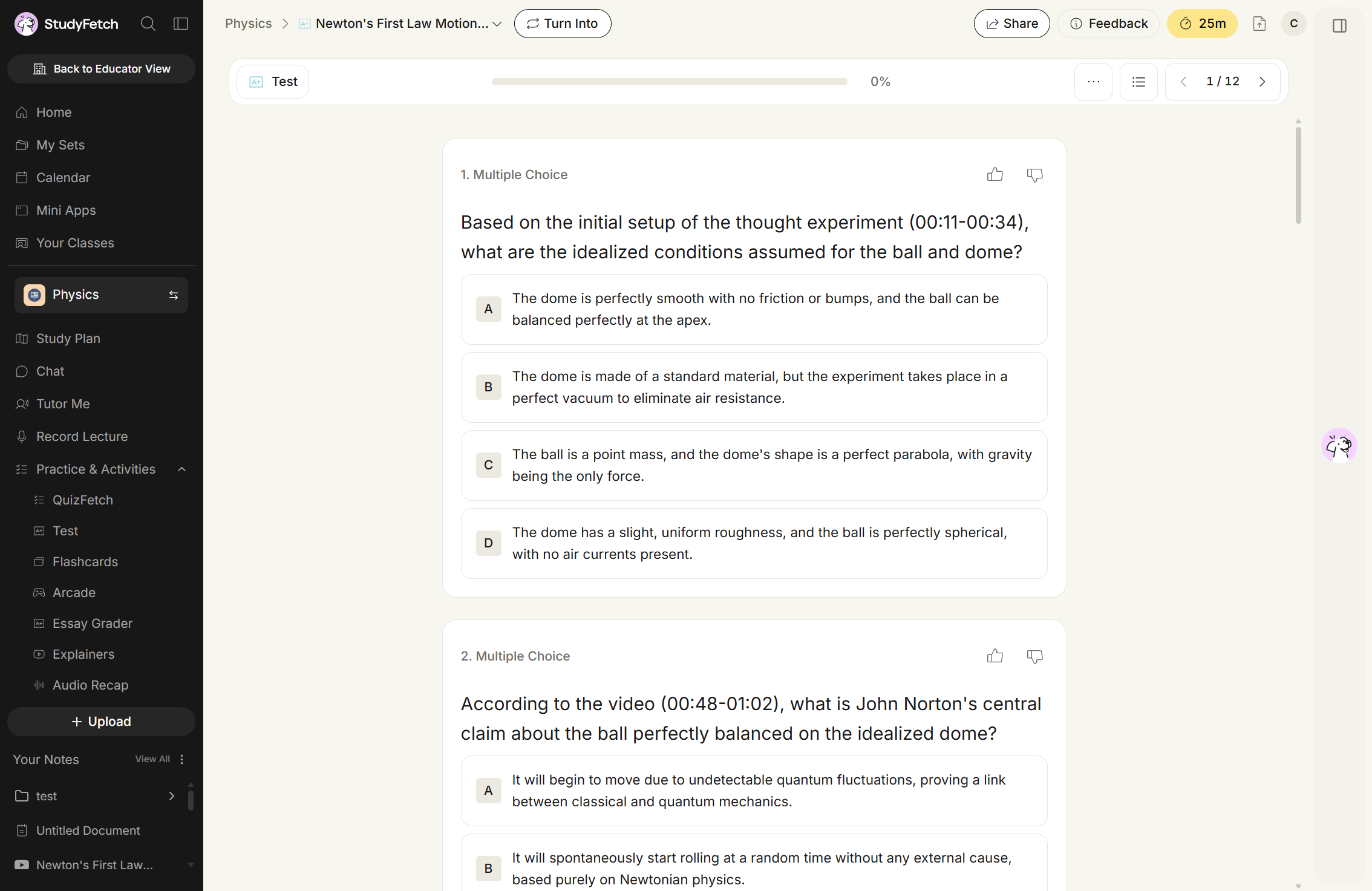
The Test view with View all questions turned on. Question 1 and question 2, both Multiple Choice, sit as separate cards on one scrolling page, each with its own lettered options. The toolbar still reads 1 / 12 with the progress bar at 0%, and the toolbar button beside the three-dot menu is now a list icon.
Test, all-questions layout. Questions 1 and 2 stack on a single scrolling page.

Step 2: Answer questions

  1. Choose your answer by selecting an option, or entering your response in the answer field when a typed response is indicated.
  2. In single-question view, selecting an answer automatically advances you to the next question and updates the progress bar — there's no separate "next" click required. You can still return to any question and change your answer at any time before submitting.
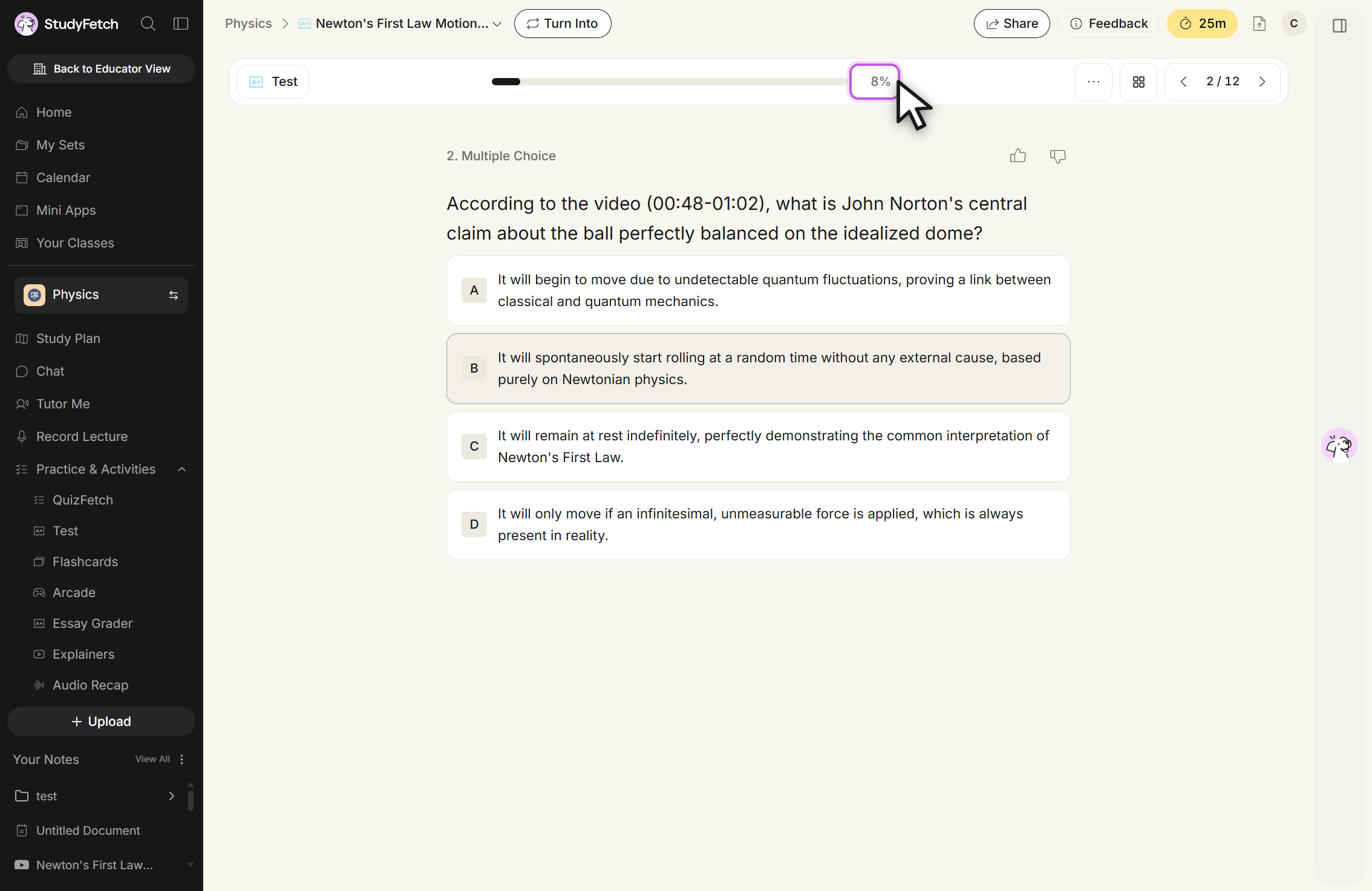
The Test view on question 2 / 12, a Multiple Choice question about the video at 00:48-01:02 with options A to D. The counter has advanced from question 1 without a separate click, the progress bar shows a short filled section, and the percentage reads 8%, outlined with the cursor beside it.
Test, question 2 / 12. Answering question 1 moved the counter on and the progress reads 8%.

Step 3: Navigation tools

  1. A progress bar at the top of the practice test fills as you answer questions, with your completion percentage shown on the right.
  2. Use the < (Previous) and > (Next) buttons on the toolbar to move between questions in any order. Select the grid icon next to Settings to jump straight to any question — a numbered list opens showing which questions are Answered and which are Unanswered.
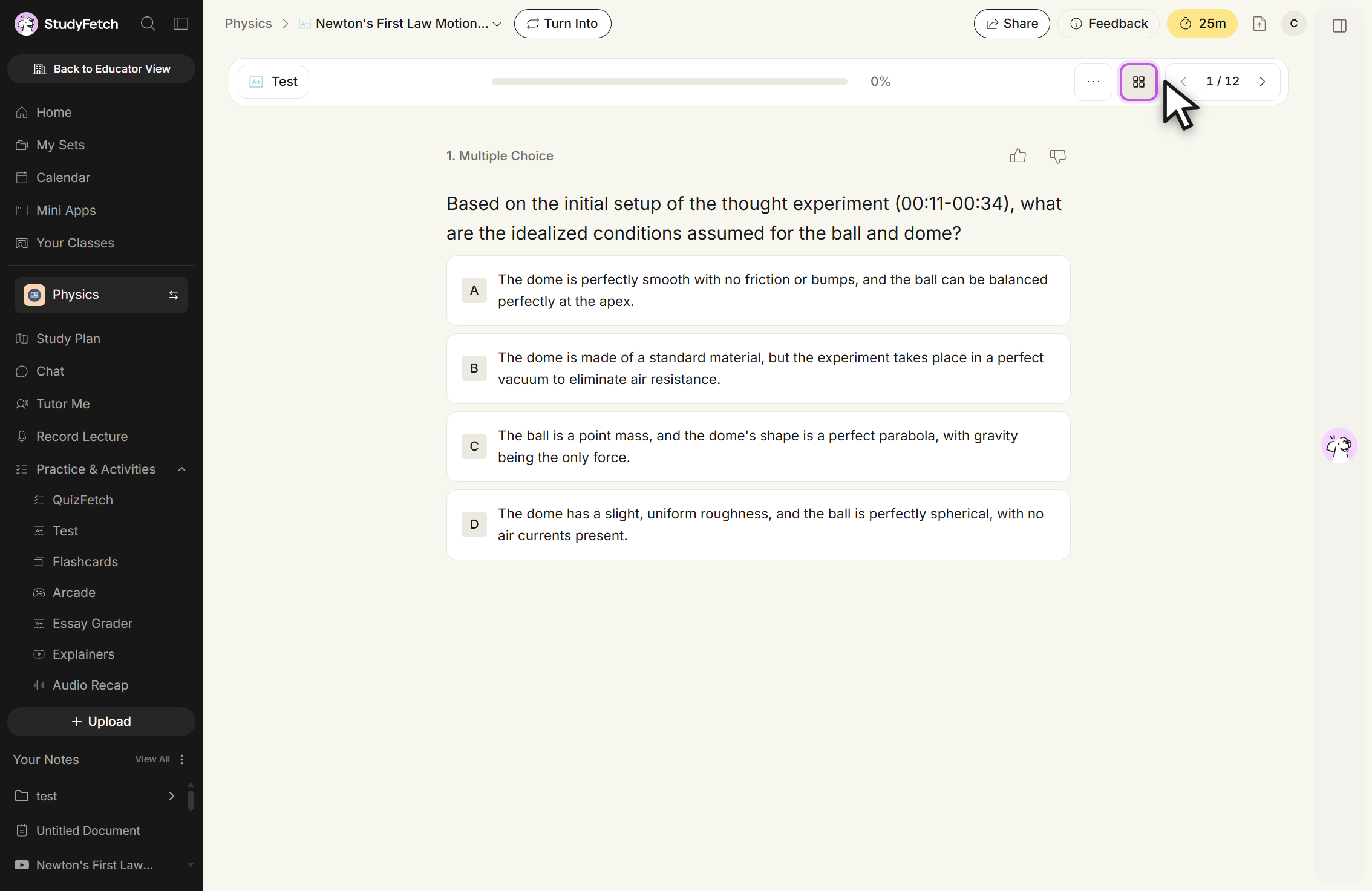
The Test view at question 1 / 12 with the grid button in the toolbar outlined and the cursor over it. The list it opens is not shown. The toolbar also holds the three-dot menu, the progress bar at 0%, and the previous and next arrows either side of the 1 / 12 counter.
Test, question 1 / 12. The grid button beside the three-dot menu opens the question list.
  1. If you want to restart your practice test, select the ... (Settings) button on the toolbar and choose Restart. The same menu also lets you toggle Enable animations and re-open the onboarding walkthrough with Show tutorial again.
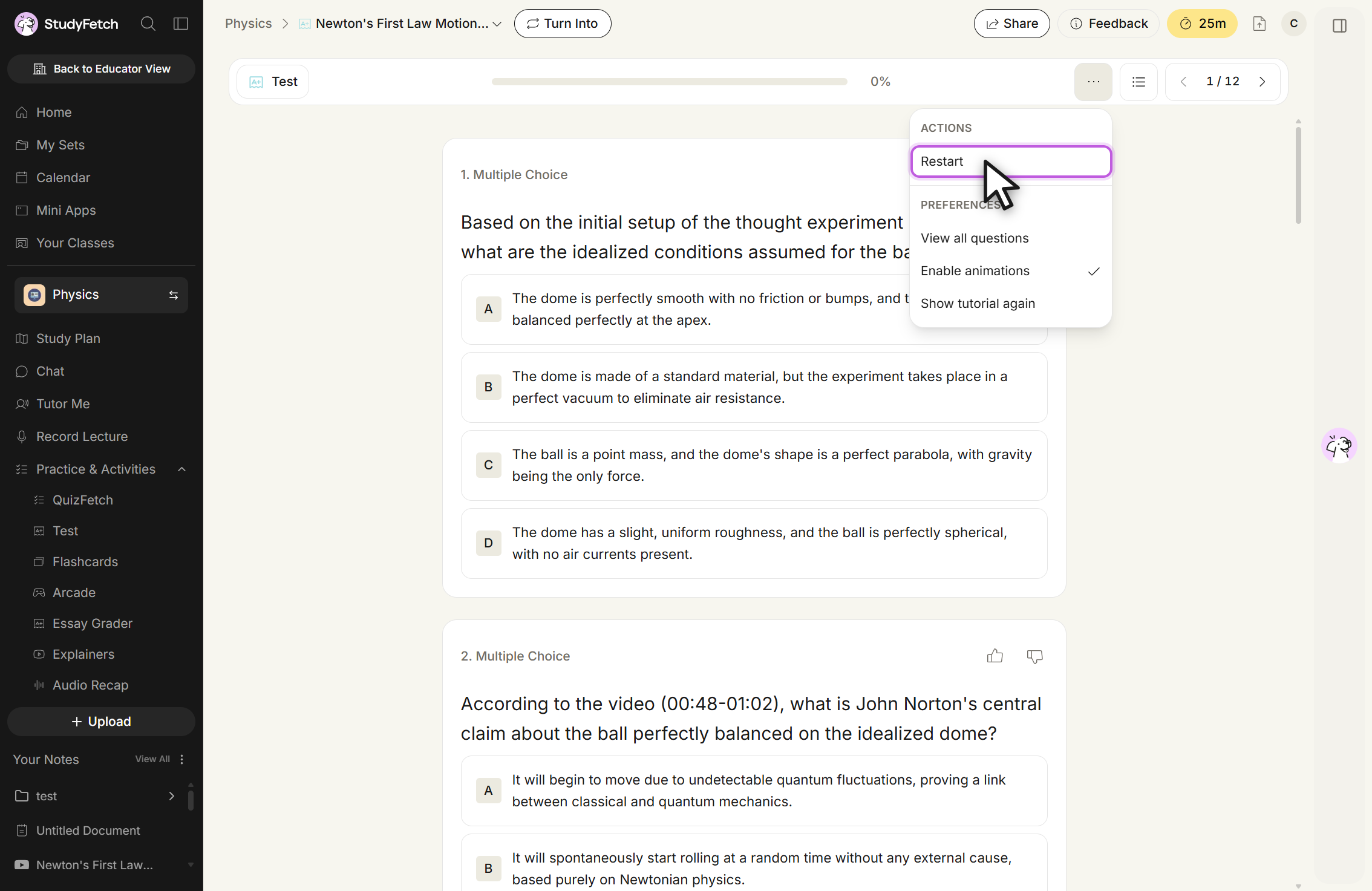
The Test view with the three-dot toolbar menu open. Under the ACTIONS heading sits Restart, outlined with the cursor on it. Under the PREFERENCES heading sit View all questions, Enable animations with a checkmark, and Show tutorial again.
Test, three-dot menu open. Restart sits under ACTIONS, above the PREFERENCES entries.

Step 4: Submit and view your score

  1. Once you've answered all the questions, the Submit Test button becomes active. Click it to confirm you're ready for grading.
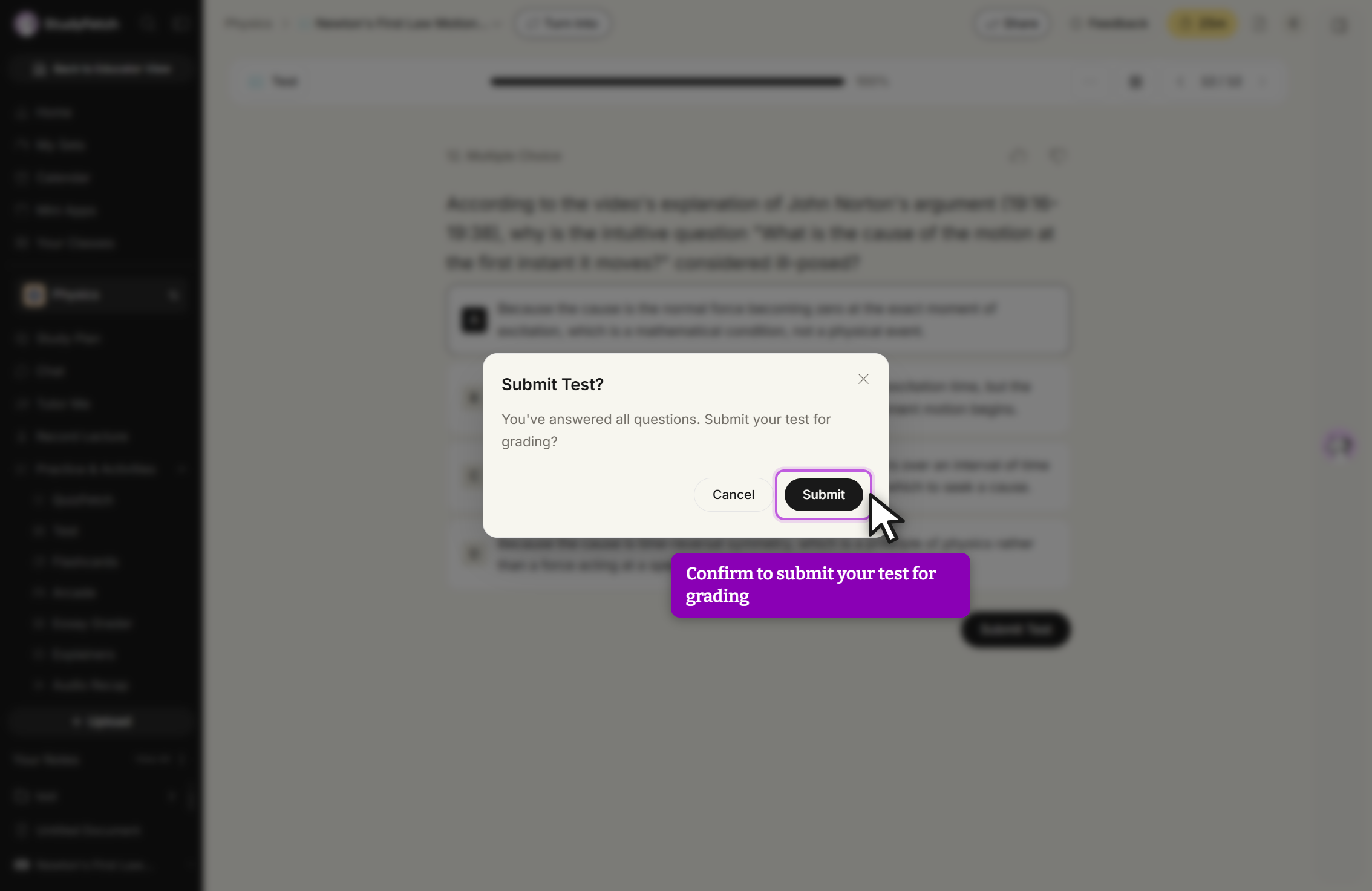
A dialog titled Submit Test? over the dimmed test, reading You've answered all questions. Submit your test for grading? It carries a Cancel button and a Submit button, with the cursor on Submit, and a close X in the top corner. The Submit Test button on the page behind it is dimmed.
Submit Test? dialog. Select Submit to send the test for grading, or Cancel to keep working.
  1. StudyFetch briefly shows a Grading your test... loading screen, then instantly displays your score percentage, the number of questions answered correctly, and a topic-by-topic performance breakdown.
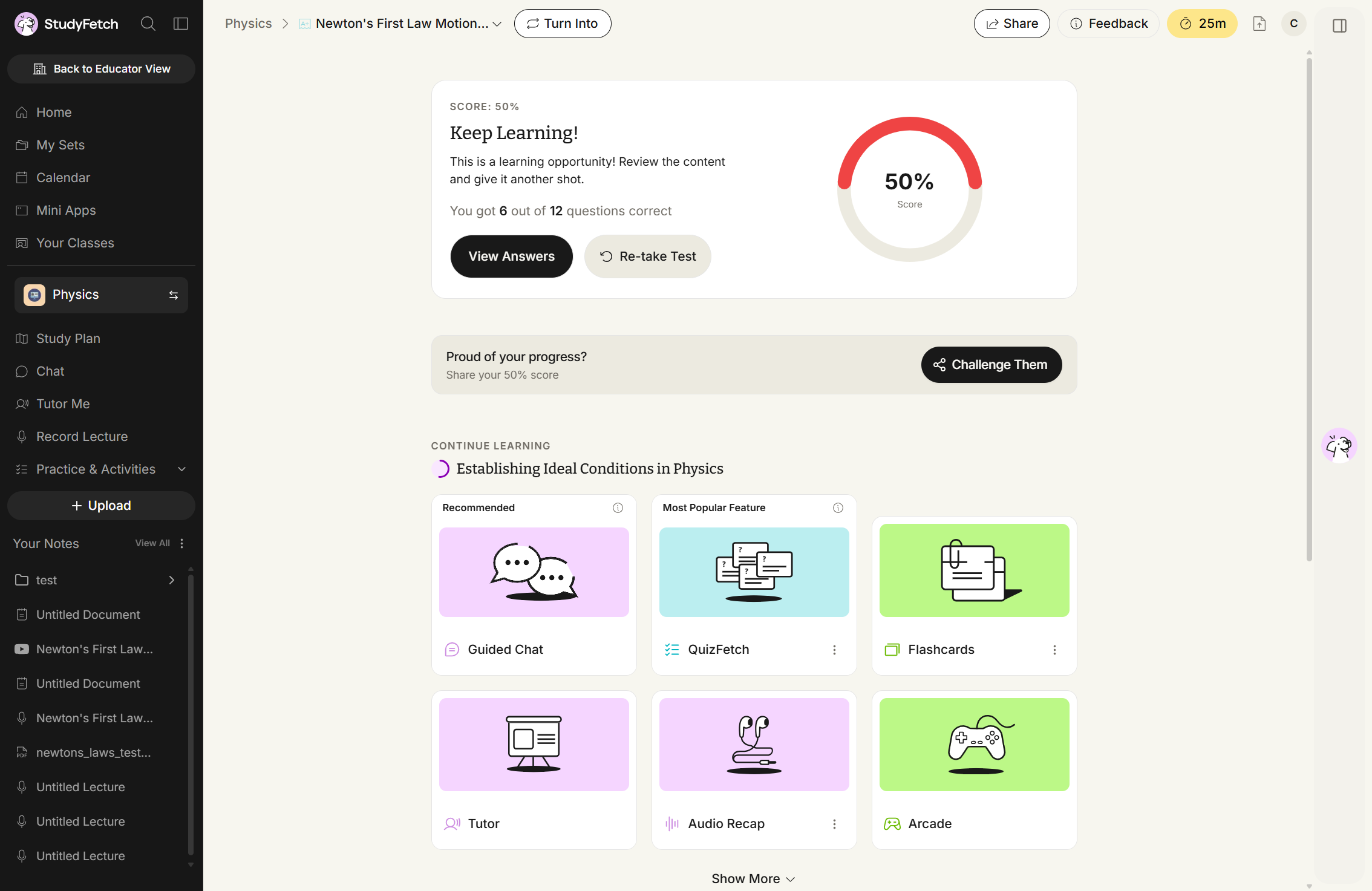
The graded results screen headed SCORE: 50% and Keep Learning!, reading You got 6 out of 12 questions correct, with a circular gauge showing 50% Score. Below sit a View Answers button and a Re-take Test button, a Proud of your progress? bar with a Challenge Them button, and a CONTINUE LEARNING section listing Guided Chat, QuizFetch, Flashcards, Tutor, Audio Recap, and Arcade.
Keep Learning!, SCORE: 50%. The screen reports 6 out of 12 correct and offers View Answers and Re-take Test.

If you'd like to try again before reviewing this attempt, select Retake Test. Otherwise, continue to the next step to review your practice test.

Step 5: Review your results and learn with Sparky

  1. Select View Answers to open the Review Your Test page. Scroll through to see each question with your answer and the correct answer highlighted — correct in green, incorrect in red. A Retake button in the top right lets you start a fresh attempt directly from this page.
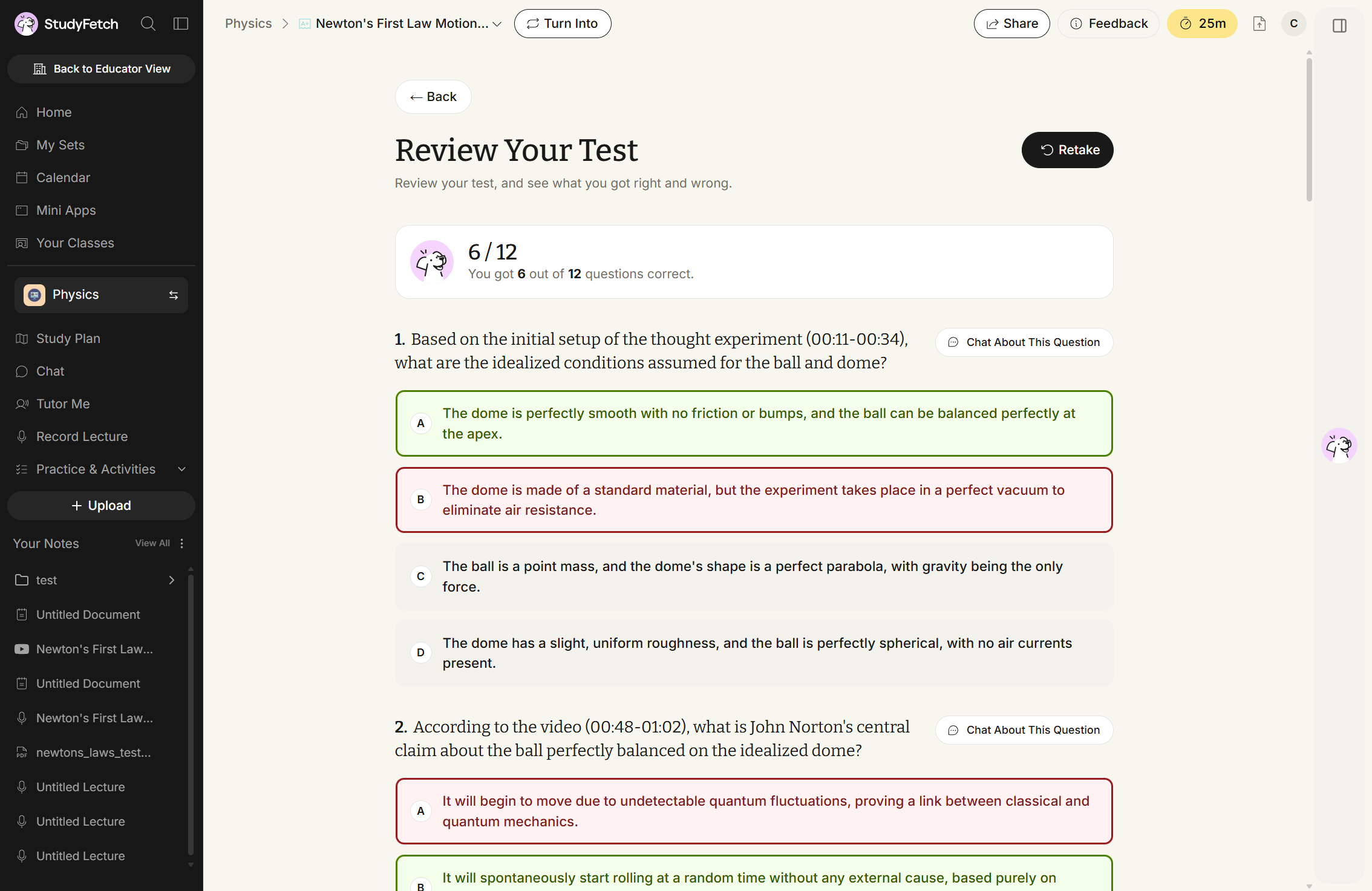
The Review Your Test page, subtitled Review your test, and see what you got right and wrong, with a Back button above and a Retake button at the top right. A card reads 6 / 12, You got 6 out of 12 questions correct. On question 1, option A is outlined in green and option B in red, while C and D stay plain. Each question carries a Chat About This Question button.
Review Your Test, 6 / 12. Each question shows the correct answer outlined in green and a wrong answer outlined in red.
  1. Select Chat About This Question next to any question to open the Sparky chat panel, already scoped to that question. Type your own message or choose a suggested prompt to get a personalized explanation.
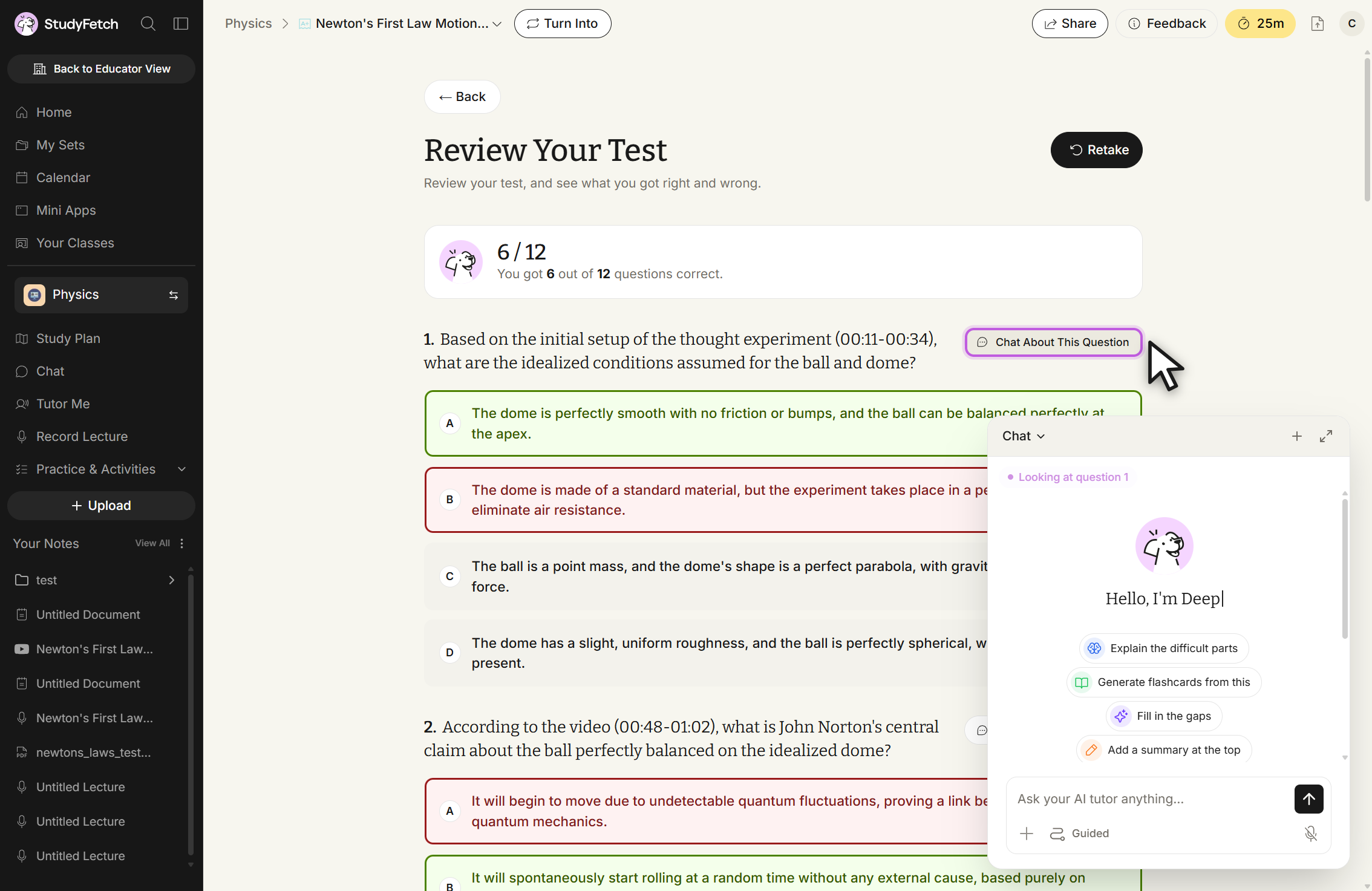
The Review Your Test page with the Chat panel open at the lower right. The panel header reads Chat and a status line reads Looking at question 1. It offers four suggested prompts: Explain the difficult parts, Generate flashcards from this, Fill in the gaps, and Add a summary at the top, above a field reading Ask your AI tutor anything... The Chat About This Question button on question 1 is outlined with the cursor beside it.
Review Your Test with the Chat panel open. The panel reads Looking at question 1 and offers four suggested prompts.

Use your results to guide targeted study, then retake the practice test to reinforce mastery — either from the Review page's Retake button, or from the Test feature page by opening a completed test's ⋮ menu and choosing Retake.