Skip to content
StudyFetch Academy

Product Tutorials

Imagine Explainers Tutorial

Create an animated video explainer in just a few minutes.

How to create a video explainer

To get started with Imagine Explainers:

  1. Visit imagineexplainers.com
  2. Create a free account or log in to your existing account
  3. Once logged in, you'll be taken to the main dashboard where you can start creating video explainers
  1. On your homepage, you will immediately see a text prompt where you can type in what you want to learn about. You can also tick the Real Time Web Search button to allow the AI to use real time data and get the latest information about your topic from the internet
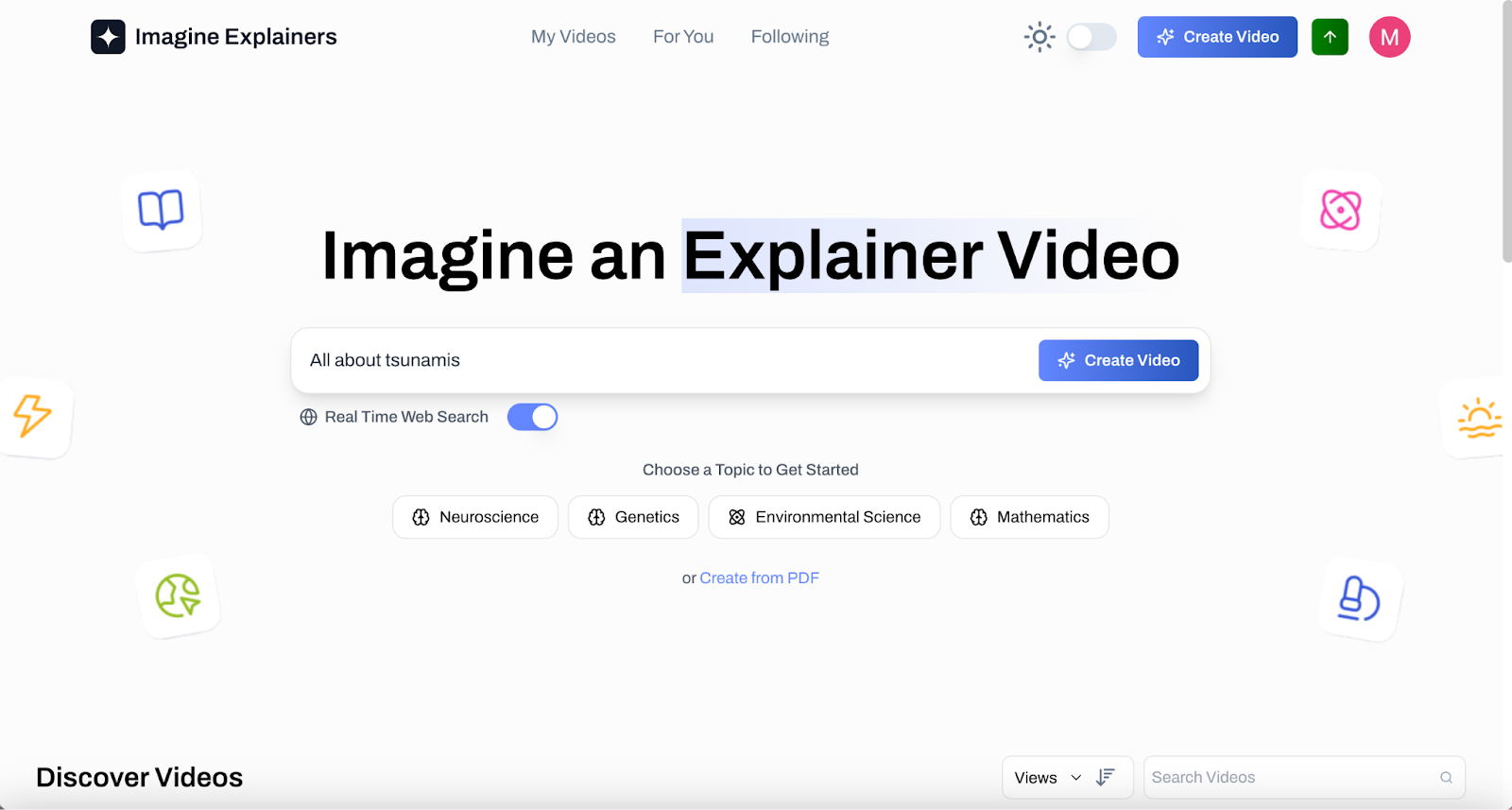
The Imagine Explainers home page headed Imagine an Explainer Video. The prompt field contains All about tsunamis with a Create Video button at its right, the Real Time Web Search toggle below it is on, and the topic buttons under Choose a Topic to Get Started read Neuroscience, Genetics, Environmental Science and Mathematics, with an or Create from PDF link beneath. The top bar carries My Videos, For You, Following and Create Video.
Imagine an Explainer Video, topic entered. The prompt field reads All about tsunamis and Real Time Web Search is turned on.
  1. Click on Create Video > Choose the video length you want to generate. Note that longer videos will include more detail and take more time to create > Click on Generate
  2. After 5 minutes, your Explainer video will be generated.
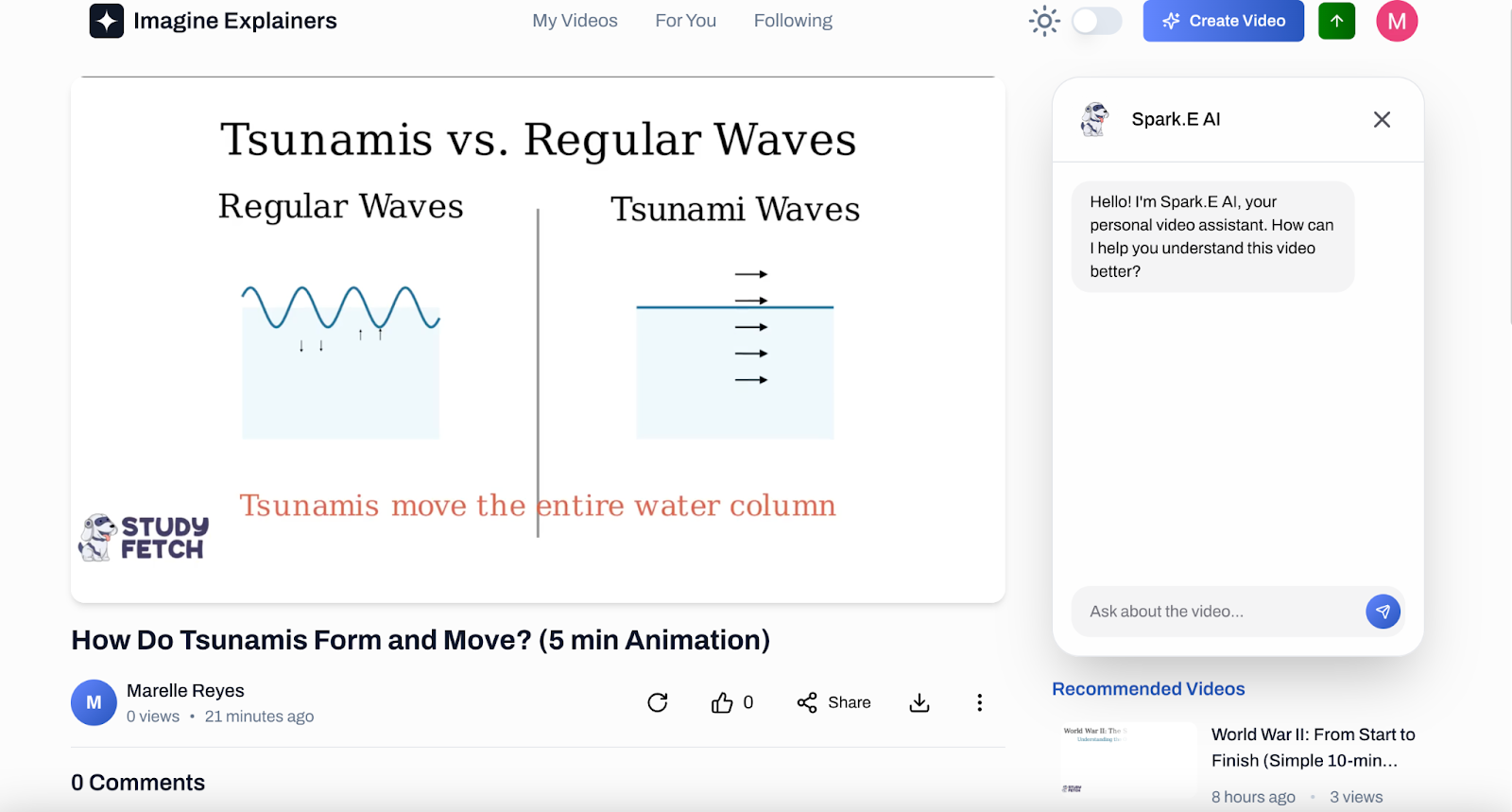
The generated video How Do Tsunamis Form and Move? (5 min Animation) by Marelle Reyes, 0 views, playing a slide titled Tsunamis vs. Regular Waves. Below the video sit a regenerate button, a like button reading 0, Share, a download button and a three dot more options button. On the right the Spark.E AI panel reads: Hello! I'm Spark.E AI, your personal video assistant. How can I help you understand this video better? above an Ask about the video... box.
How Do Tsunamis Form and Move? (5 min Animation), video generated. The Spark.E AI panel opens at the right with its greeting.
  1. While watching, feel free to ask Sparky, your AI assistant, any questions to deepen your understanding of the topic you're learning. Sparky is here to help clarify concepts and provide additional insights!
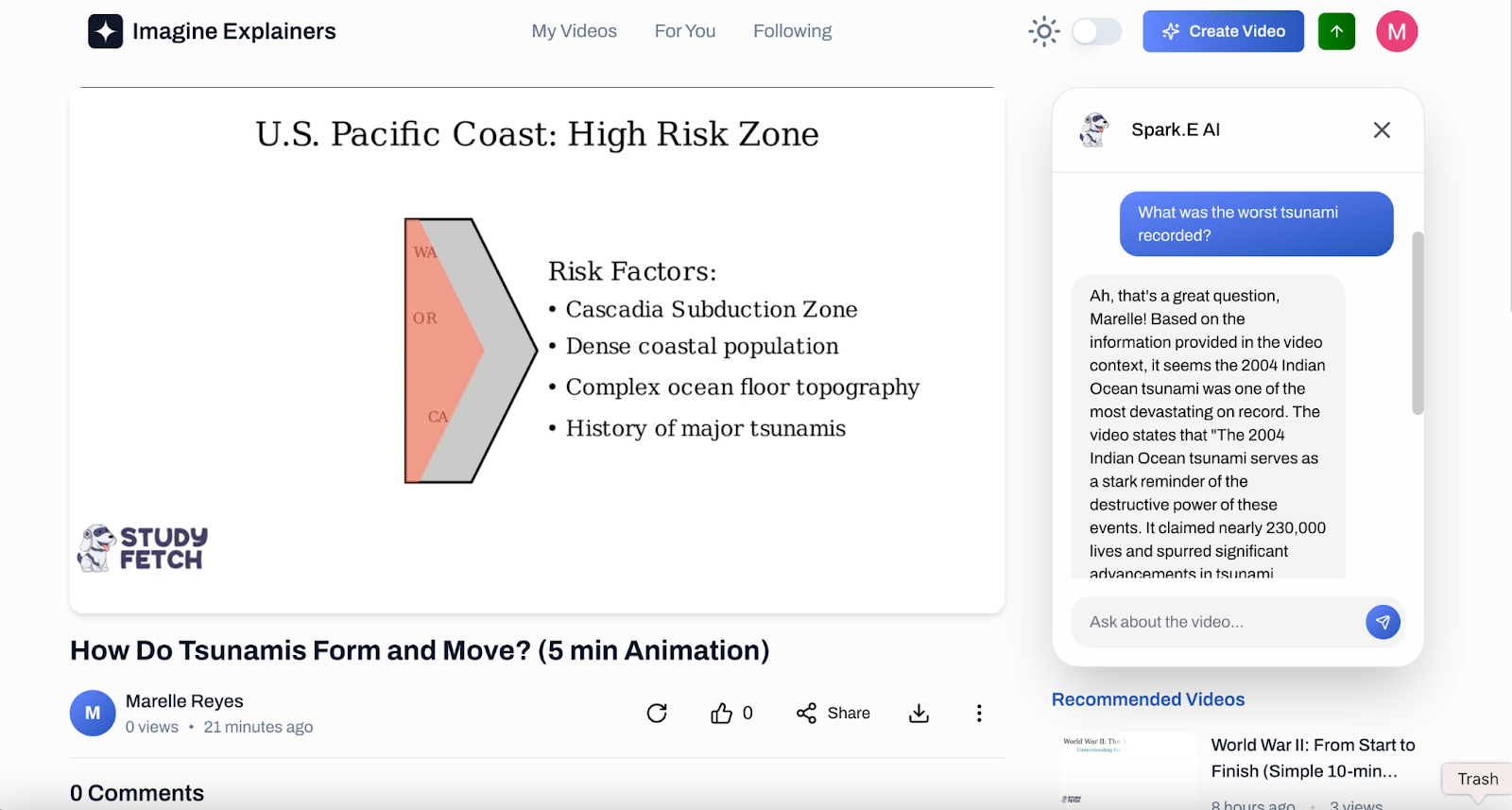
The page for How Do Tsunamis Form and Move? (5 min Animation), showing a slide titled U.S. Pacific Coast: High Risk Zone with the risk factors Cascadia Subduction Zone, Dense coastal population, Complex ocean floor topography and History of major tsunamis. In the Spark.E AI panel at the right the learner has sent What was the worst tsunami recorded? and the reply describes the 2004 Indian Ocean tsunami, which claimed nearly 230,000 lives. An Ask about the video... box sits at the bottom of the panel.
How Do Tsunamis Form and Move? (5 min Animation), question answered. Spark.E AI replies to What was the worst tsunami recorded?
  1. Scrolling down, you will see a comment section. On the right side, a list of recommended videos
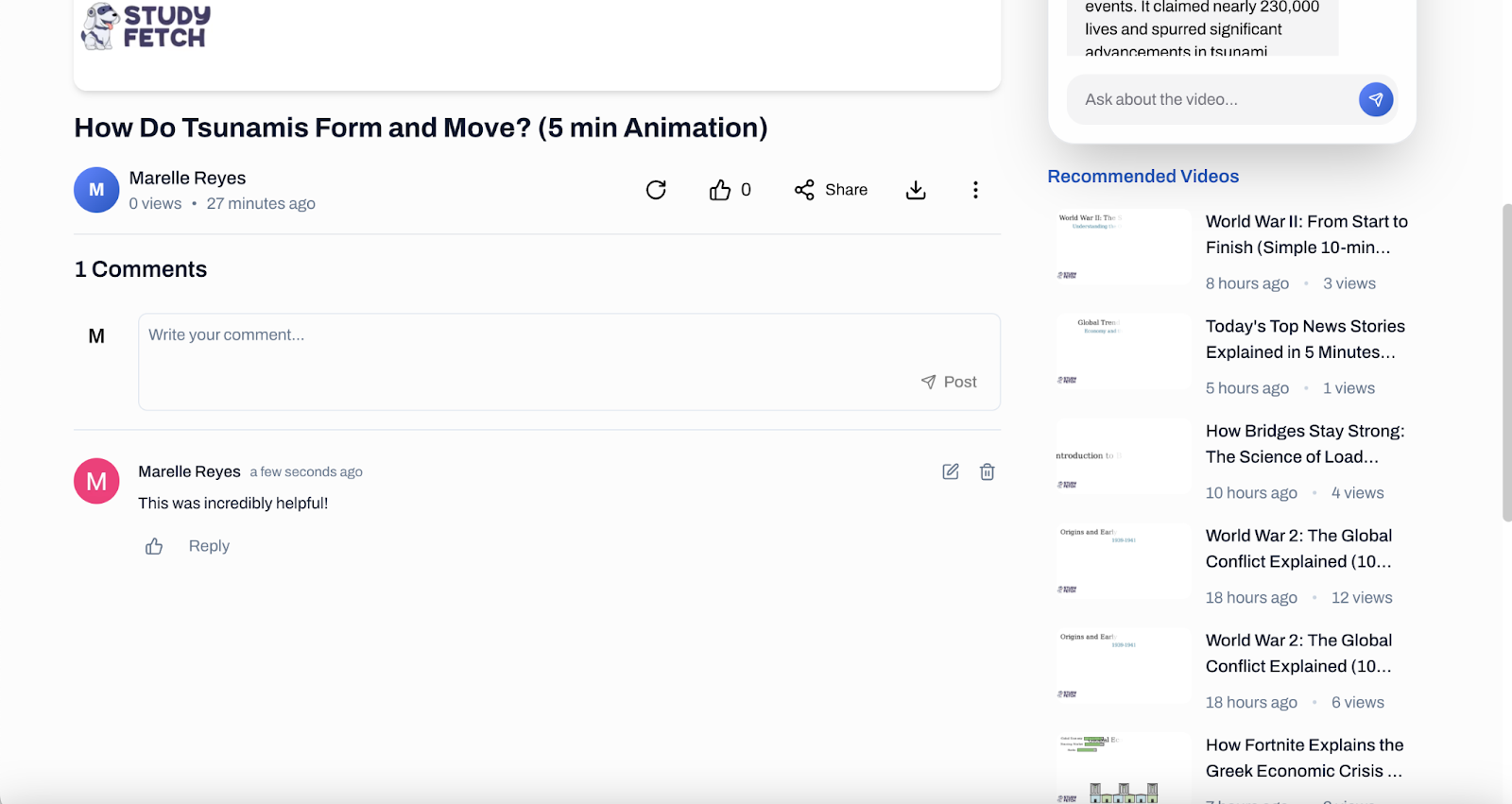
The page scrolled below the video How Do Tsunamis Form and Move? (5 min Animation) by Marelle Reyes, 0 views. The heading reads 1 Comments, with an empty Write your comment... box and a Post button, and one posted comment from Marelle Reyes reading This was incredibly helpful! with like and Reply beneath it. A Recommended Videos list runs down the right side.
How Do Tsunamis Form and Move? (5 min Animation), comments. The reader types in the Write your comment... box and clicks Post, with Recommended Videos listed at the right.
  1. The comment section is there as your videos can be viewed publicly by simply clicking the more options icon and clicking Make Public. You may also use this option to erase your video by clicking Delete Video
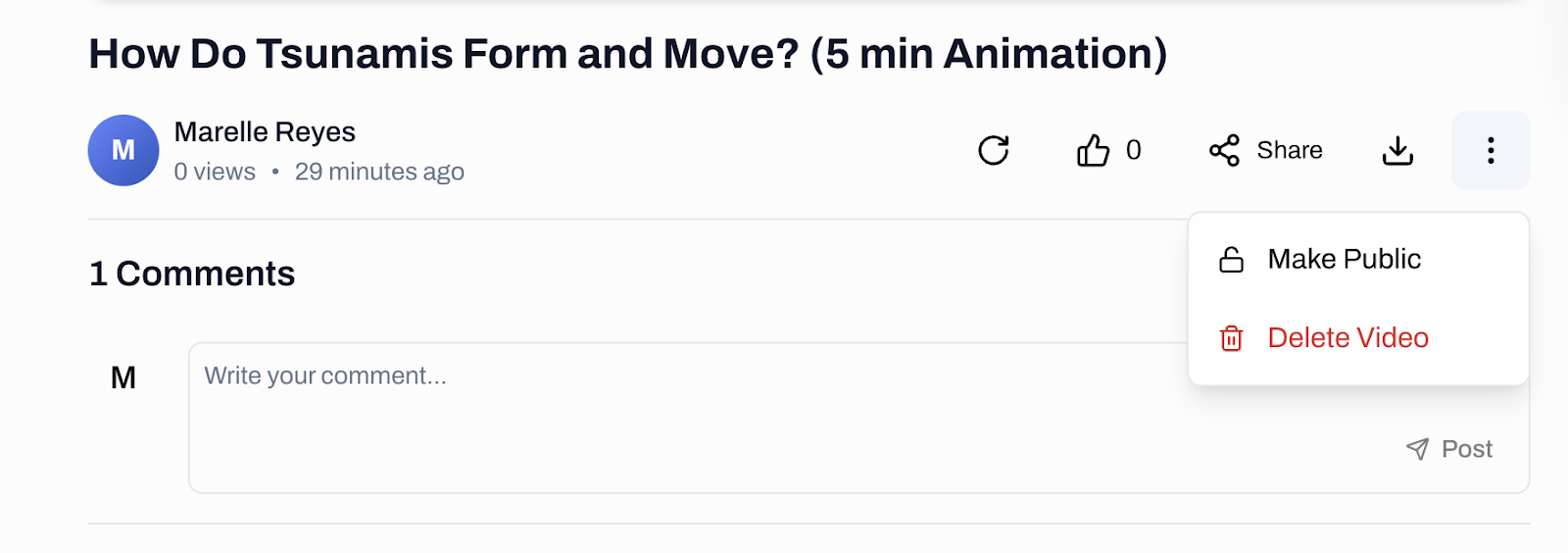
The header of the video How Do Tsunamis Form and Move? (5 min Animation) by Marelle Reyes, 0 views, 29 minutes ago. The menu opened from the three dot button at the right lists two items, Make Public and Delete Video. Below sit the 1 Comments heading and an empty Write your comment... box with a Post button.
How Do Tsunamis Form and Move? (5 min Animation), more options menu. The menu lists Make Public and Delete Video.
  1. If you are not satisfied with the video that has been generated, you may click on the Regenerate button so it can create a new one. The icons next to that is the Like button, the Share button, and the Download button 
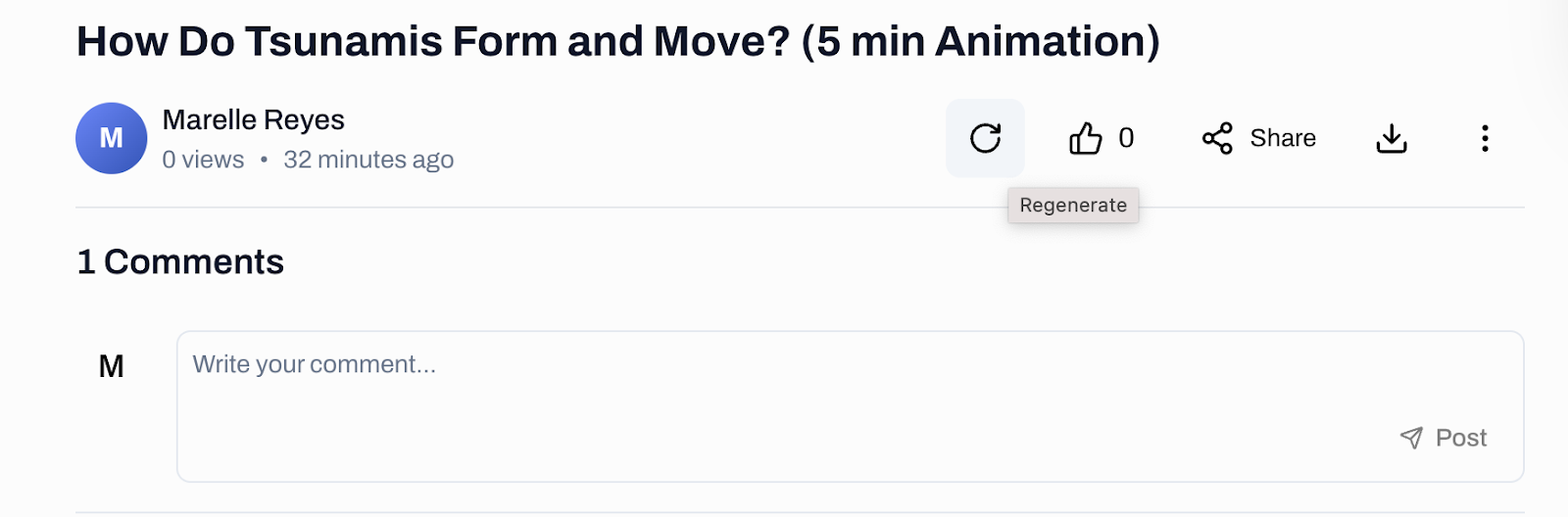
The header of the video How Do Tsunamis Form and Move? (5 min Animation) by Marelle Reyes, 0 views, 32 minutes ago. The first control in the row at the right is highlighted and shows the tooltip Regenerate, followed by a like button reading 0, Share, a download button and a three dot more options button. Below sit the 1 Comments heading and an empty Write your comment... box with a Post button.
How Do Tsunamis Form and Move? (5 min Animation), Regenerate tooltip. Hovering the first control in the row shows the Regenerate label.

Exploring Imagine Explainers

  1. On the upper side of your screen, you will see different pages you can explore
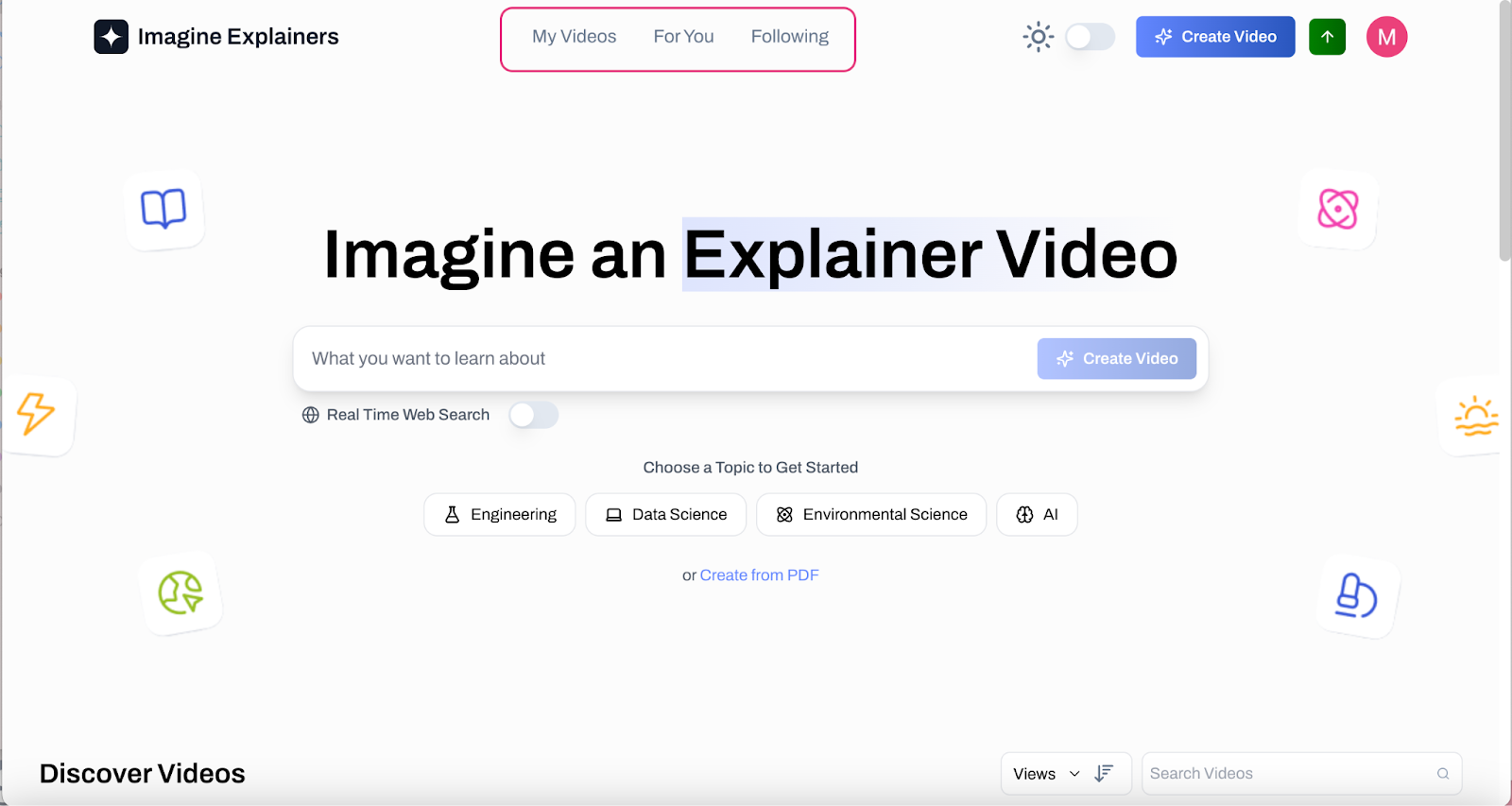
The Imagine Explainers home page headed Imagine an Explainer Video, with a red box drawn around the My Videos, For You and Following links in the top bar. The prompt field below shows the placeholder What you want to learn about, the Real Time Web Search toggle is off, and the topic buttons read Engineering, Data Science, Environmental Science and AI, with an or Create from PDF link beneath.
Imagine an Explainer Video, top navigation. A red box marks the My Videos, For You and Following links.
  1. The My Videos page stores all of the videos you have created using Imagine Explainers 
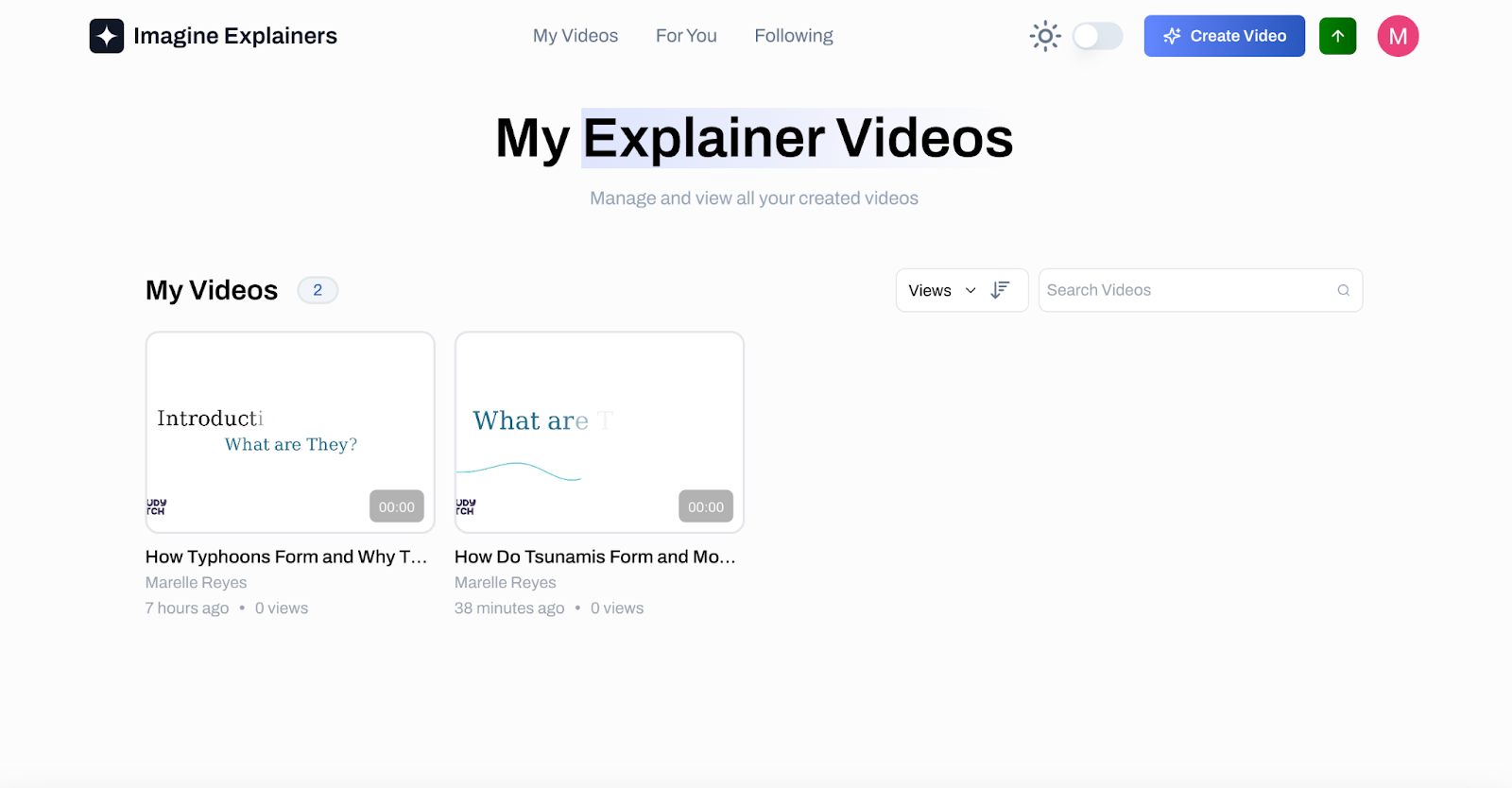
The My Explainer Videos page, subtitled Manage and view all your created videos. A My Videos heading carries a count of 2 above two thumbnails: How Typhoons Form and Why T..., 7 hours ago, 0 views, and How Do Tsunamis Form and Mo..., 38 minutes ago, 0 views, both by Marelle Reyes. A Views sort control and a Search Videos box sit at the right.
My Explainer Videos. The page lists the 2 videos this account has created.
  1. The For You Page will show you recommended videos based on your watch history
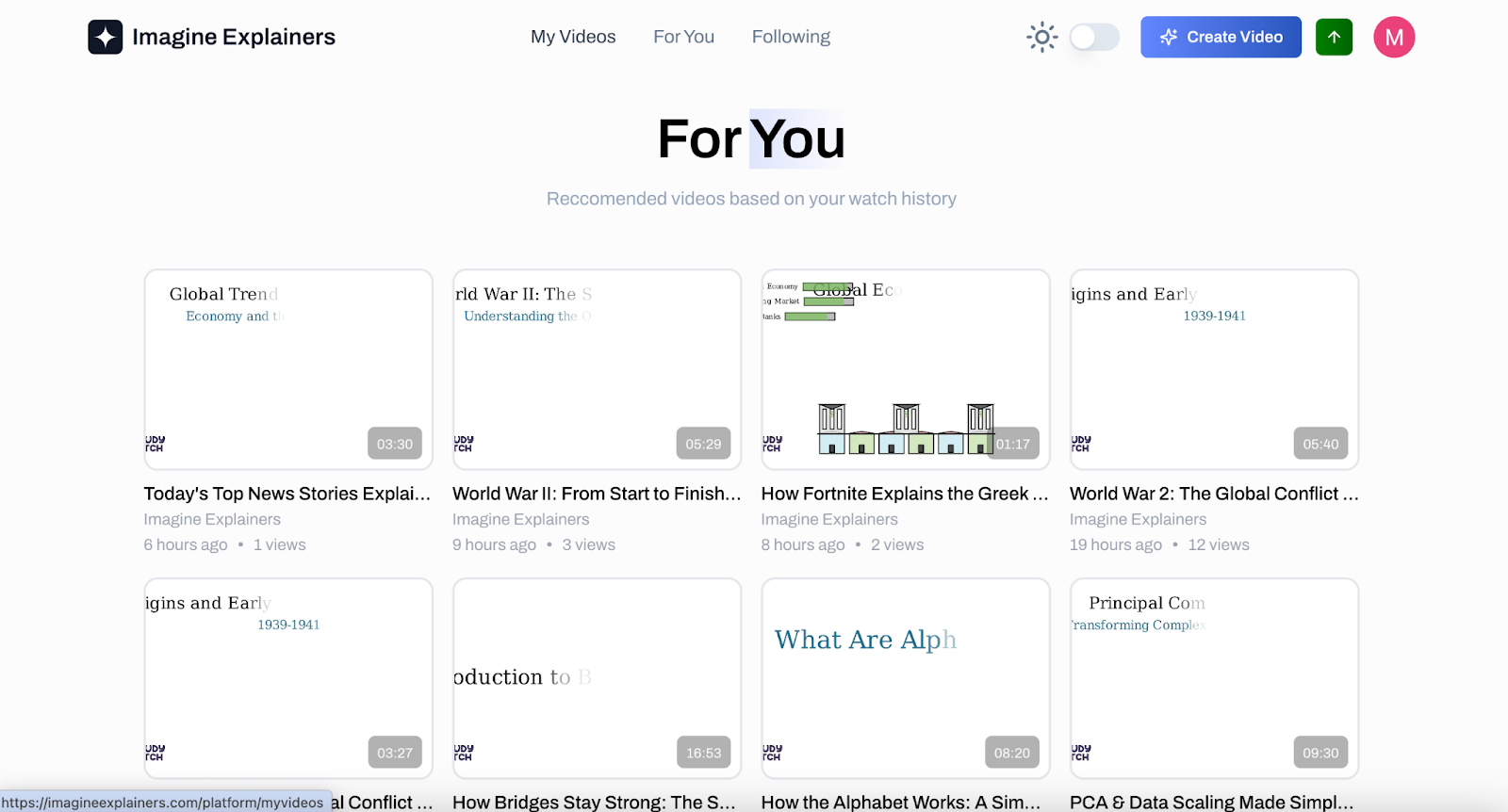
The For You page, subtitled Reccomended videos based on your watch history, showing a grid of video thumbnails all posted by Imagine Explainers. The first row reads Today's Top News Stories Explai... 03:30, World War II: From Start to Finish... 05:29, How Fortnite Explains the Greek ... 01:17 and World War 2: The Global Conflict ... 05:40, each with a posted time and a view count.
For You. The page lists recommended videos based on your watch history.
  1. The Following page will show you videos created from the people you follow
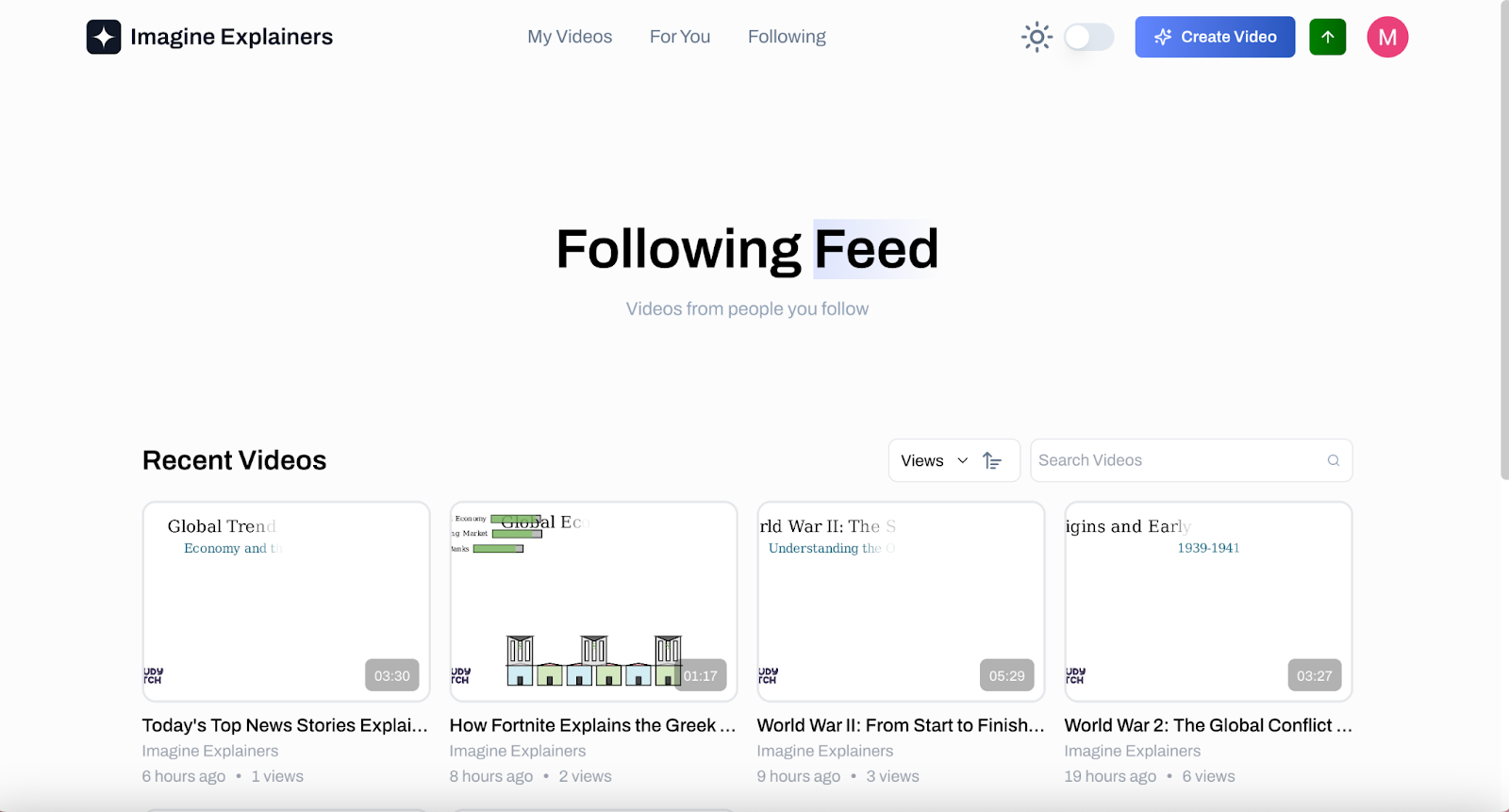
The Following Feed page, subtitled Videos from people you follow. Under a Recent Videos heading are four thumbnails, all posted by Imagine Explainers: Today's Top News Stories Explai... 03:30, How Fortnite Explains the Greek ... 01:17, World War II: From Start to Finish... 05:29 and World War 2: The Global Conflict ... 03:27. A Views sort control and a Search Videos box sit at the right.
Following Feed. Recent Videos lists posts from the accounts you follow.

How to Follow someone on Imagine Explainers

  1. If you're watching a great video and you'd like to see more from this user, simply click on their name to view their profile
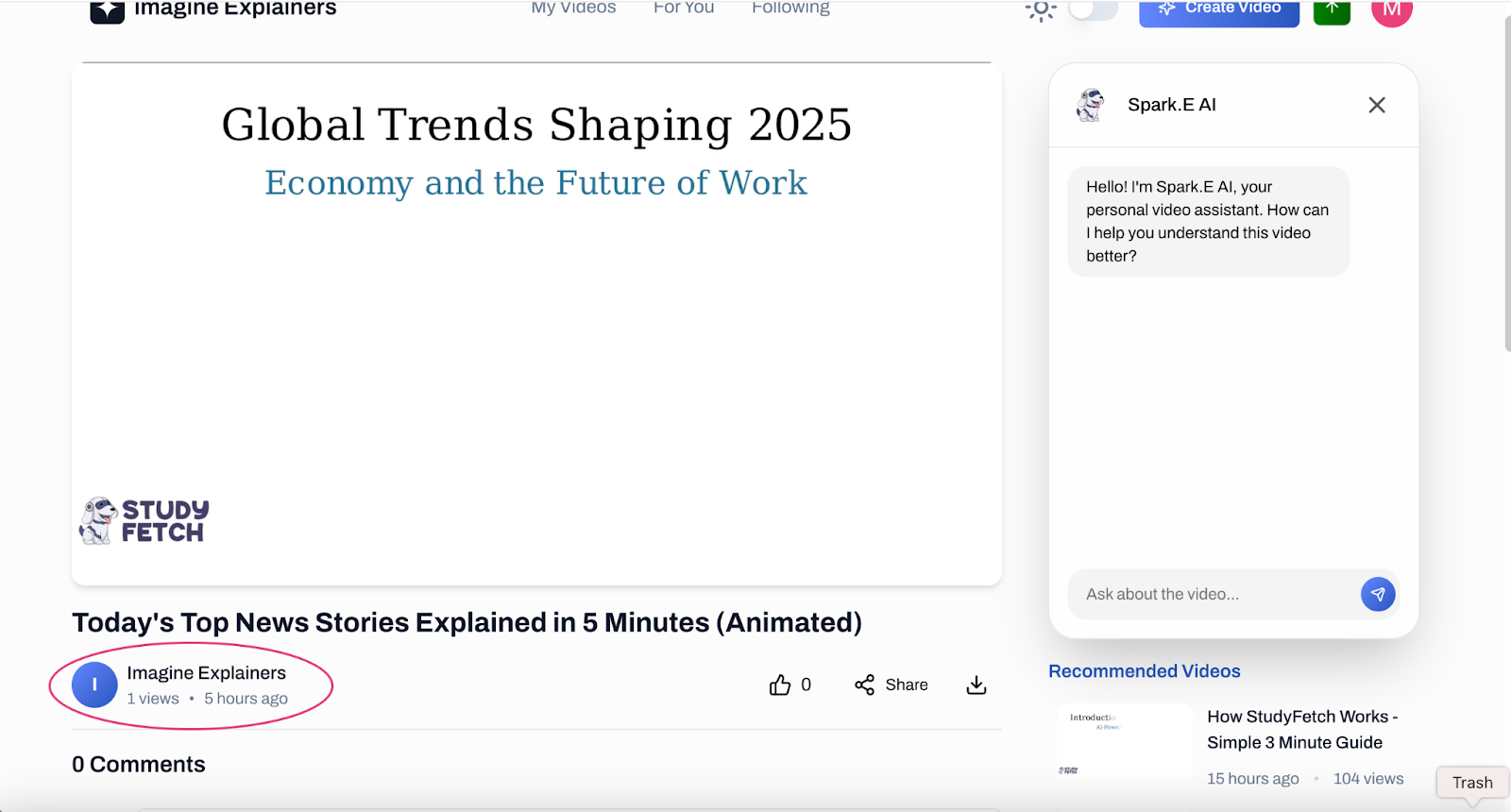
The page for the video Today's Top News Stories Explained in 5 Minutes (Animated), showing a slide that reads Global Trends Shaping 2025, Economy and the Future of Work. A red circle marks the creator name Imagine Explainers, 1 views, 5 hours ago, below the title. The Spark.E AI panel at the right shows its greeting above an Ask about the video... box, with a Recommended Videos list beneath it.
Today's Top News Stories Explained in 5 Minutes (Animated), creator link. A red circle marks the Imagine Explainers name under the title.
  1. On their profile page, click on the Follow button on the right side
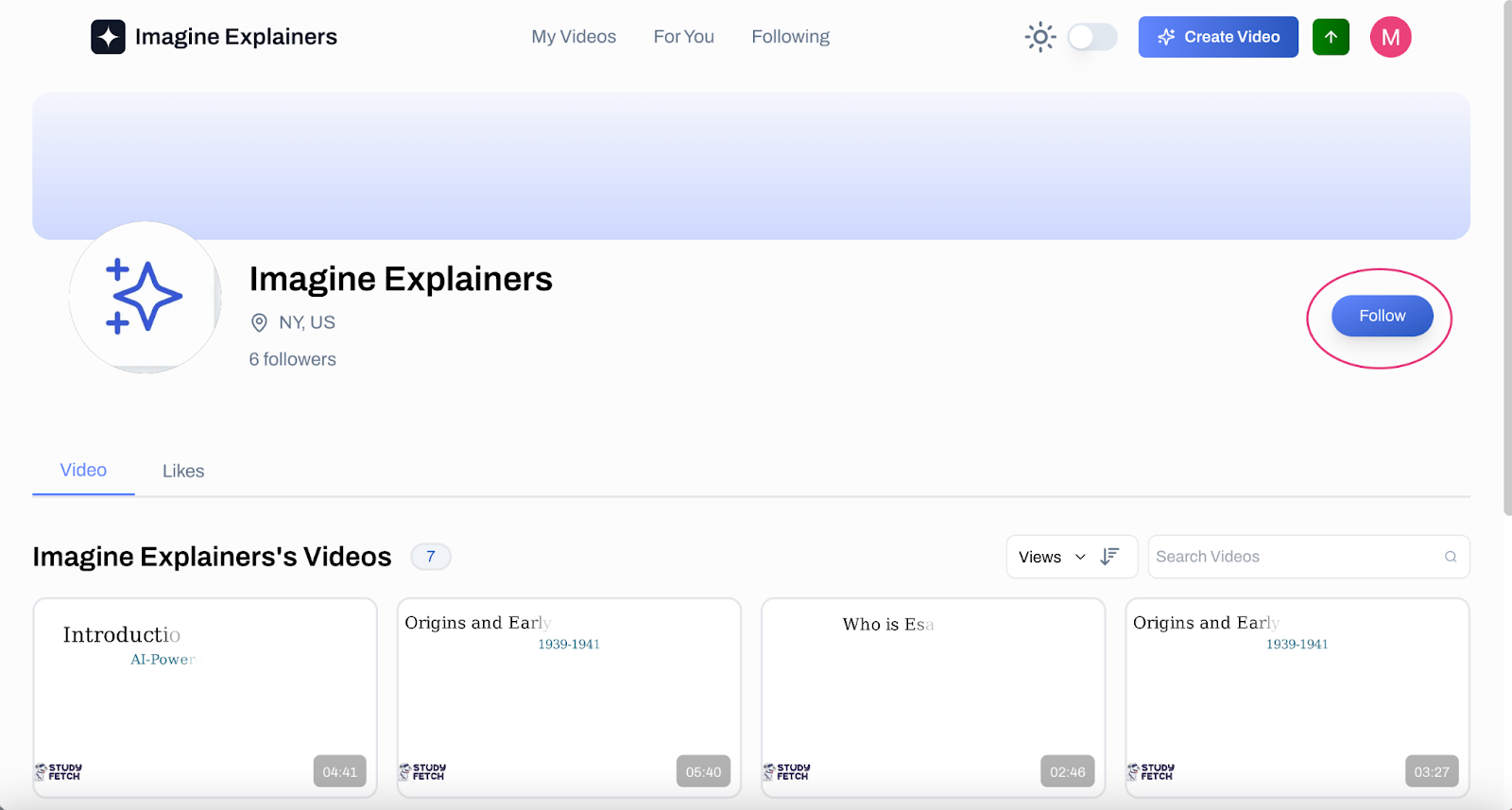
The Imagine Explainers profile page, listing NY, US and 6 followers, with a red circle drawn around the Follow button at the top right. A Video tab and a Likes tab sit below, and the heading Imagine Explainers's Videos carries a count of 7 above a row of four video thumbnails with durations 04:41, 05:40, 02:46 and 03:27.
Imagine Explainers profile, Video tab. The reader clicks Follow at the top right, circled in red.