Skip to content
StudyFetch Academy

Product Tutorials

Audio Recap: Access and Create

Audio Recap turns study materials or a topic into an audio summary you can listen to while reviewing on the go. Use this page to open Audio Recap, start a new recap, and choose the source.

Open Audio Recap

Go to Audio & Video, then select Audio Recap.

Choose a source

Create from existing materials or generate from a topic.

Add focus

Use a focus topic to shape the output.

Open Audio Recap

  1. On the left-hand side of your dashboard, click Audio & Video, then select Audio Recap.
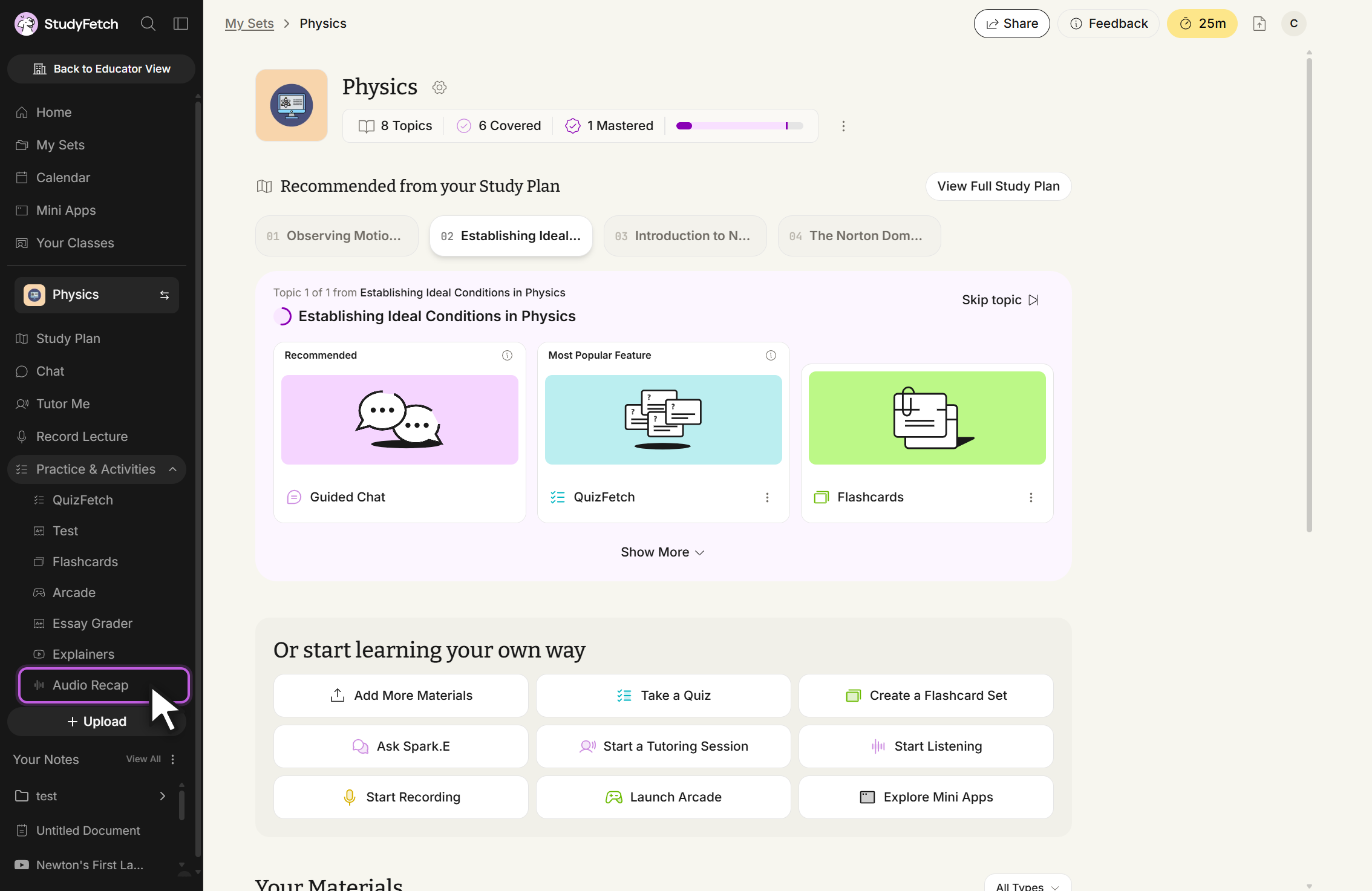
    Study set page in StudyFetch with the left sidebar open. The Practice & Activities section is expanded and lists QuizFetch, Test, Flashcards, Arcade, Essay Grader, Explainers and Audio Recap, with Audio Recap highlighted and the cursor over it.
    Study set page, left sidebar. Click Audio Recap under Practice & Activities.
  2. The Audio Recaps page lists existing recaps for the current study set and lets you start a new one.
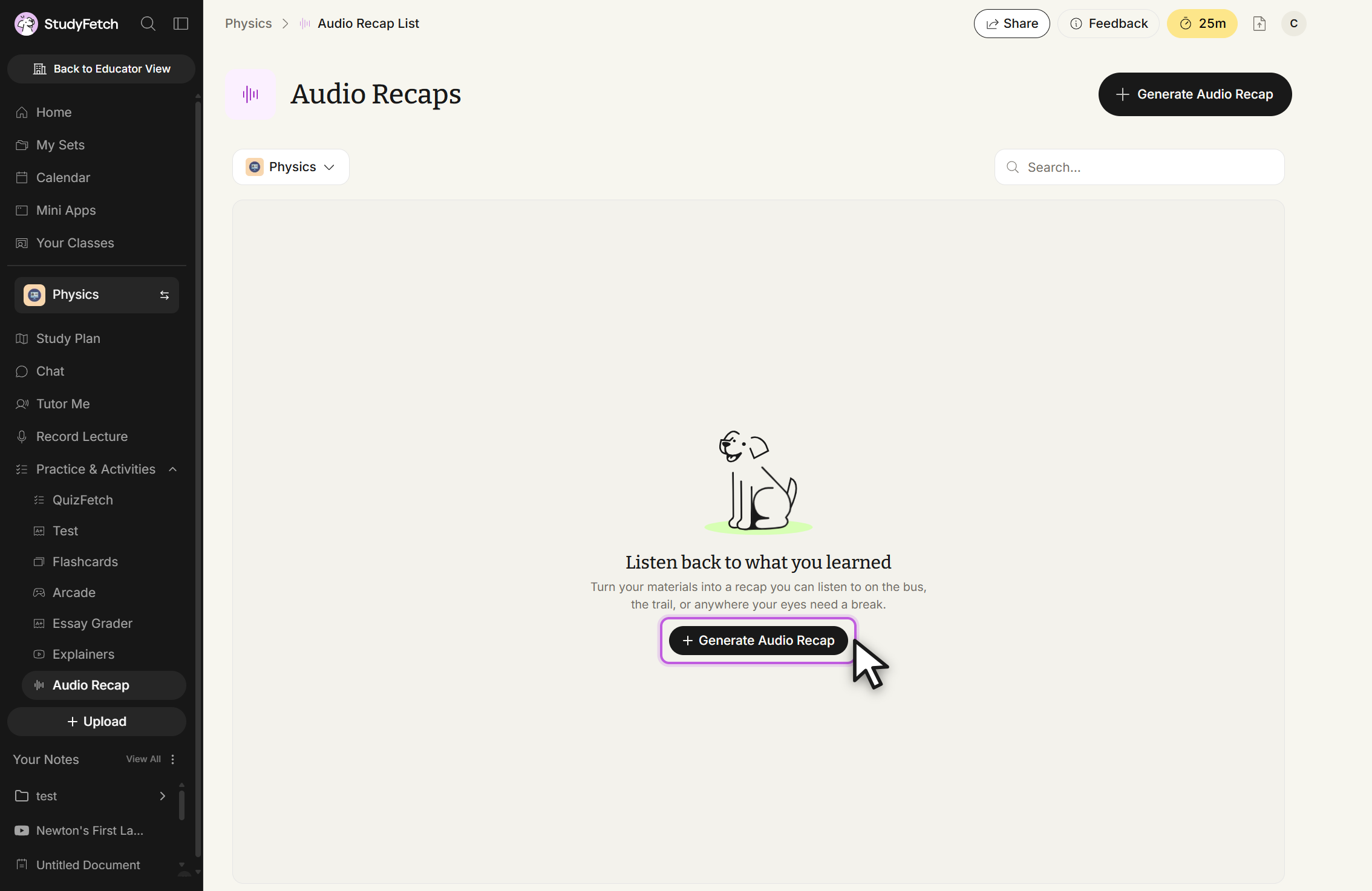
    The Audio Recaps page in StudyFetch with the left sidebar open. The main area shows the empty state with the heading Listen back to what you learned and an illustration, and the cursor is over the + Generate Audio Recap button in the top right.
    Audio Recaps, empty state. Click + Generate Audio Recap to start a recap.
  3. To open a specific Audio Recap, click its name in the list.

Start a new Audio Recap

Select + Generate Audio Recap from the top right of the Audio Recaps page to begin the three-step creation flow.

Choose your source

  1. Choose Create from Materials to use study materials you've already uploaded, or Create from Topic to generate a recap from a prompt.
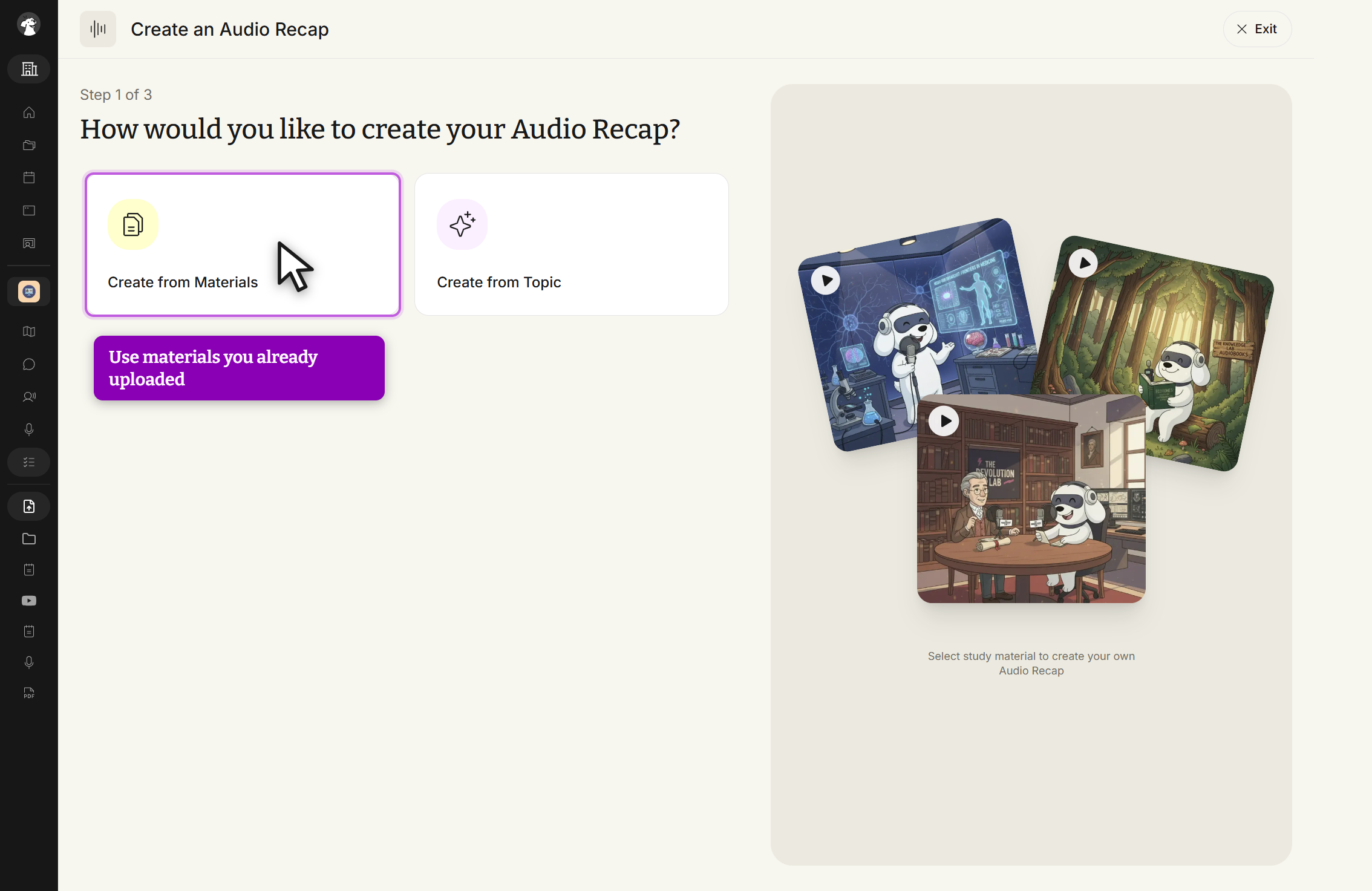
    The Create an Audio Recap screen, labeled Step 1 of 3, with the heading How would you like to create your Audio Recap? Two cards are offered, Create from Materials and Create from Topic. The cursor is over Create from Materials, which shows the tooltip Use materials you already uploaded. An Exit button sits in the top right.
    Create an Audio Recap, Step 1 of 3. Choose Create from Materials or Create from Topic.
  2. After selecting Create from Materials, choose the uploaded materials to include (documents, folders, or linked videos), then click Next.
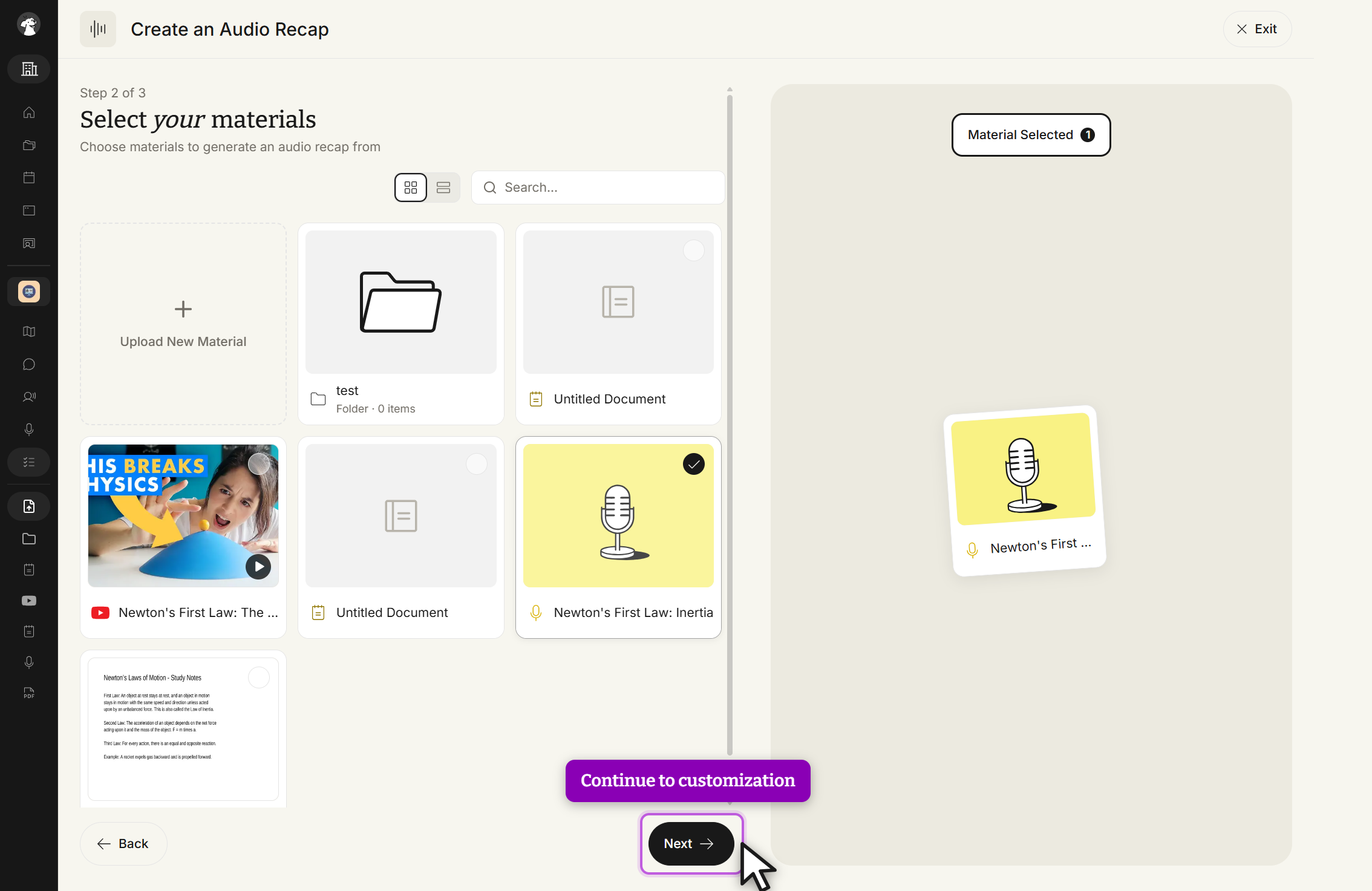
    The Create an Audio Recap screen, labeled Step 2 of 3, with the heading Select your materials. A grid shows an Upload New Material tile followed by the materials in the study set, including folders, documents and linked videos, each with a checkbox. One material is checked and a side panel shows the Material Selected count. Back and Next buttons sit at the bottom, with the cursor over Next.
    Create an Audio Recap, Step 2 of 3: Select your materials. Choose the materials to include, then click Next.
  3. Create from Topic works the same way, but prompts you for a topic, an optional web-search toggle, and an optional theme instead of a materials list.