Combine sets, open the editor, rename sets, save changes, and generate more cards.
Combine sets
Merge related flashcard sets into one review flow.
Edit details
Rename the set, update the description, and edit cards.
Generate more
Add AI-generated cards to an existing set.
Managing your Flashcards
Combining Flashcard Sets
Combining flashcard sets allows you to merge multiple sets into one, making it easier to review related topics together.
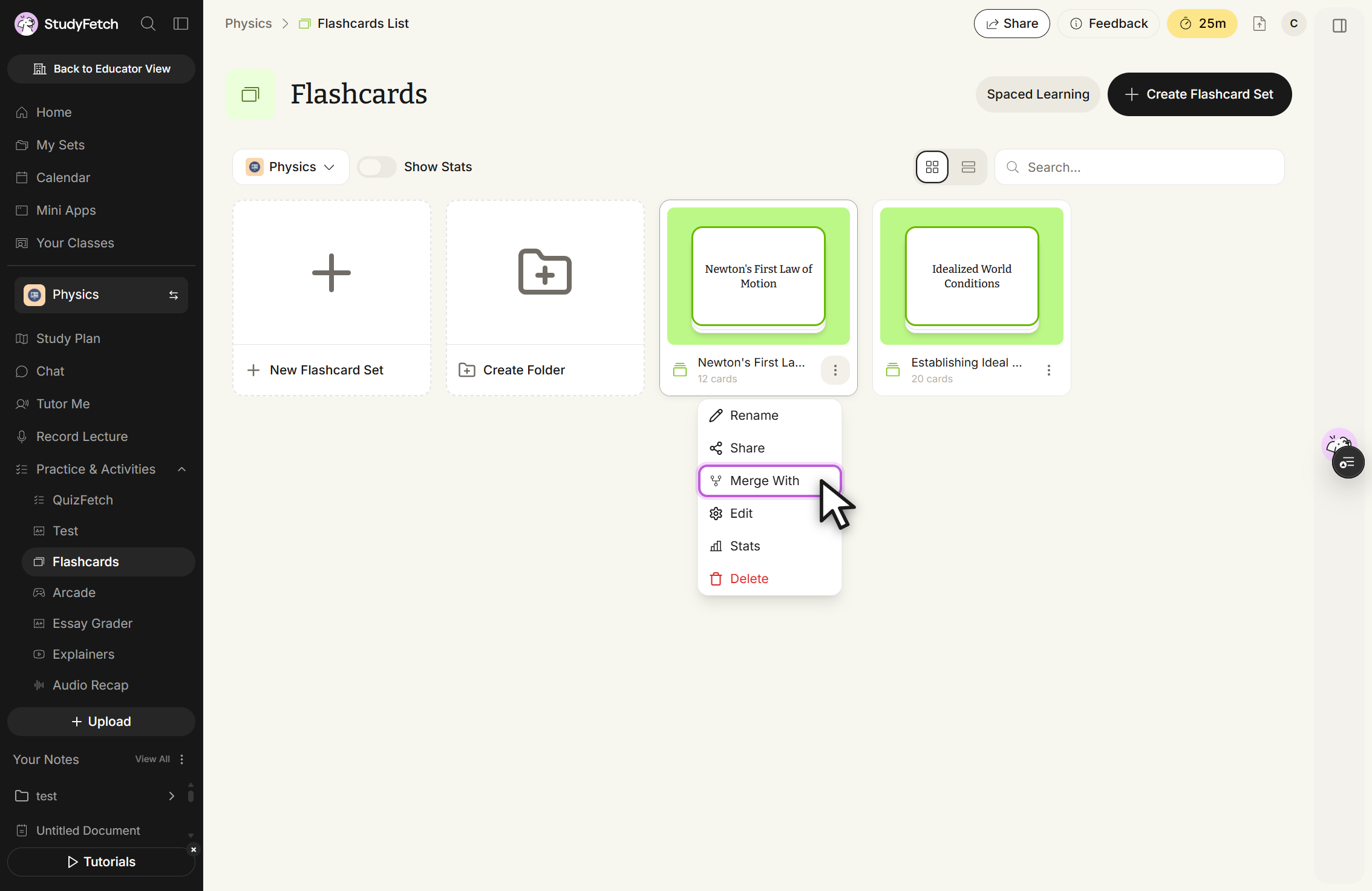
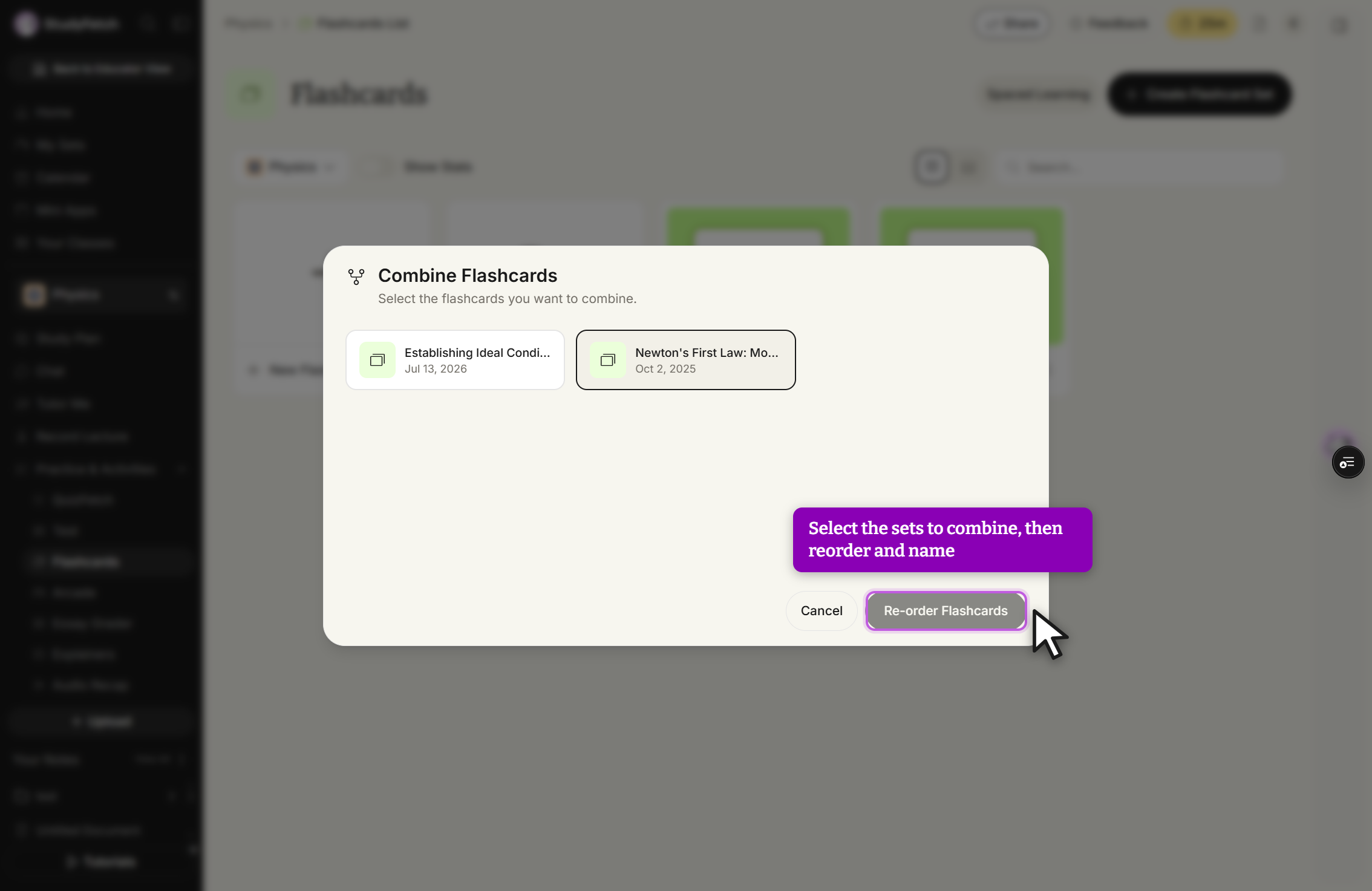
Flashcards page, set options menu open. Choose Merge With to merge this set with another.Combine Flashcards modal. Select the sets you want, then click Re-order Flashcards.
After accessing your flashcards, click Combine.
Select the flashcard sets you want to combine, then choose Re-order Flashcards to continue.
Drag each set into your preferred order, then select Continue to Options.
By default the system combines your original set names into one — enter a new title in the New Flashcard Set Name field to customize it.
Keep original flashcard sets is checked by default; uncheck it if you don't want to keep the individual originals.
Select Create Combined Set to combine your selected flashcards.
Opening the Editing View
There are a few ways to reach the editing page for a flashcard set:
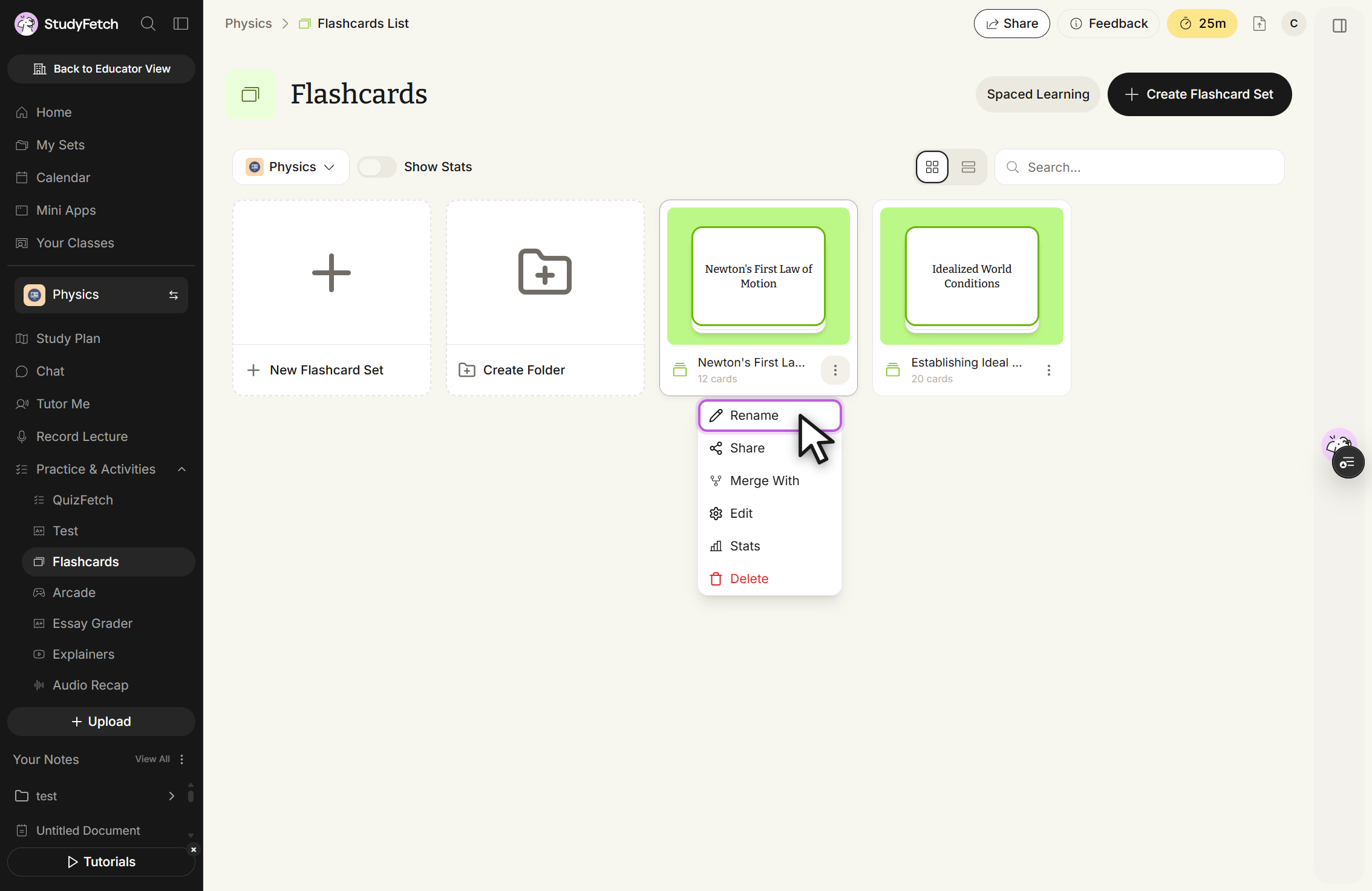
Flashcards page, set options menu open. The menu holds Rename, Share, Merge With, Edit, Stats, and Delete.
To edit a set you're actively studying, click the dropdown arrow next to the flashcard name and choose Edit.
To edit any set you're not actively studying, go to Practice > Flashcards, then click the ⋮ menu next to the set and choose Edit.
From the editor, you can review existing flashcards, edit current cards, or create new ones.
Changing the Name of your Flashcard Set
Flashcard set names can be updated from either Study mode or Editing mode.
In Study Mode: click the dropdown arrow next to the flashcard name, choose Rename, edit the name, and click Save.
In Editing Mode: click the Flashcard Set Settings (gear) icon next to the set's title.
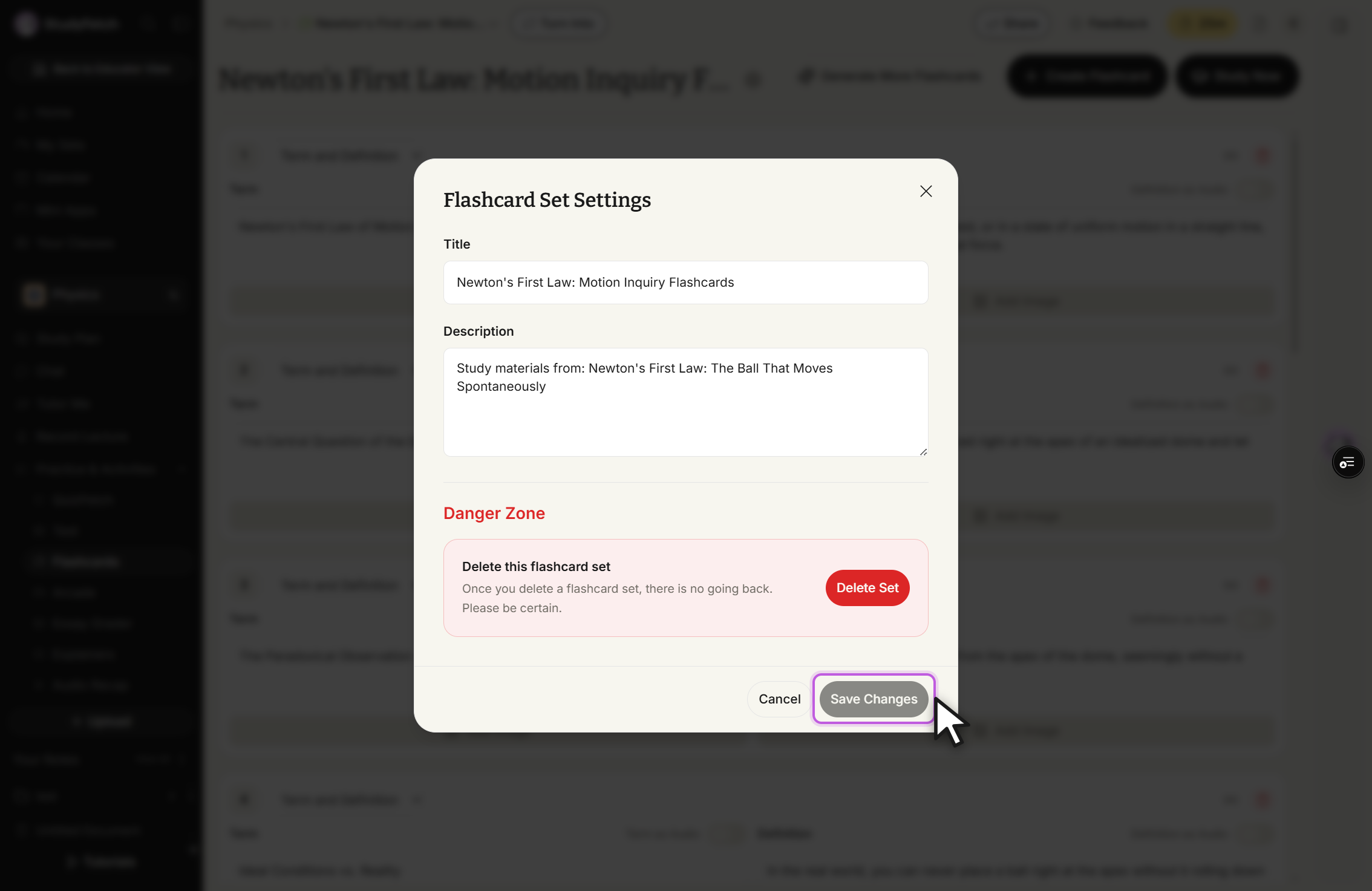
Flashcard Set Settings modal. Edit the Title and Description, then click Save Changes.
Edit the Title and optionally the Description, then click Save Changes.
Saving Changes after Editing Flashcards
After making any desired changes to your flashcards, make sure to click Save All Changes from the top or bottom toolbar of the editor.
Generating more Flashcards
Need more flashcards? Create them manually, or have AI generate more automatically.
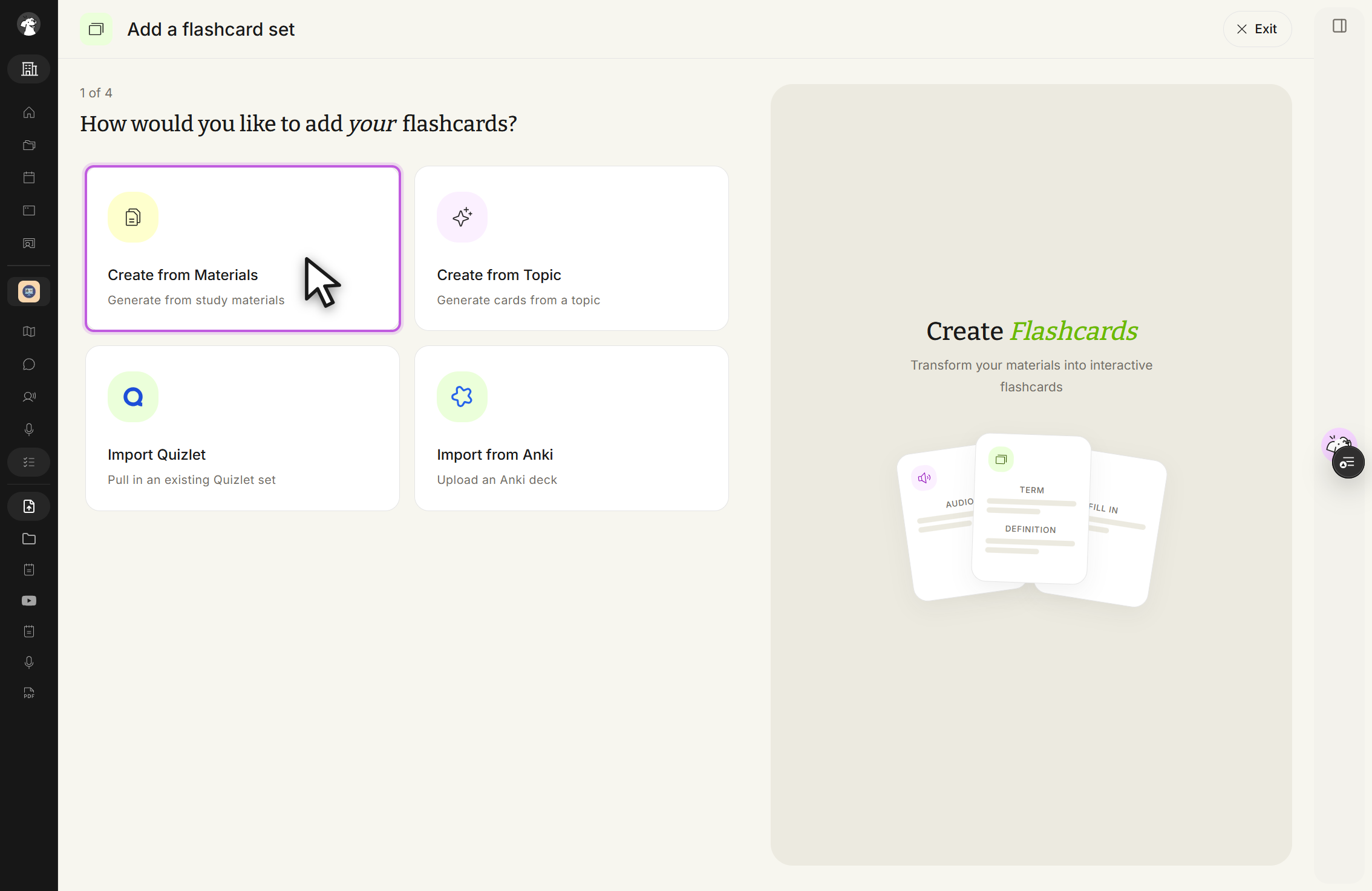
Add a flashcard set, 1 of 4. Choose Create from Materials, Create from Topic, Import Quizlet, or Import from Anki.
In the editing view, select Generate More Flashcards from the toolbar.
Choose how you'd like to add cards: Create from Materials, Create from Topic, Import Quizlet, or Import from Anki.
Follow the steps for the method you selected. Your new flashcards are automatically added to the set.
 StudyFetch Academy