Skip to content
StudyFetch Academy

Product Tutorials

Manage Live Lecture Sessions

Managing Your Live Lecture Session

Rename Your Live Lecture Session

  1. After opening the desired Live Lecture Session, click the dropdown arrow next to the session name at the top of the page, then click Rename.
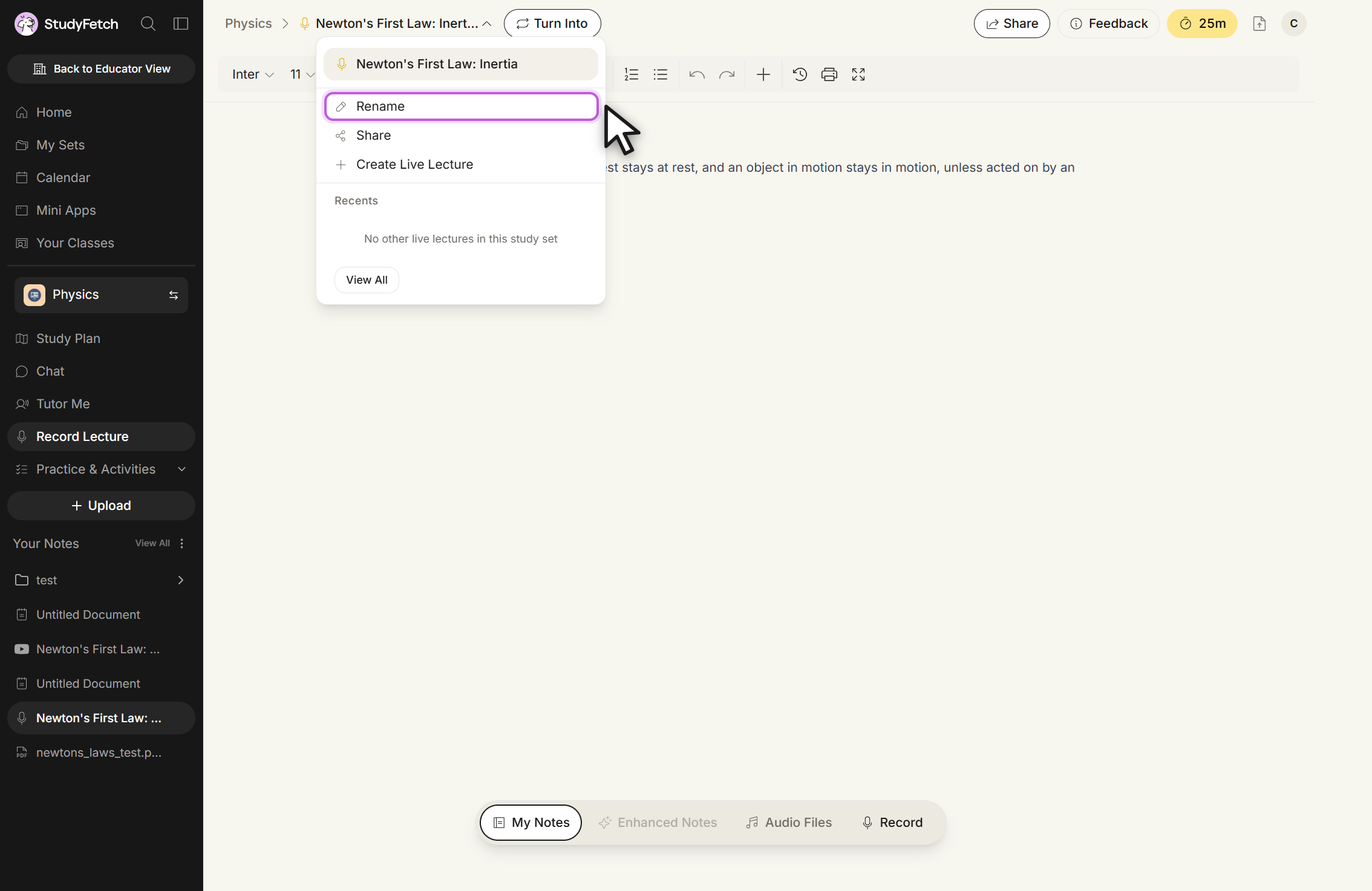
The dropdown menu open beside the session name at the top of a Live Lecture session page. The menu lists Rename, Share, and Create Live Lecture, then a Recents section listing the other Live Lecture sessions in the study set and a View All button. Rename is outlined with the cursor over it.
Live Lecture session, session menu open. Click Rename to change the session name.
  1. Enter the new name in the Name field, then click Save.
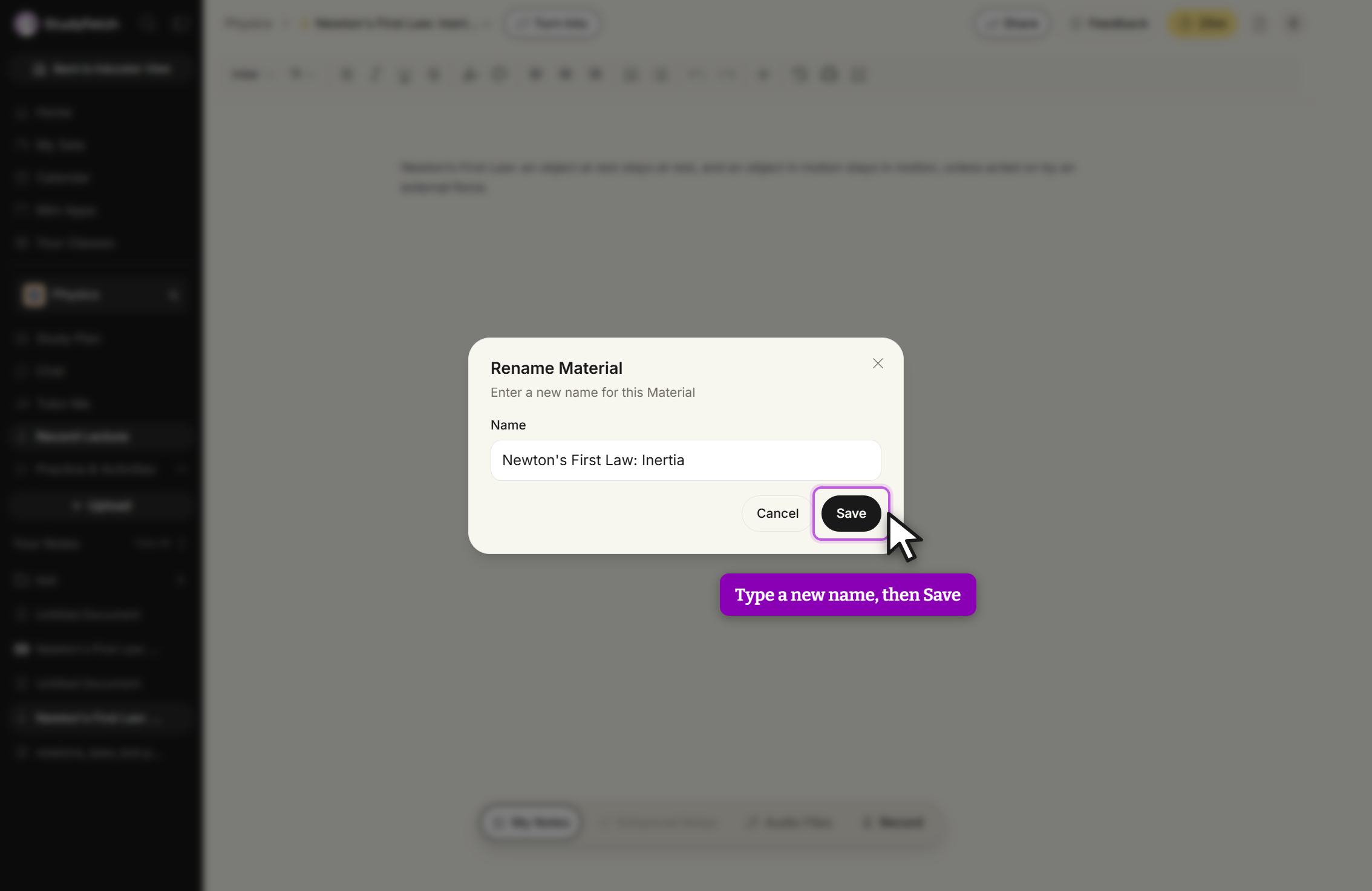
The Rename Material modal, reading Enter a new name for this Material. A Name field holds the session's current name, with Cancel and Save buttons below it and a close X at the top right. Save is outlined with the cursor over it.
Rename Material modal. Type the new name in the Name field, then click Save.

Share Your Live Lecture Session

Found your Live Lecture Session helpful? Feel free to share it with friends or classmates who may benefit from it as well.

  1. Click the dropdown arrow next to your Live Lecture Session name, then select Share.
  2. Choose whether to Share this Live Lecture or Share this Study Set, then copy the link or share directly via WhatsApp, Telegram, or Messages.
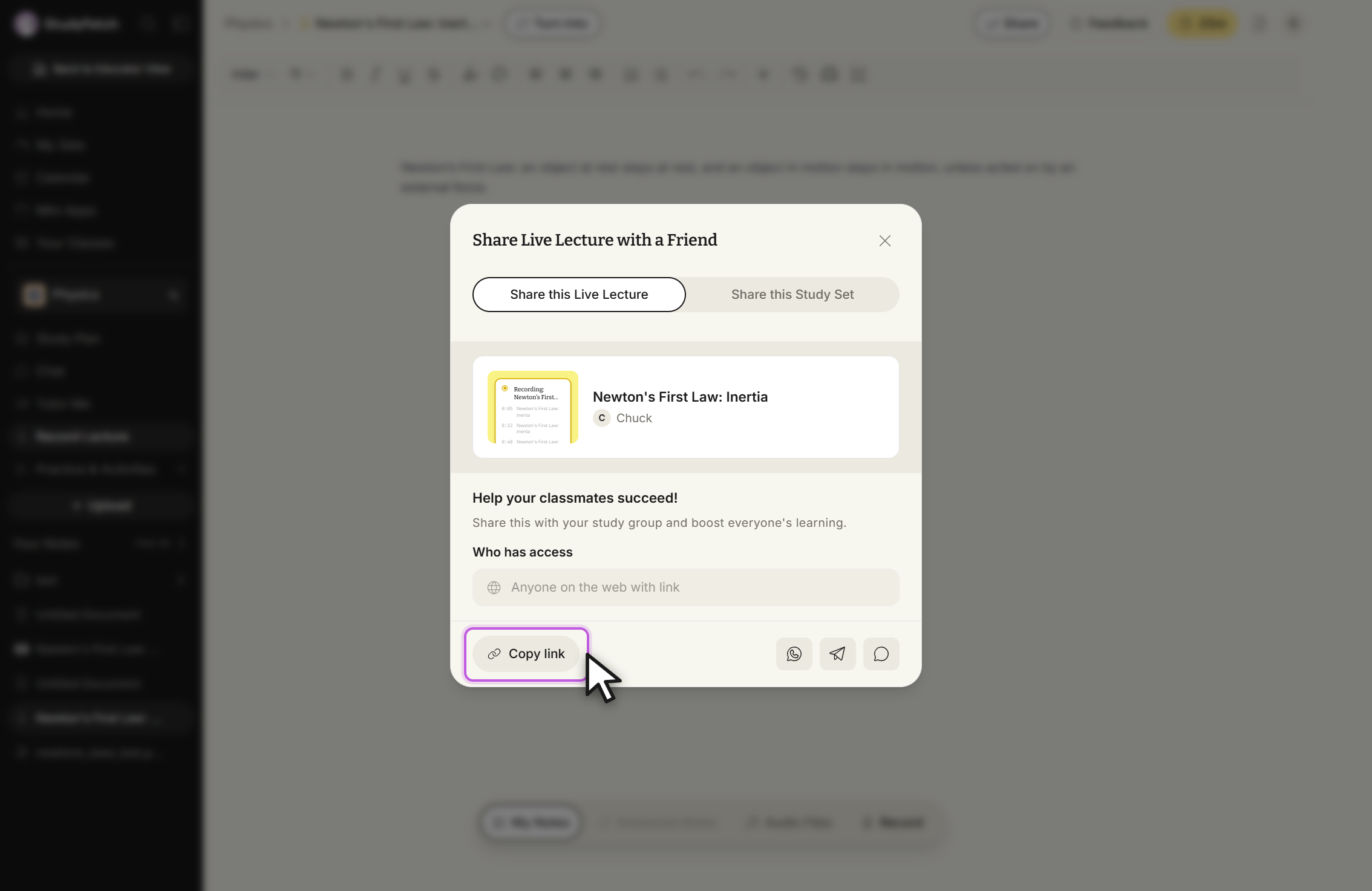
The Share Live Lecture with a Friend modal, with the Share this Live Lecture tab selected beside a Share this Study Set tab. It shows a card for the session with its name and owner, the heading Help your classmates succeed!, and Who has access set to Anyone on the web with link. At the bottom a Copy link button is outlined with the cursor over it, next to three messaging app icon buttons.
Share Live Lecture with a Friend modal, Share this Live Lecture tab. Click Copy link, or use one of the messaging app buttons beside it.

Delete Your Live Lecture Session

Once a Live Lecture Session is completed, it is automatically saved to Your Notes in the left sidebar, marked with a microphone icon. To delete a session, hover over it in the sidebar and click the trash can icon that appears, then confirm the deletion.

Turn Your Session Into Other Study Materials

Your Live Lecture Session can be used to generate flashcards, tests, and other study materials. Select Turn Into at the top of the Live Lecture Session page and choose your desired study tool — Flashcards, Practice Test, QuizFetch, Tutor Me, Audio Recap, Chat, Explainers, Arcade, or a Mini App.
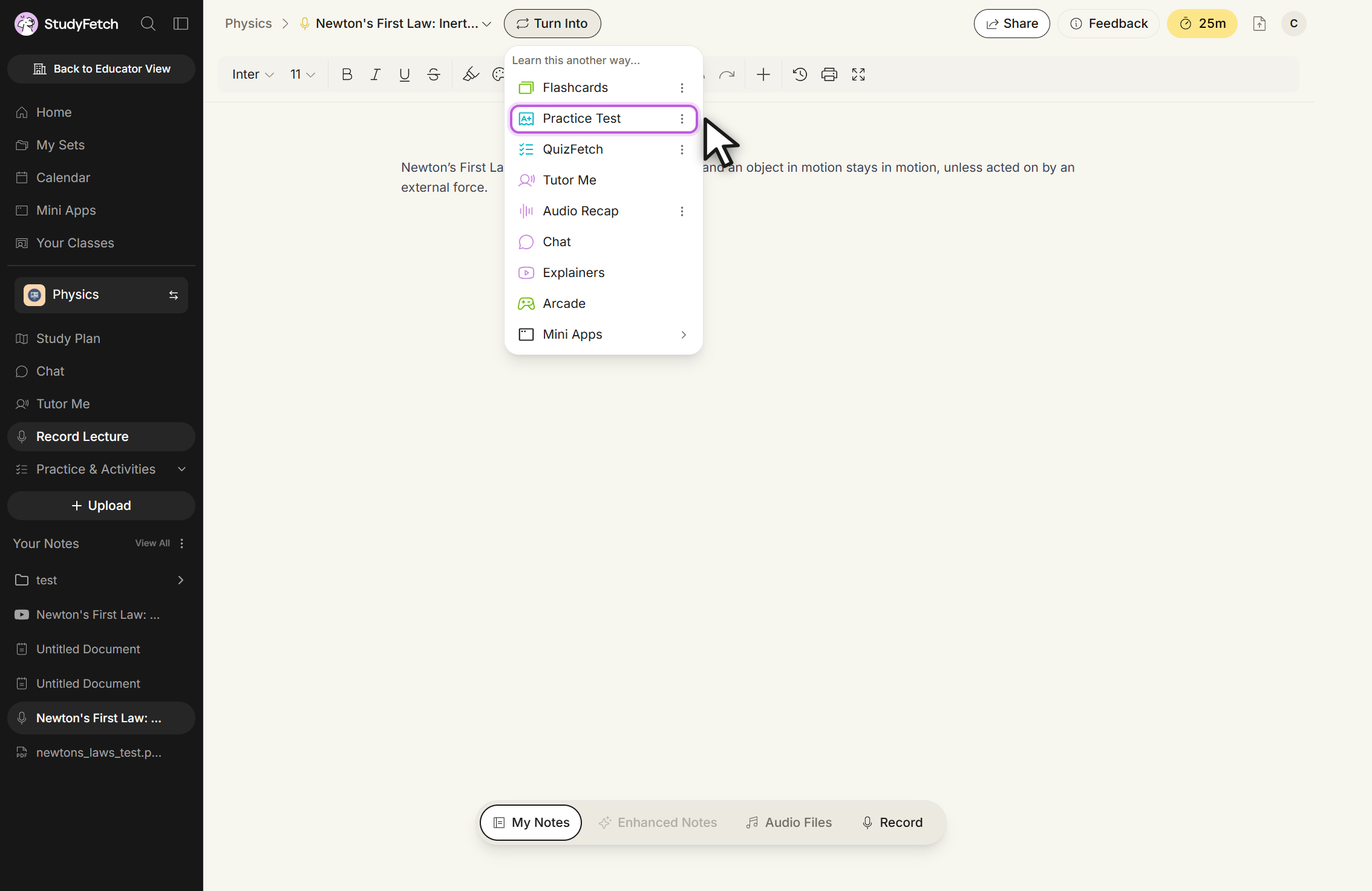
The Turn Into menu open on a Live Lecture session page, headed Learn this another way... It lists Flashcards, Practice Test, QuizFetch, Tutor Me, Audio Recap, Chat, Explainers, Arcade, and Mini Apps, with Practice Test outlined and the cursor over it.
Turn Into menu, Learn this another way... Pick a study tool such as Flashcards, Practice Test, or QuizFetch.