Skip to content
StudyFetch Academy

Product Tutorials

Create a QuizFetch Quiz

Creating Your Quiz

Step 1: Start a New Quiz

From Practice > QuizFetch, select + New QuizFetch (or click the arrow next to + Create and choose Create QuizFetch). You'll then choose how to build your quiz: Create from Materials generates questions from your study materials, while Create from Flashcards generates a quiz from an existing flashcard set.
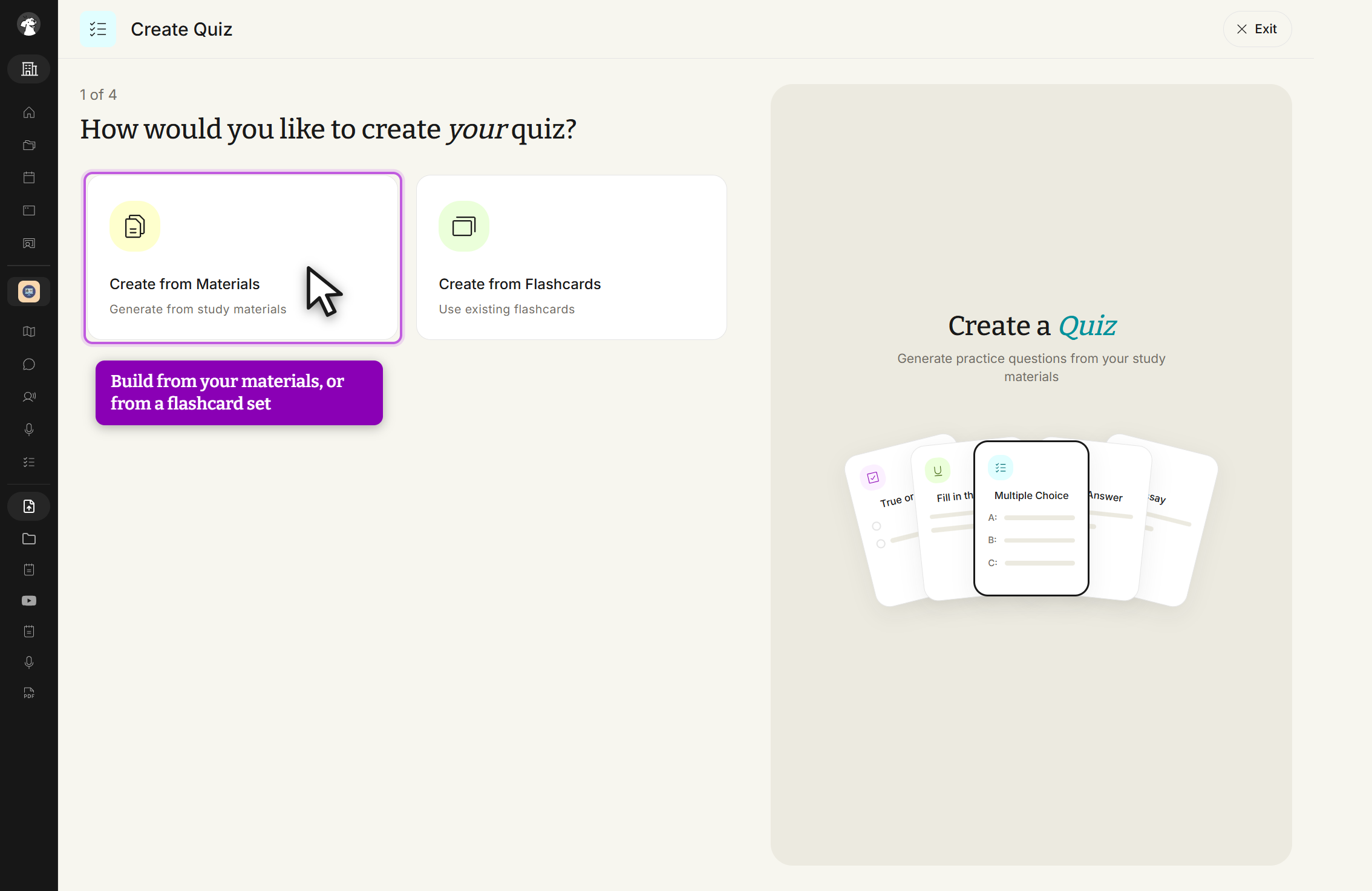
The Create Quiz screen at step 1 of 4, headed How would you like to create your quiz? Two option cards are shown: Create from Materials, Generate from study materials, which is outlined with the cursor on it, and Create from Flashcards, Use existing flashcards. An Exit button sits at the top right, and a Create a Quiz preview panel is on the right.
Create Quiz, 1 of 4. Pick Create from Materials or Create from Flashcards.

Step 2: Select Materials and Customize Question Types

If creating from materials, choose which uploaded material(s) to generate from (or upload something new) and click Next. Then customize your quiz by choosing how many questions of each format to include: Multiple Choice, True/False, Fill in the Blank, Short Answer, Free Response, and Multi-Layered Passage, using the - / + controls or preset buttons. Under Exam-Specific Question Types you can also align questions to a real exam format (USMLE Step 1, MCAT, NCLEX, AP Exams, and more) — see Exam-Specific Question Types for details. Each selected type appears as its own card on the right with a running question count.
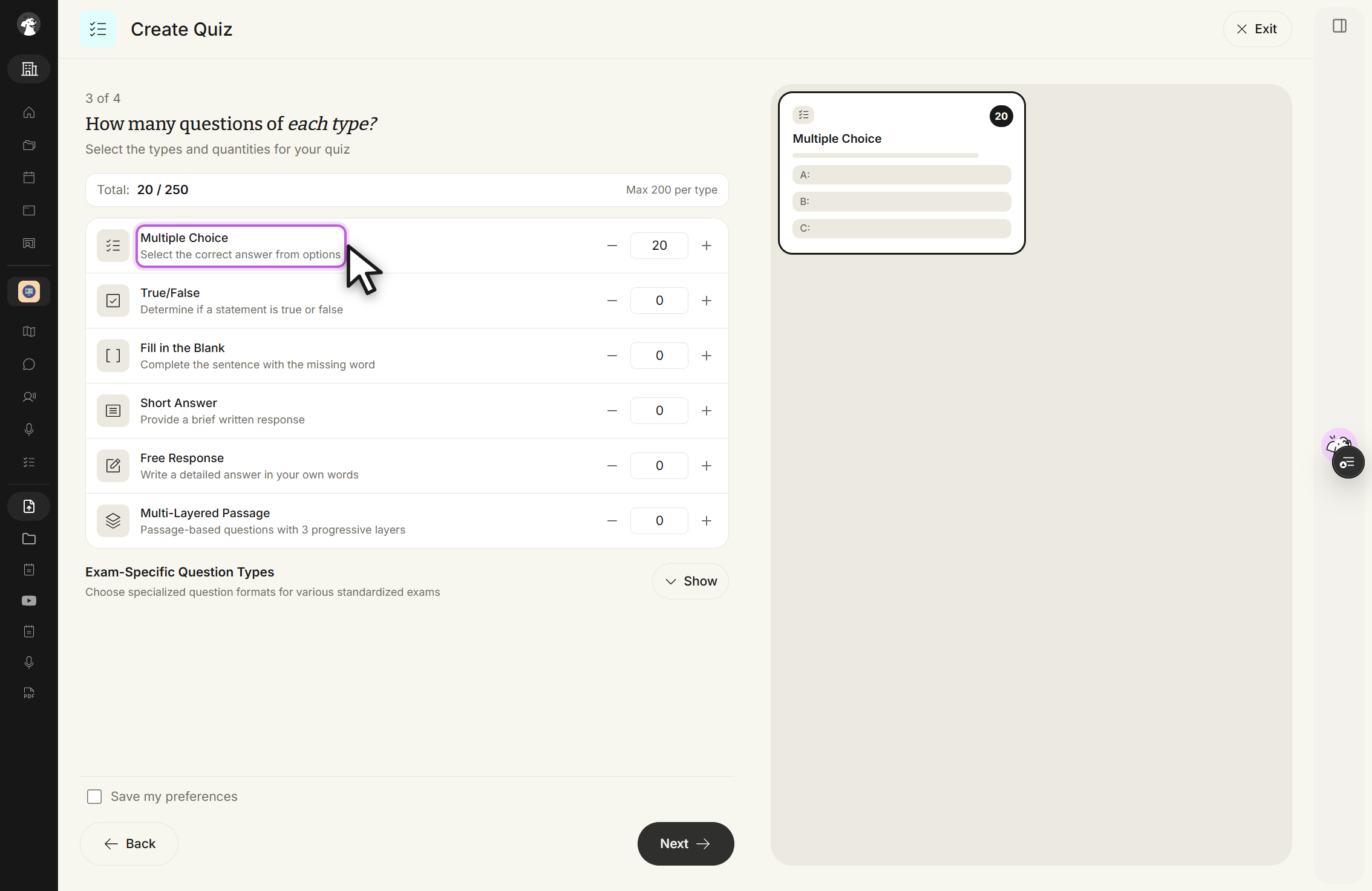
The Create Quiz screen at step 3 of 4, headed How many questions of each type? A total bar reads Total: 20 / 250 and Max 200 per type. Rows with minus and plus controls list Multiple Choice set to 20, and True/False, Fill in the Blank, Short Answer, Free Response and Multi-Layered Passage each set to 0. Below them an Exam-Specific Question Types section is collapsed behind a Show button. At the bottom are a Save my preferences checkbox, a Back button and a Next button. A Multiple Choice card on the right shows a count of 20.
Create Quiz, 3 of 4. Set how many questions of each type with the minus and plus controls, then click Next.

Step 3: Optional Settings

Optionally name your quiz (StudyFetch will name it for you if left blank), choose the quiz's language, and select a customization plugin from Summarizer Sparky, Professor Sparky, Deep Learner Sparky, or explore other plugins. You can also specify a focus topic to tailor the generated questions to your learning goals.
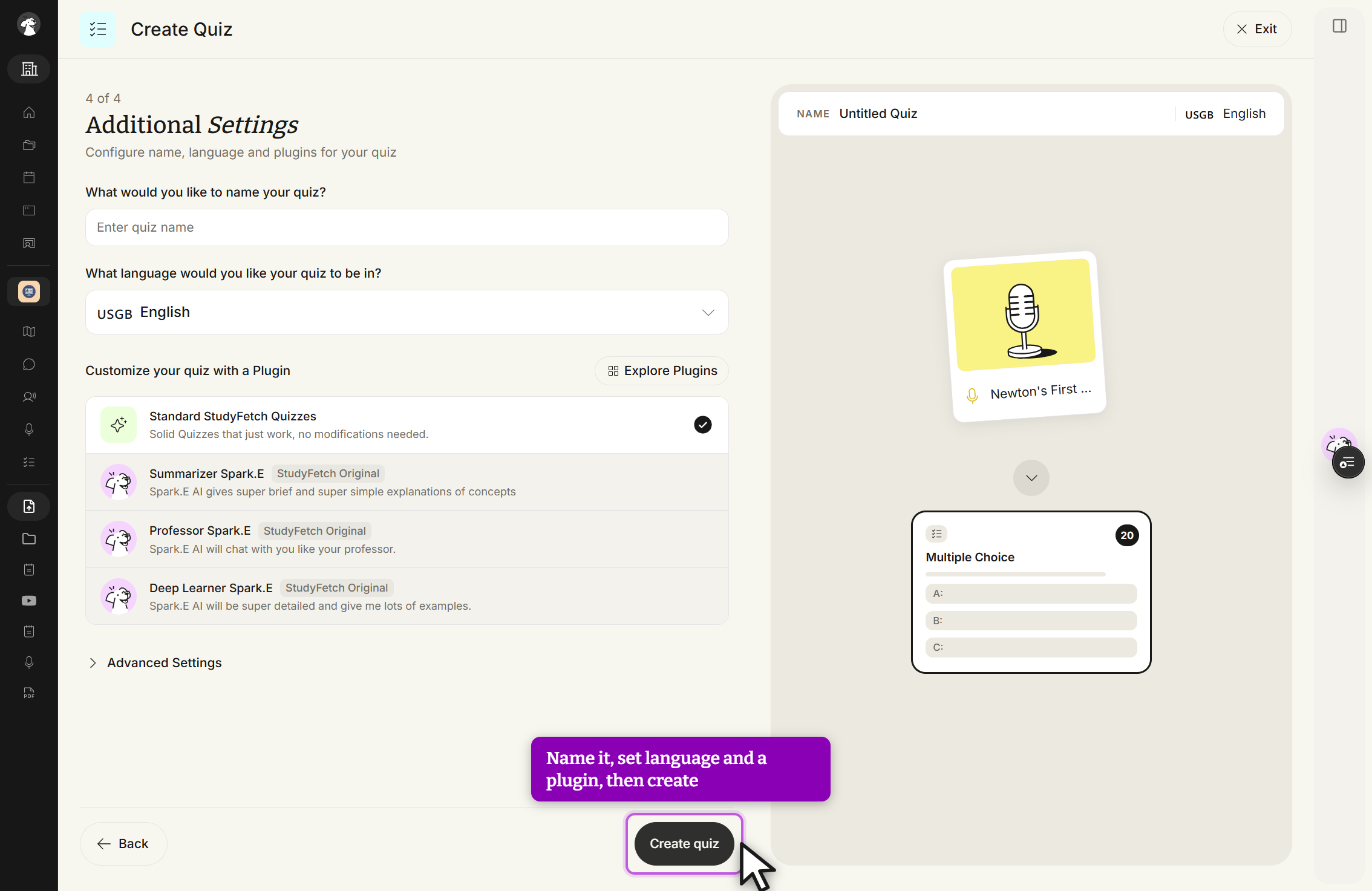
The Create Quiz screen at step 4 of 4, Additional Settings, subtitled Configure name, language and plugins for your quiz. The quiz name field is empty and shows the placeholder Enter quiz name. The language field reads English. Under Customize your quiz with a Plugin, Standard StudyFetch Quizzes is selected with a check, followed by Summarizer Spark.E, Professor Spark.E and Deep Learner Spark.E, each tagged StudyFetch Original. An Explore Plugins button sits above the list and a collapsed Advanced Settings row below it. At the bottom are a Back button and a Create quiz button with the cursor on it. The preview panel on the right reads NAME Untitled Quiz.
Create Quiz, 4 of 4 Additional Settings. Name the quiz, set the language, choose a plugin, then click Create quiz.

Step 4: Generate Your Quiz

Select Create quiz and StudyFetch will automatically generate your customized quiz from the selected materials and settings.
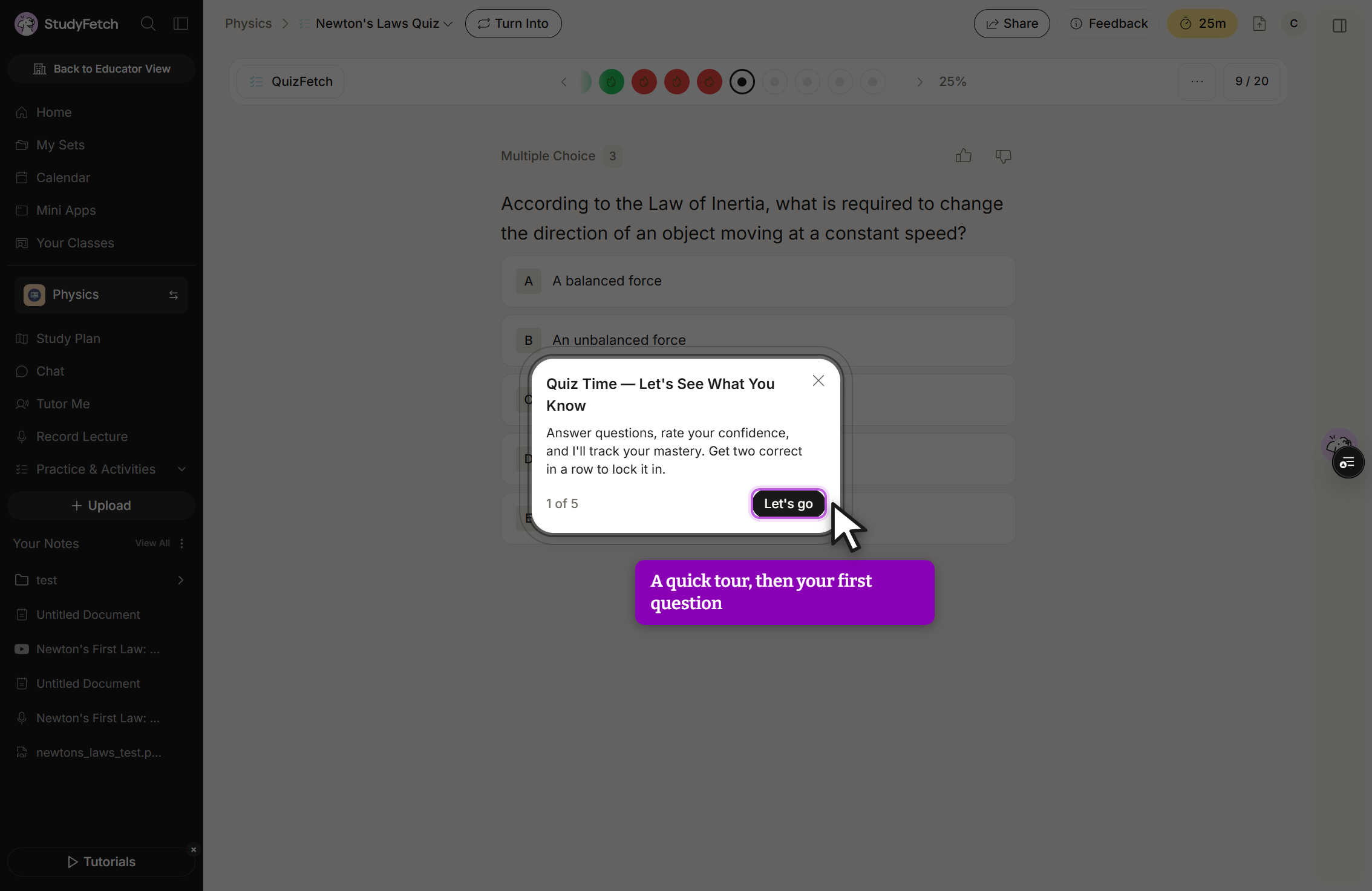
The generated Newton's Laws Quiz open in QuizFetch, behind a welcome card titled Quiz Time, Let's See What You Know. The card reads Answer questions, rate your confidence, and I'll track your mastery. Get two correct in a row to lock it in. It is marked 1 of 5 and has a Let's go button with the cursor on it, plus a close X. Behind the card a Multiple Choice question asks According to the Law of Inertia, what is required to change the direction of an object moving at a constant speed, with visible options A, A balanced force, and B, An unbalanced force. The quiz header shows 25% and 9 / 20.
Newton's Laws Quiz, Quiz Time card 1 of 5. Click Let's go to start answering.