Skip to content
StudyFetch Academy

Product Tutorials

Explainers Overview

Introduction

Explainer Videos turn your study materials — or any topic you want to learn — into narrated video lessons. If you learn best by watching and listening rather than reading, Explainers break down complex concepts with visuals, animation, and structured narration so you can absorb material at your own pace.

Accessing Explainers

Step 1: Open Explainers

  1. On the left-hand side of your Dashboard, click Audio & Video and then select Explainers.
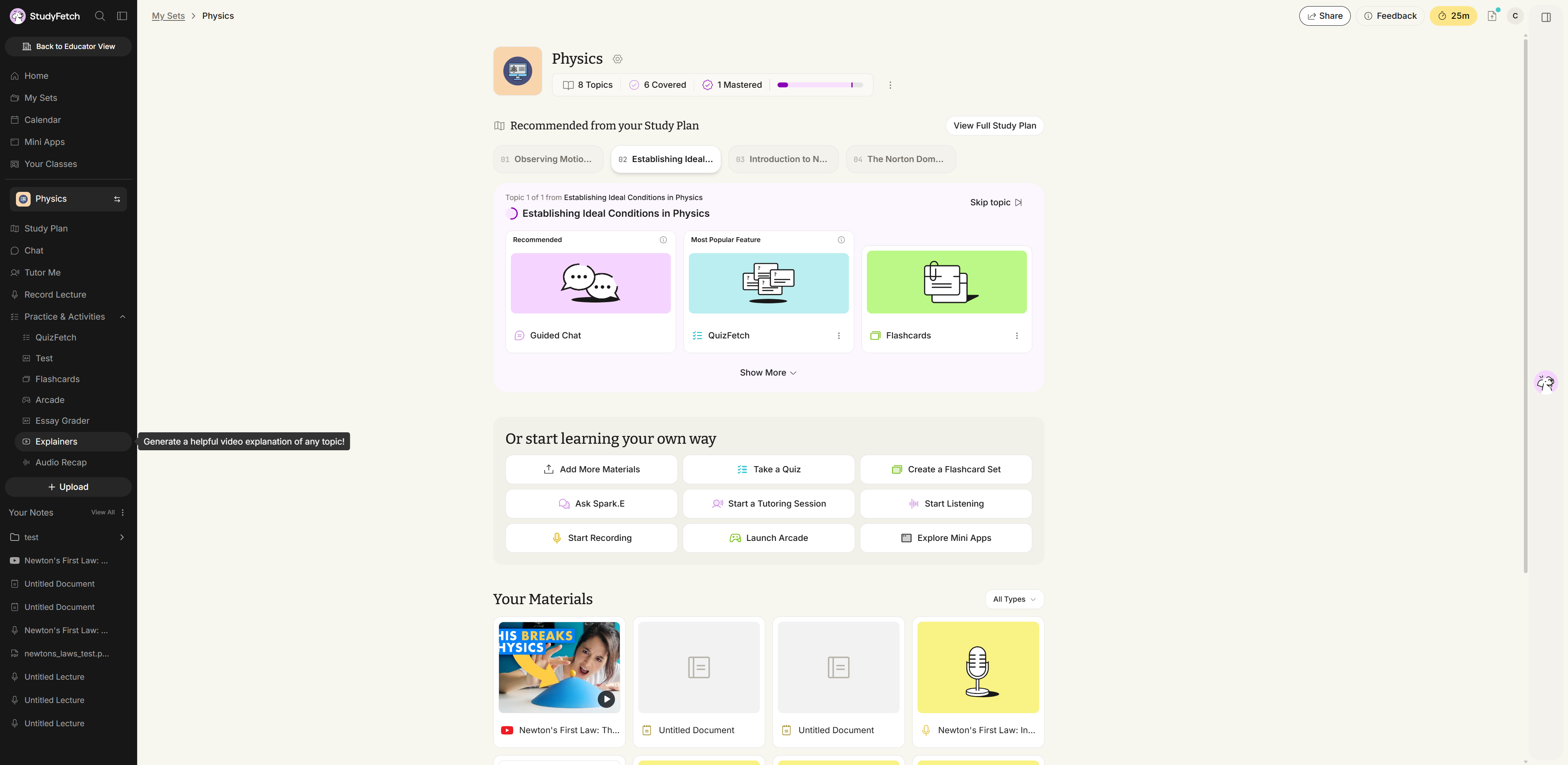
A study set page in StudyFetch. In the left sidebar the Practice & Activities group is expanded to show QuizFetch, Test, Flashcards, Arcade, Essay Grader, Explainers, and Audio Recap. The pointer rests on Explainers and a tooltip reads Generate a helpful video explanation of any topic!
Study set page, left sidebar. Click Explainers under Practice & Activities.

Step 2: Browse the Explainers List

  1. The Explainers page opens to Explore, a gallery of video explainers you can browse for inspiration. Use the All, Classic, and Animated tabs to filter by video type, or use Search videos... to find a specific topic. Click My Videos to see explainers you've created yourself.
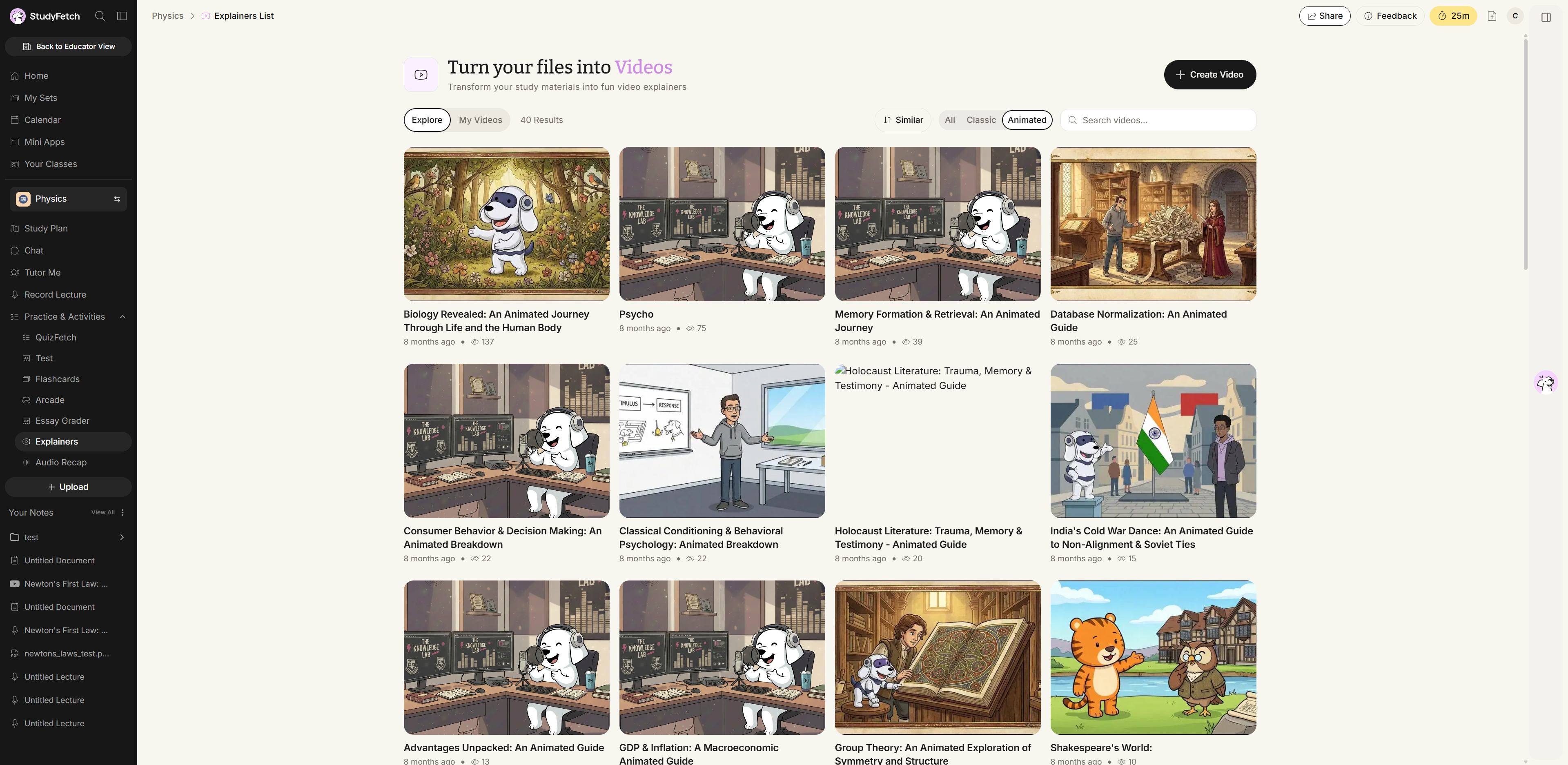
The Explainers List page, headed Turn your files into Videos, on the Explore tab with a result count beside it. Next to the Explore and My Videos tabs are a Similar sort control and the All, Classic, and Animated filters, with Animated selected. A Search videos... field sits to their right and a Create Video button is in the top right. The gallery below shows video cards, each with a thumbnail, a title, an age, and a view count.
Explainers List, Explore tab with the Animated filter selected. Browse the gallery of explainer videos or search them with Search videos...
  1. Selecting a filter tab, like Classic, narrows the gallery down to that video type, and each thumbnail shows its runtime so you can gauge length before watching.
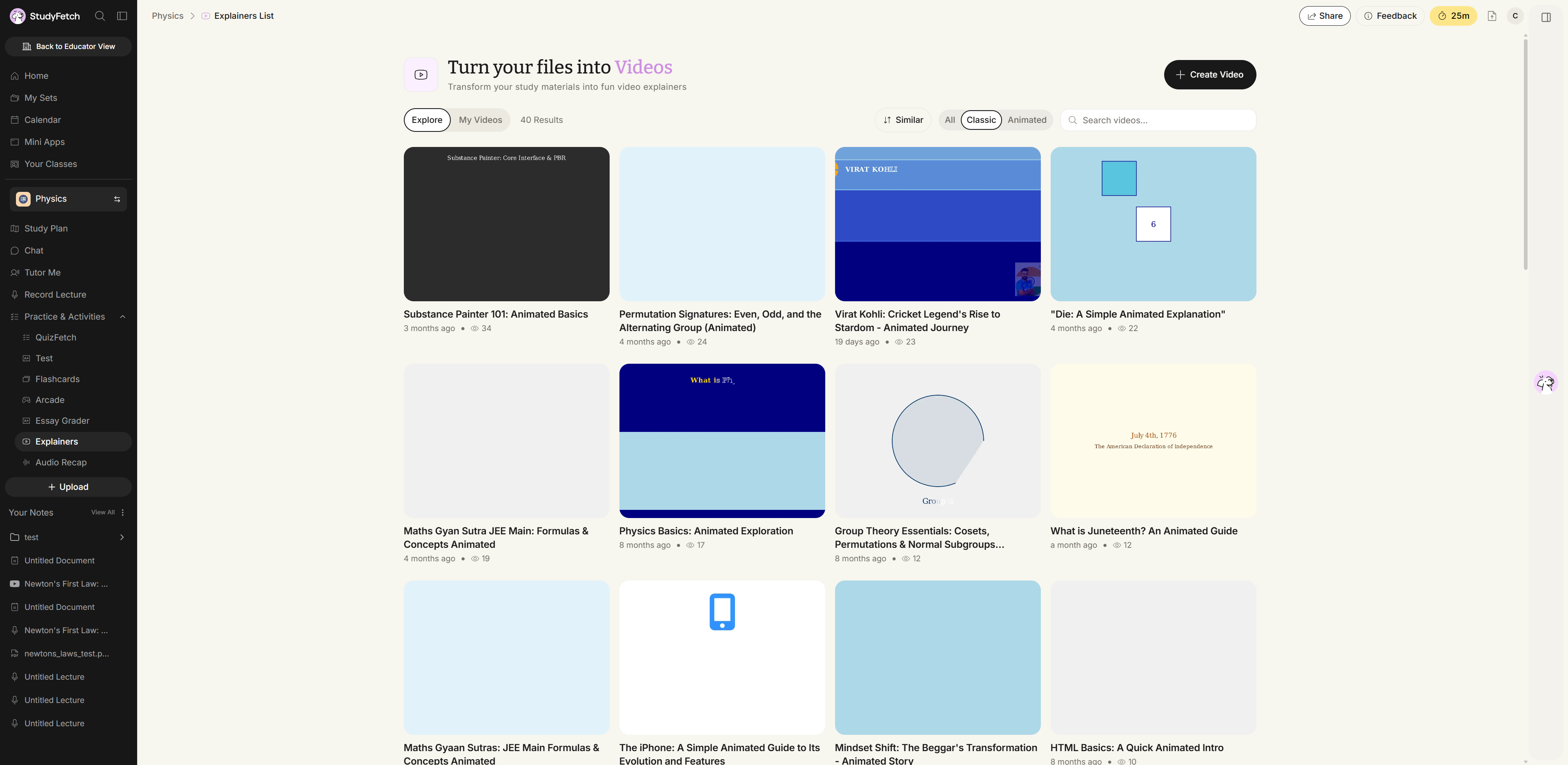
The Explainers List page on the Explore tab with the Classic filter selected among All, Classic, and Animated. The gallery below shows video cards, each with a thumbnail, a runtime, a title, an age, and a view count.
Explainers List, Explore tab with the Classic filter selected. The gallery narrows to that video type, and each card shows its runtime.
  1. Click + Create Video in the top right at any time to start building your own Explainer.