Skip to content
StudyFetch Academy

Product Tutorials

Review Results and Edit Rubric

Accessing your performance

After grading completes, you land on your results page: an overall score, a category-by-category breakdown, and your original document annotated with inline comments.
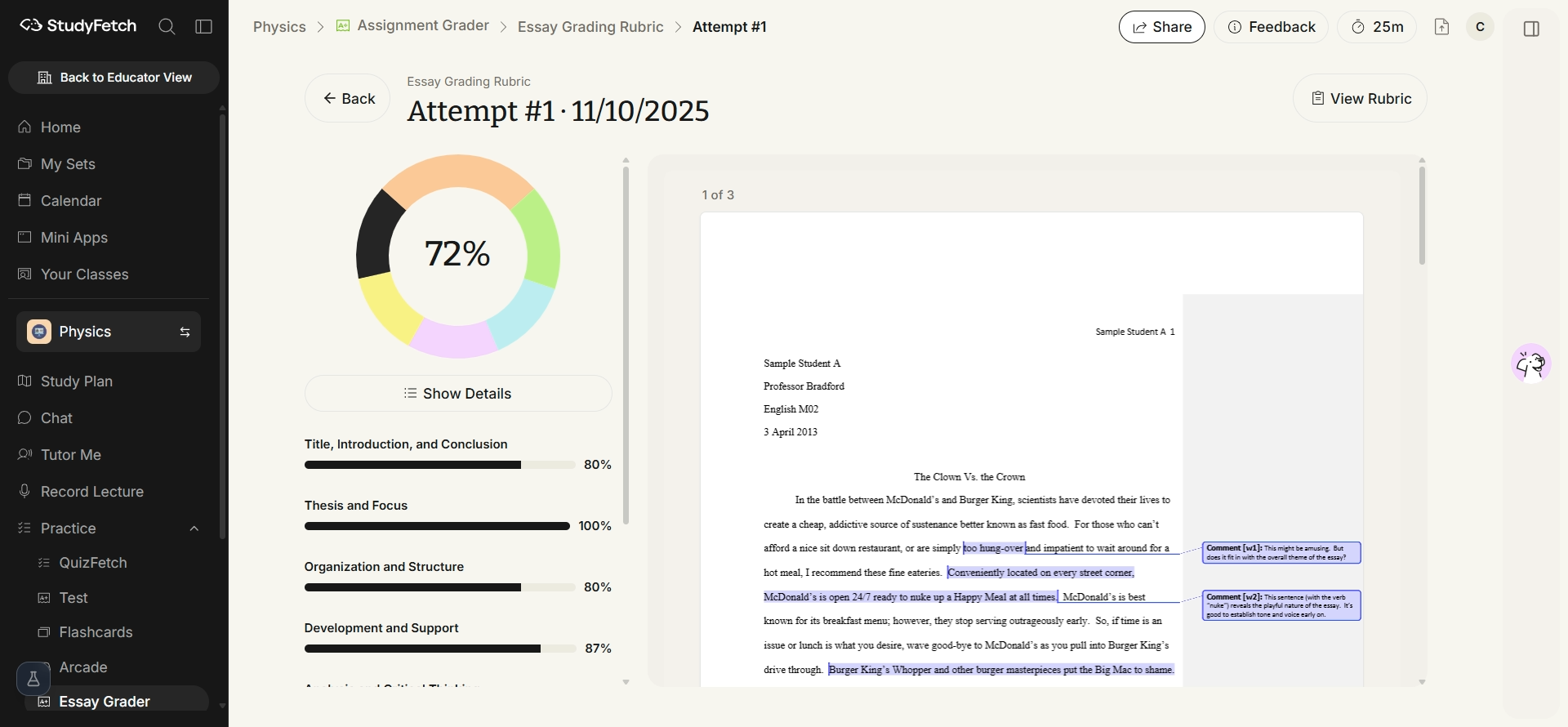
The Assignment results page. A left panel shows the overall score as a percentage with a bar for each rubric category and a Show Details control, and a right panel shows the submitted document with inline highlighted comments.
Assignment results page. Overall score and category breakdown on the left, your annotated document on the right.

Viewing your grade breakdown

Click Show Details to expand full written feedback for every rubric category — what you did well and what to improve — alongside an overall summary.
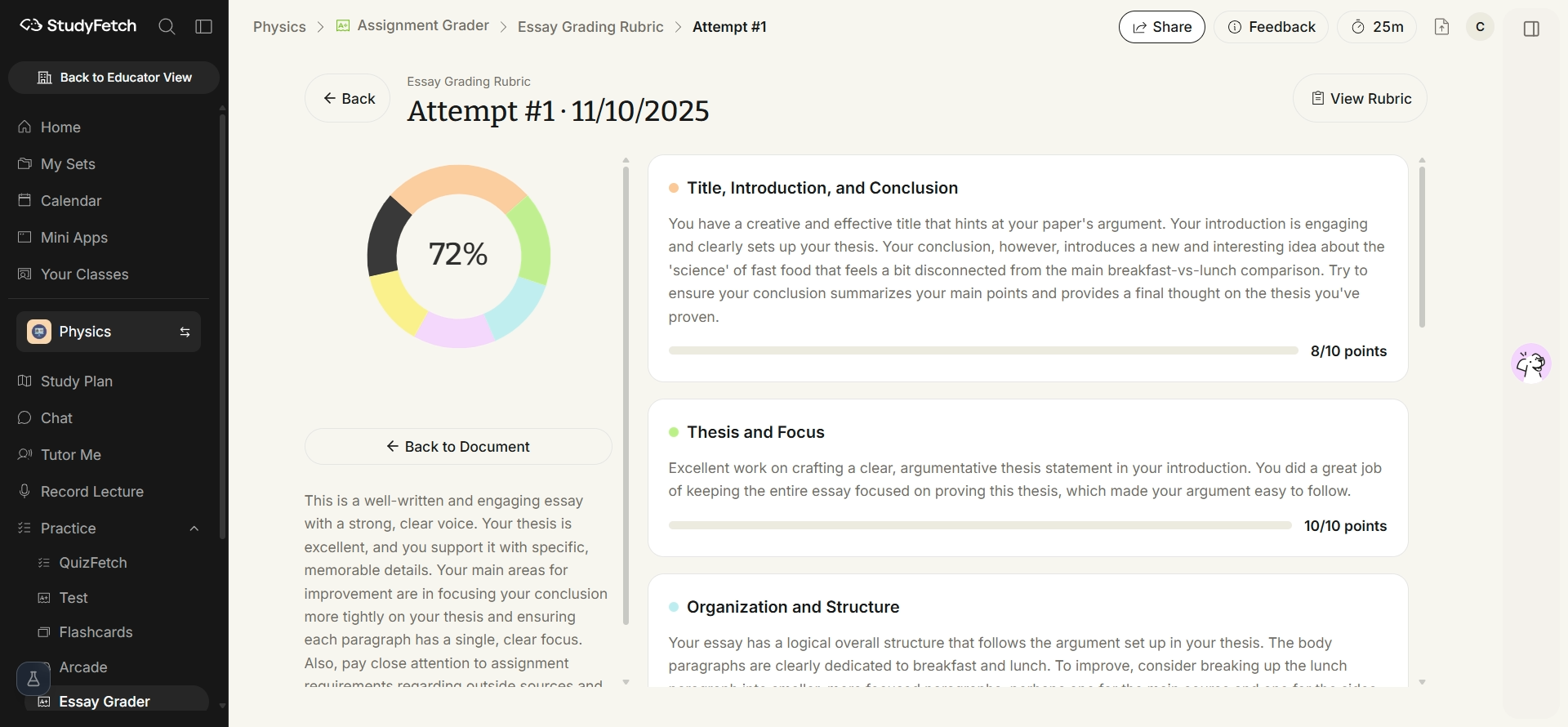
The results page with Show Details expanded, showing a written explanation and point total per rubric category, alongside an overall summary.
Assignment results page, Show Details expanded. Written feedback and points for each rubric category.

Viewing and editing your assignment rubric

Click View Rubric from the results page to see the exact criteria and point breakdown used to grade your work.
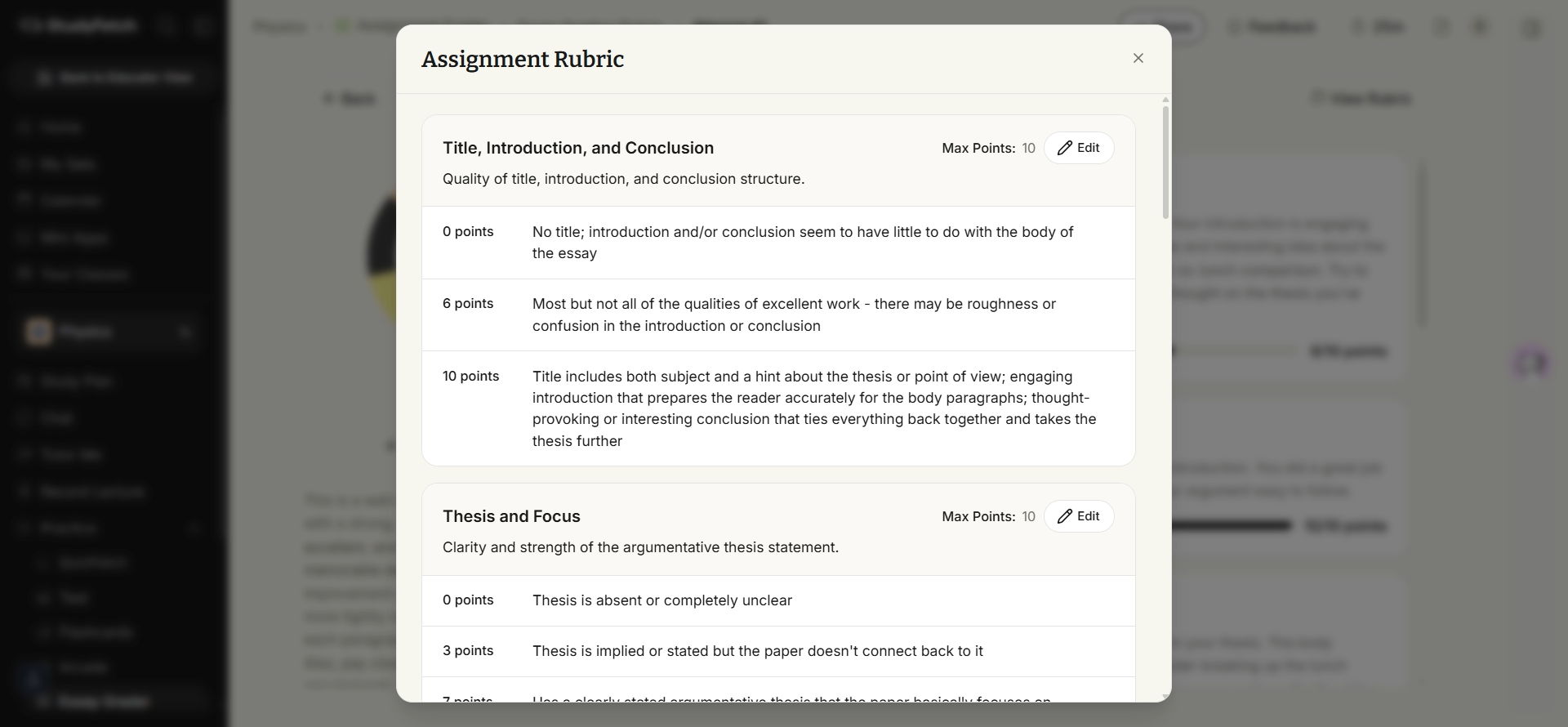
An Assignment Rubric popup showing point breakdowns and descriptions for each grading category.
Assignment Rubric modal. Point levels and descriptions for each category.

Click Edit on any category to adjust its description, point breakdowns, or add new criteria, then Save Changes.
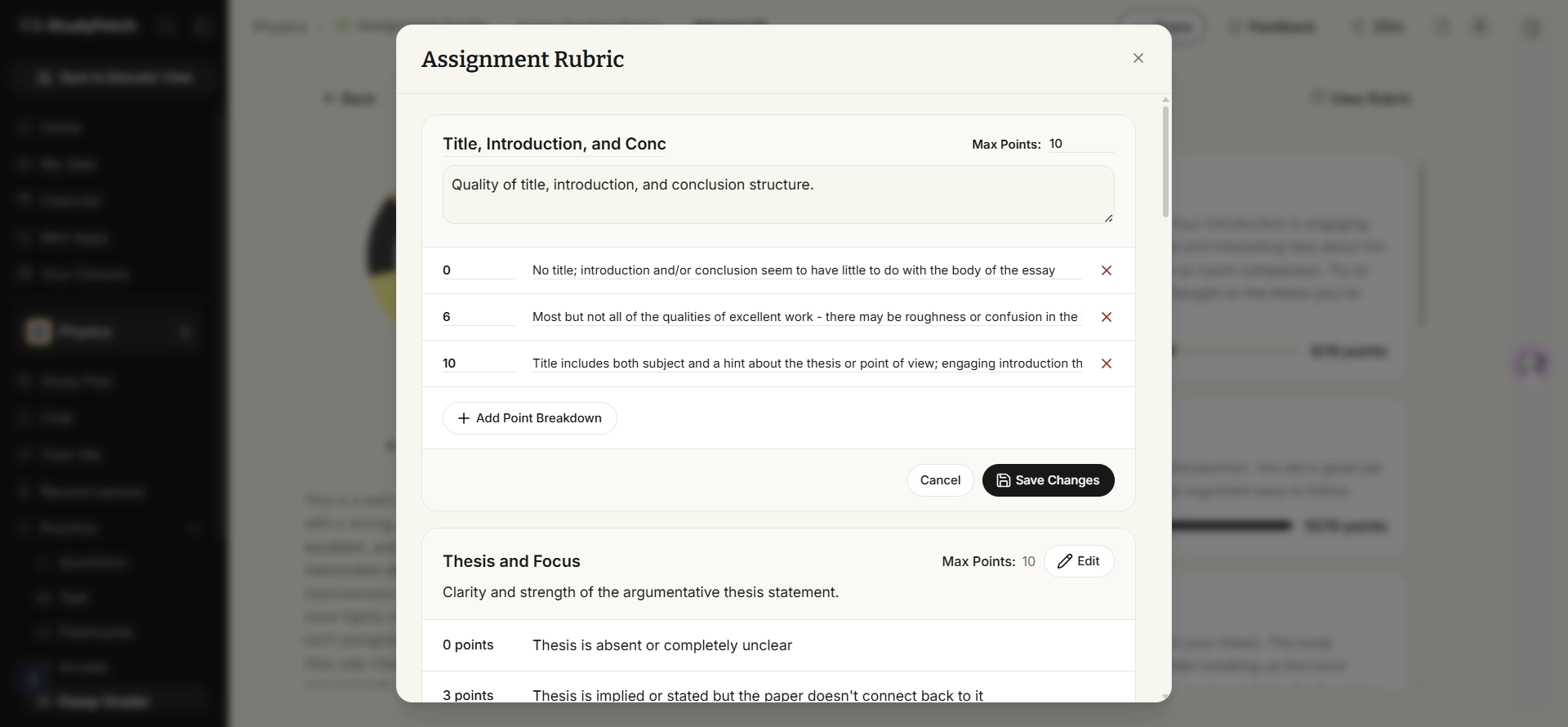
The Assignment Rubric modal with one category in edit mode: editable title, max points, and description fields, editable point rows with remove buttons, an Add Point Breakdown button, and Cancel and Save Changes buttons.
Assignment Rubric modal, category in edit mode. Change the description and point rows, then click Save Changes.