
Product Tutorials
Submit an Assignment
Grade a New Assignment
Step 1: Add your assignment
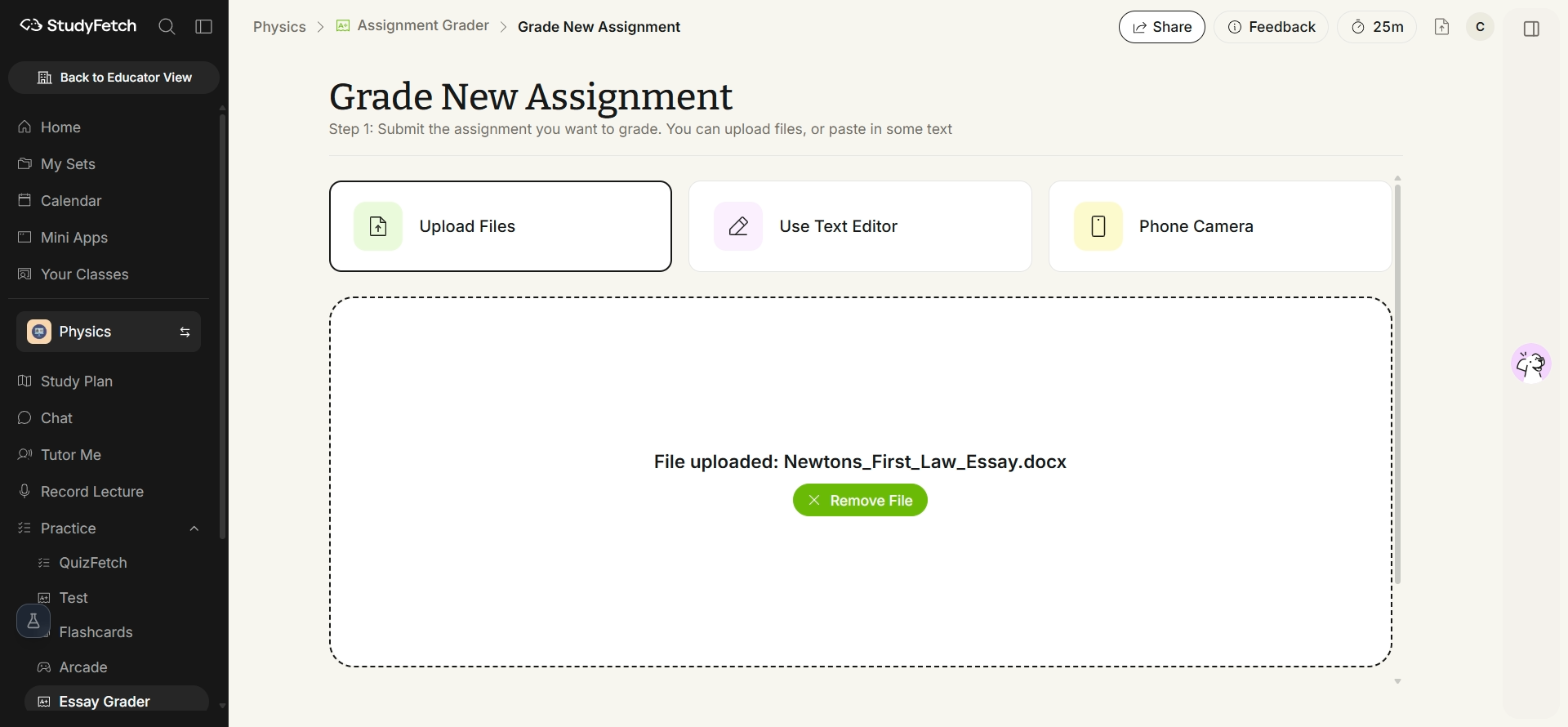
Click + Grade New Assignment, then choose how you'll add your work: Upload Files, Use Text Editor, or Phone Camera.
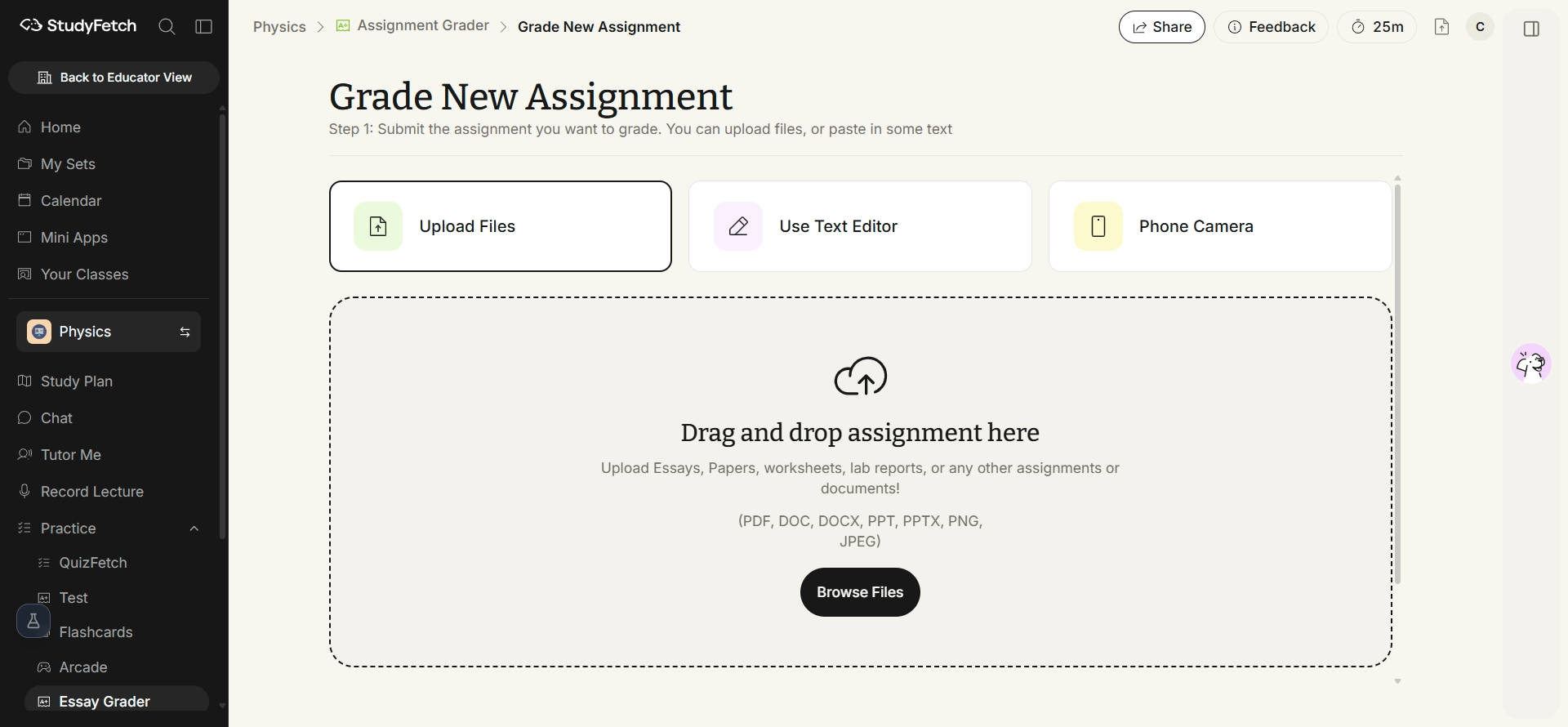
Upload Files
Select Upload Files to submit a PDF, DOC, DOCX, PPT, PPTX, PNG, or JPEG from your computer. Click Browse Files or drag and drop the document into the box.
Use Text Editor
Select Use Text Editor to type or paste your assignment directly into StudyFetch after completing setup. The editor supports formatting, tables, images, and LaTeX via the Insert menu.
Phone Camera
Select Phone Camera to scan a QR code with your phone and photograph a physical assignment. Allow camera access, take a photo of each page, then select Finish and Upload to Set to send the pages back to your desktop session.
Step 3: Add a rubric (optional)
Choose whether to provide your own grading rubric or let Sparky generate one automatically. See Add a Rubric and Submit for details.
Step 4: Submit for grading
Review your assignment and rubric summary, then click Submit. Sparky uploads your files, processes them, builds or applies the rubric, compares your work against it, and calculates a final grade.
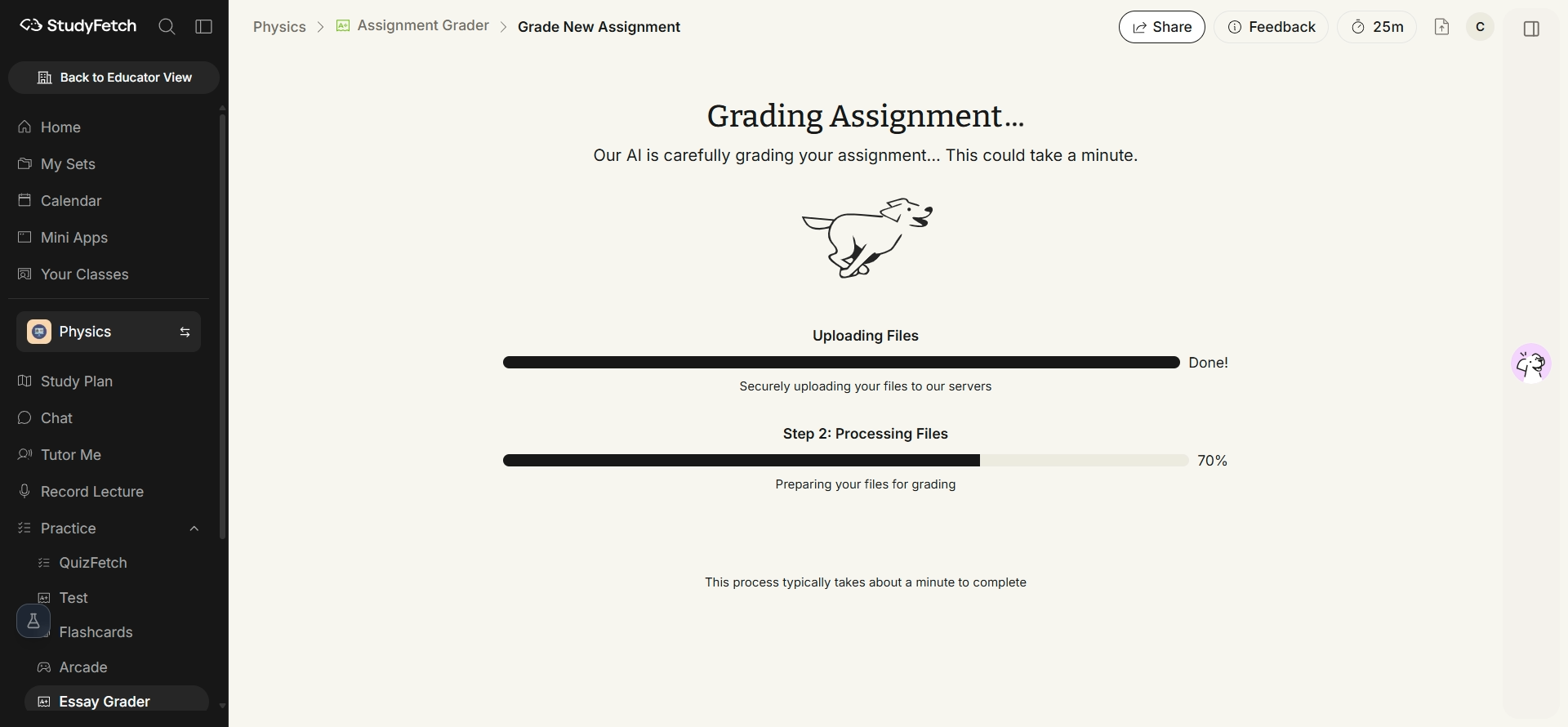
When grading finishes, you'll land on your results page with a full grade breakdown and feedback — see Review Results and Edit Rubric.