
Product Tutorials
QuizFetch Results and Recommendations
Completing Your Quiz
QuizFetch quizzes are self-paced and don't require completion in a single session — your responses and confidence ratings save automatically, so you can pause and pick up progress toward mastery later. The dot icons in the progress bar and your overall mastery percentage update as you go, with mastery percentage tracked on the right side of the progress bar. Once mastery is reached across all questions, you're taken to a results page with a full performance breakdown and study recommendations.
Too Many Questions Wrong?
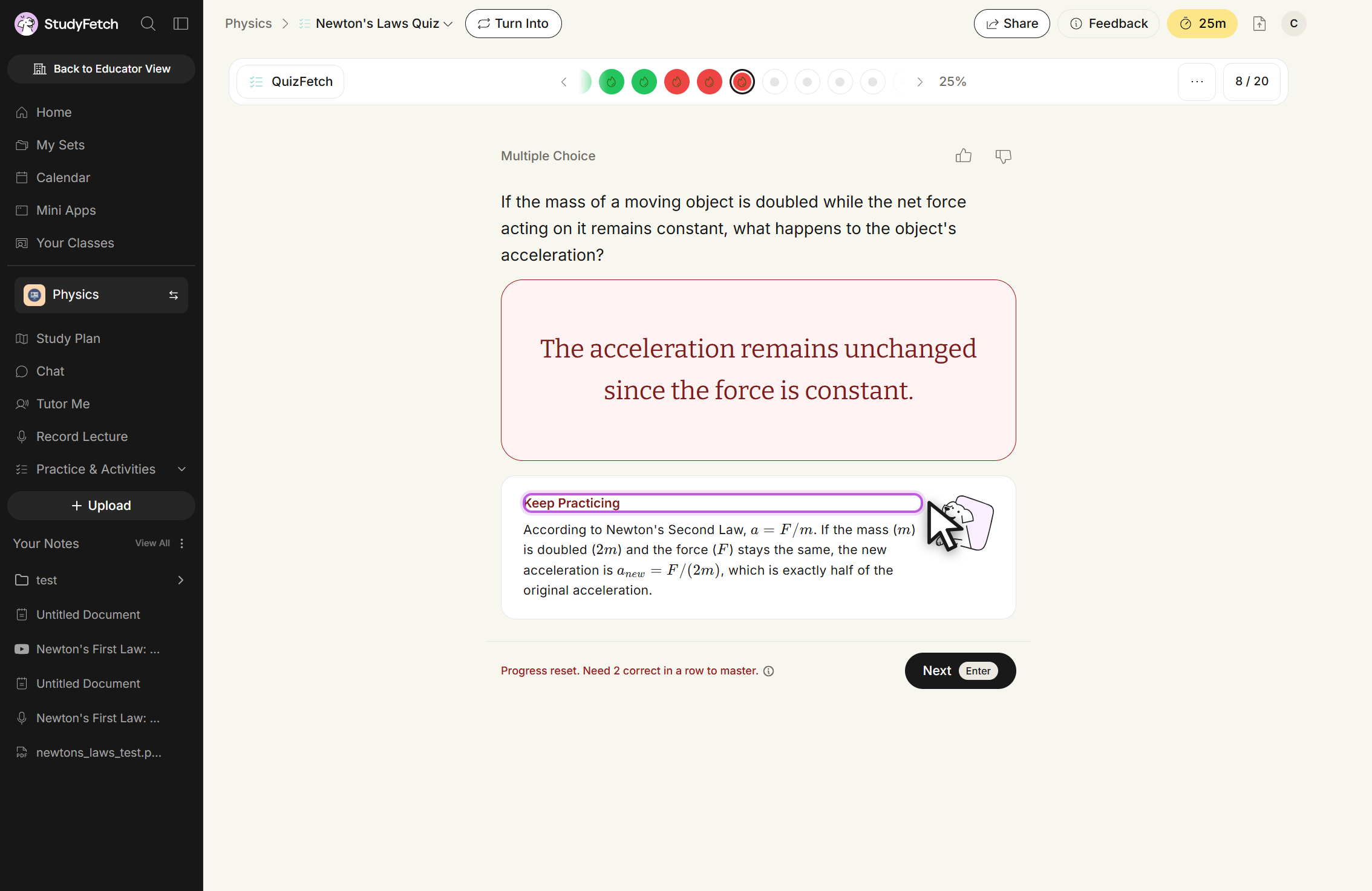
If too many questions are answered incorrectly, QuizFetch temporarily pauses progression and recommends reviewing the material before continuing — an adaptive safeguard against reinforcing misunderstandings. An incorrect answer also resets that question's progress, and the feedback tells you how many additional correct responses are needed to re-master it.
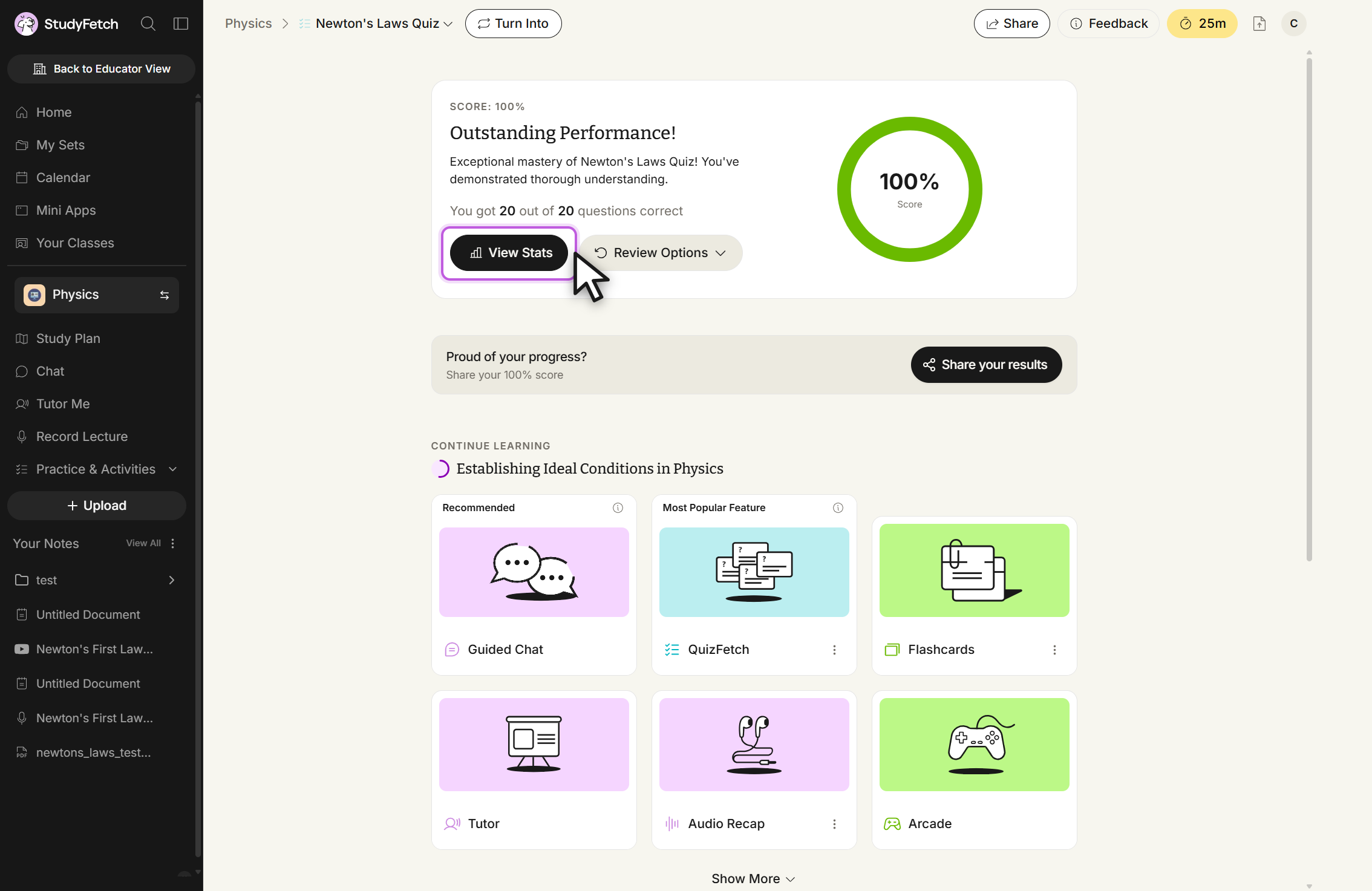
Reaching Mastery: Your Results Page
Once you've mastered every question, you land on the results page: an "Outstanding Performance!" (or similar) summary of your score, a percentage ring, and your correct-answer count out of the total. From here you can jump into View Stats for the full breakdown, use Review Options to reset your progress, or share your results — and the same "Continue Learning" recommendations appear below, suggesting other features (like Flashcards or Tutor) built from the same material.
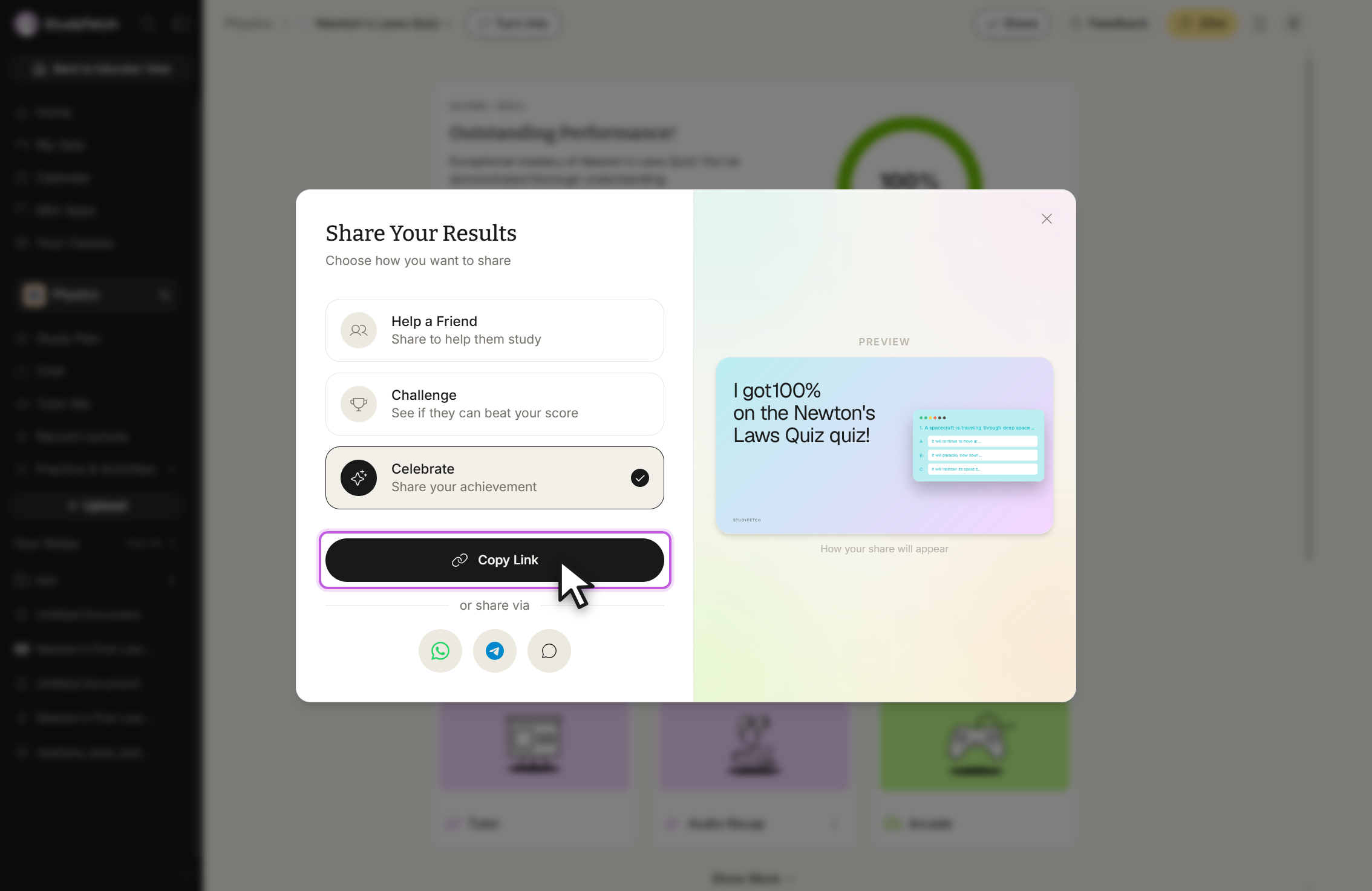
Select Share your results to choose how you want to share: Help a Friend shares the quiz without your score, Challenge shares your score so a friend can try to beat it, and Celebrate highlights your achievement — each shows a live preview of how the share card will look before you copy the link or send it via WhatsApp, Telegram, or text.
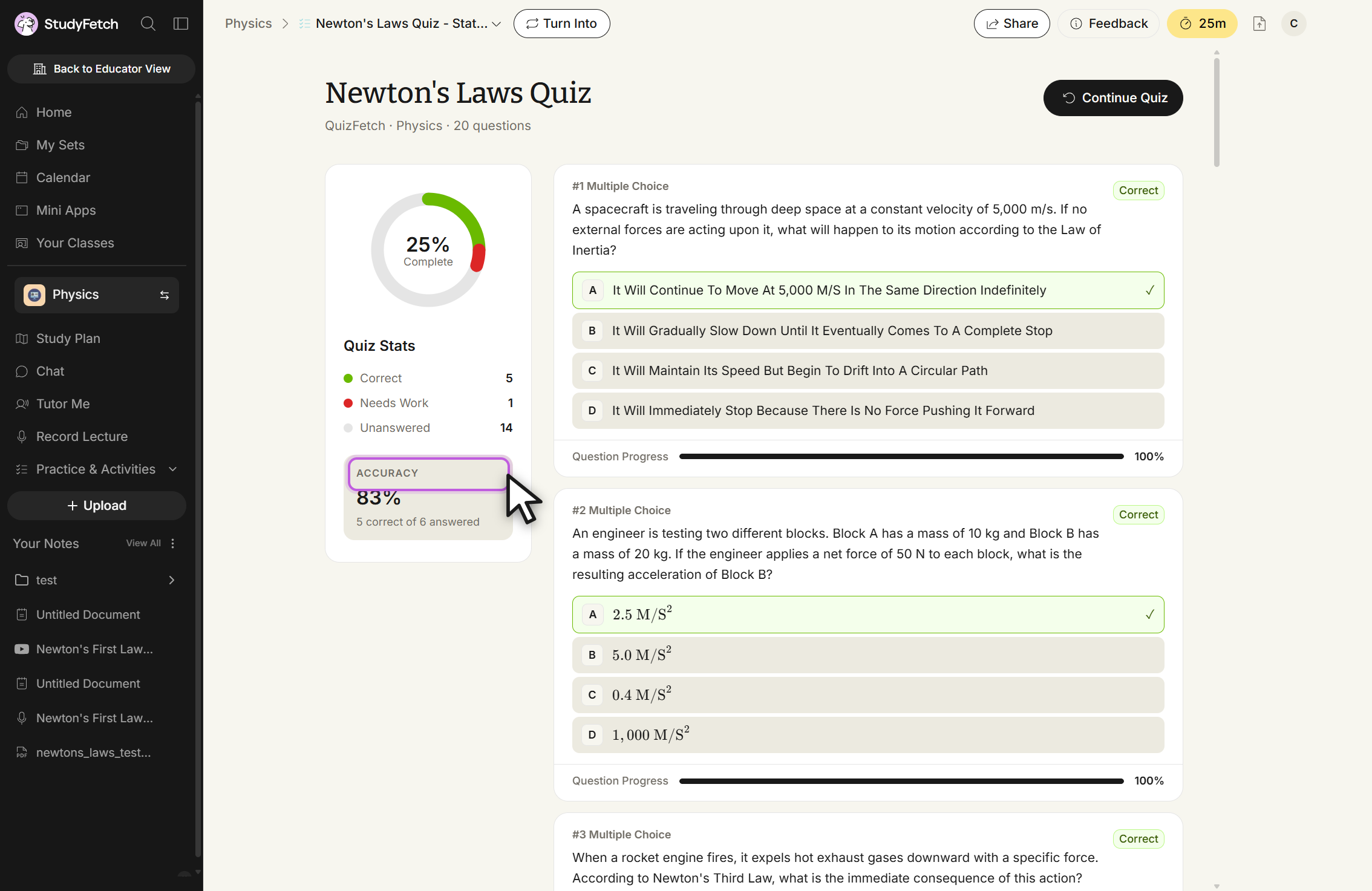
Interpreting Your Stats Page
Whether you're mid-quiz or have paused due to repeated incorrect answers, the Stats page (accessible any time via the quiz's dropdown menu) gives you a detailed breakdown: a completion ring, a running tally of Correct / Needs Work / Unanswered questions, your overall accuracy, and a per-question history you can scroll through — each showing whether it was answered correctly and its confidence-rating progress bar.
Get Study Recommendations
Once you reach mastery or pause on a topic, StudyFetch surfaces a "Continue Learning" section suggesting additional features to reinforce topics that need more review — flashcards, a tutor session, or other study tools built from the same material — plus an option to explore more study tools directly. You can also select Turn Into at any point during or after the quiz to generate new study materials from the same source.
Continuing Your Quiz
To pick up where you left off while keeping your existing statistics, open the quiz's Stats page and select Continue Quiz. If you'd rather start over and reset your statistics, use Restart from the quiz's ... menu instead.