Skip to content
StudyFetch Academy

Product docs

Insights Tutorial

How to use the Insights feature.

If you’re looking to understand your performance better, the Insights feature is a powerful tool to track your progress and see where you stand. Here’s how to use it!

How to use Insights:

  1. On the lefthand side of the dashboard, go to Insights.
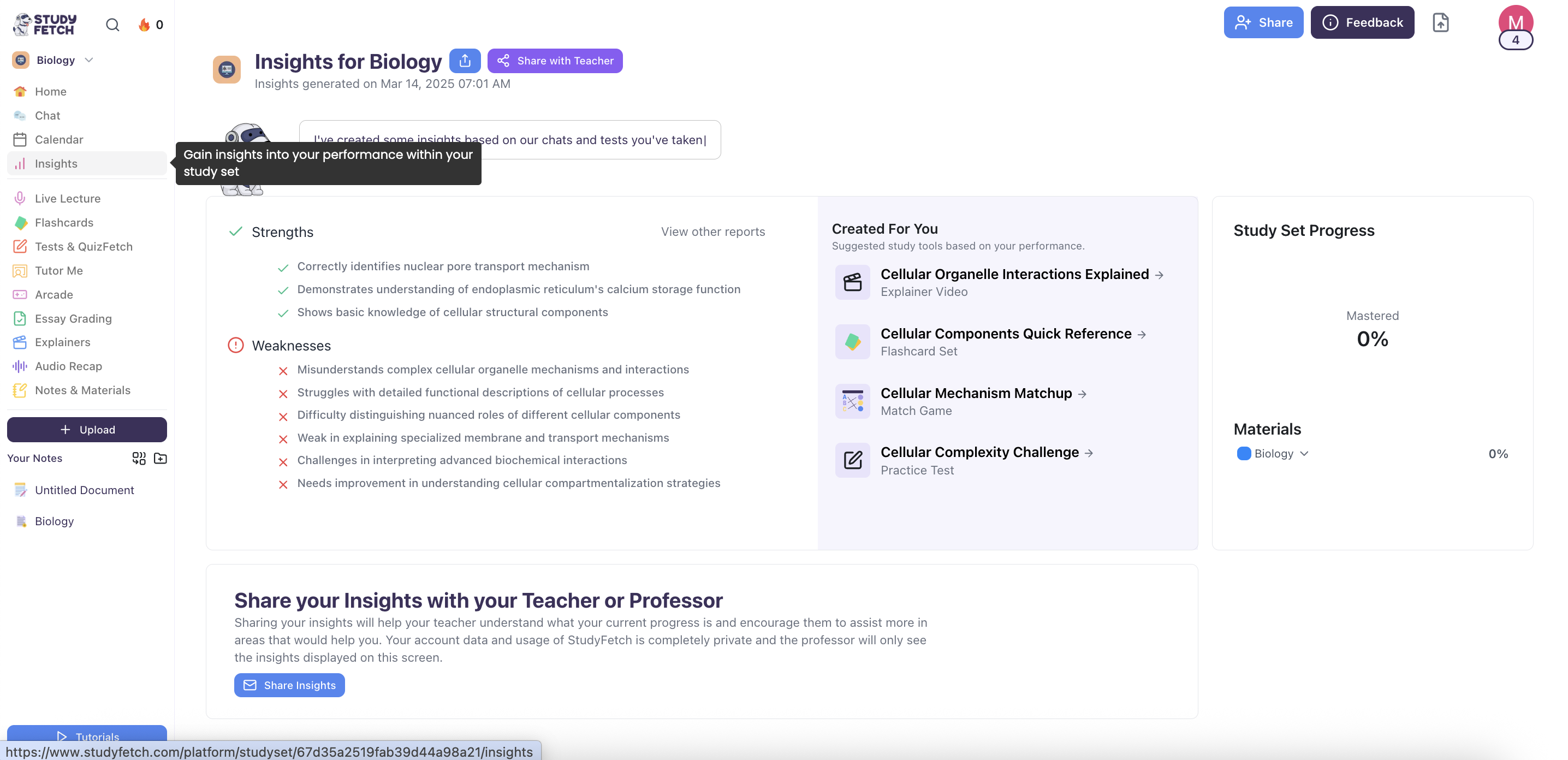
The Insights for Biology page, headed Insights generated on Mar 14, 2025 07:01 AM, with Share and Share with Teacher buttons beside the title. Three panels sit below: Strengths and Weaknesses, Created For You with four suggested study tools, and Study Set Progress reading Mastered 0%. A Share your Insights with your Teacher or Professor panel runs underneath. In the left navigation Insights is selected and shows the tooltip Gain insights into your performance within your study set.
Insights for Biology. The page opens with Strengths and Weaknesses, Created For You, and Study Set Progress.
  1. You’ll instantly see insights generated from your past activity on a specific study set—whether from tests, flashcard sessions, or conversations with the AI Tutor.

What it can show you:

  • Your strengths and weaknesses when it comes to understanding certain topics, ideas, or concepts will be explained.
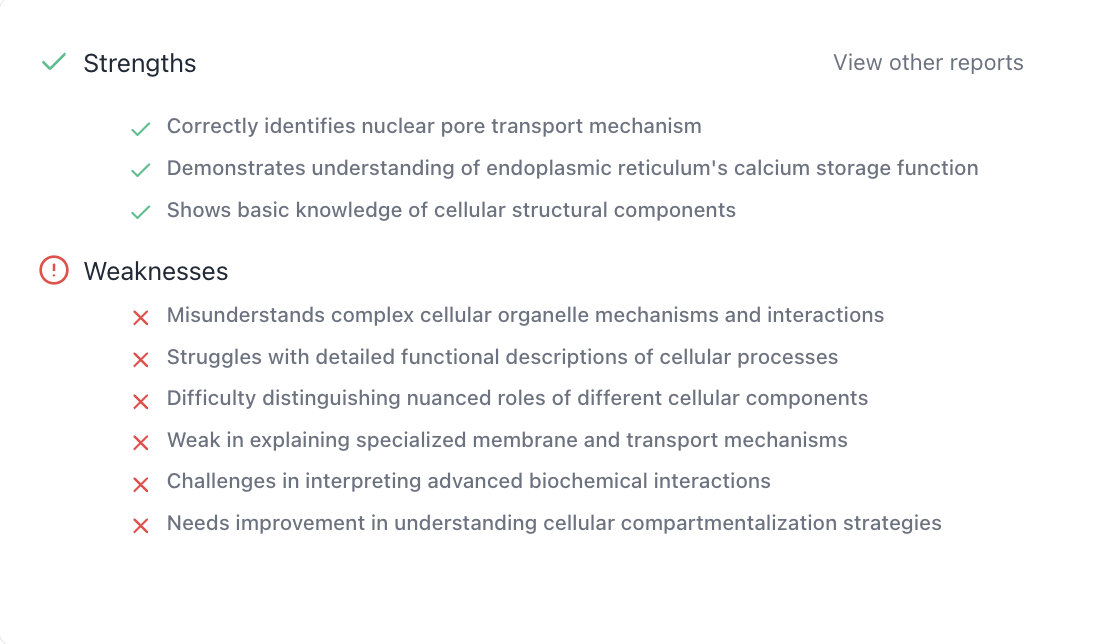
The Strengths and Weaknesses panel from Insights for Biology, with a View other reports link at the top right. Strengths lists three items: Correctly identifies nuclear pore transport mechanism; Demonstrates understanding of endoplasmic reticulum's calcium storage function; Shows basic knowledge of cellular structural components. Weaknesses lists six items: Misunderstands complex cellular organelle mechanisms and interactions; Struggles with detailed functional descriptions of cellular processes; Difficulty distinguishing nuanced roles of different cellular components; Weak in explaining specialized membrane and transport mechanisms; Challenges in interpreting advanced biochemical interactions; Needs improvement in understanding cellular compartmentalization strategies.
Insights for Biology, Strengths and Weaknesses. The panel lists three strengths and six weaknesses, with a View other reports link.
  • Suggested study tools will be provided for you based on your past performance. If you're having trouble catching up with flashcards, then those can be created for maximum retention. Click on any of the suggested study tools to start studying!
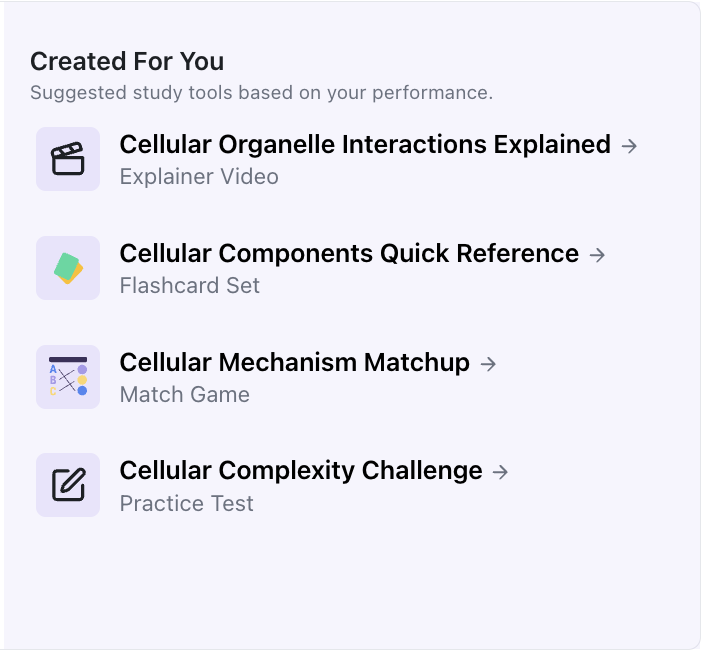
The Created For You panel, subtitled Suggested study tools based on your performance, listing four links: Cellular Organelle Interactions Explained, an Explainer Video; Cellular Components Quick Reference, a Flashcard Set; Cellular Mechanism Matchup, a Match Game; and Cellular Complexity Challenge, a Practice Test.
Created For You. The reader clicks one of the four suggested study tools to start studying.
  • Your Study Set Progress will be tracked here, giving you a clear view of how far you’ve come and whether you’ve mastered the set.
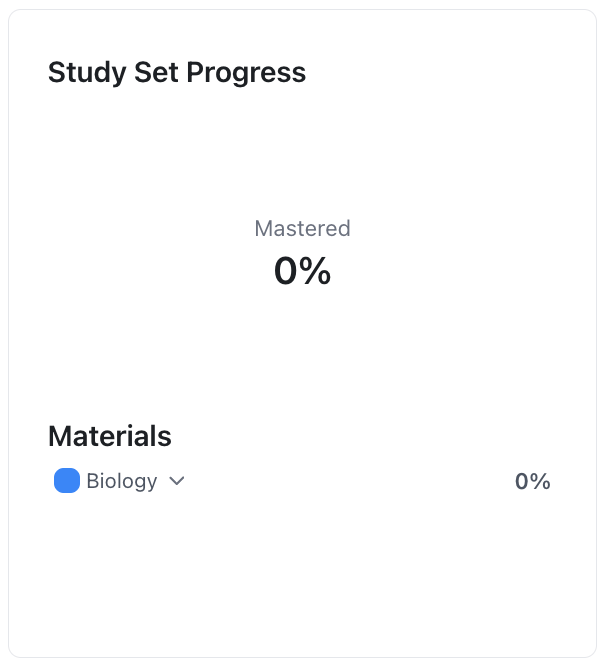
The Study Set Progress panel, reading Mastered 0%. Below it a Materials heading lists one entry, Biology, with an expand arrow beside it and 0% at the right.
Study Set Progress. The panel shows Mastered 0% and the material Biology at 0%.
  • You can also share your insights with your teacher or professor, allowing them to better support you in the areas where you need the most help.

The Share your Insights with your Teacher or Professor panel. Its text reads: Sharing your insights will help your teacher understand what your current progress is and encourage them to assist more in areas that would help you. Your account data and usage of StudyFetch is completely private and the professor will only see the insights displayed on this screen. A Share Insights button with an envelope icon sits below the text.
Share your Insights with your Teacher or Professor. The reader clicks Share Insights to send what is shown on this screen.