Skip to content
StudyFetch Academy

Product docs

Audio Recap: Listen and Ask Questions

Once your Audio Recap is ready, use the player controls, transcript, source view, and question tools to review without leaving the recap.

Play the recap

Start, pause, rewind, fast forward, or jump to a specific time.

Follow the transcript

Show or hide the transcript while the audio plays.

Ask questions

Type or speak a question and get an answer during playback.

Play your audio

  1. When the Audio Recap is ready, click Play to start listening.
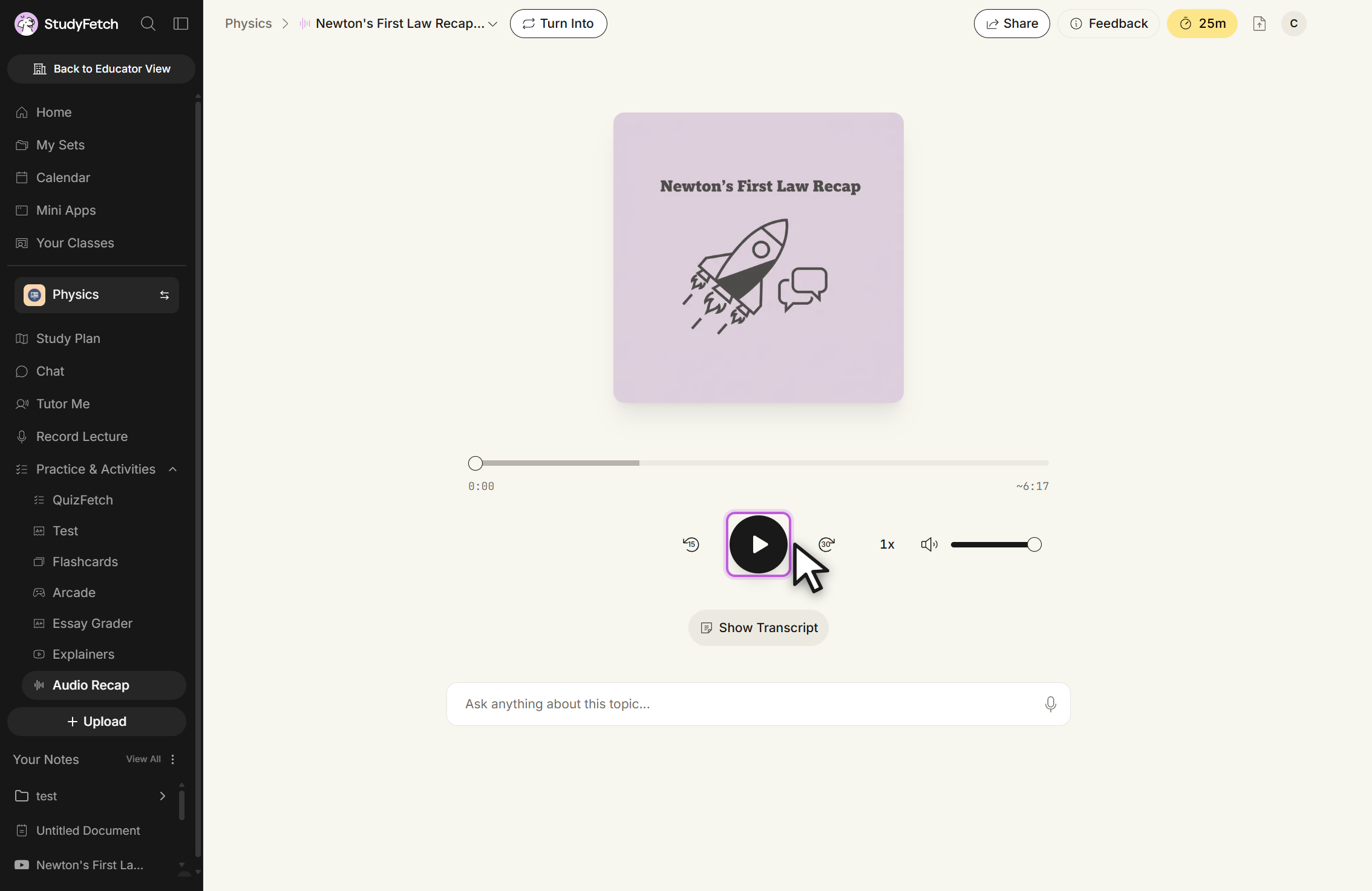
    The Audio Recap player, reached from a breadcrumb above the recap. A cover image sits above a progress bar with the elapsed time on the left and the total length on the right. Below it are a rewind 15 seconds button, a round Play button with the cursor over it, a forward 30 seconds button, a playback speed control and a volume slider. A Show Transcript button sits underneath, and a field reading Ask anything about this topic... with a microphone icon runs across the bottom.
    Audio Recap player, stopped at the start. Click Play to start the recap.
  2. While playing, the Play button becomes Pause. Rewind (15s) and fast forward (30s) sit on either side of it, and you can drag the progress bar to jump to any point. Use the slider next to the speaker icon to adjust volume, or click the icon to mute and unmute.
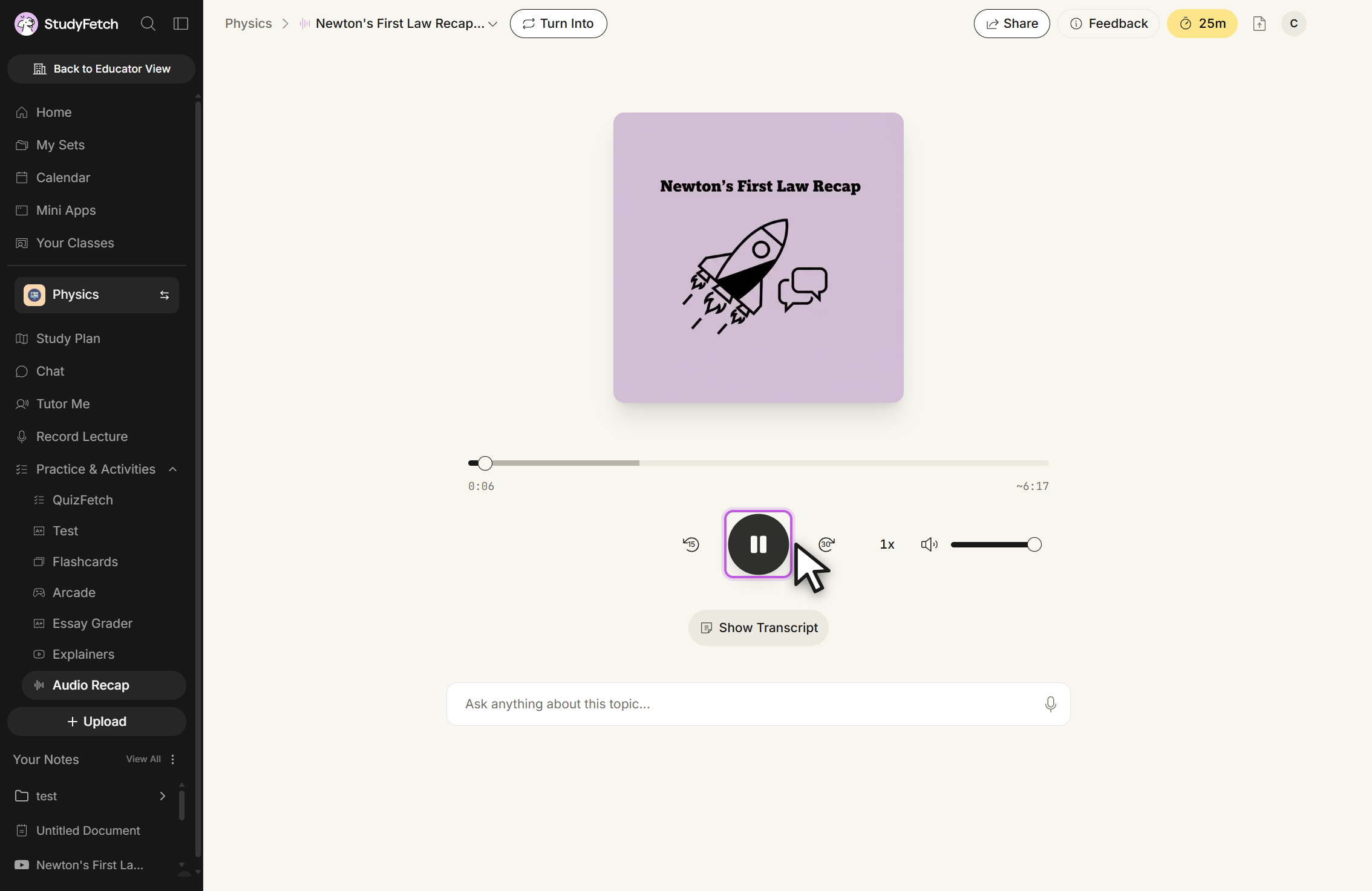
    The Audio Recap player during playback. The progress bar shows the elapsed time on the left and the total length on the right. The round centre button now shows a Pause icon and is highlighted with the cursor over it, flanked by the rewind 15 seconds and forward 30 seconds buttons, with the playback speed control and volume slider to the right.
    Audio Recap player, playing. The centre button now shows Pause, with rewind 15 seconds and forward 30 seconds on either side.

View the transcript and source

  1. Select Show Transcript below the player controls to follow along with the text. It updates in real time as the recap plays; select Hide Transcript to close it. View References next to it shows which of your source materials the current section came from.
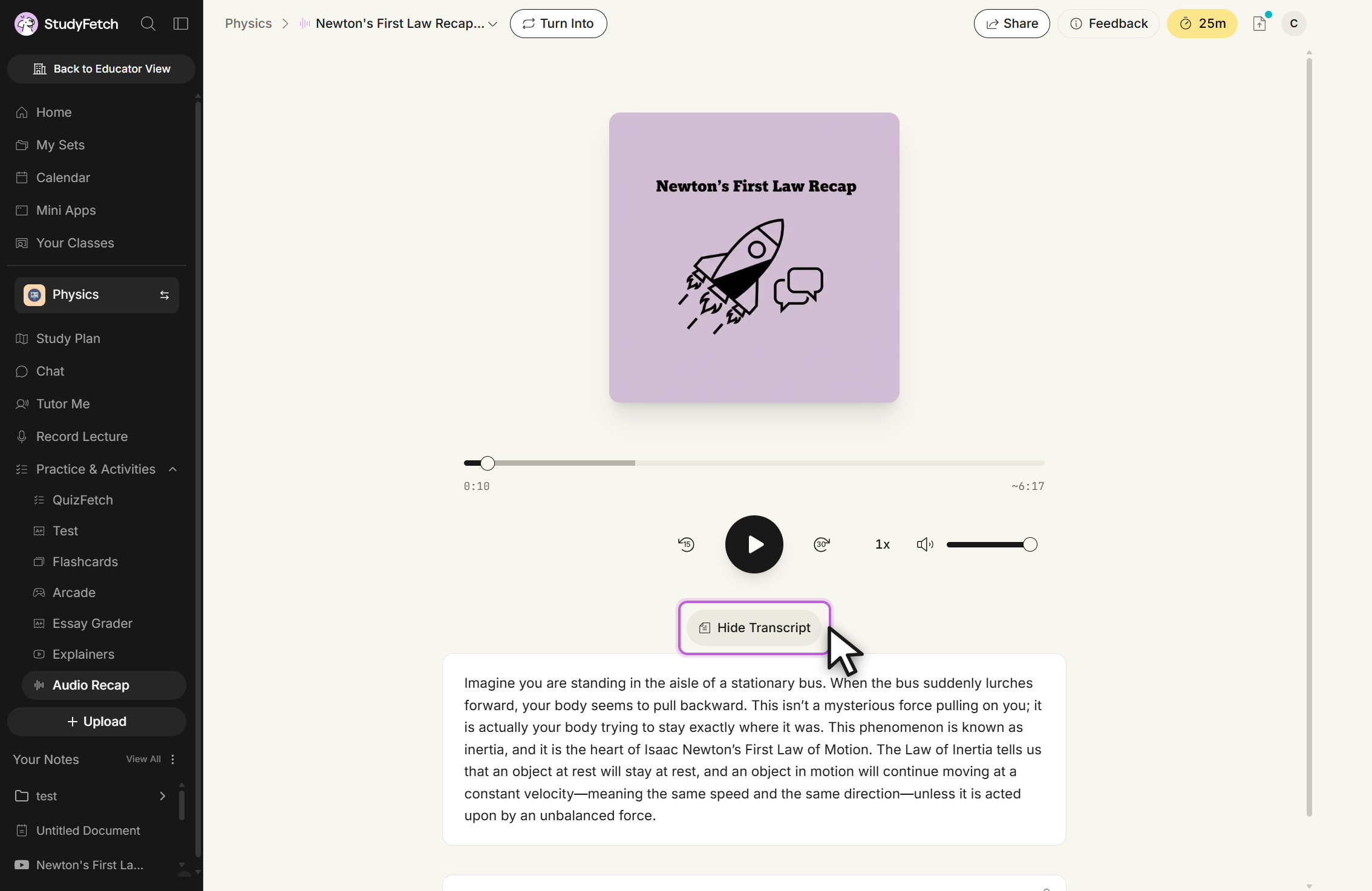
    The Audio Recap player, paused, with the transcript open. Below the playback controls a button labeled Hide Transcript is highlighted with the cursor over it, and under it a panel holds the scrolling transcript text for the recap.
    Audio Recap player, transcript open. Click Hide Transcript to close the panel.

Ask questions while listening

While listening, you can ask questions and receive answers in real time to clarify concepts without leaving the recap.

  1. Type your question into the Ask anything about this topic... field below the transcript, or click the microphone icon to ask by voice instead. Press Enter or click the send arrow to submit.
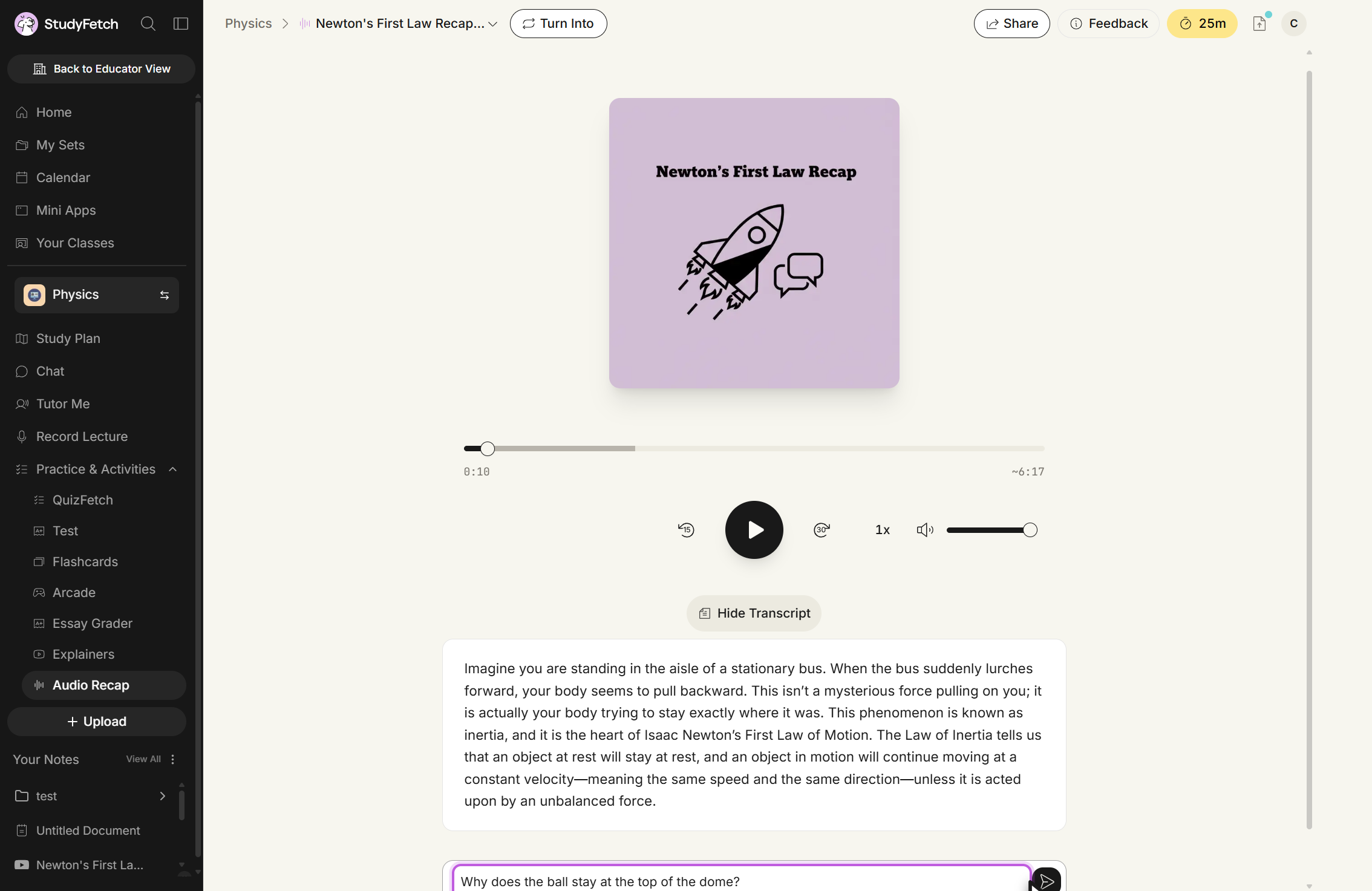
    The Audio Recap player, paused, with the transcript panel open under the Hide Transcript button. At the bottom of the frame the Ask anything about this topic... field is highlighted and holds a typed question, with a microphone icon and a send arrow at its right edge.
    Audio Recap player, transcript open with a question typed. Enter your question in the ask field below the transcript, then press Enter or click the send arrow.
  2. The recap pauses, and the question and answer appear directly above the ask field. Playback resumes from where it left off once you're ready to continue.
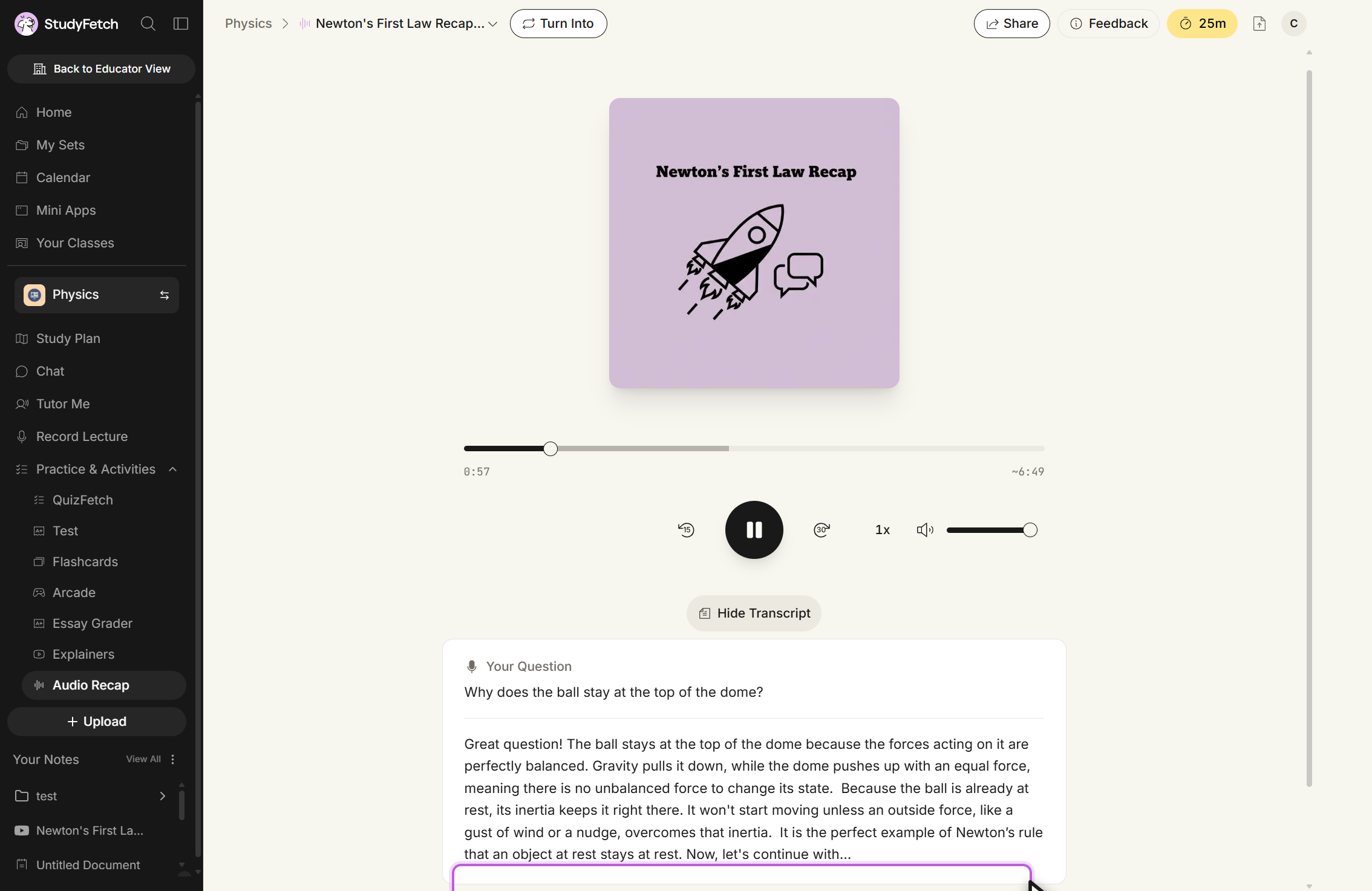
    The Audio Recap player with the centre button showing Pause. The panel below the Hide Transcript button now holds a section headed Your Question with the submitted question, followed by the written answer. The ask field sits below the panel.
    Audio Recap player, playing. The panel below the player shows Your Question and the answer.