
Product docs
How to print or download notes?
If you need to keep a physical or digital copy of your notes, follow these steps:
- Locate your notes: Open the Notes view for the material containing the notes you want to save or print.
- Find the Print option: In the toolbar above the notes, look for the print icon.
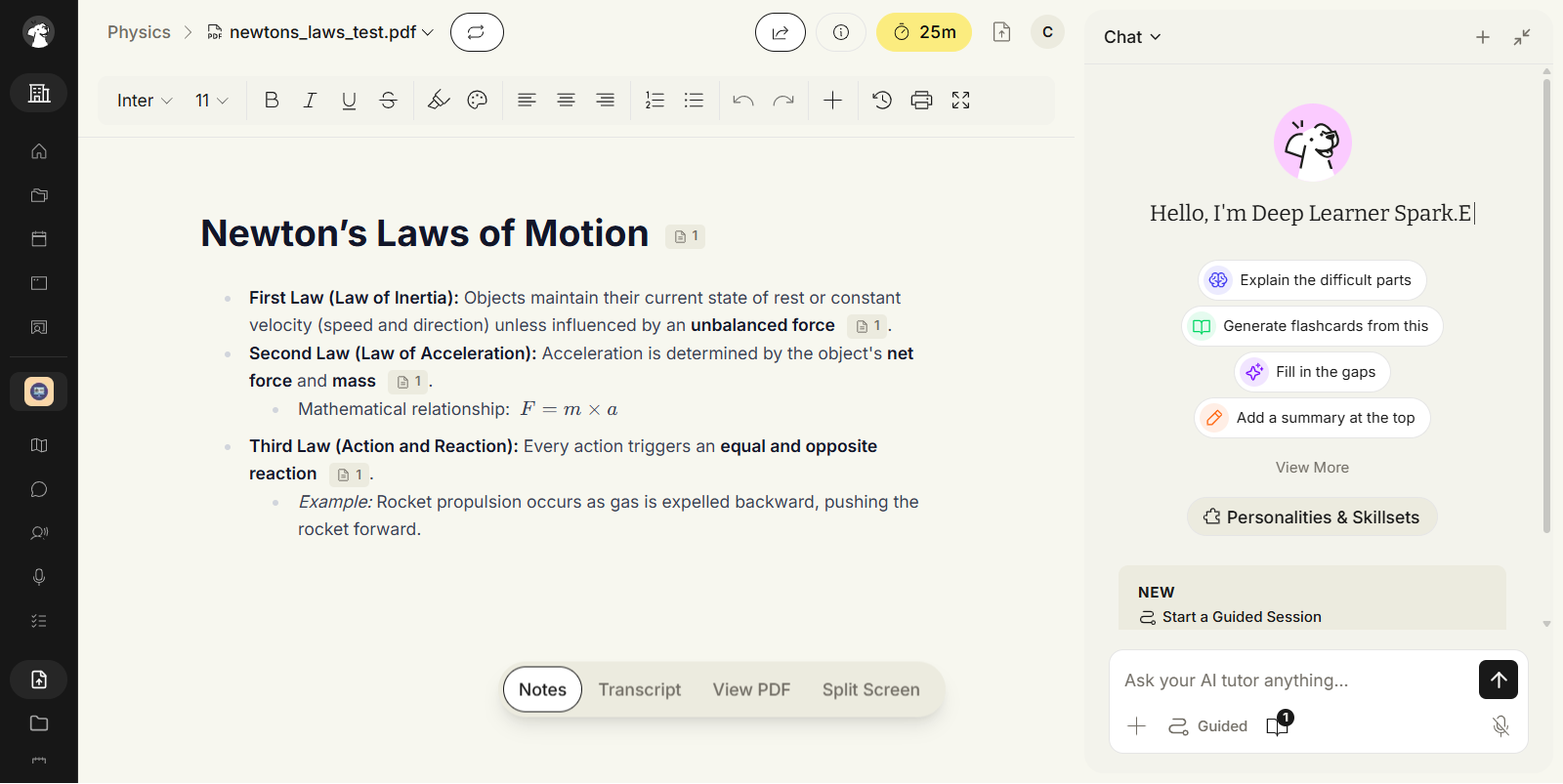
- Open the Print Preview: Click on the print icon. This will open a new tab or window displaying your notes in a print-ready format.
- Save as PDF or Print:
- Save as PDF:
- Right-click anywhere on the print preview page.
- Select the "Print" option from the context menu.
- In the Print dialog box, choose "Save as PDF" as the destination.
- Select a location on your device to save the PDF file.
- Click "Save".
- Print a Physical Copy:
- Right-click anywhere on the print preview page.
- Select the "Print" option from the context menu.
- In the Print dialog box, choose your printer and adjust any print settings as needed.
- Click "Print".
- Save as PDF:
Additional Tips
- Check Page Setup: Before printing, you may want to adjust page orientation, margins, or scaling in the Print dialog box.
- Troubleshooting: If you encounter any issues, try refreshing the page, using a different browser, or contacting technical support.
- Alternative Methods: Some platforms may offer additional ways to save or export notes, such as downloading as a text file or sharing via email.
Remember: The exact steps and options may vary slightly depending on your device, operating system, and the application you are using to view your notes.