
Product docs
Logging Out of Your StudyFetch Account
Step-by-Step Guide
- Locate the Profile Icon: In the upper right-hand corner of your StudyFetch dashboard, you'll find a small circular icon representing your profile — usually your initial. Click on this icon.
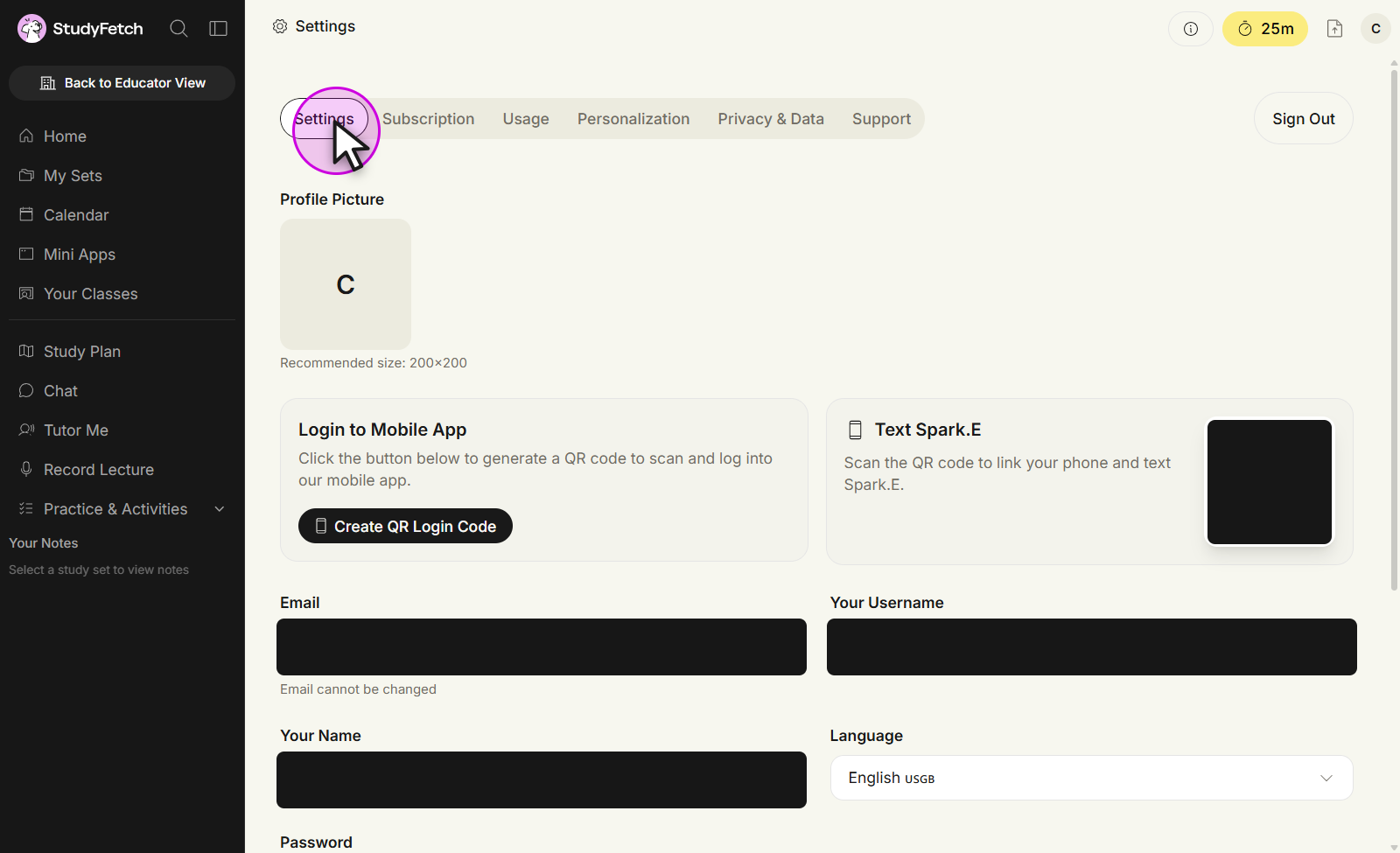
- Access the Settings Menu: A drop-down menu will appear when you click the profile icon. From this menu, select the "Settings" option. This will take you to your account settings page.
- Find the Sign Out Button: On the Settings page, look for the "Sign Out" button in the top-right corner, next to the Settings/Subscription/Usage/Personalization/Privacy & Data/Support tabs.
- Confirm Log Out: Click the "Sign Out" button. You may be asked to confirm that you want to log out of your account.
Troubleshooting
If you encounter any issues logging out, please try the following:
- Clear Your Browser Cache: Sometimes, stored data in your browser can cause problems. Clearing your cache and cookies might resolve the issue.
- Try a Different Browser: If the problem persists, try logging out using a different web browser, e.g., Chrome, Firefox, Safari.
- Contact Support: If you're still unable to log out, please contact our StudyFetch Support team for assistance.
Additional Information
- Remember to Log Out on Shared Devices: If you're using a public or shared computer, always remember to log out of your StudyFetch account to protect your personal information.
- Stay Logged In on Your Personal Devices: For convenience, you can usually stay logged in on your personal devices, e.g., your laptop or phone.
We're Here to Help!
If you have any questions or need further assistance, please don't hesitate to reach out to the StudyFetch Support team.