
Product docs
Managing Chat Sessions
Managing your Chat Sessions
Viewing Chat History
Select History at the top of your chat to view all of your conversations. You can use the search field or scroll to view all previous sessions.
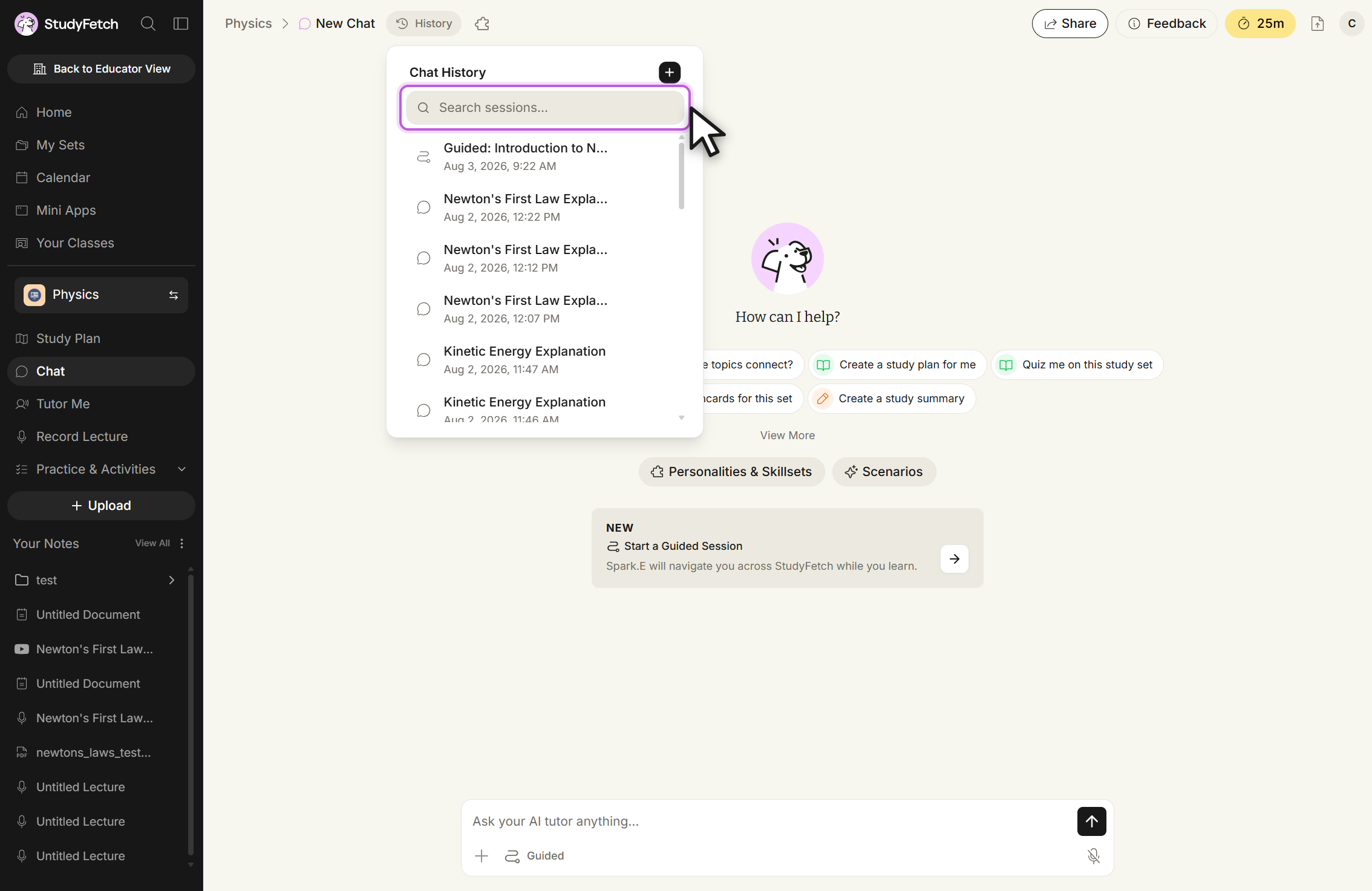
Chat History, opened from the New Chat screen. Search sessions or scroll the list to reach an earlier conversation. To switch back to a previous chat, simply click on the conversation you want to revisit. It will load, allowing you to pick up right where you left off.
Starting a New Chat
Select New at the top of your chat to start a new conversation with Sparky.
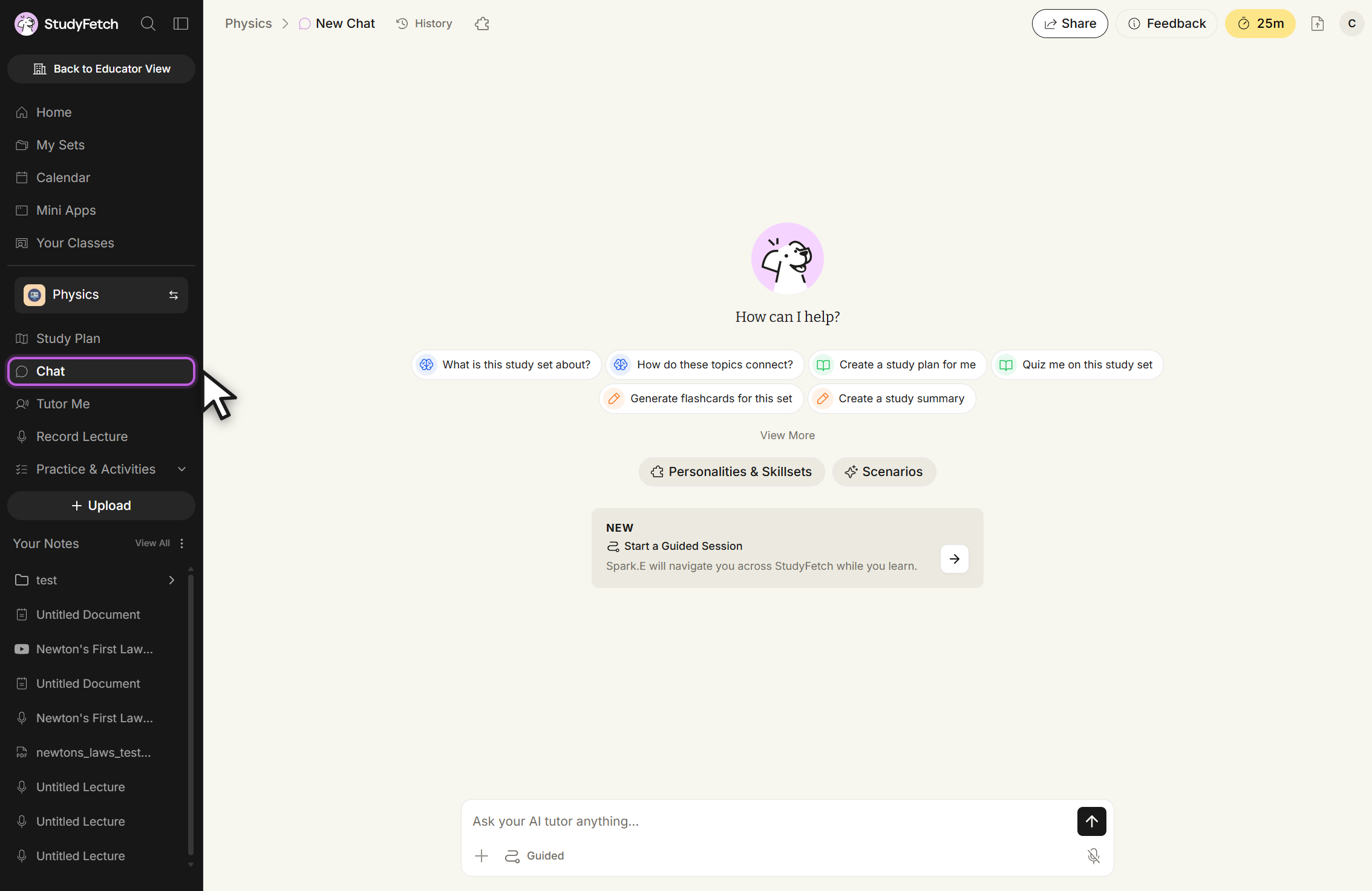
New Chat, empty state. The prompt reads How can I help? above the suggested prompts and the message box.
Rename Your Chat Session
Open History, hover over the session you want to rename, and select the pencil icon that appears.
Edit the name inline, then confirm with the checkmark (or cancel with the X).
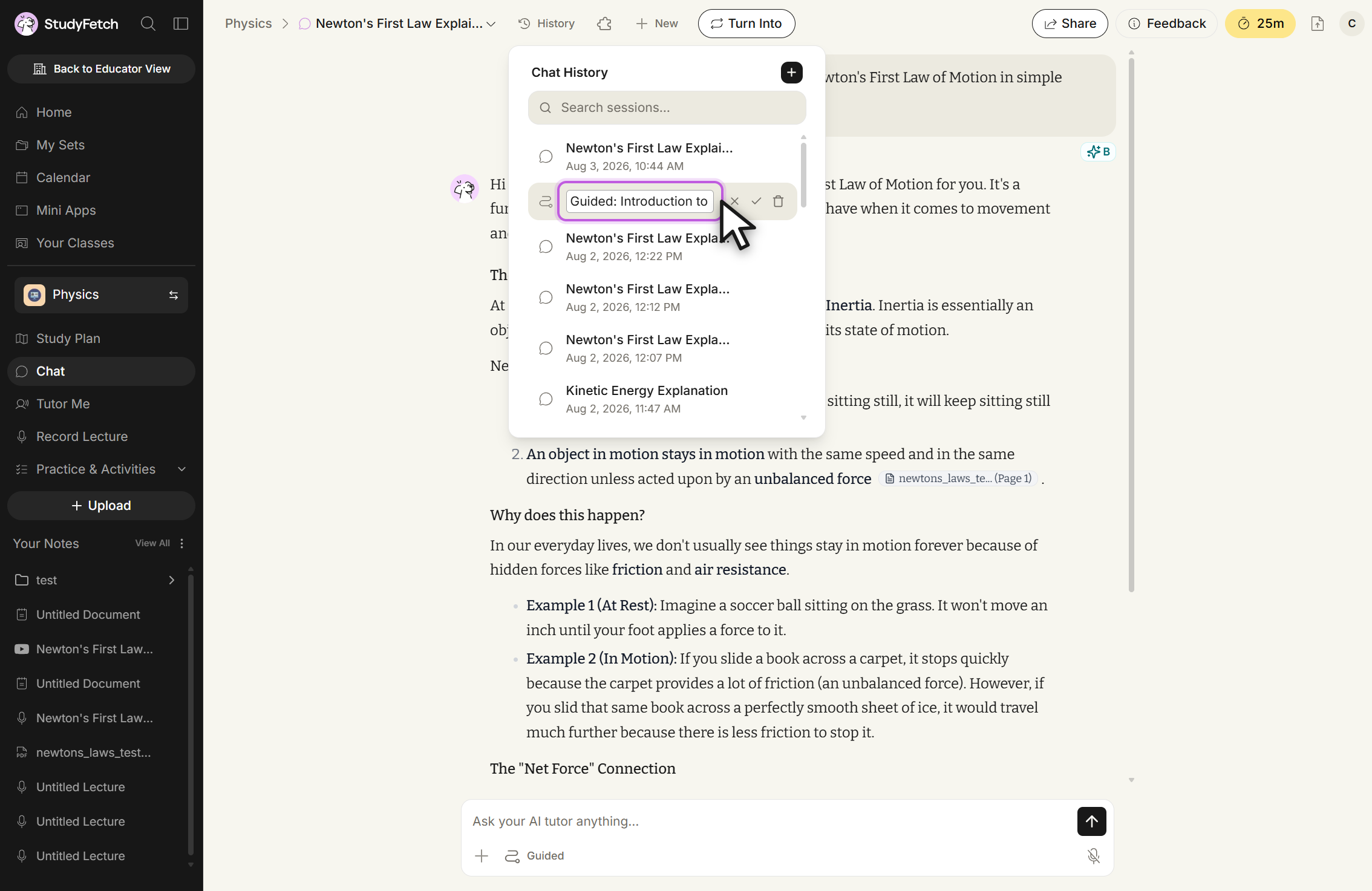
Chat History, session name in edit mode. The row becomes a text box with cancel, confirm, and delete icons beside it.
Share Your Chat Session
Found your chat conversation helpful? Feel free to share it with friends or classmates who may benefit from it as well.
Select Share from the top right of your chat.
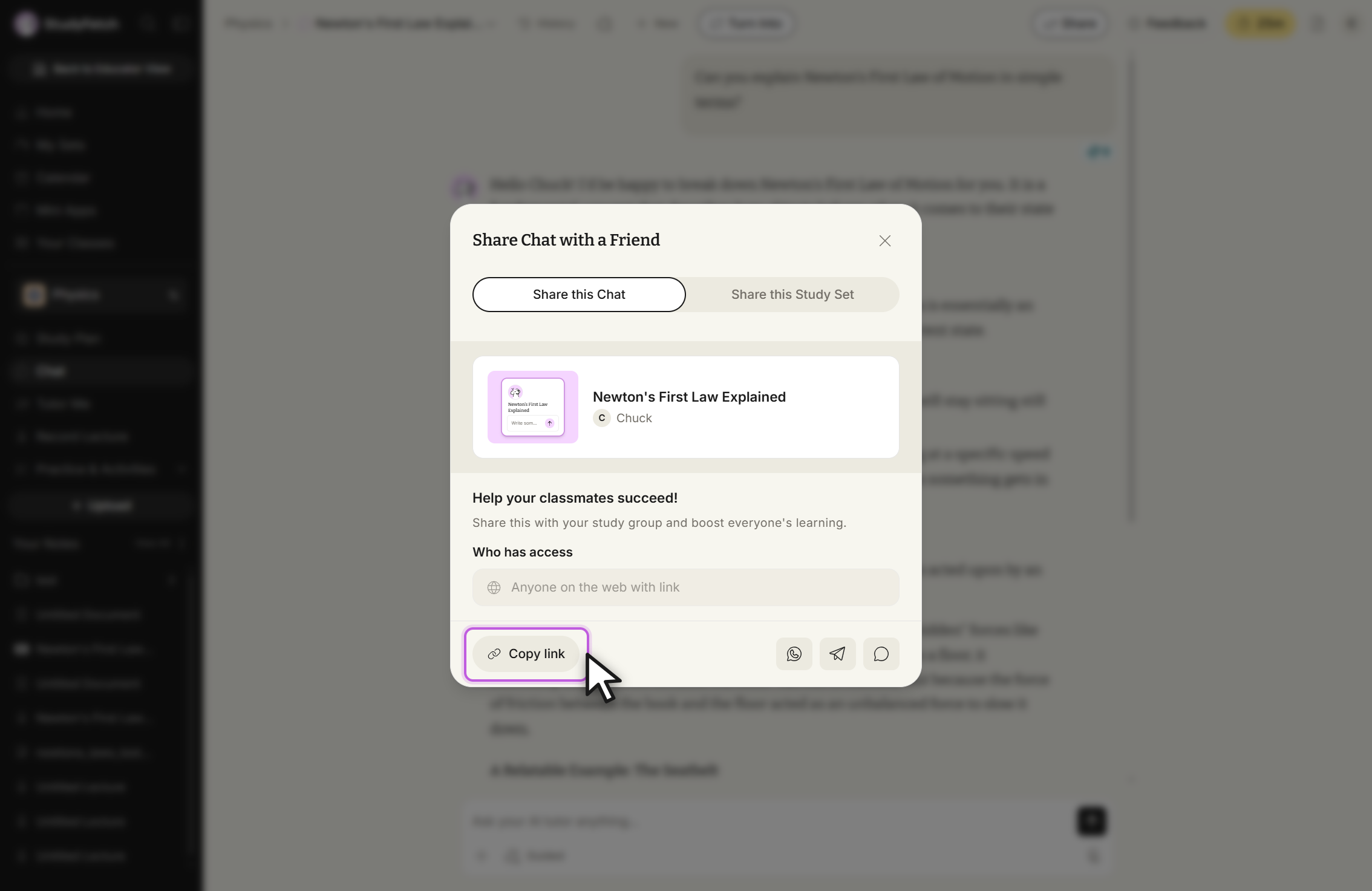
Share Chat with a Friend, Share this Chat tab. Select Copy link, or one of the three share icons beside it. Copy the link directly, or select the WhatsApp, Telegram, or Text icon to share through your preferred app.
Delete a Chat Session
Open History, hover over the session you wish to delete, and select the trash can icon that appears.
Confirm the deletion in the prompt that appears.