Create from materials
Build a session from study materials you already uploaded or add a new file.
 StudyFetch Academy
Product docs
Create a Tutor Me session from uploaded materials, a topic prompt, or Screenshare. After choosing a source, set your learning mode, goal, and language, then generate the lesson.
Build a session from study materials you already uploaded or add a new file.
Enter what you want to learn and StudyFetch creates a presentation for the lesson.
Let Sparky help with what is on your screen after you allow microphone access.
From the Tutor Me page, select + New Session (either the card on the left, or the button in the top right).
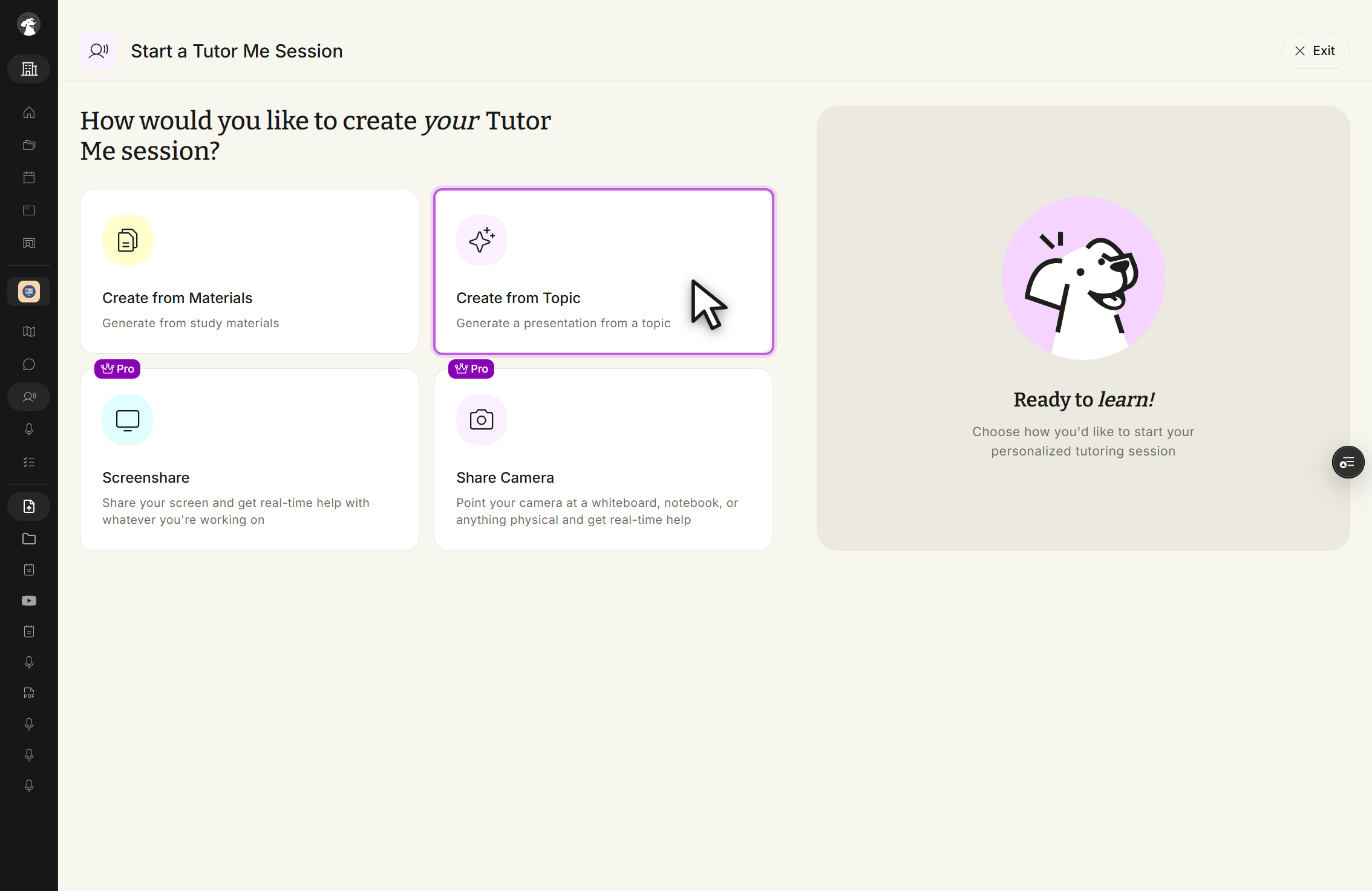
Choose whether to create the session from Materials, a Topic, Screenshare, or Share Camera. Screenshare and Share Camera are Pro features.
Choose the materials you want to include, or select + Upload New Material to add a new file, then click Next. On the following step, select the page range you want the Tutor Me session to cover.
Select Create from Topic, then type what you want to learn in Topic Description. Be as specific as possible — include key concepts or areas you'd like to focus on.
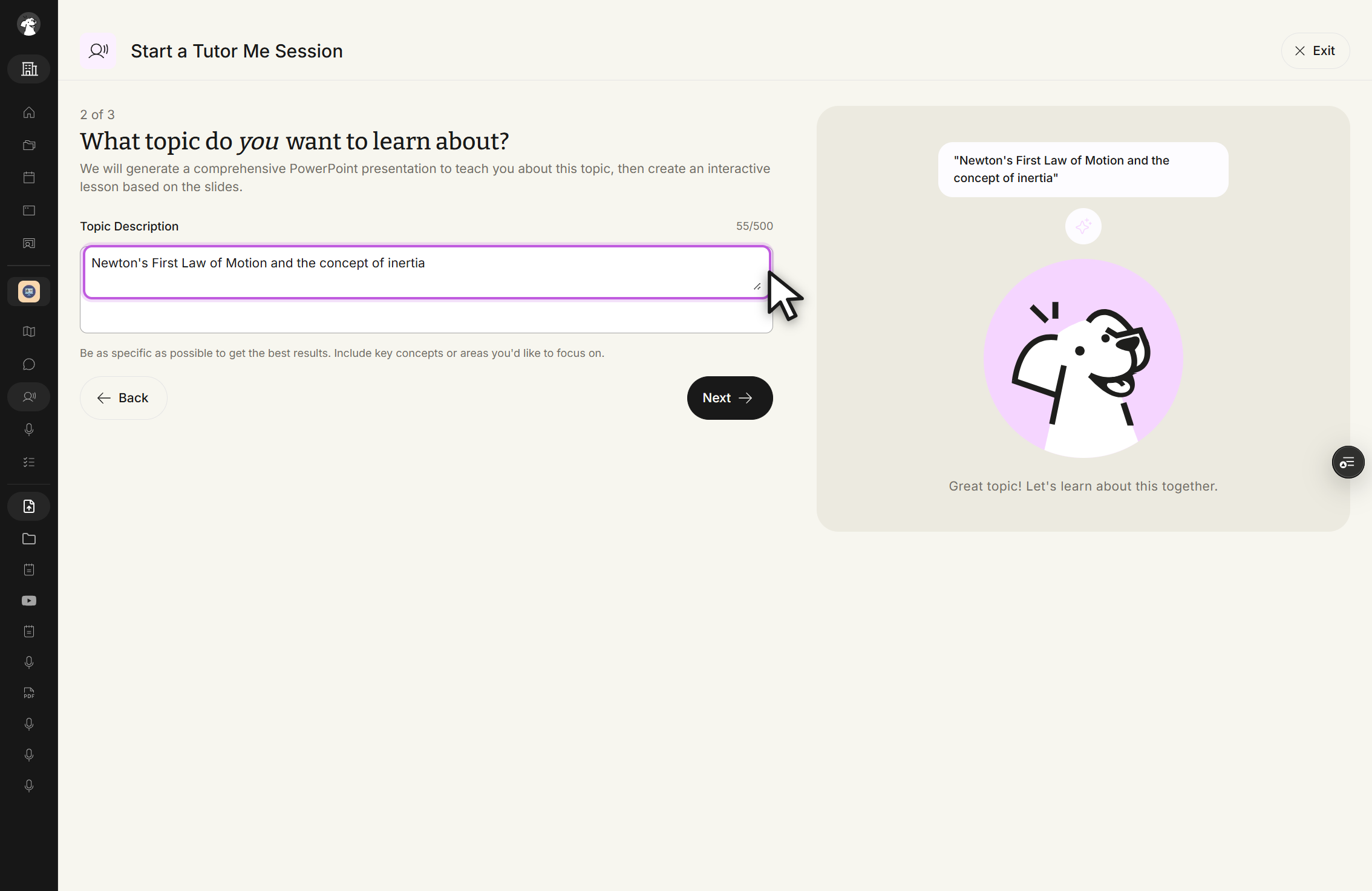
Click Next, then continue to setting your learning goals.
After selecting Screenshare, allow microphone access when prompted. The setup screen checks your microphone before you join — if the check is red and the mic button says Mic Off, click the mic button until both indicators turn green, then click Join Session.
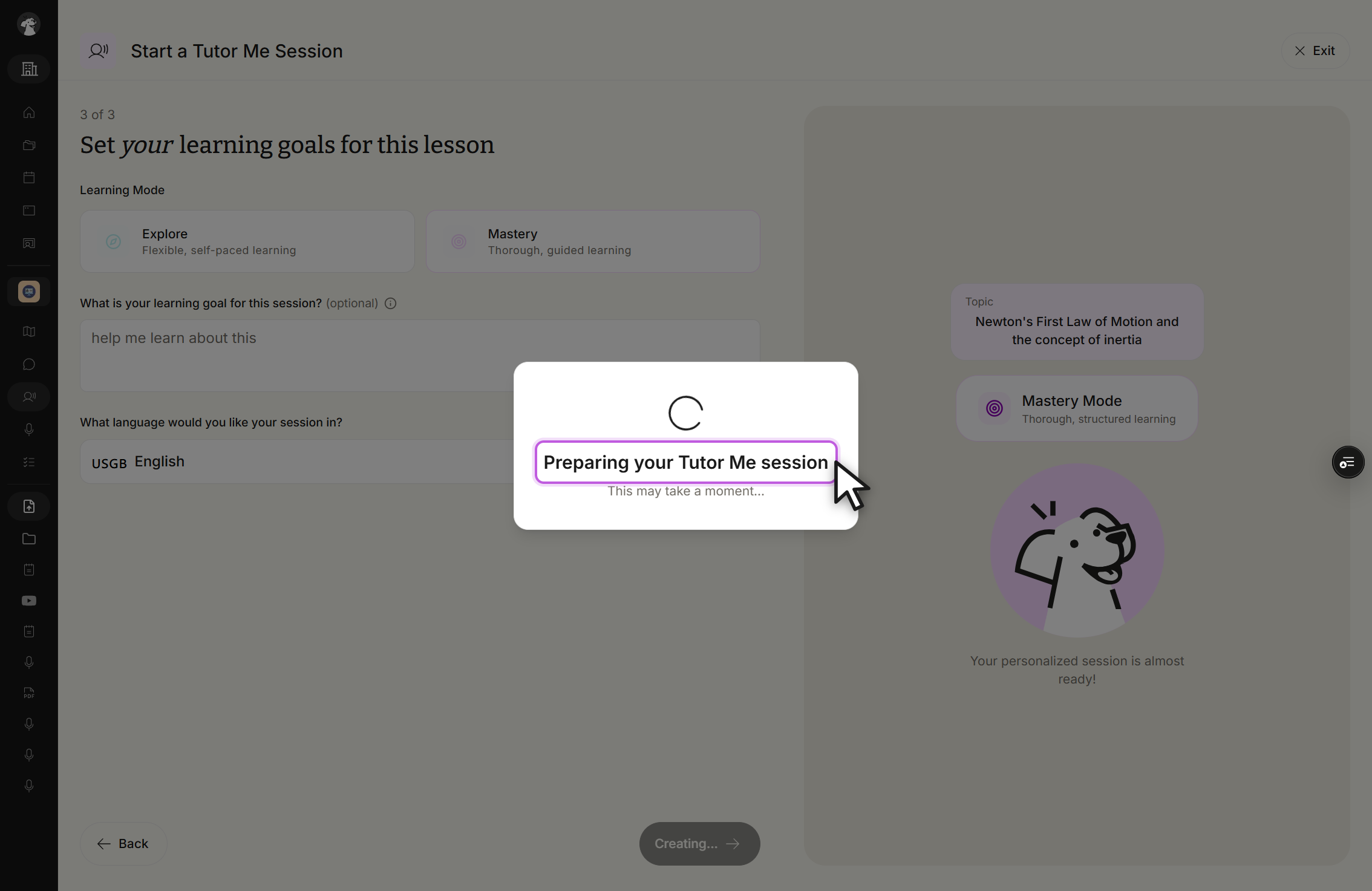
Select a learning mode — Explore for flexible, self-paced learning, or Mastery for a more guided session — optionally describe your learning goal, and choose the session language. All three fields live on the same screen:
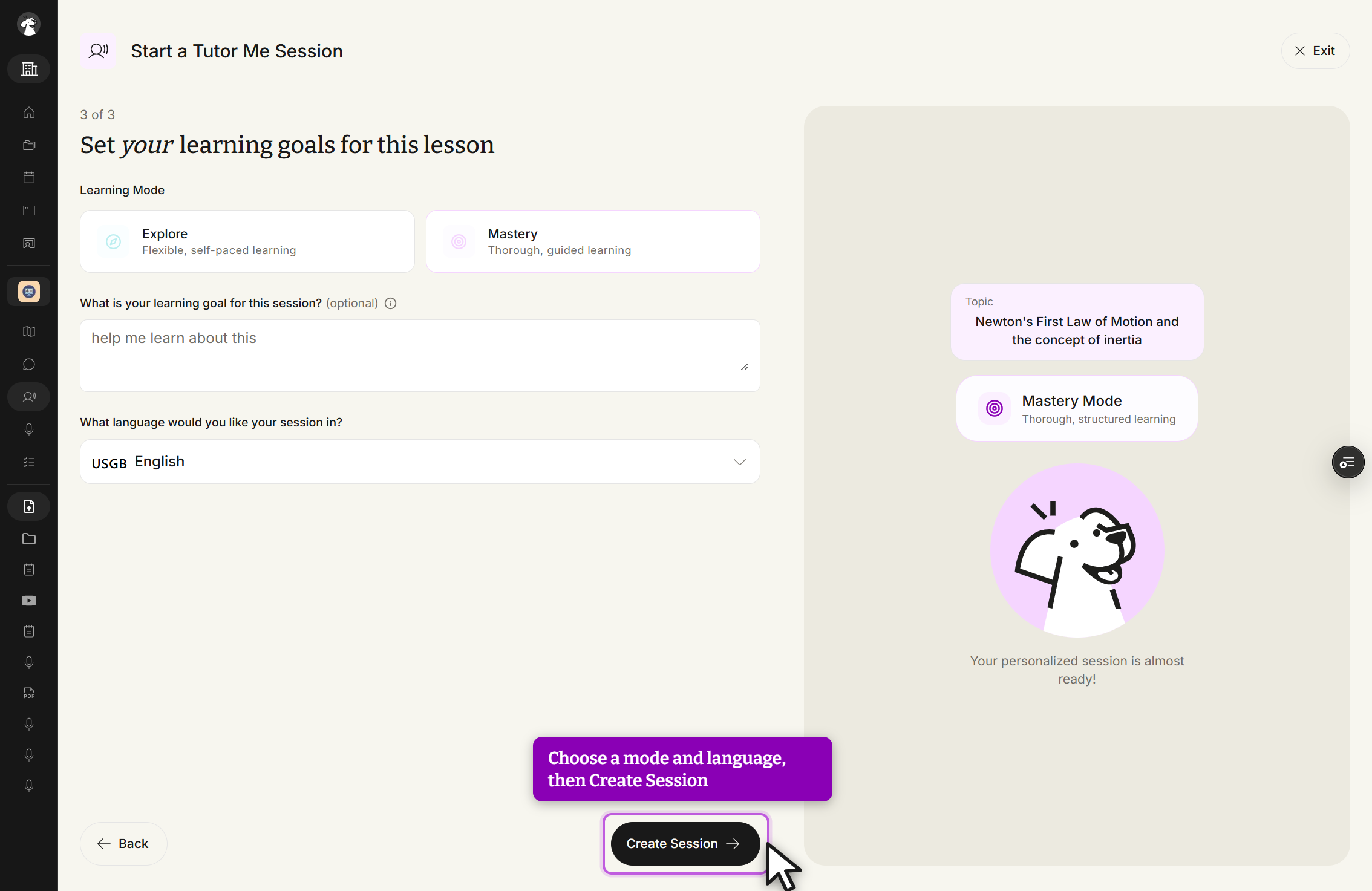
Click Create Session. StudyFetch prepares the personalized tutoring experience — this can take up to a minute for a full lesson plan.
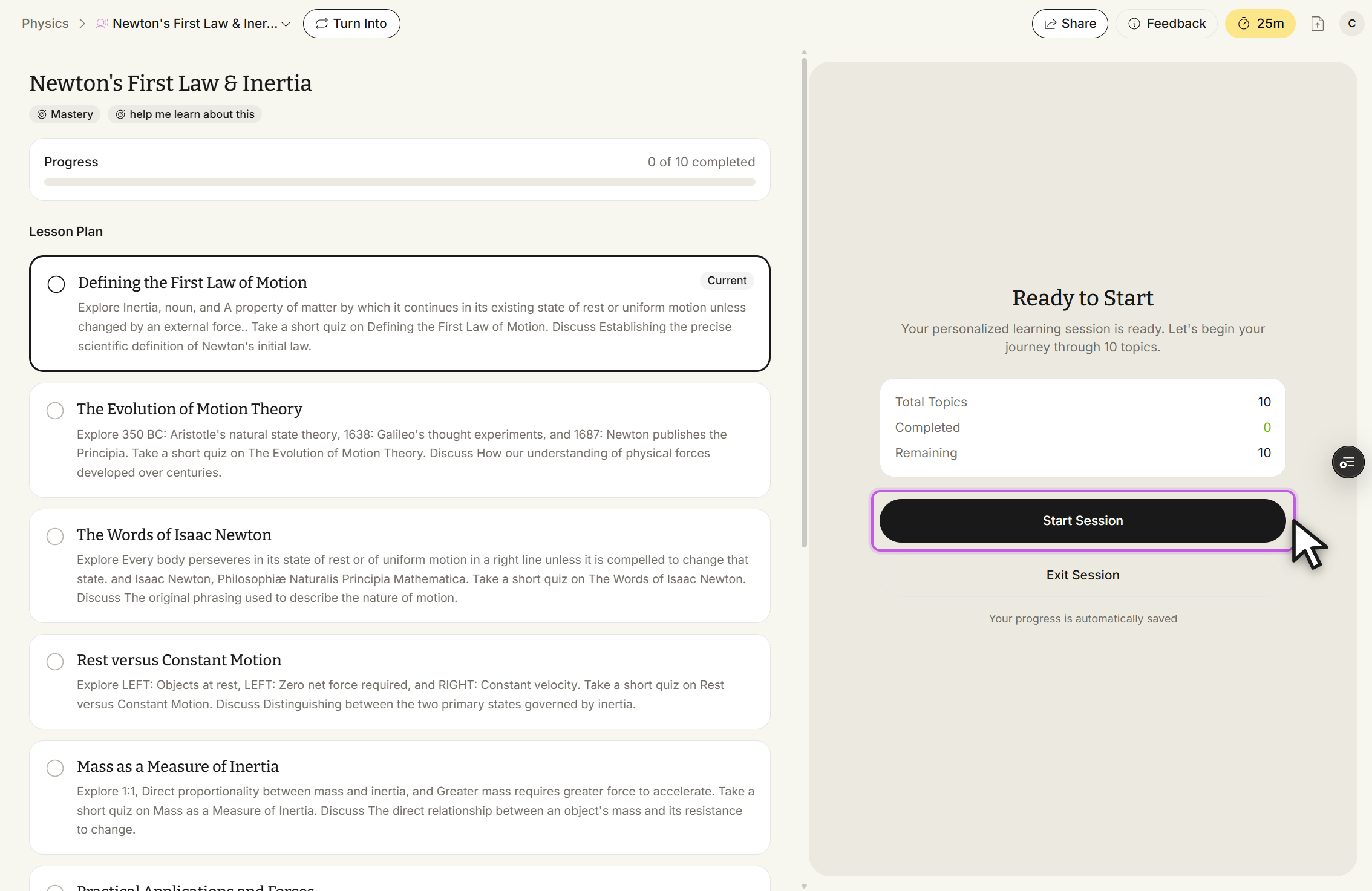
When the session is ready, review the title, goals, progress bar, and lesson plan, then click Start Session.