
Product docs
Manage Explainer Videos
Managing Your Explainer Video
Open any explainer video you've created to manage it. Below the video, next to your name, you'll find Like/Dislike buttons, a Share button, and a ⋮ menu with Update Title, Make Private, and Delete.
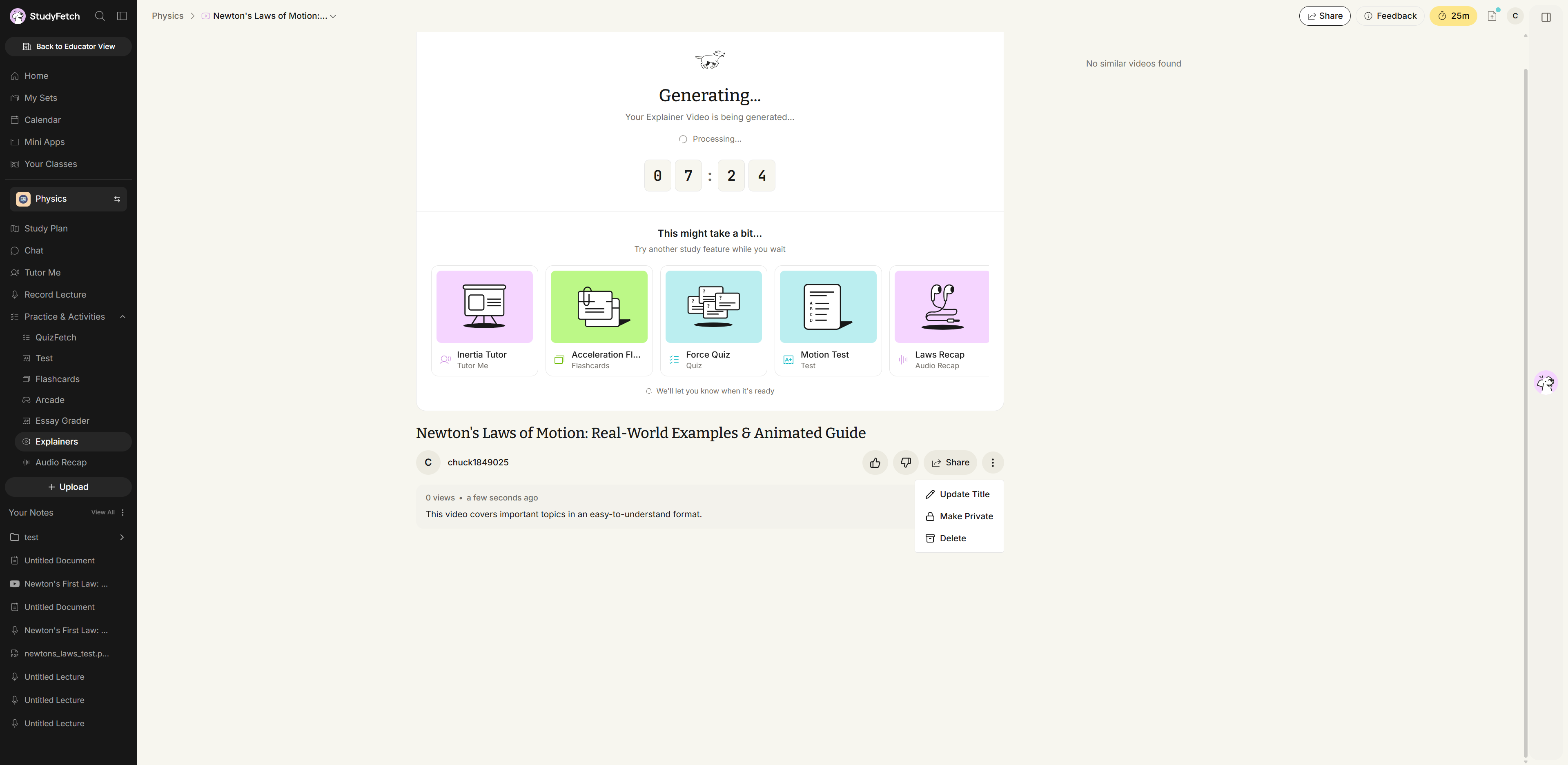
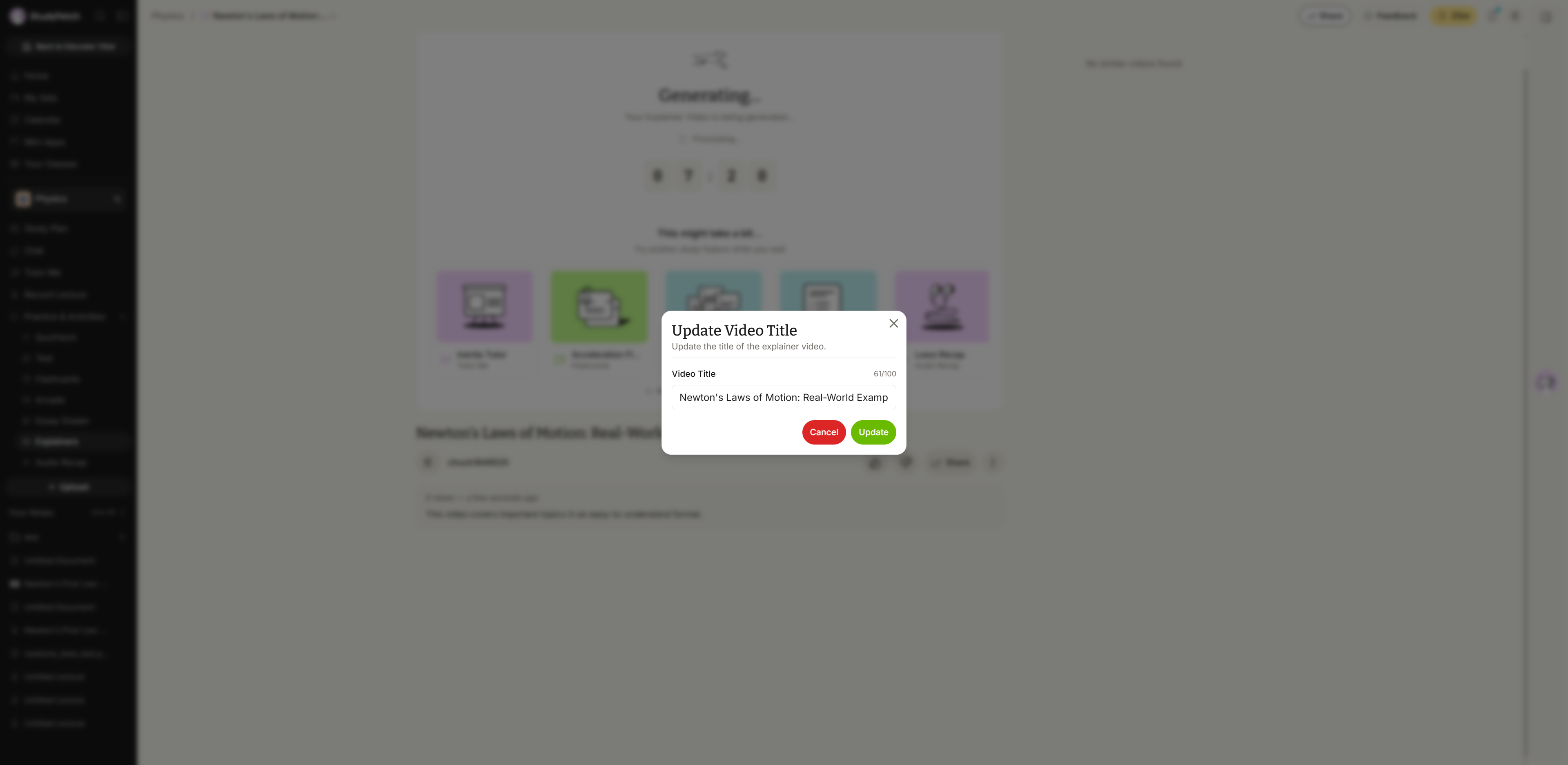
Renaming Your Video
- Click the ⋮ menu and select Update Title, then edit the Video Title field and click Update.
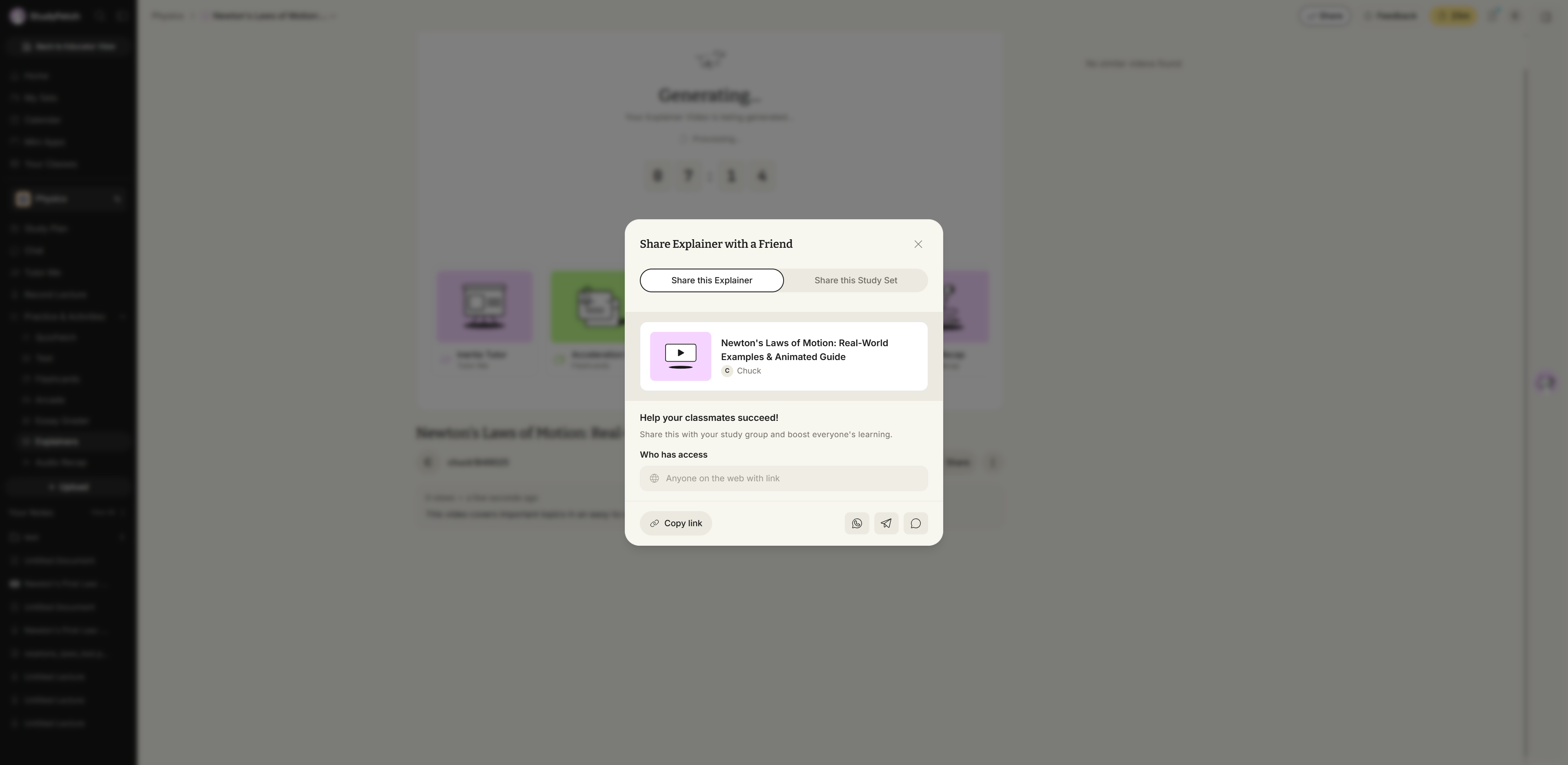
Sharing Your Video
- Click the Share button below the video to open the share dialog. From here you can toggle between sharing this Explainer or this Study Set, copy a link, or share directly.
Rating Your Video
Use the thumbs up/thumbs down icons next to your name to tell StudyFetch whether the video was helpful.
Privacy and Deleting
- From the ⋮ menu, click Make Private to remove the video from the public Explore gallery, or Make Public to add it back.
- Click Delete to permanently remove the video. You'll be asked to confirm — this action can't be undone.
Related Features
After creating a Video Explainer, you might want to:
- Check out Notes for a text-based version of your materials
- Use Flashcards to test your recall of key concepts
- Try QuizFetch to test your understanding of the material