
Product docs
Using Spark.E Chat
Using Sparky Chat
Sending Messages in Chat
Click the chat box labeled Ask your AI tutor anything... and type your message, or select one of the suggested prompts. Press Enter or click the arrow button to send.
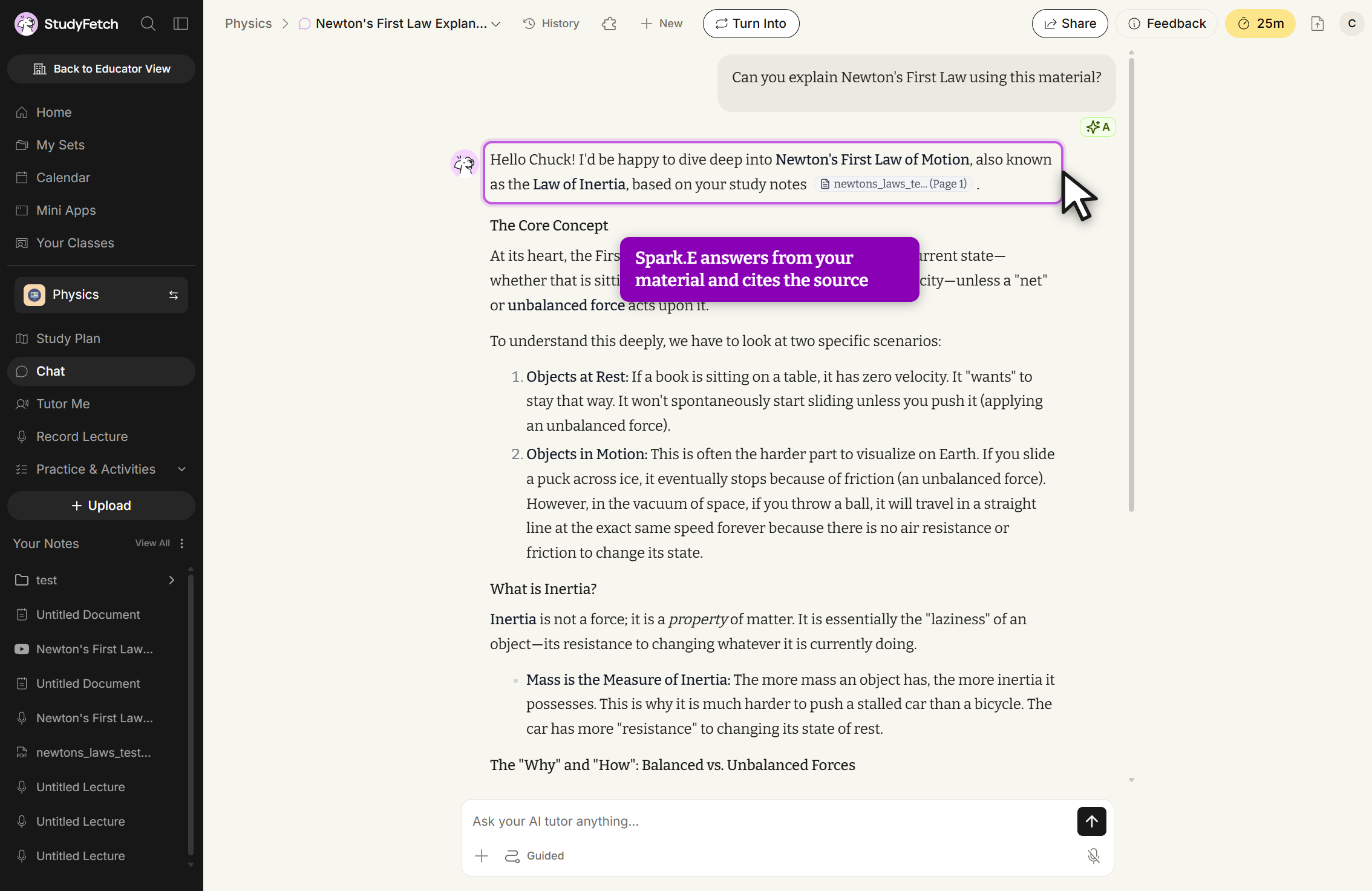
Sparky responds with a personalized answer, citing your study materials by name when relevant.
Chat Tools
Select the + icon to the left of the chat box to open the tools menu: Add image, Web Search, Academic Search, Materials, and Prompt Suggestions.
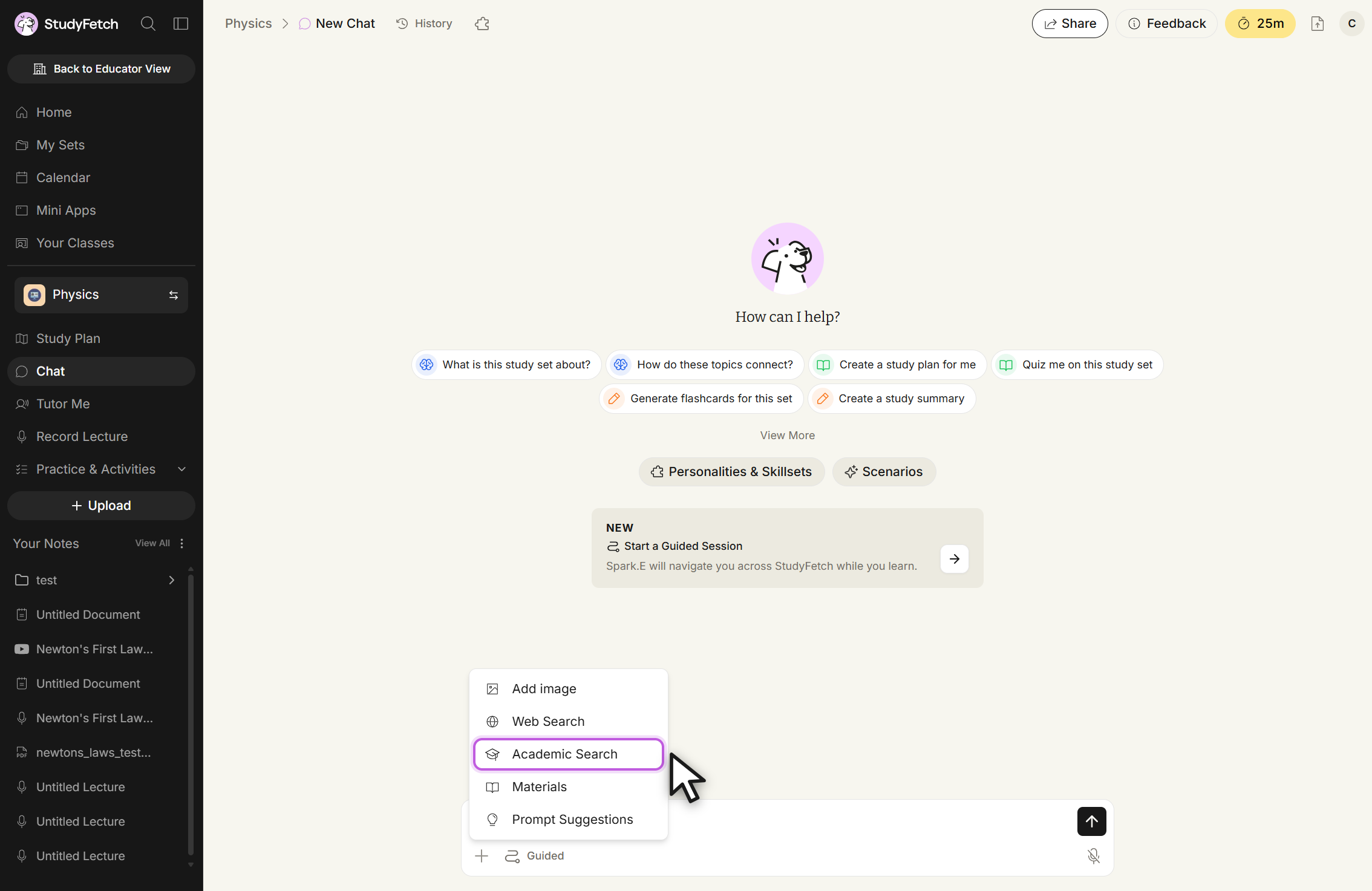
Add Image
Select Add image to upload an image from your device. A preview appears above the chat box, and Sparky will analyze it and respond to questions about it.
Web Search
Select Web Search to let Sparky search the internet for up-to-date information. Once enabled, the globe icon shows active next to the message box.
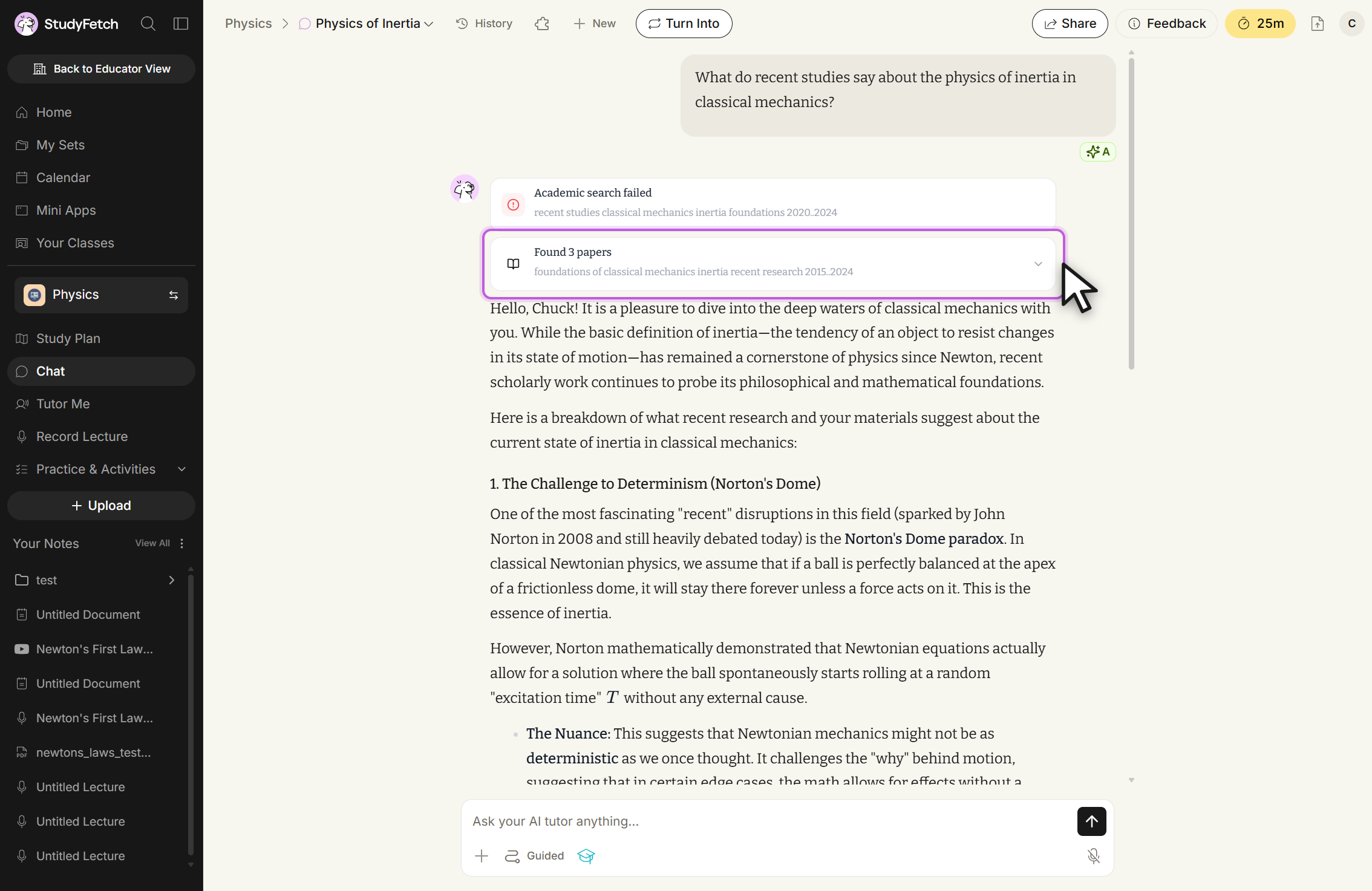
Academic Search
Select Academic Search to have Sparky pull from scholarly, peer-reviewed sources. Once enabled, ask your question — Sparky will search academic papers and cite what it finds.
Materials
Select Materials to choose uploaded study materials to guide the conversation.
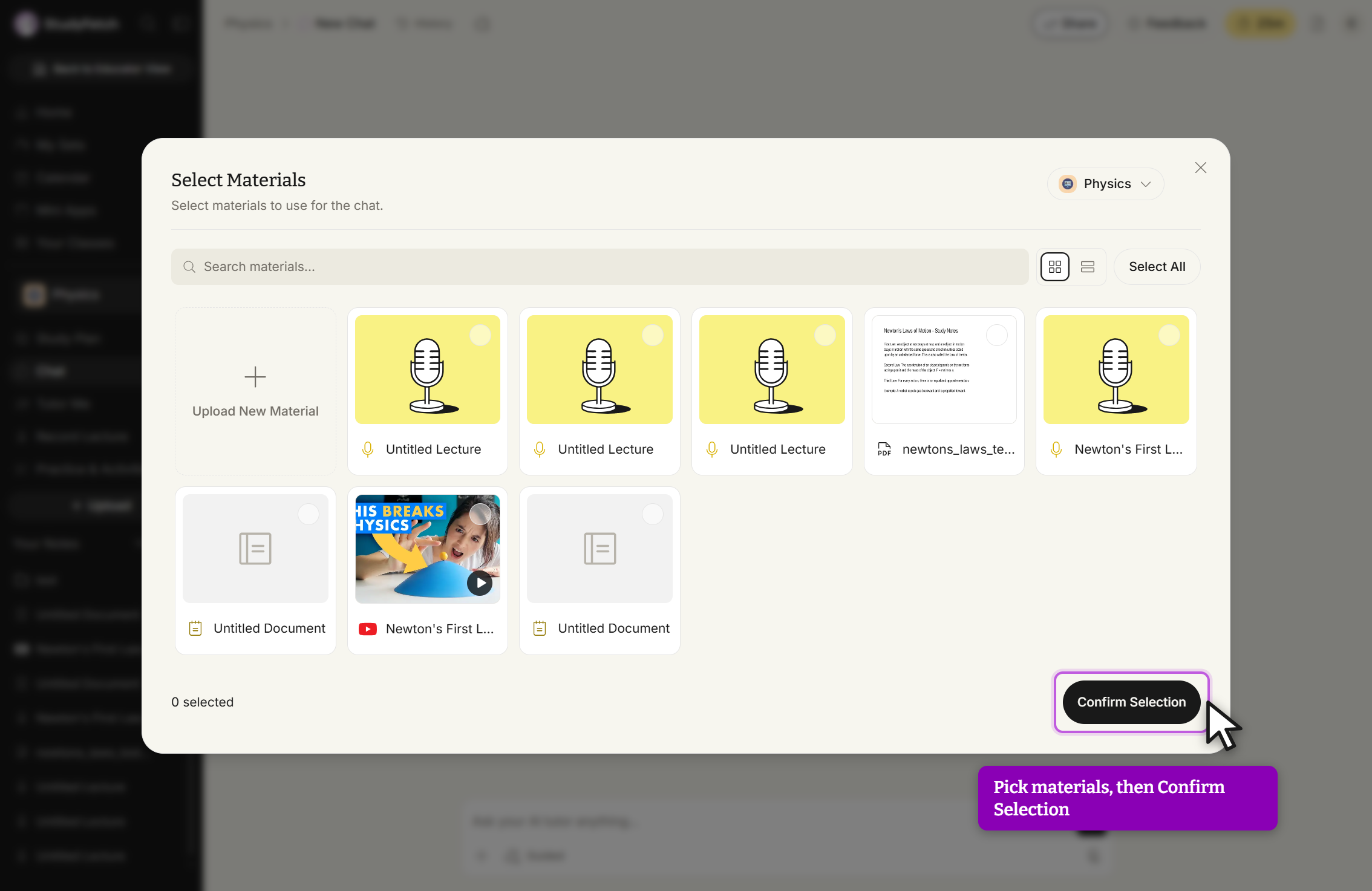
Select the material(s) you want, then click Confirm Selection. Sparky will tailor its answers to the selected materials and cite the exact source location.
If you don't see the material you need, select + Upload New Material from within the picker to add a new file to your study set, then return and select it.
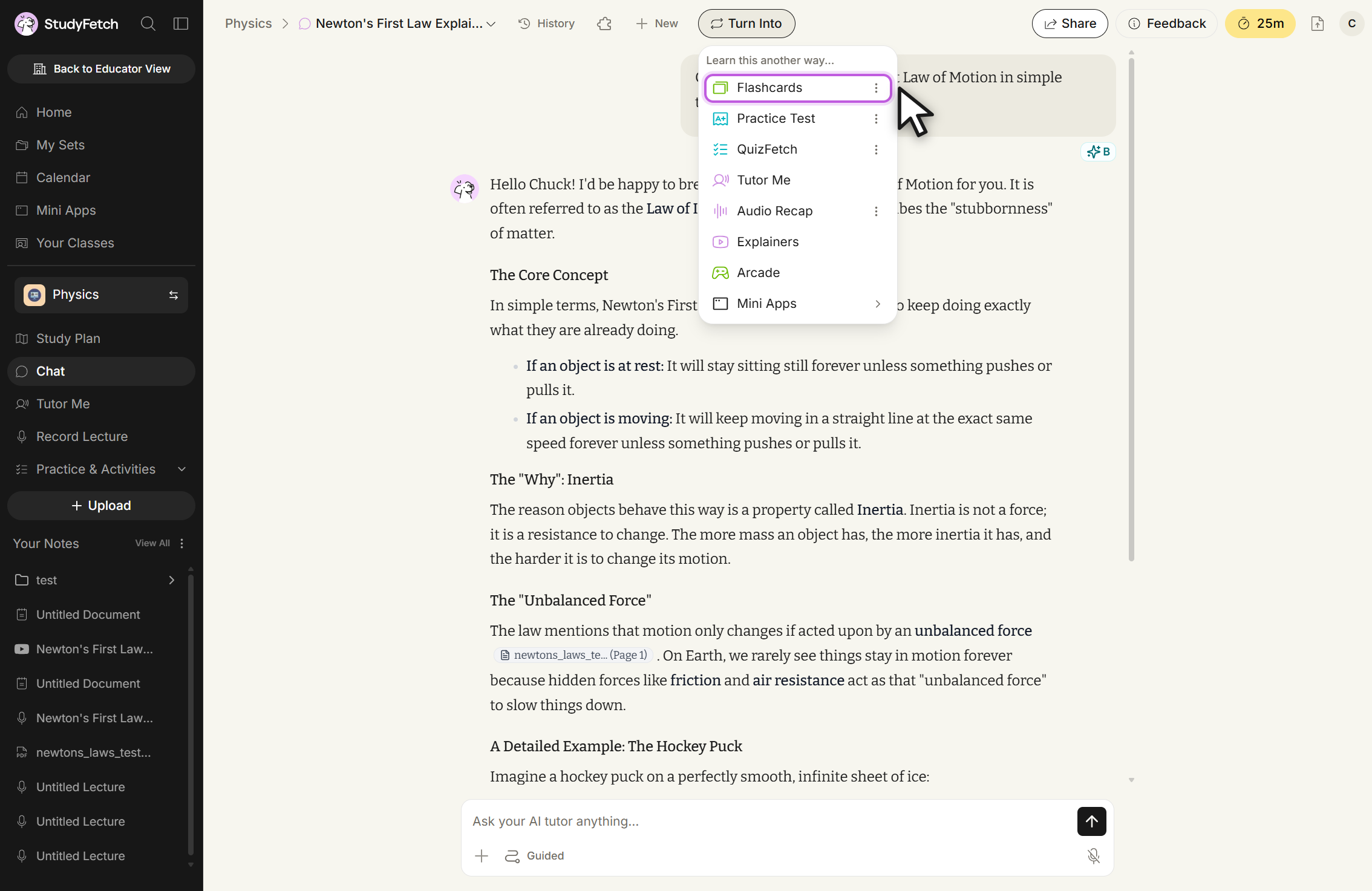
Turn Into
Once you've finished a chat session, select Turn Into at the top of the page to generate new study materials from the conversation.
Benefits of Sparky Chat
- Real-Time AI Tutoring: Sparky responds instantly to your questions, helping you clarify concepts as you study.
- Personalized Explanations: Get responses tailored to your selected plugin, learning style, and study goals.
- Multimodal Support: Ask questions using text, images, or your own uploaded materials.
- Source-Based Learning: When enabled, Sparky can pull from academic papers or the web to provide referenced information.
- Integration with Other Tools: Turn a chat session directly into flashcards, tests, and other study materials.
Related Features
Once you've finished a Chat Session, you might want to:
- Generate Flashcards to memorize key concepts
- Create Practice Tests to assess your knowledge
- Use Audio Recap to review material on the go