
Product docs
Open Assignment Grader
Introduction
Assignment Grader allows learners to upload assignments and rubrics and receive instant AI-powered grading with detailed feedback and suggestions for improvement. It helps learners understand their work more clearly, improve more effectively, and build confidence in their learning.
Accessing Assignment Grader
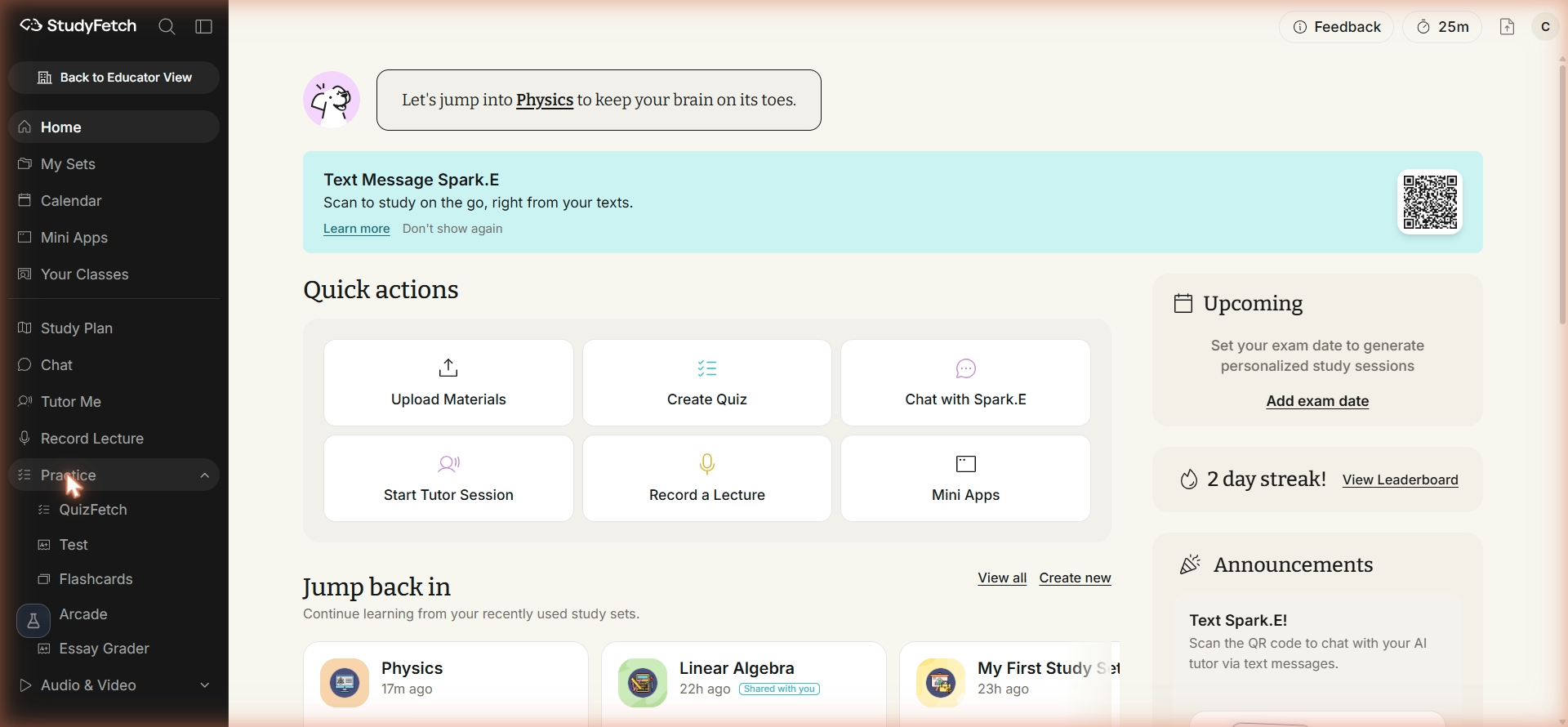
- On the left-hand side of your dashboard, click Practice and then select Essay Grader.
- All previous assignments associated with your study set can be found on this page.
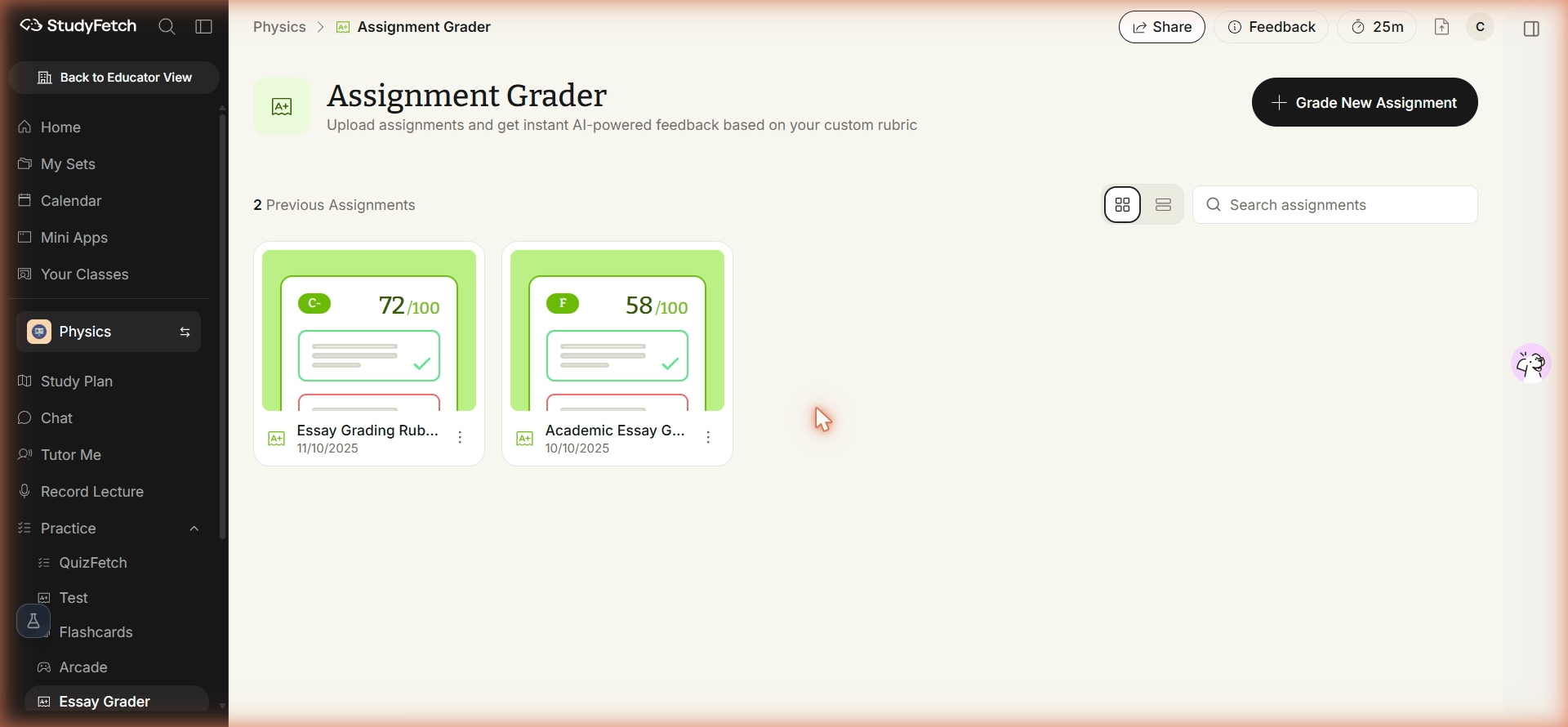
- To open a previous assignment, simply click on the name of the assignment you would like to view.
- To grade a new assignment, follow the steps outlined below.