Build term and definition, cloze, fill-in-the-blank, multiple choice, and image occlusion flashcards.
Recall cards
Use term and definition, cloze, or fill-in-the-blank cards.
Exam practice
Create multiple choice cards with selectable correct answers.
Visual learning
Use image occlusion for diagrams and labeled visuals.
Creating Specific Types of Flashcards
Whether building flashcards from scratch or enhancing existing sets, StudyFetch gives users full control to customize card types, helping learners match their study strategy to their unique learning preferences.
Ensure you are on the Editing page of your flashcard set before proceeding, for steps on how to do this refer to the Opening the Editing View above. Every card type is set the same way: select it from the Type dropdown at the top of the flashcard editor, then fill in the fields that appear below.
Term and Definition
Term and Definition flashcards are the most common type of flashcard. They consist of a term on one side and a definition on the other.
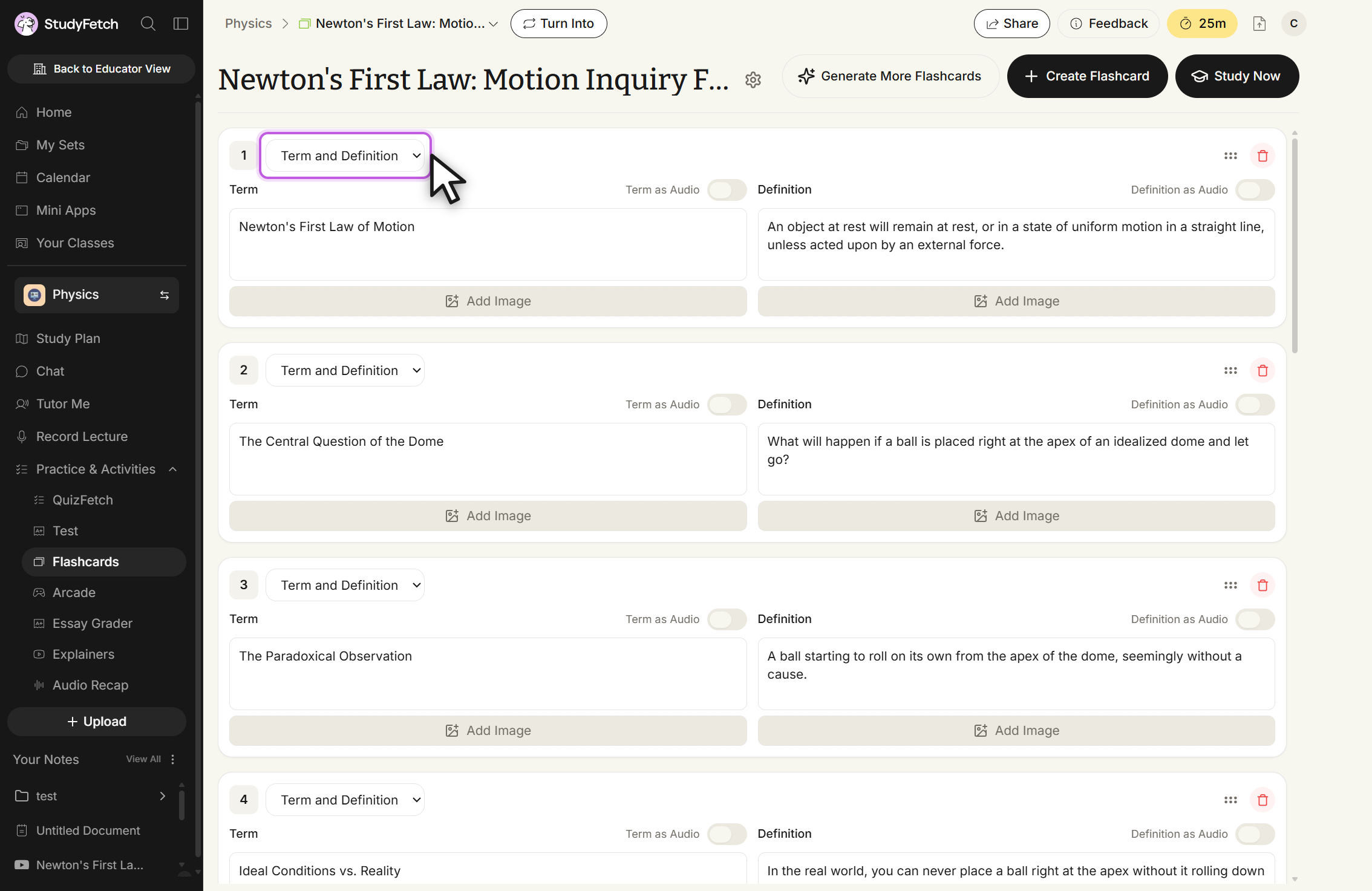
Flashcard set editing page, a card in Term and Definition type. The card type dropdown reads Term and Definition, with Term and Definition boxes, Term as Audio and Definition as Audio toggles, and Add Image under each box.
In the box next to Type, select Term and Definition.
Type the Term in the Term box on the left and the Definition (answer) in the Definition box on the right.
Optionally add an image to either side with Add Image.
Toggle Term as Audio and/or Definition as Audio to have either side read aloud.
Toggle Generate Reverse to automatically create the reverse version of the card, then click + Add Flashcard.
Cloze
Cloze flashcards hide specific words or phrases within a sentence or term. When reviewing the card, the hidden portions are concealed on the front, and flipping the flashcard reveals the complete text with the previously hidden words shown.
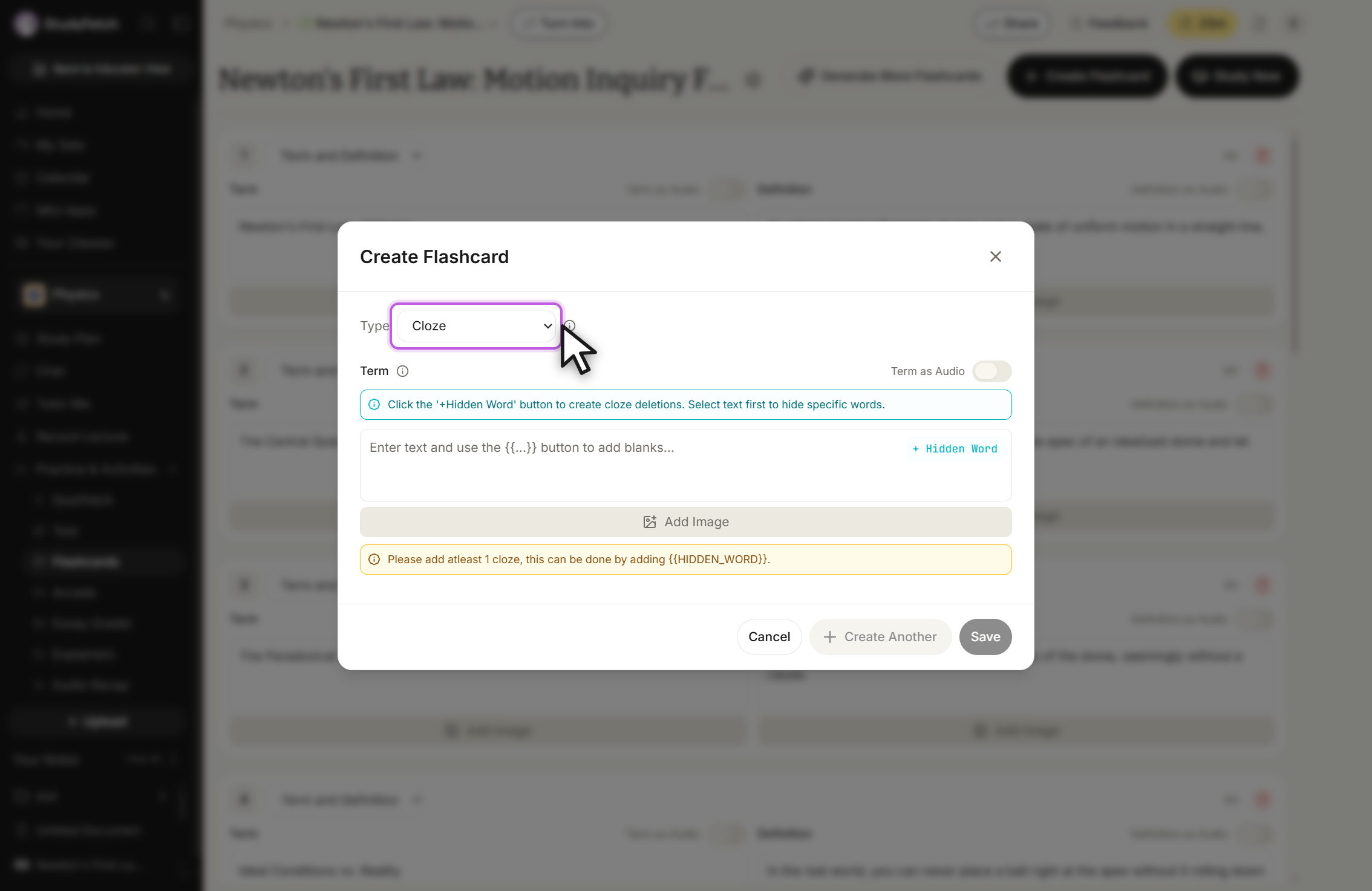
Create Flashcard, Type set to Cloze. Enter your text in the Term field, then select a word and click + Hidden Word to hide it.
In the box next to Type, select Cloze and enter the text for your flashcard under Term.
Highlight the word or phrase you want to hide and click the blue {{...}} button, or type it directly using {{double curly braces}}.
Optionally add an image, then click + Add Flashcard. Use Preview to check how the hidden portion will appear (bolded).
Fill in the Blank
Fill-in-the-blank flashcards hide specific word(s) within a term, sentence, or concept. Learners must actively type the missing word(s) to reveal the correct answer.
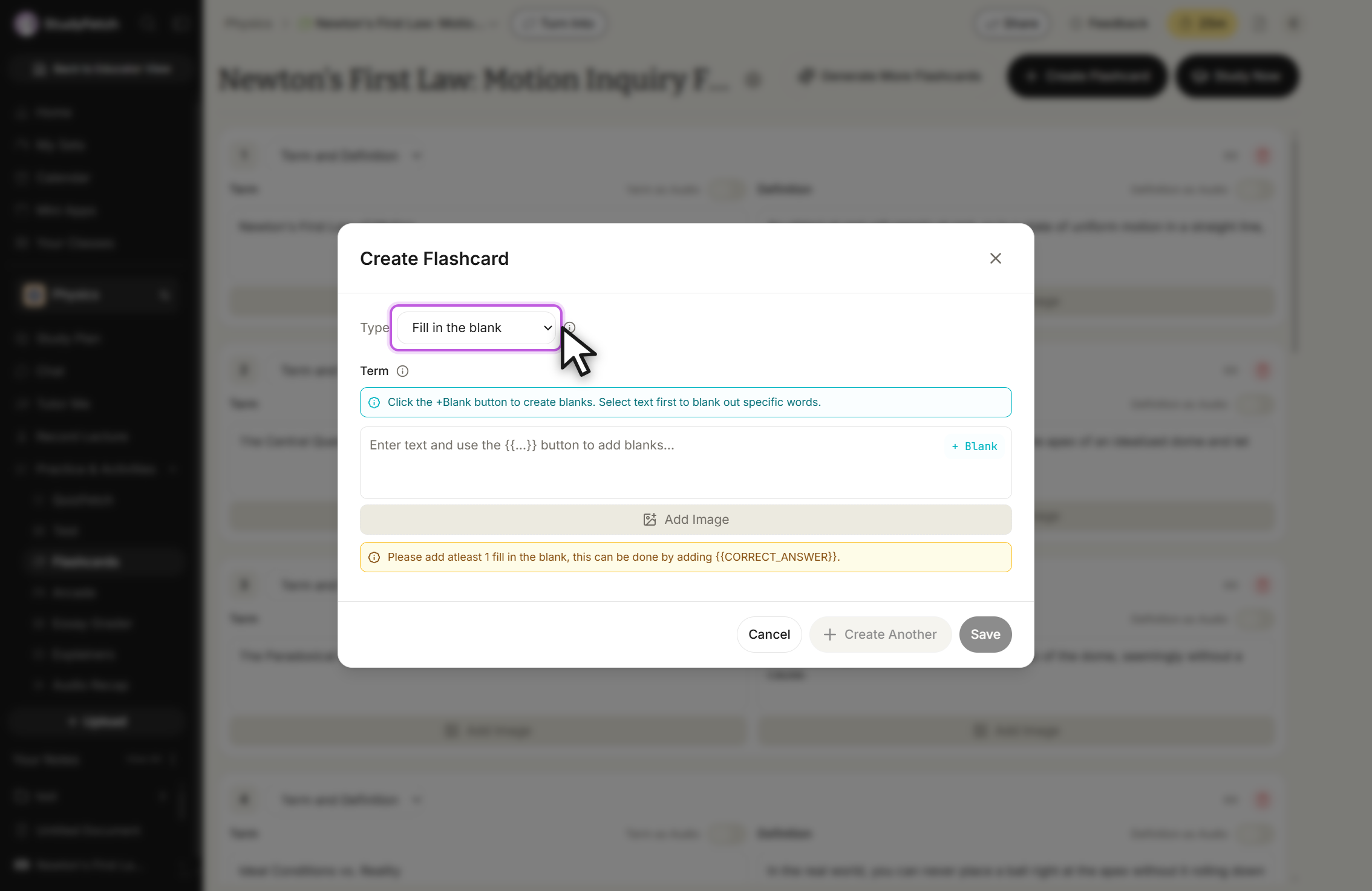
Create Flashcard, Type set to Fill in the blank. Enter your text in the Term field, then select a word and click + Blank to blank it out.
In the box next to Type, select Fill in the Blank and enter the text for your flashcard under Term.
Highlight the word you want hidden and click + Blank, or type it directly using {{double curly braces}}.
Optionally add an image, then click + Add Flashcard. When studying, the learner types the exact response and clicks Check Answers.
Multiple Choice
Multiple Choice flashcards present learners with a question followed by two to four answer options. Learners select the option they believe is correct and immediately receive feedback showing whether their answer was correct, along with the correct response.
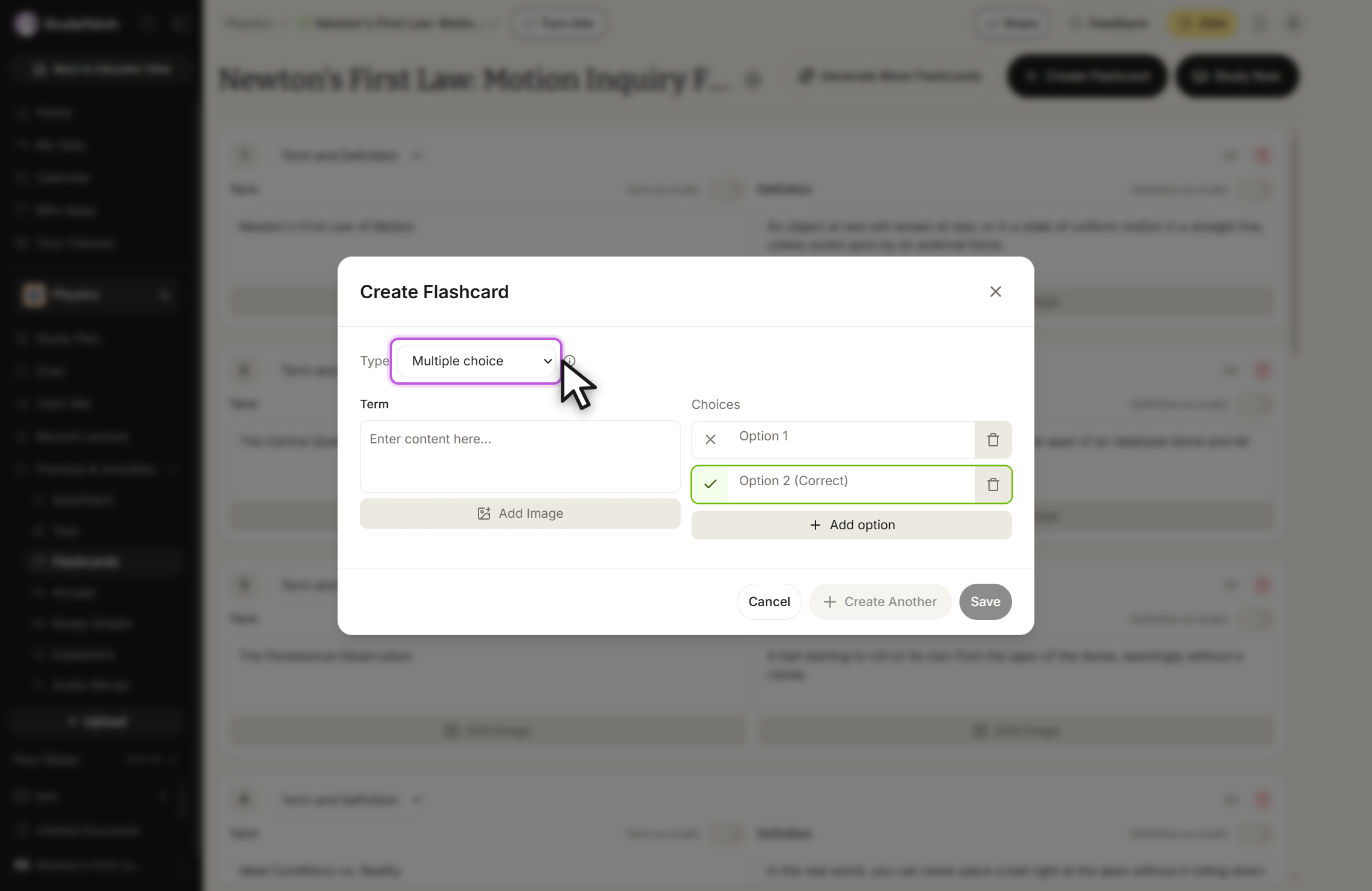
Create Flashcard, Type set to Multiple choice. Type the question under Term, fill in the choices, and click the mark beside a choice to set the correct answer.
In the box next to Type, select Multiple choice and type the question under Term (optionally add an image).
Under Choices, fill in Option 1 and Option 2, and click + Add Option for up to two more choices. Use the trash icon to remove an option.
Click the X next to the answer choice you want marked correct — it will switch to a checkmark. Option 2 is marked correct by default until you change it.
Click + Add Flashcard when done.
Image Occlusion
Image Occlusion flashcards allow learners to upload an image and cover specific areas with adjustable masks. Each masked area creates a covered zone that can be clicked to reveal what is hidden underneath, encouraging active recall through visual interaction.
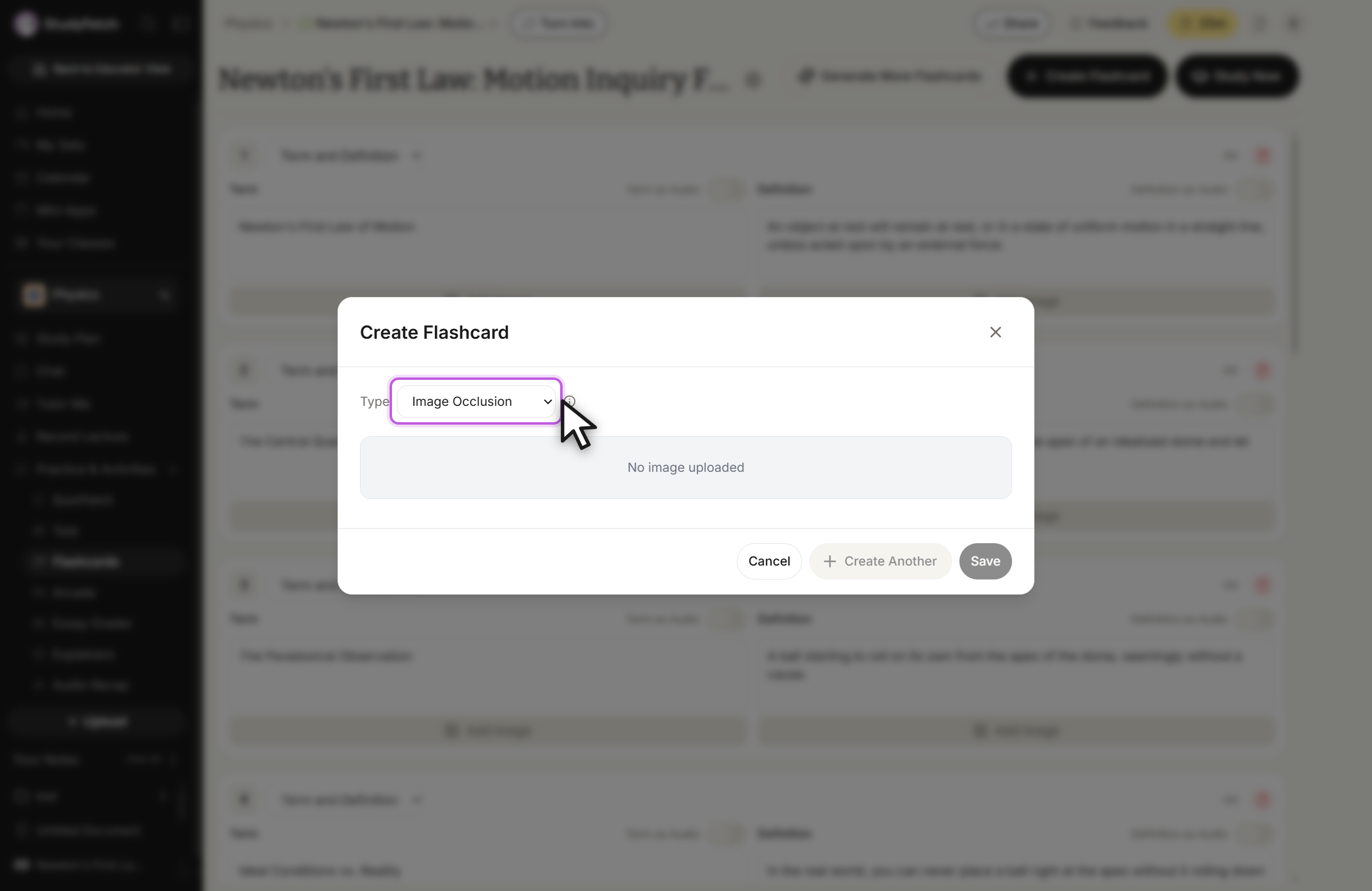
Create Flashcard, Type set to Image Occlusion. The image panel reads No image uploaded until you add an image.
In the box next to Type, select Image Occlusion and click Upload an Image (or drag and drop) to choose a diagram, chart, map, or labeled image.
Click and drag on the image to draw an occlusion zone. Click a zone to select it, use the corner handles to resize it, and drag it to reposition it.
Click the pencil icon in the center of a zone to add or edit its label. To remove a zone, select it and click Delete Zone.
Repeat to add as many zones as needed, then click the X in the top-right to close the editor and + Add Flashcard to save.
 StudyFetch Academy