Product docs
How to Change Your Study Hub Language
If you need to change the language displayed in your Study Hub account, follow these simple steps:
- Access Your Account Settings:
- Click on your account icon located in the top right corner of your Study Hub screen.
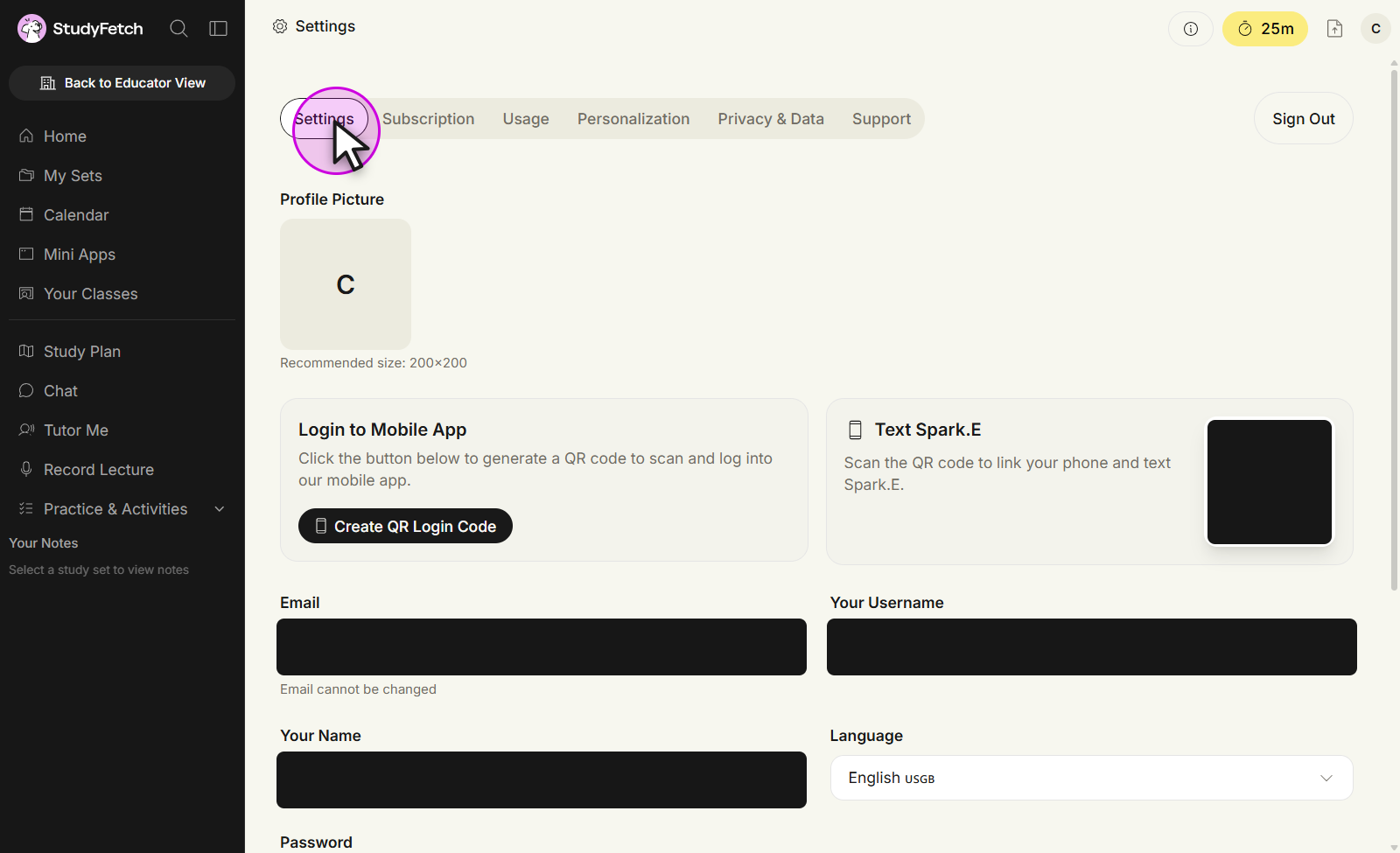
- A dropdown menu will appear. Select "Settings" from the list.
- Locate the Language Setting:
- On the Settings tab, the "Language" field sits near the top of the page, next to Your Username.
- Choose Your Preferred Language:
- Click on the Language dropdown menu.
- Select your desired language from the available options.
- Save Your Changes:
- Your Study Hub language will automatically update once you've selected your new language. There is no need to manually save your changes.
Additional Notes
- The Language setting is on the main Settings tab, alongside your name, username, and email.
- If you encounter any issues while changing your language, please contact our Support Team for assistance.