Product docs
Take and Navigate a QuizFetch Quiz
Taking Your Quiz
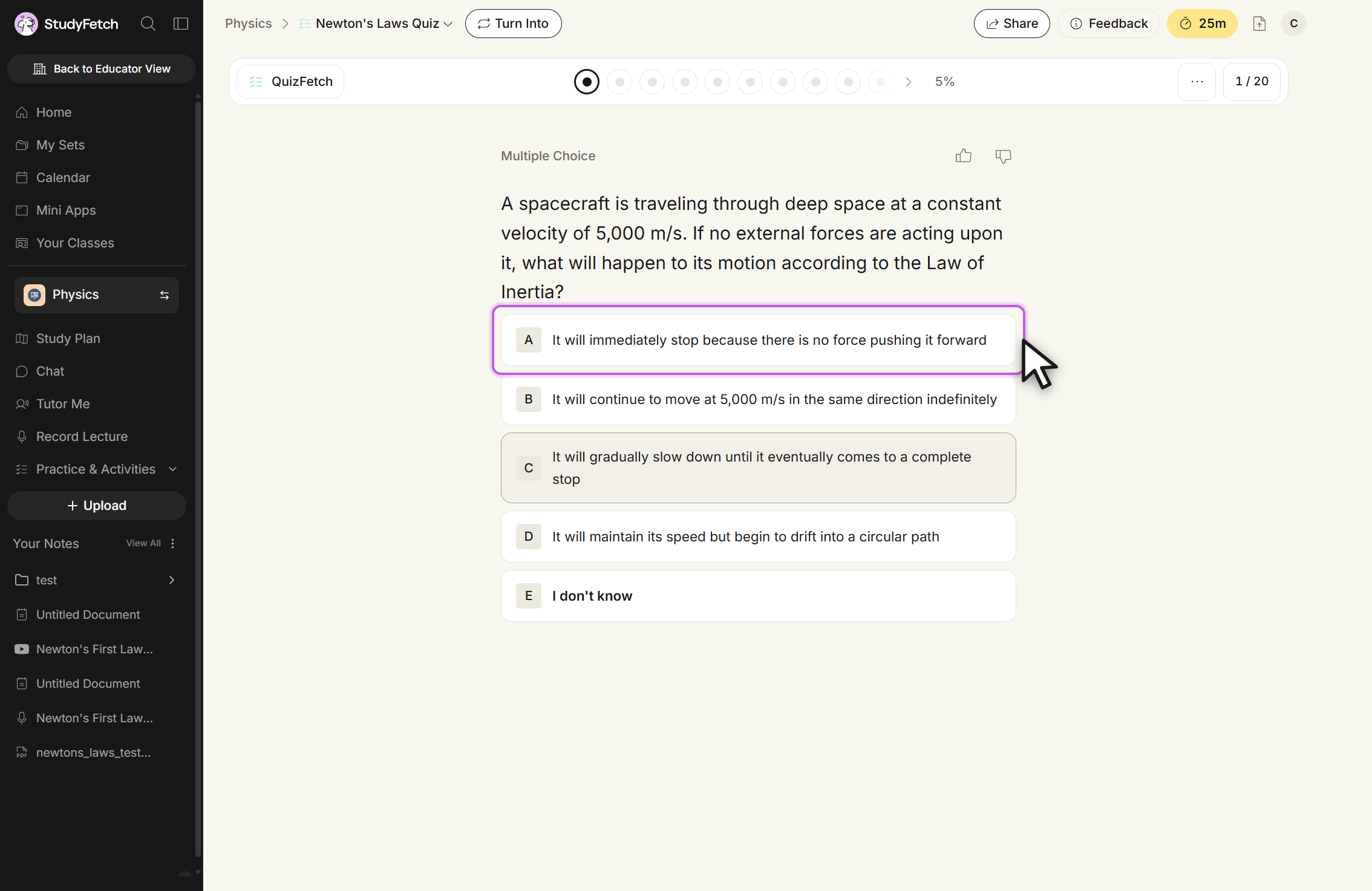
Step 1: Select and Confirm an Answer
Choose your answer by clicking an option (or, for multiple choice, pressing the corresponding letter key). Type a response and press Submit or Shift + Enter for short-answer style questions, or select I don't know if you're unsure. Throughout the quiz, the Sparky Chat panel on the right stays available so you can ask questions or request clarification at any point.
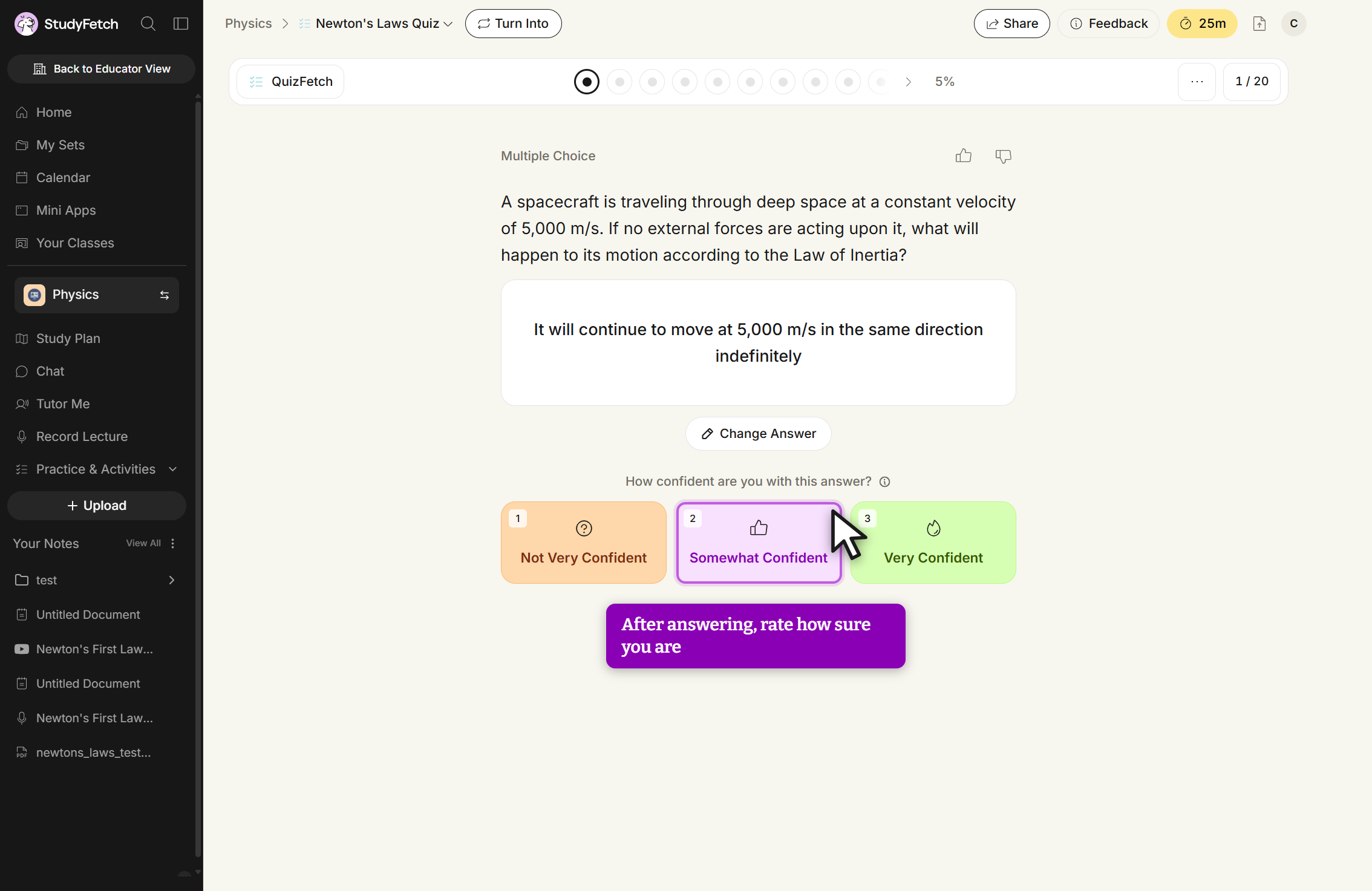
After choosing an answer, review your selection in the confirmation box. Select Change Answer to go back and reselect, or continue on to rate your confidence.
Step 2: Rate Your Confidence
QuizFetch pairs spaced repetition with a confidence rating: after each answer, rate yourself Not Very Confident (1), Somewhat Confident (2), or Very Confident (3) using the buttons or the 1/2/3 keys. Your accuracy and confidence together determine when the question will resurface — high confidence plus a correct answer moves you toward mastery fastest.
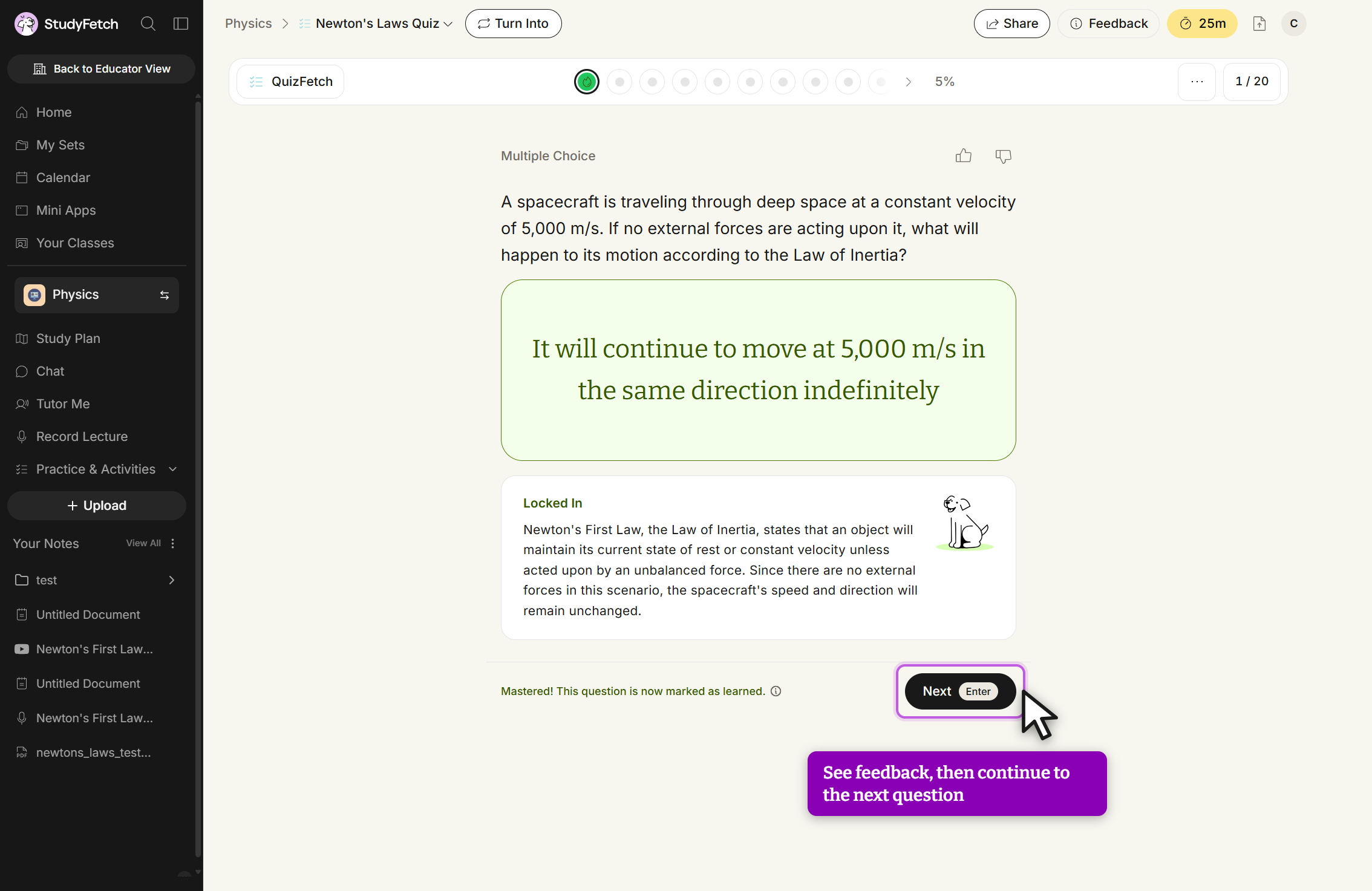
Step 3: Review Your Feedback
Sparky explains the correct answer and, based on your accuracy and confidence, updates your mastery progress for that question — correct, confident answers can lock a question in as mastered right away, while incorrect answers reset or reduce progress and show how many additional correct responses are needed. Use the Sparky Chat to dig deeper into any explanation before moving on with Next or the Enter key.
Navigating Your Quiz
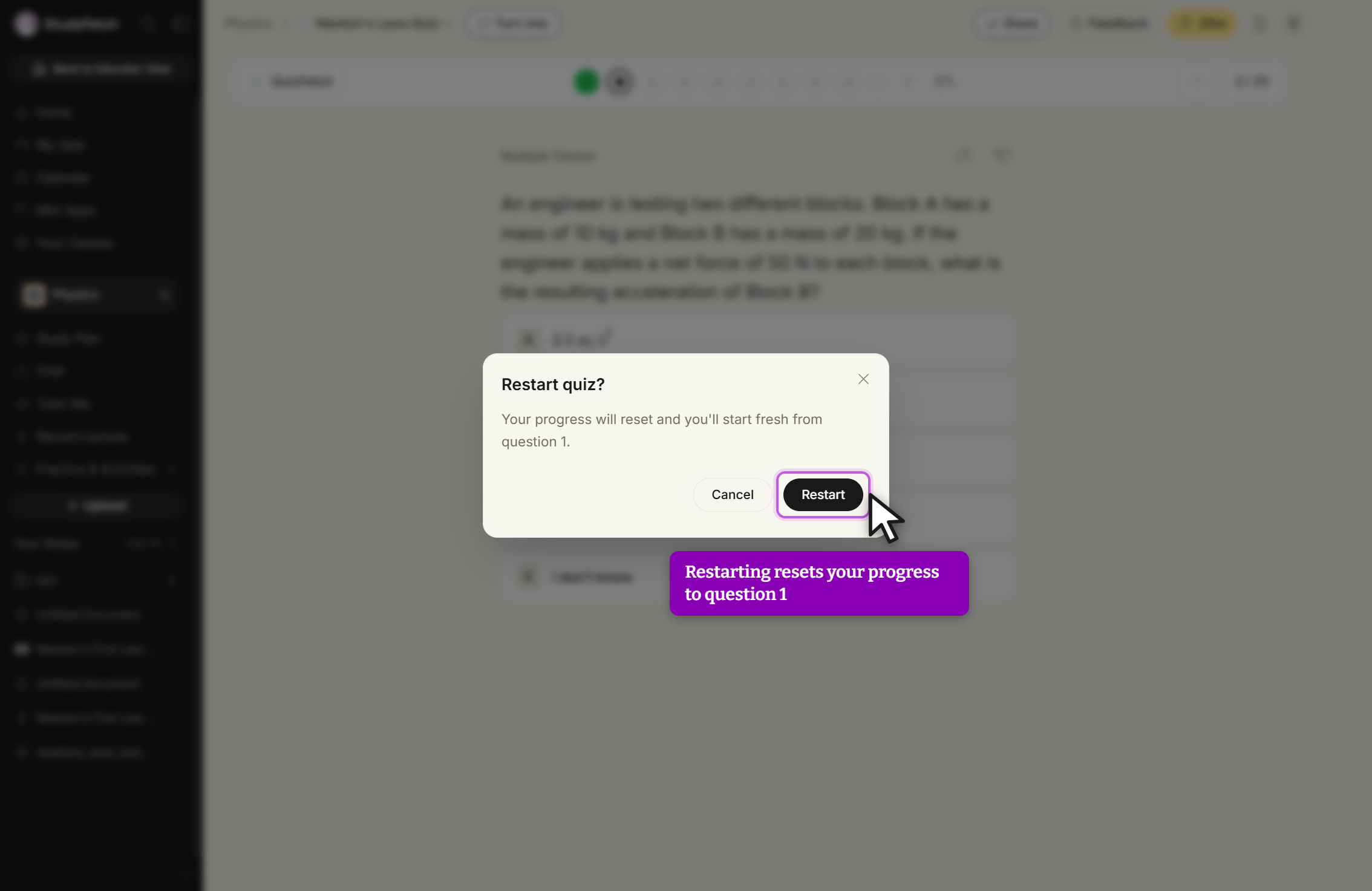
The progress bar at the top shows one dot per question, filling in green (correct) or updating as you answer; your overall mastery percentage is shown alongside it. Hover over any dot for details on that question's confidence rating and mastery status, or click the source number above a question to see exactly where it comes from in your materials. QuizFetch presents questions in an adaptive order based on confidence and spaced repetition, so you move forward with Next rather than jumping between questions freely. To start over, open the ... menu in the top toolbar and select Restart — you'll be asked to confirm, since this resets all progress back to question 1.