Use Sparky for questions, review flashcard statistics, and share sets with classmates.
Ask Sparky
Use the chat while studying for explanations and visualizations.
Read statistics
Review progress, heatmaps, and future due cards.
Share sets
Copy a share link or send through supported apps.
Get Help from Sparky
Have questions or need help clarifying something from your flashcards? Use the Sparky chat to get personalized support instantly!
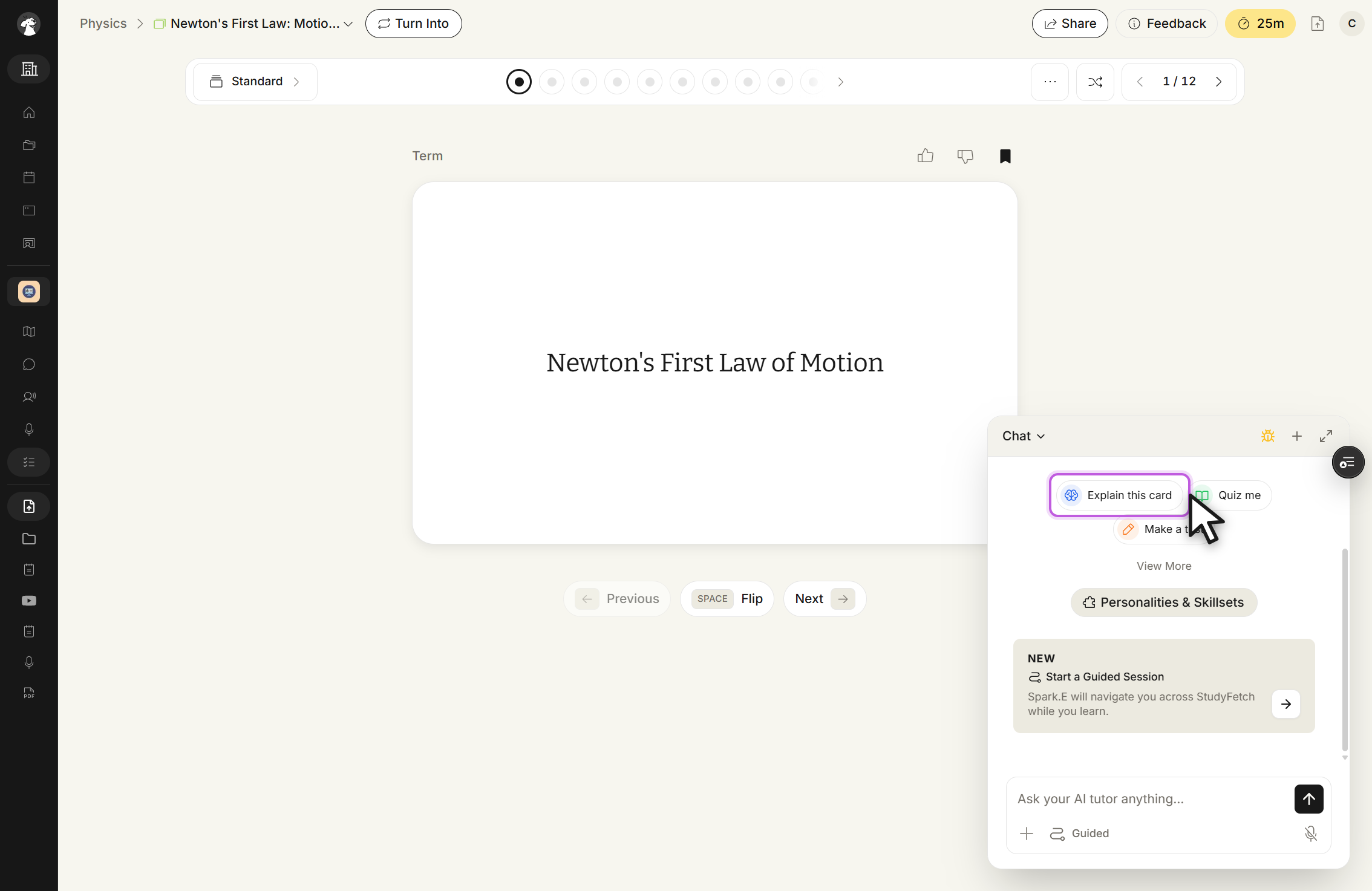
Chat panel, open beside the flashcard study screen. Pick a suggested prompt such as Explain this card or Quiz me, or type in Ask your AI tutor anything...
As you study your flashcards, the Sparky chat is available on the right side for real-time support.
You can ask questions by typing directly into the chat box and pressing Enter, or select from the suggested prompts like Explain this card, Quiz me, or Make a test.
Ask anything from "make me a visualization of this card," to "explain this concept in more detail," or "what is the best way to memorize this?" Sparky will provide detailed, personalized responses tailored to your learning style.
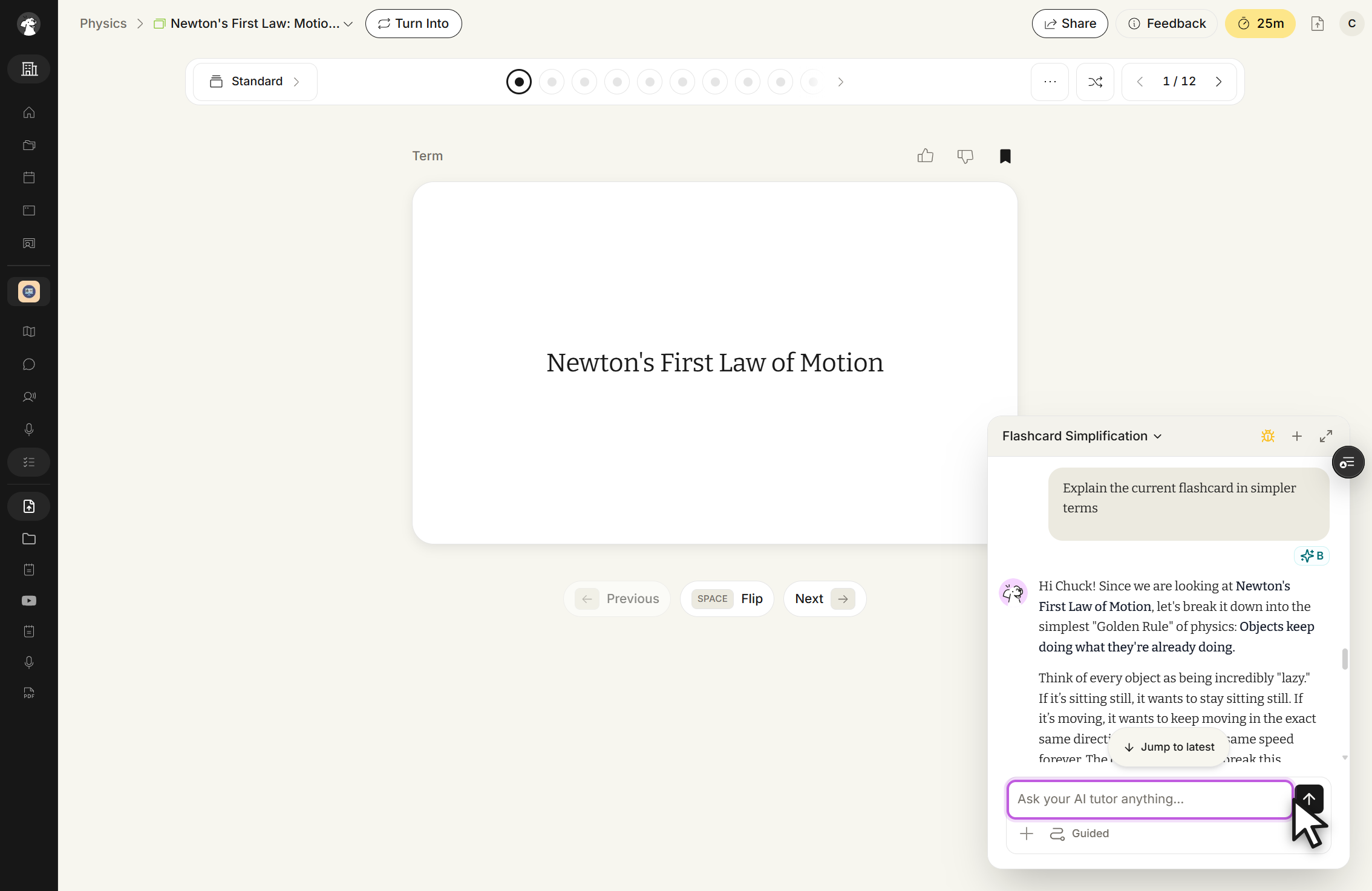
Chat panel, after a reply. The thread shows your message and the tutor's answer, with the message box below.
Interpreting your Statistics
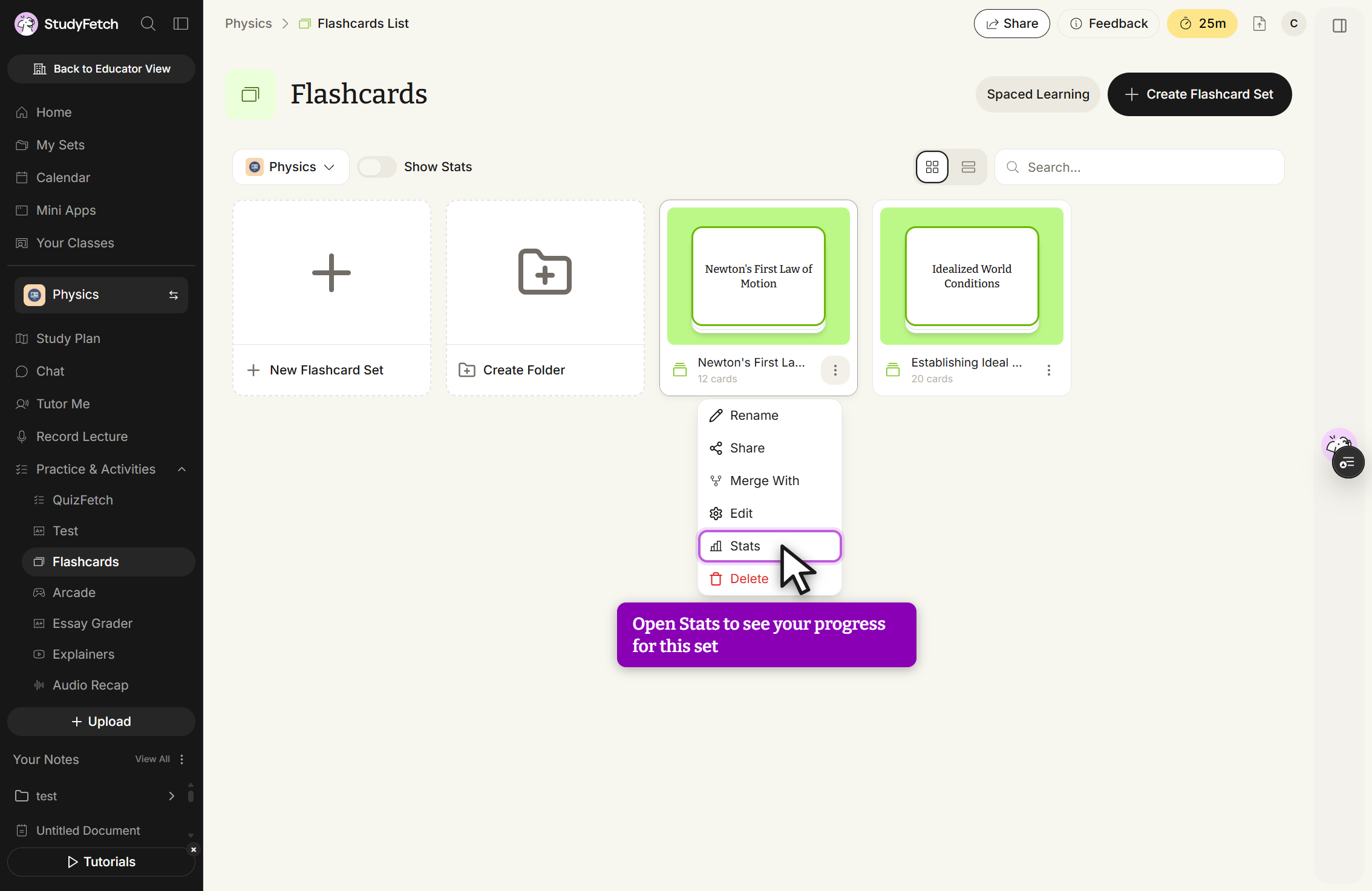
To view your flashcard set's study progress and statistics, click the ··· menu next to your flashcard set, and select Stats.
Flashcards page, set options menu open. Choose Stats to open the study statistics for that set.
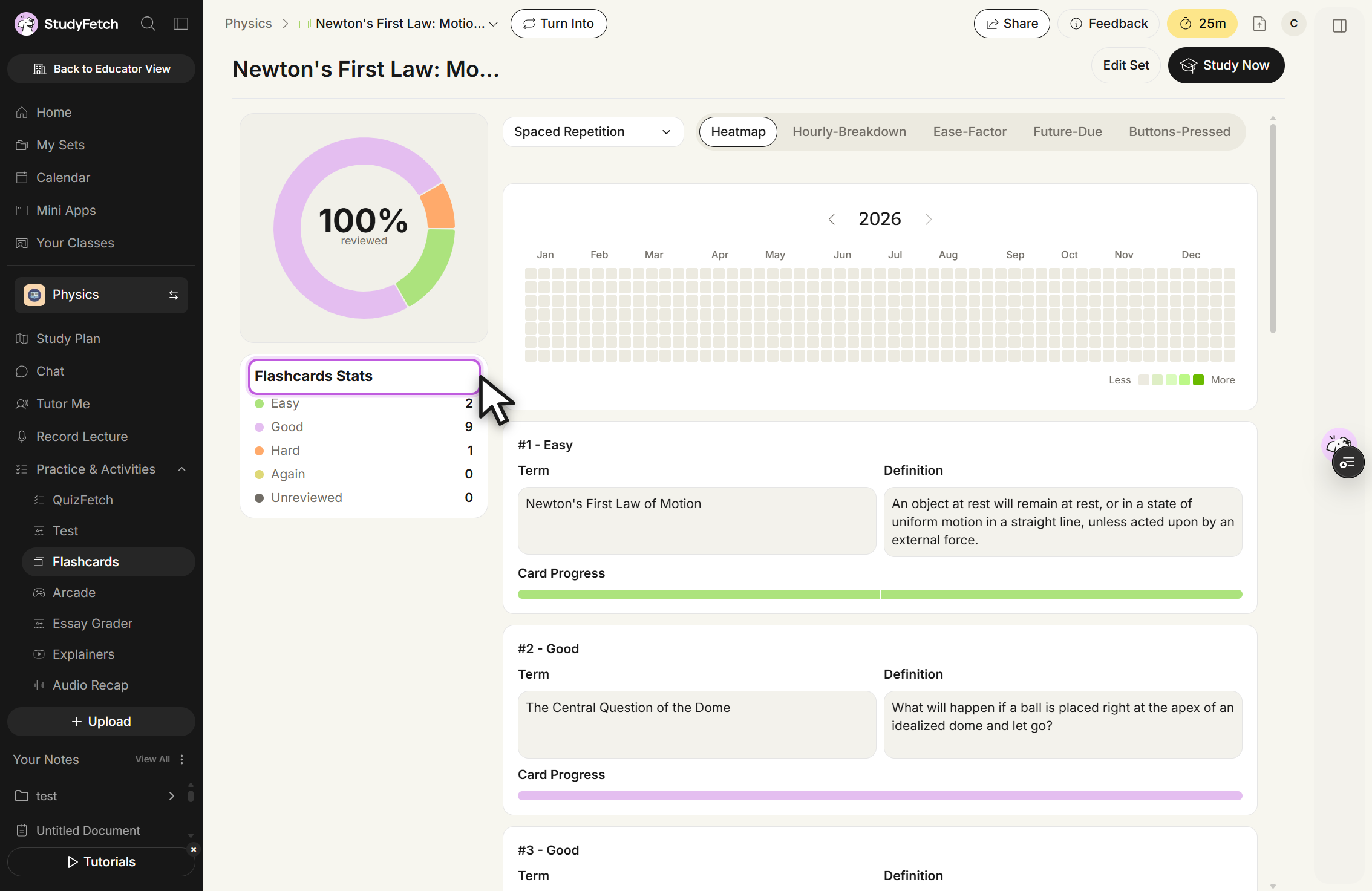
The Stats page shows your overall progress, a per-card breakdown (Easy, Good, Hard, Again, Unreviewed), and a yearly activity heatmap:
Flashcard set statistics page, Heatmap tab. A progress ring, a Flashcards Stats panel and an activity calendar.
Above the heatmap, tabs let you switch between different views of your study data:
Heatmap: A visual calendar of your study activity over time. Darker shading means more reviews completed that day; hover a square to see the exact count.
Hourly-Breakdown: The number of flashcards reviewed during each hour of the day.
Ease-Factor: How easy or difficult your flashcards are based on your ratings. Rating a card easier increases its ease factor so it appears less often; rating it harder decreases it so it appears more often.
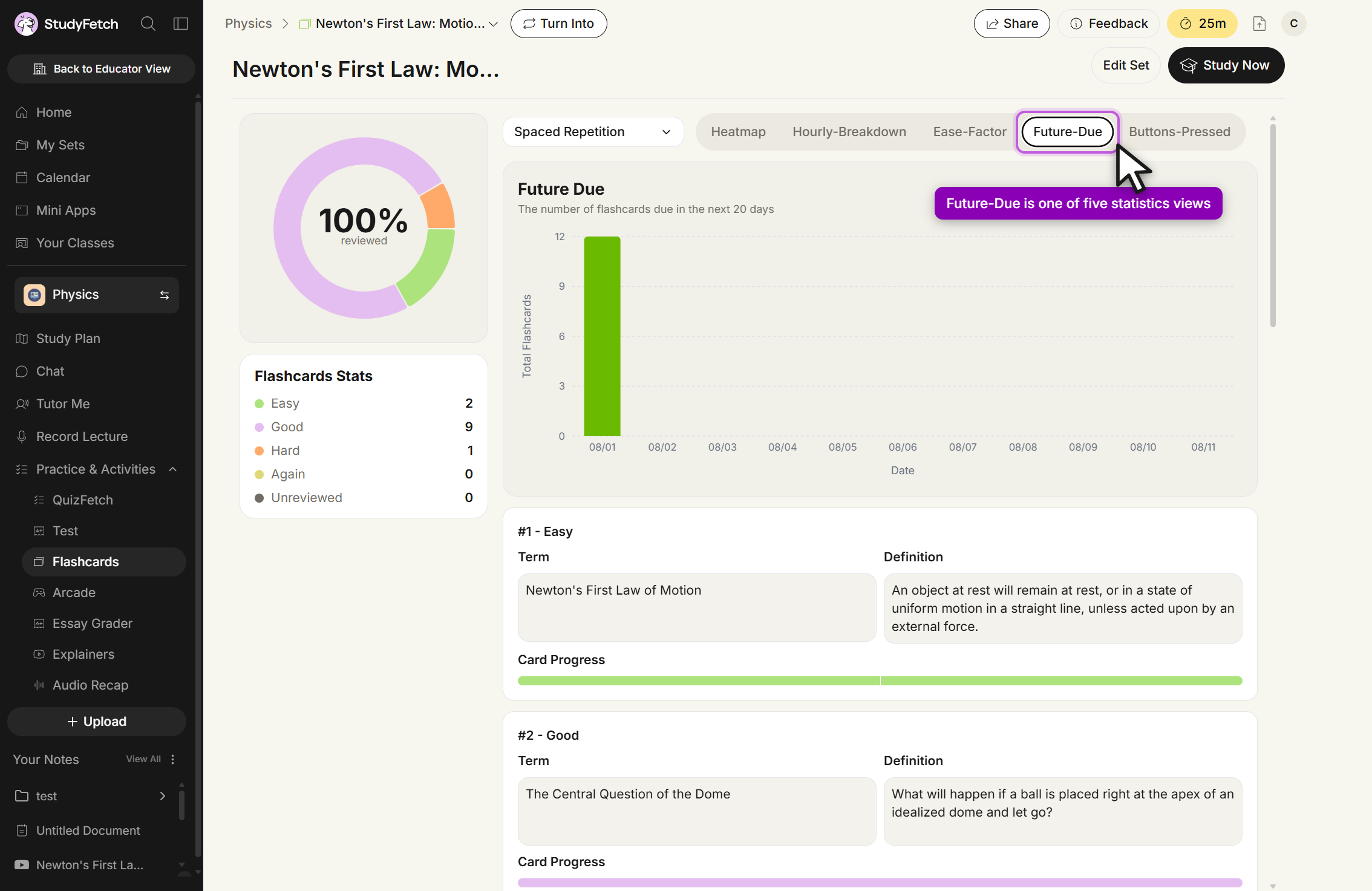
Future-Due: How many flashcards are coming up for review over the next 20 days.
Buttons-Pressed: The total number of times each rating button (Again, Hard, Good, Easy) was selected.
Flashcard set statistics page, Future-Due tab. The chart shows the flashcards due in the next 20 days.
Each flashcard also includes its own Card Progress bar further down the page, with shaded segments for each rating it's received. Hover over a shaded section to see the rating and date it was recorded.
Sharing Your Flashcards
Click the ··· menu next to your flashcard set name, then select Share.
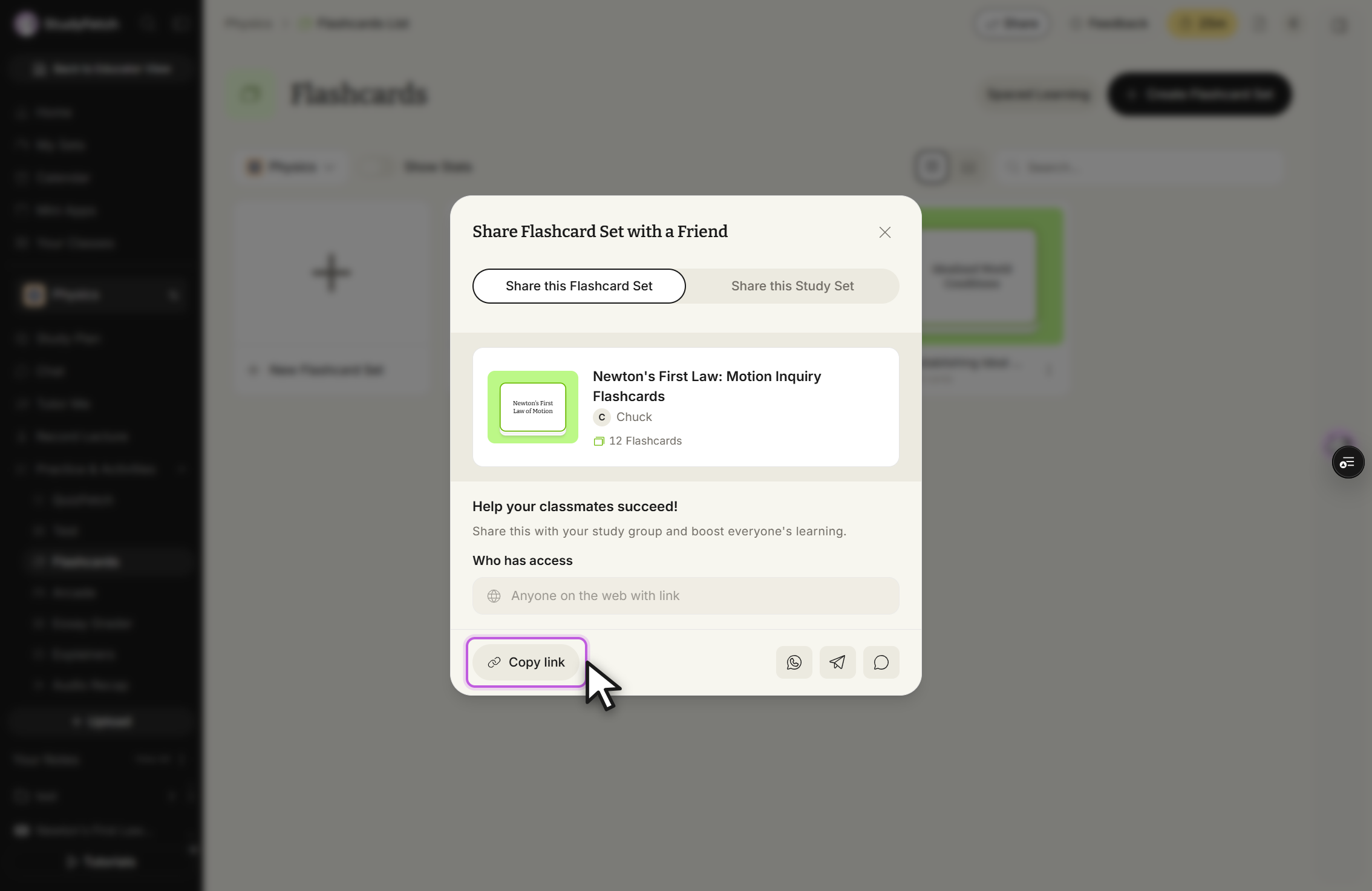
Copy the link by clicking directly on the URL, or select Copy Link, and share it with your study group. You can also share directly through supported apps — select the WhatsApp, Telegram, or Text icon to share via that app.
Share Flashcard Set with a Friend modal. Click Copy link, or use the WhatsApp, Telegram, or message icon to send the set.
 StudyFetch Academy