Skip to content
StudyFetch Academy

Product docs

Create an Explainer

Creating Explainers

Step 1: Start a New Explainer

  1. From the Explainers List, click + Create Video in the top right.

Step 2: Choose Your Source

Choose how you'd like to generate your explainer video: Create from Materials or Create from Topic.
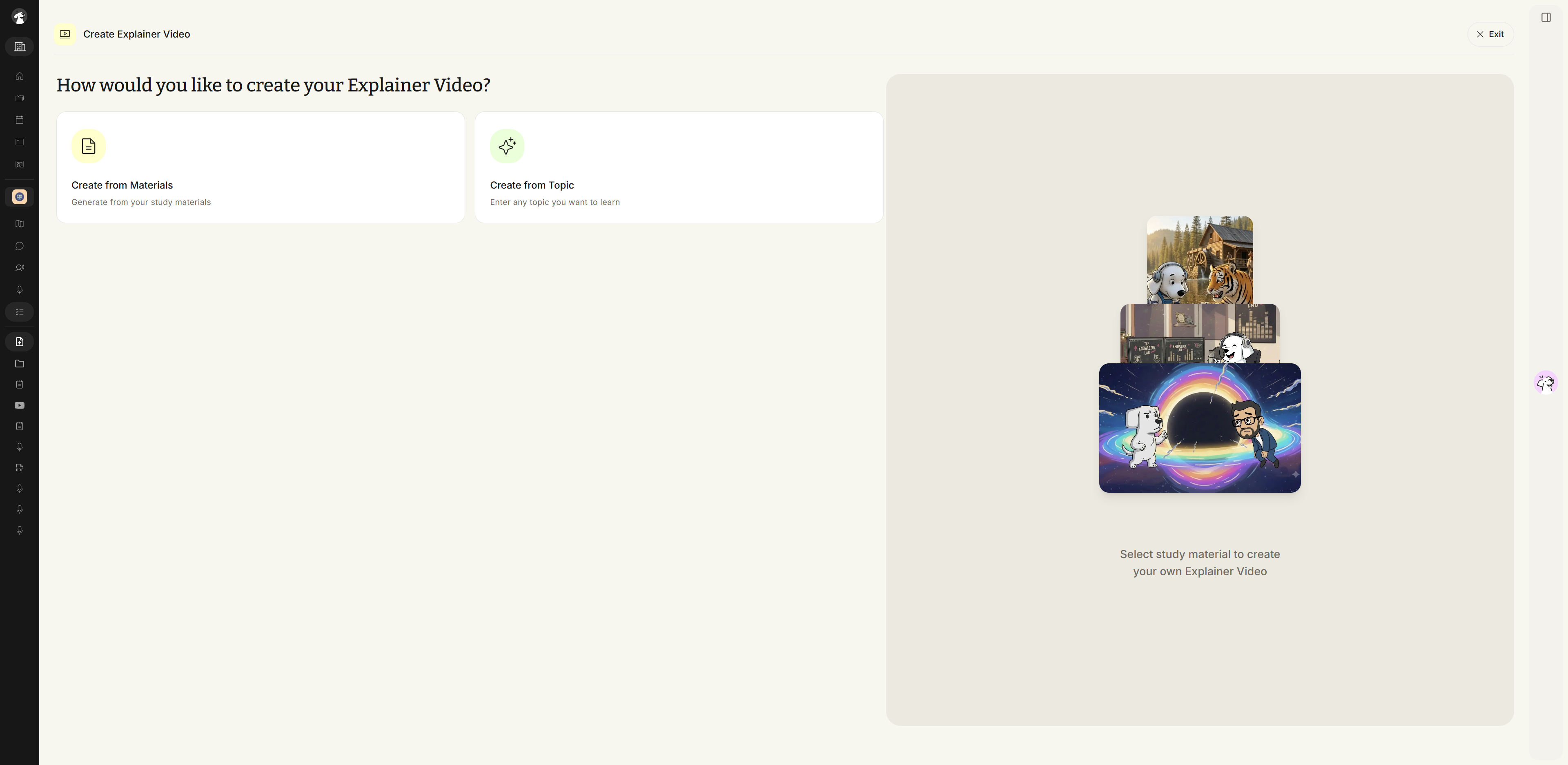
The Create Explainer Video screen asking how you would like to create your video, with two options: Create from Materials and Create from Topic.
Create Explainer Video, How would you like to create your Explainer Video? Choose Create from Materials or Create from Topic.

Method 1: Create from Materials

  1. Select Create from Materials, then choose from your previously uploaded materials or click + Upload New Material to add something new. Selected materials appear in the right-side preview panel. When you're ready, click Next.
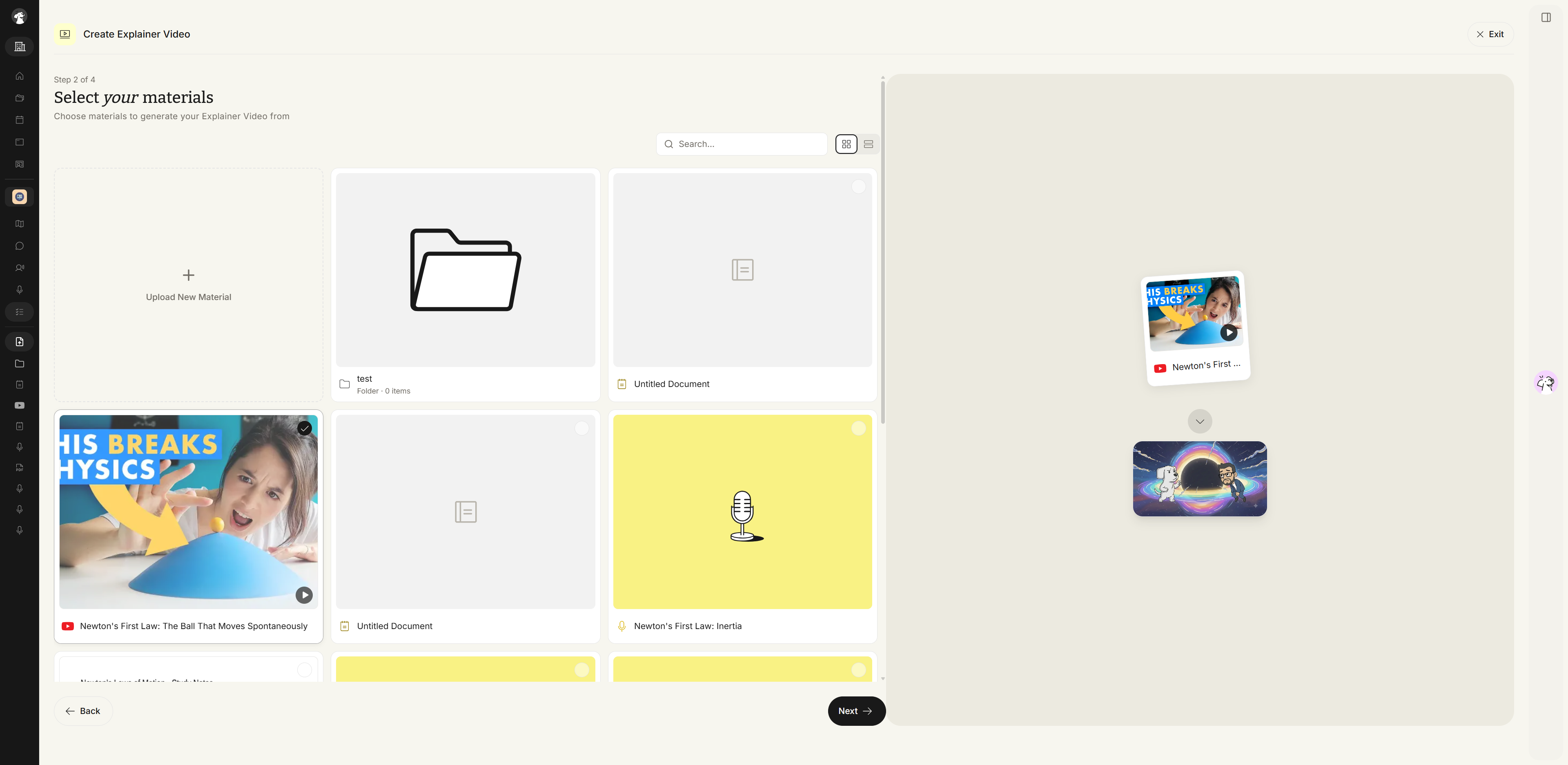
The Create Explainer Video flow at Step 2 of 4, Select your materials, subtitled Choose materials to generate your Explainer Video from. A Search... field and grid and list view toggles sit above a grid that starts with an Upload New Material tile and then shows the account's existing folders, documents, recordings, and videos as cards. A selected card carries a checkmark and appears in the preview panel on the right. Back and Next buttons sit at the bottom.
Select your materials, Step 2 of 4. Pick the materials to generate the video from, then click Next.

Method 2: Create from Topic

  1. Select Create from Topic, then fill in the Topic to learn field (or pick one of the suggested prompts like Psychology, Economics, or Marketing), describe what about this topic you want covered, and choose a skill level — High School, AP Course, College, or Professional. A live preview on the right updates as you type. Click Next when you're done.
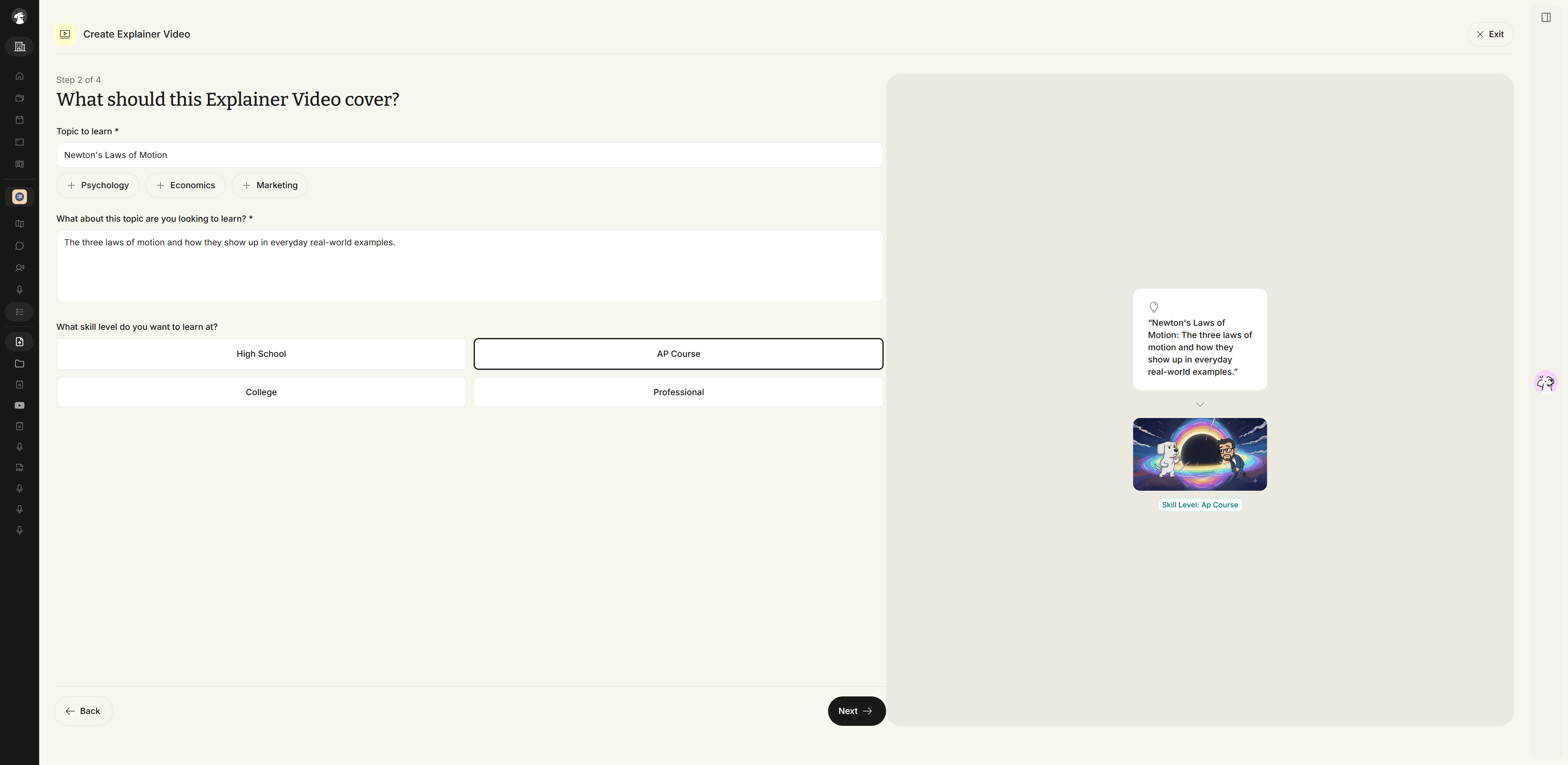
The Create Explainer Video flow at Step 2 of 4, What should this Explainer Video cover? A Topic to learn field sits at the top, with a row of suggestion chips under it. Below it is the field What about this topic are you looking to learn? Under What skill level do you want to learn at? the choices are High School, AP Course, College, and Professional, with one selected. A preview panel on the right mirrors what has been entered and shows a Skill Level label. Back and Next buttons sit at the bottom.
What should this Explainer Video cover?, Step 2 of 4. Fill in Topic to learn, say what you want covered, and pick a skill level.
  1. Proceed to Choose and Customize an Explainer Video.