Skip to content
StudyFetch Academy

Product docs

Manage Tutor Me Sessions

Rename Tutor Me sessions to keep lessons easy to recognize, or delete sessions you no longer need from the Tutor Me feature page.

Rename sessions

Open the session menu, choose Rename, edit the name, and save.

Delete sessions

Use the three-dot menu from the Tutor Me page when a session should be removed.

Rename a Tutor Me session

  1. After opening a Tutor Me session, click the downward arrow next to the session name, then select Rename.
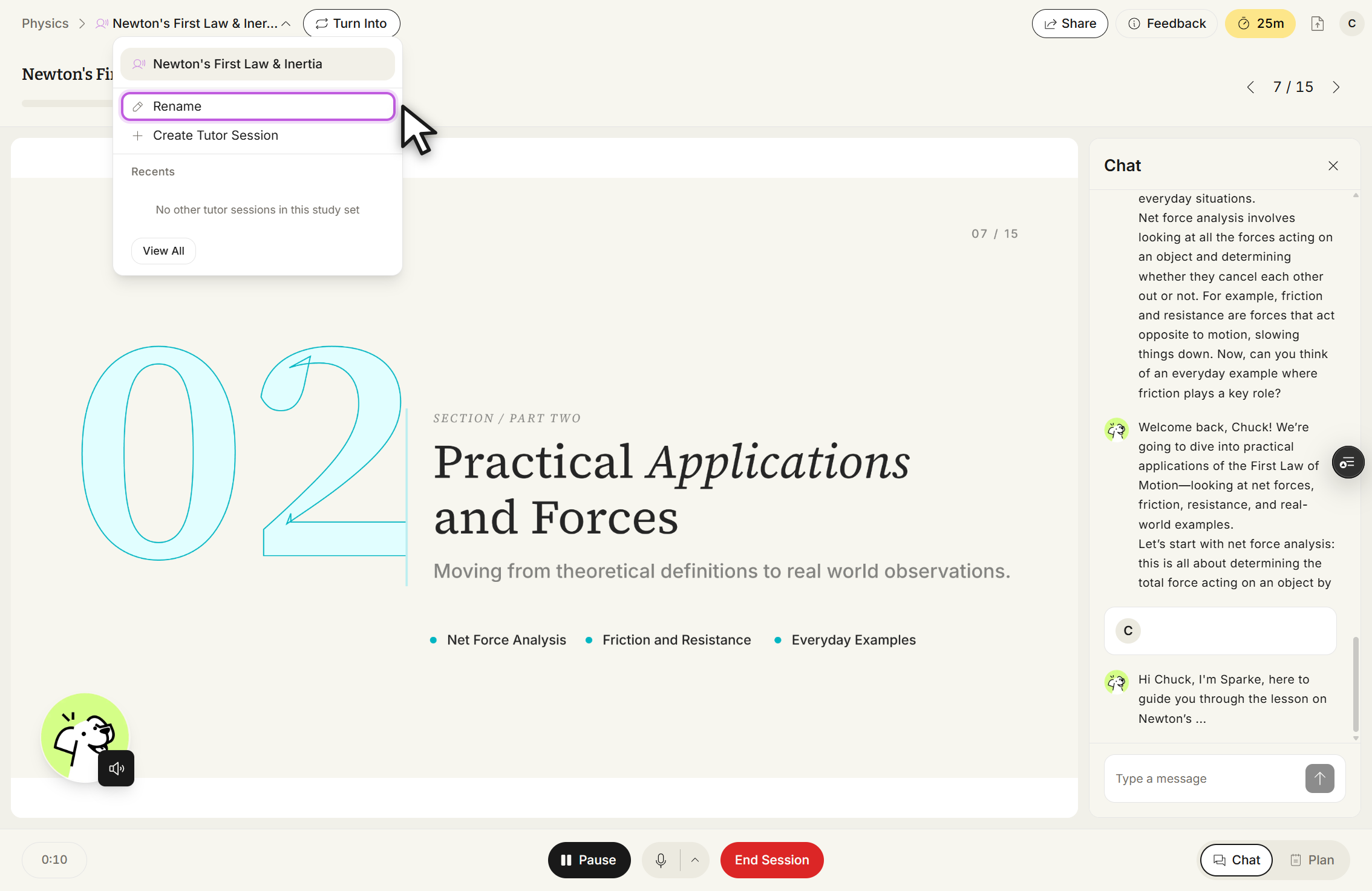
    Tutor Me session Newton's First Law & Inertia with the menu beside the session name open. The menu lists the current session Newton's First Law & Inertia, then Rename, outlined in purple with the cursor on it, then Create Tutor Session, a Recents section reading No other tutor sessions in this study set, and a View All button. Behind the menu the slide shows Practical Applications and Forces on page 7 / 15, with the Chat panel open on the right and the Pause, microphone and End Session controls at the bottom.
    Newton's First Law & Inertia, session name menu open. Click Rename.
  2. Edit the current name or enter a new name in the Name field, then click Save.
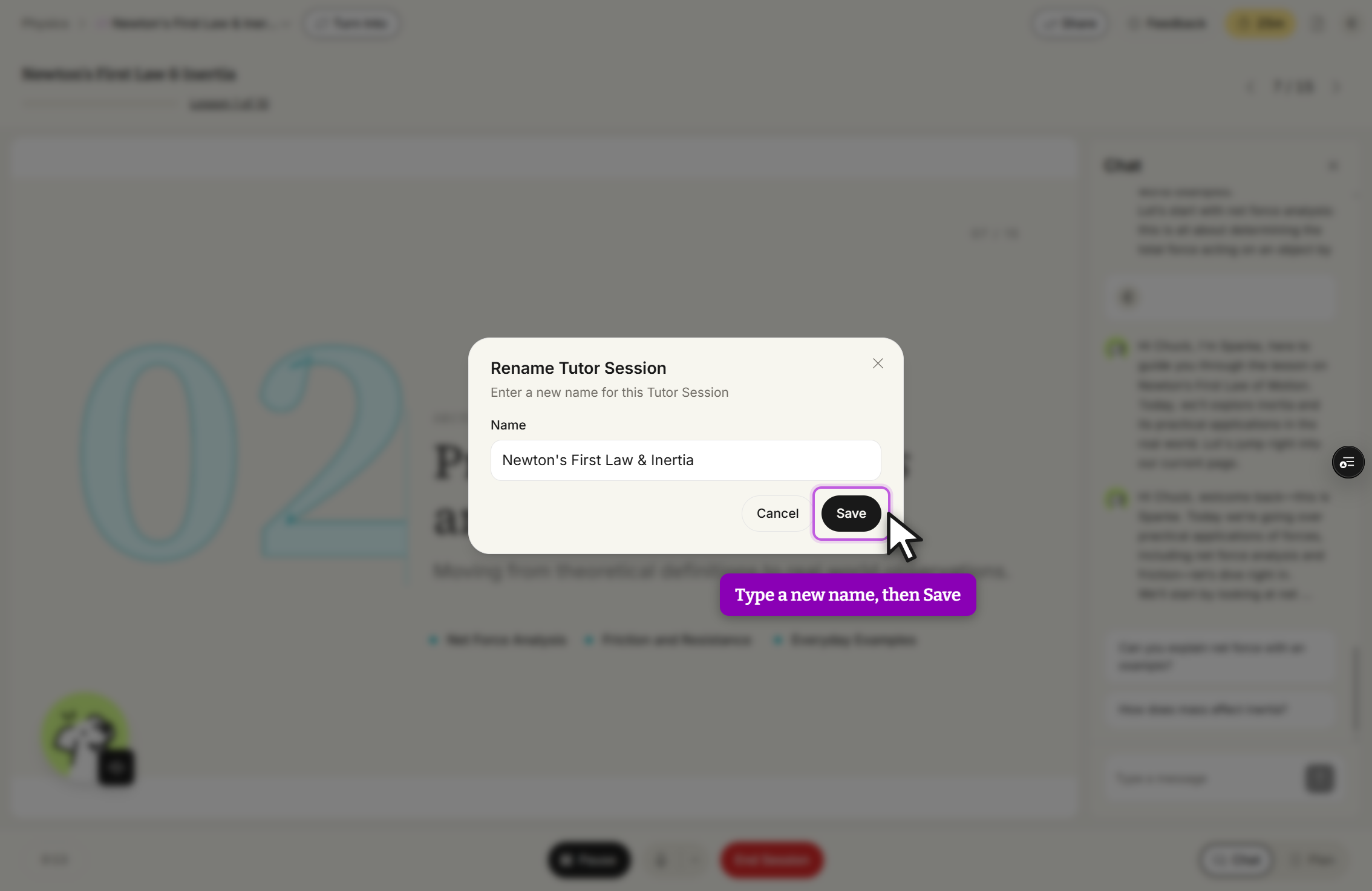
    Rename Tutor Session dialog over the blurred session page. Under the title it reads Enter a new name for this Tutor Session, and the Name field contains Newton's First Law & Inertia. Cancel and Save buttons sit at the bottom right, with Save outlined in purple and the cursor on it, and a close X at the top right.
    Rename Tutor Session. The Name field holds Newton's First Law & Inertia; edit it, then click Save.

Delete a Tutor Me session

  1. From the left side of your dashboard, click Tutor Me.

  2. Select the three-dot button on the session card, then choose Delete.
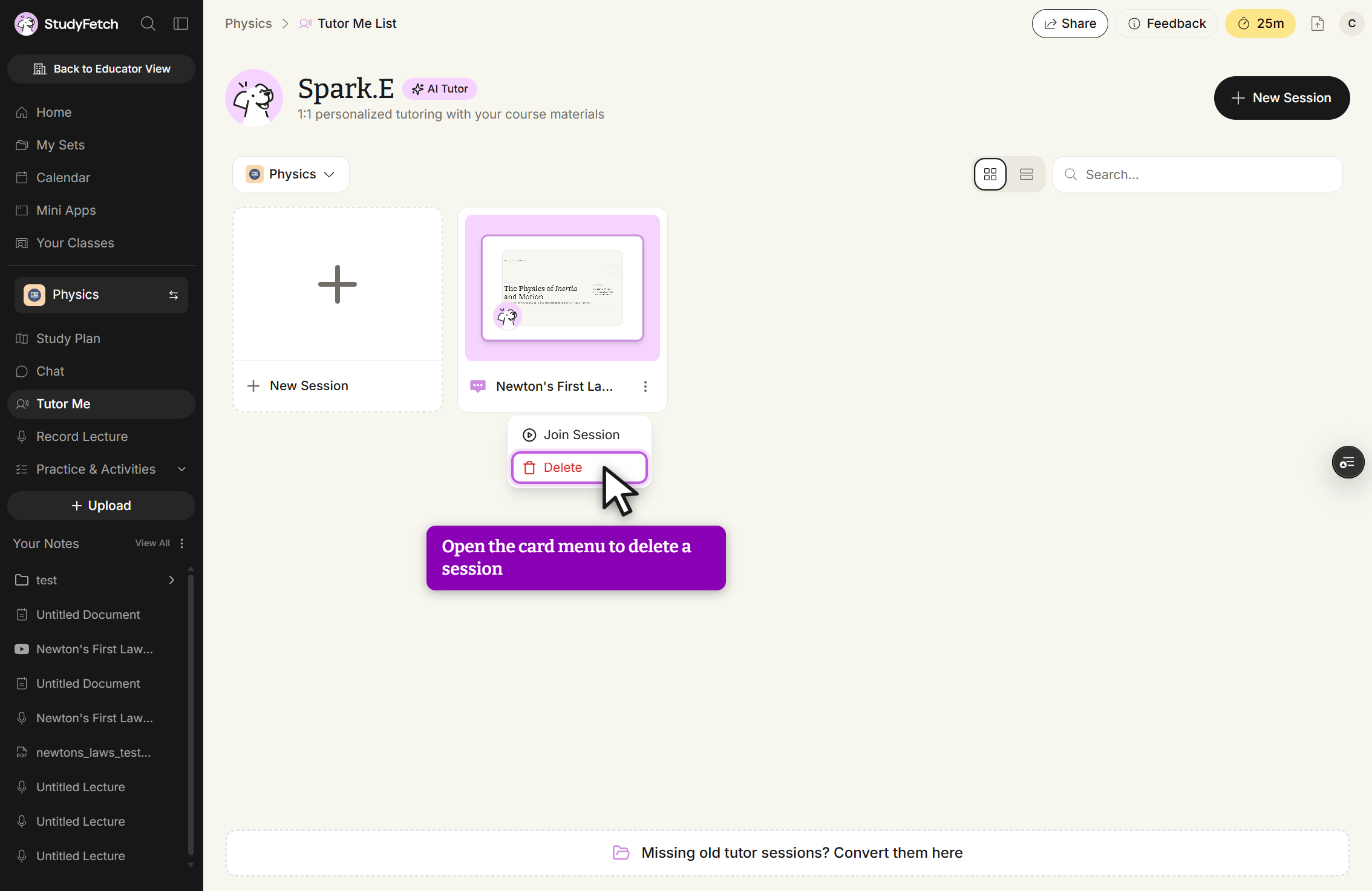
    Tutor Me List page for the Physics set, headed Spark.E with an AI Tutor badge. The three-dot menu on the Newton's First La... session card is open and shows Join Session and Delete, with Delete outlined in purple and the cursor on it. A New Session tile sits to the left, and the page also holds a Physics filter, grid and list view toggles, a Search box, a New Session button at the top right, and a Missing old tutor sessions? Convert them here link at the bottom.
    Tutor Me List, session card menu open. The menu on Newton's First La... shows Join Session and Delete.
  3. If you are sure you want to delete the session, select Delete in the confirmation dialog.
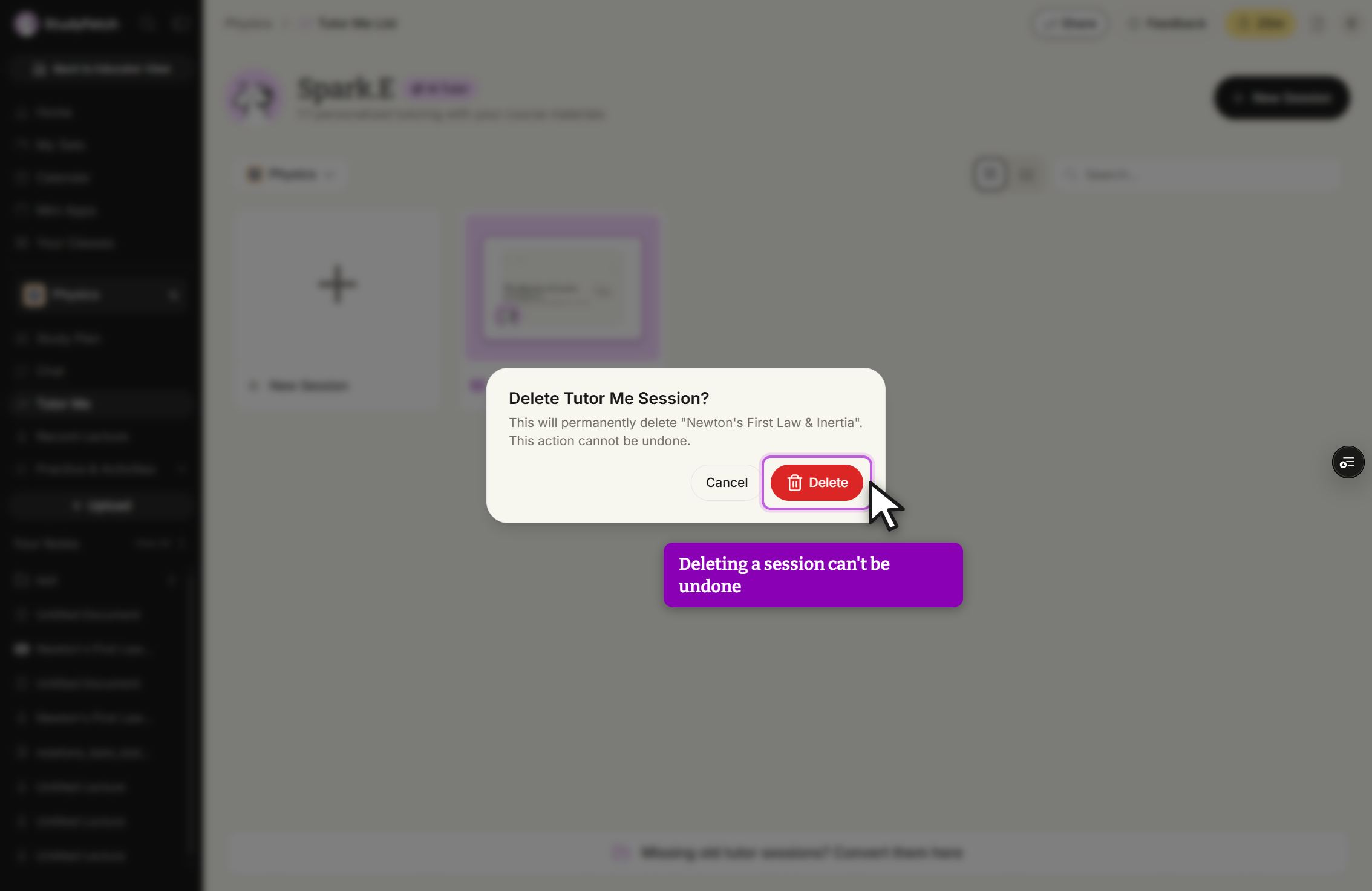
    Delete Tutor Me Session? dialog over the dimmed Tutor Me List page. Its text reads This will permanently delete Newton's First Law & Inertia. This action cannot be undone. A Cancel button and a red Delete button sit at the bottom right, with Delete outlined in purple and the cursor on it.
    Delete Tutor Me Session? Click Delete to remove Newton's First Law & Inertia, or Cancel to keep it.