A guided path
Topics are grouped into units and laid out in order, starting from "Start learning here" and moving through each unit.
 StudyFetch Academy
Product docs
Study Plan turns a Study Set into a guided, ordered path through every topic, organized into units and built around your syllabus and exam dates. It tracks what you have covered and mastered, and recommends what to study next so you always know where to pick up.
Topics are grouped into units and laid out in order, starting from "Start learning here" and moving through each unit.
Sync a syllabus and add exam dates so the plan reflects your real schedule and priorities.
Short assessments measure what you know, and topics are marked Covered and Mastered as you progress.
Your Study Plan lives inside each Study Set.
Open a Study Set from My Sets.
On the Study Set home, the Recommended from your Study Plan section shows the next topics to work on. Select View Full Study Plan to open the complete plan.
You can also open it from Study Plan in the left navigation.
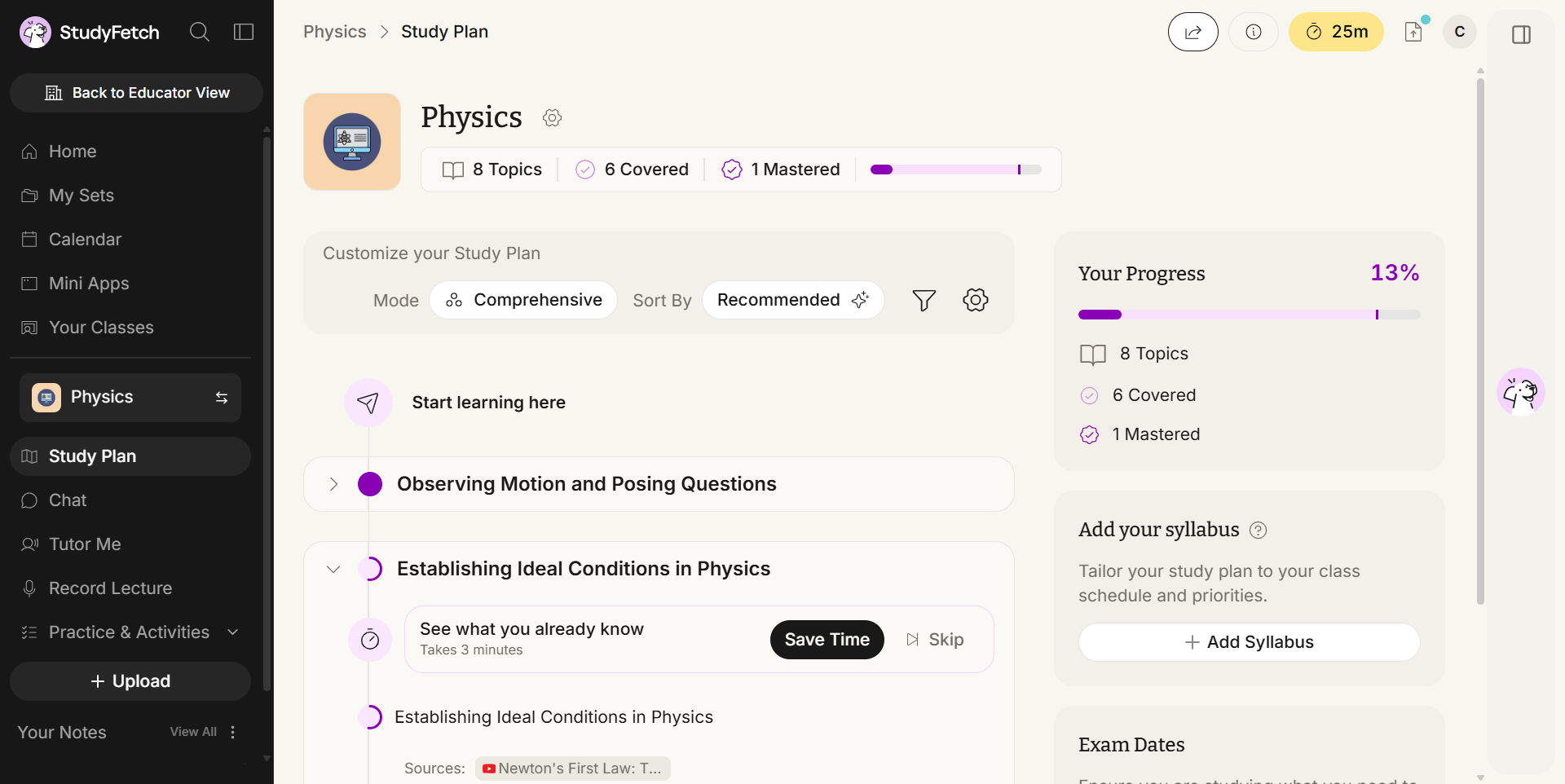
If a Study Set is new or empty, its home screen prompts you to add materials, a syllabus, or exam dates so a plan can be built.
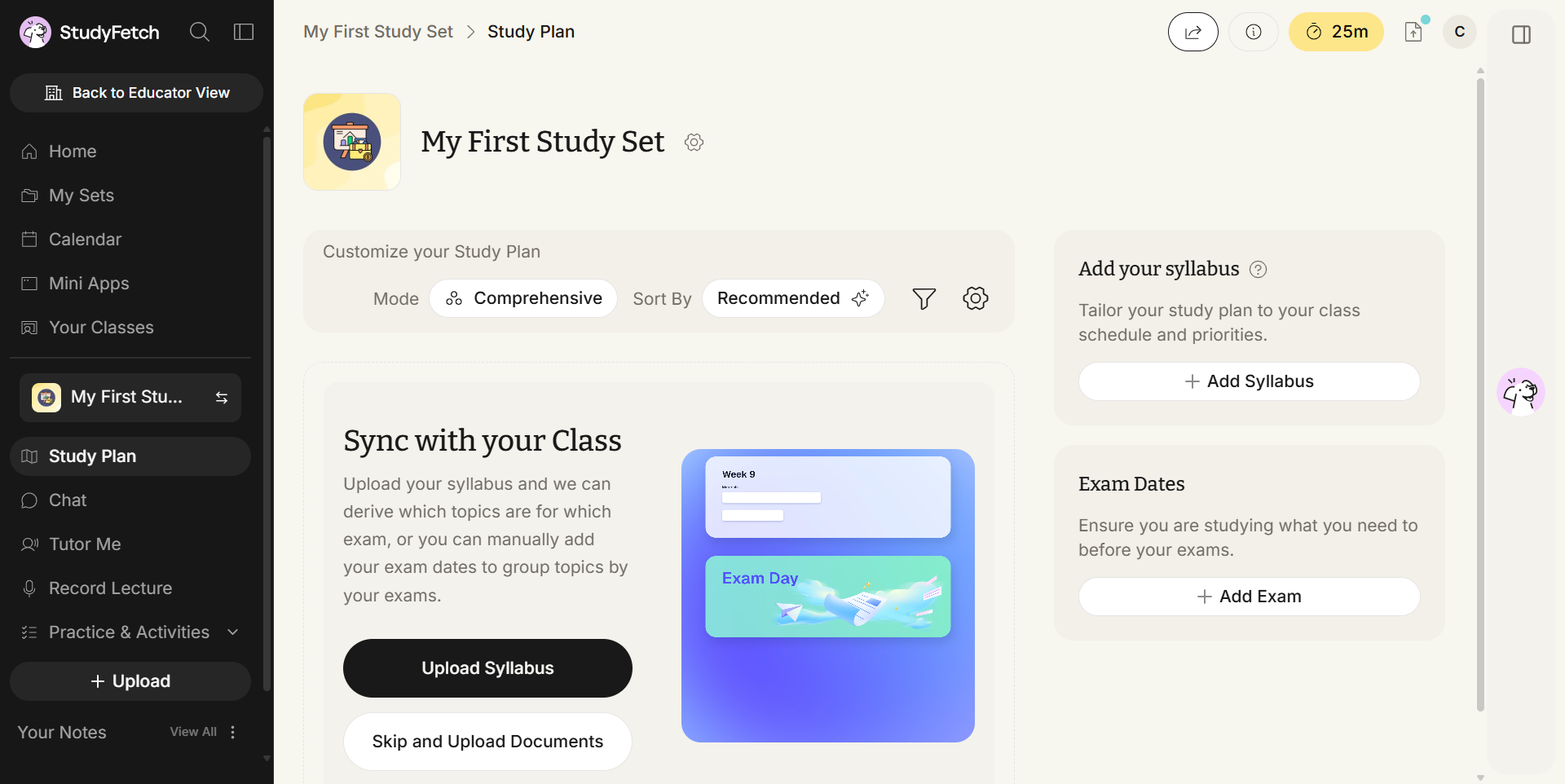
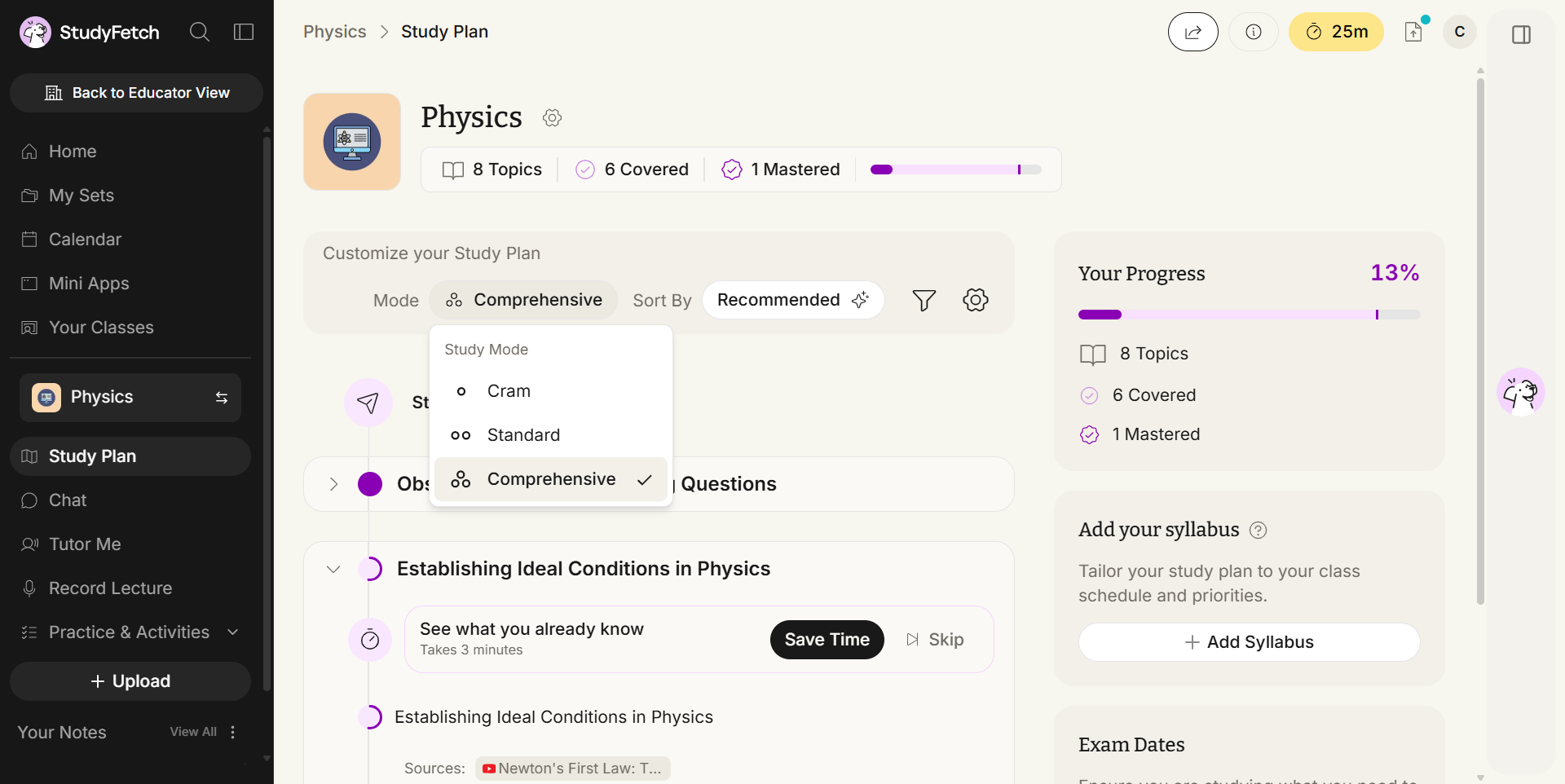
The controls in the Customize your Study Plan bar at the top of the plan shape what it contains and how it is ordered.
Choose how much depth the plan covers: Cram, Standard, or Comprehensive.
Recommended, Material, Exam, Syllabus, or Custom order.
Narrow the view to Saved Topics, or by Comprehension, Material, or Exam.
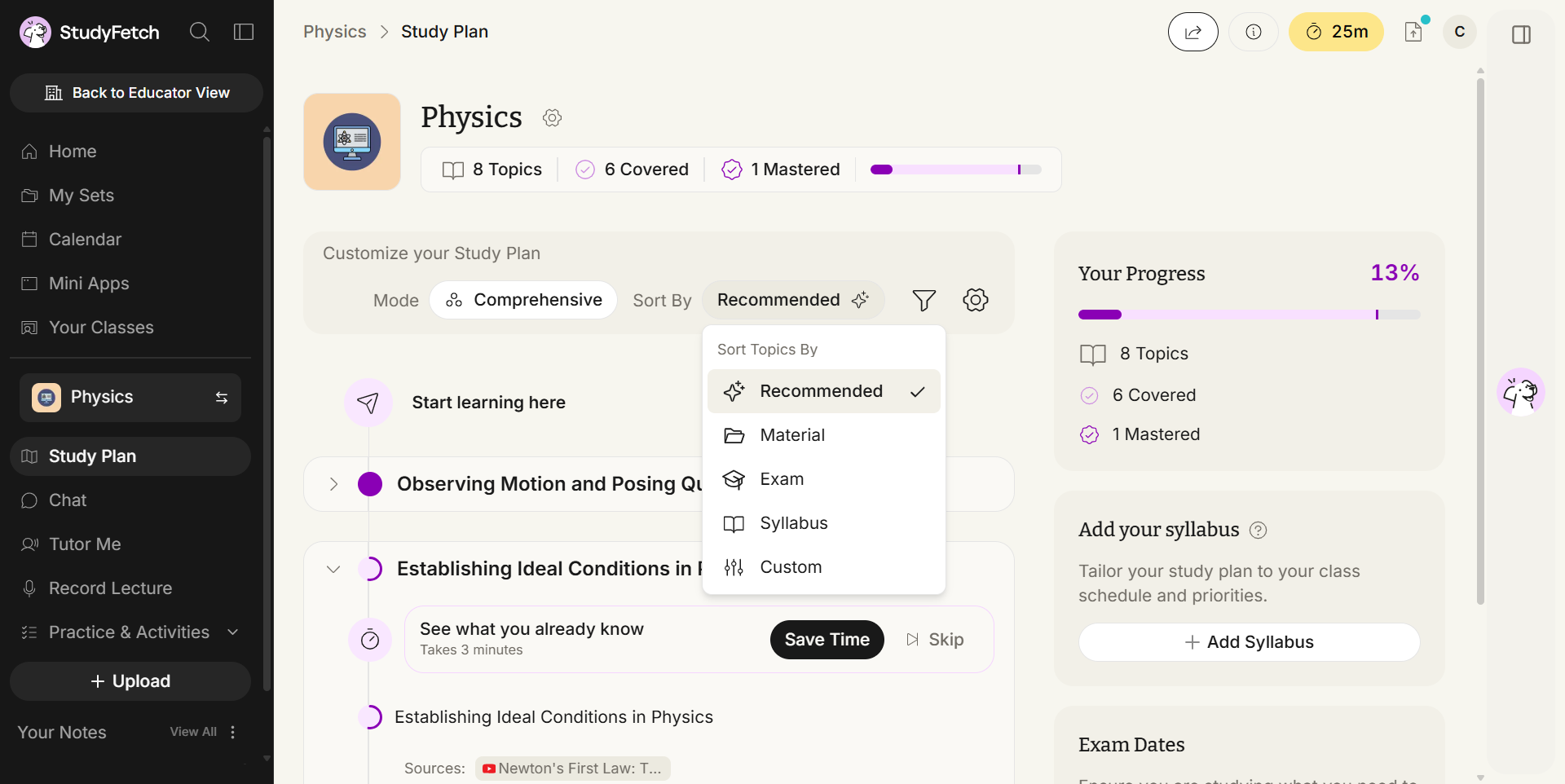
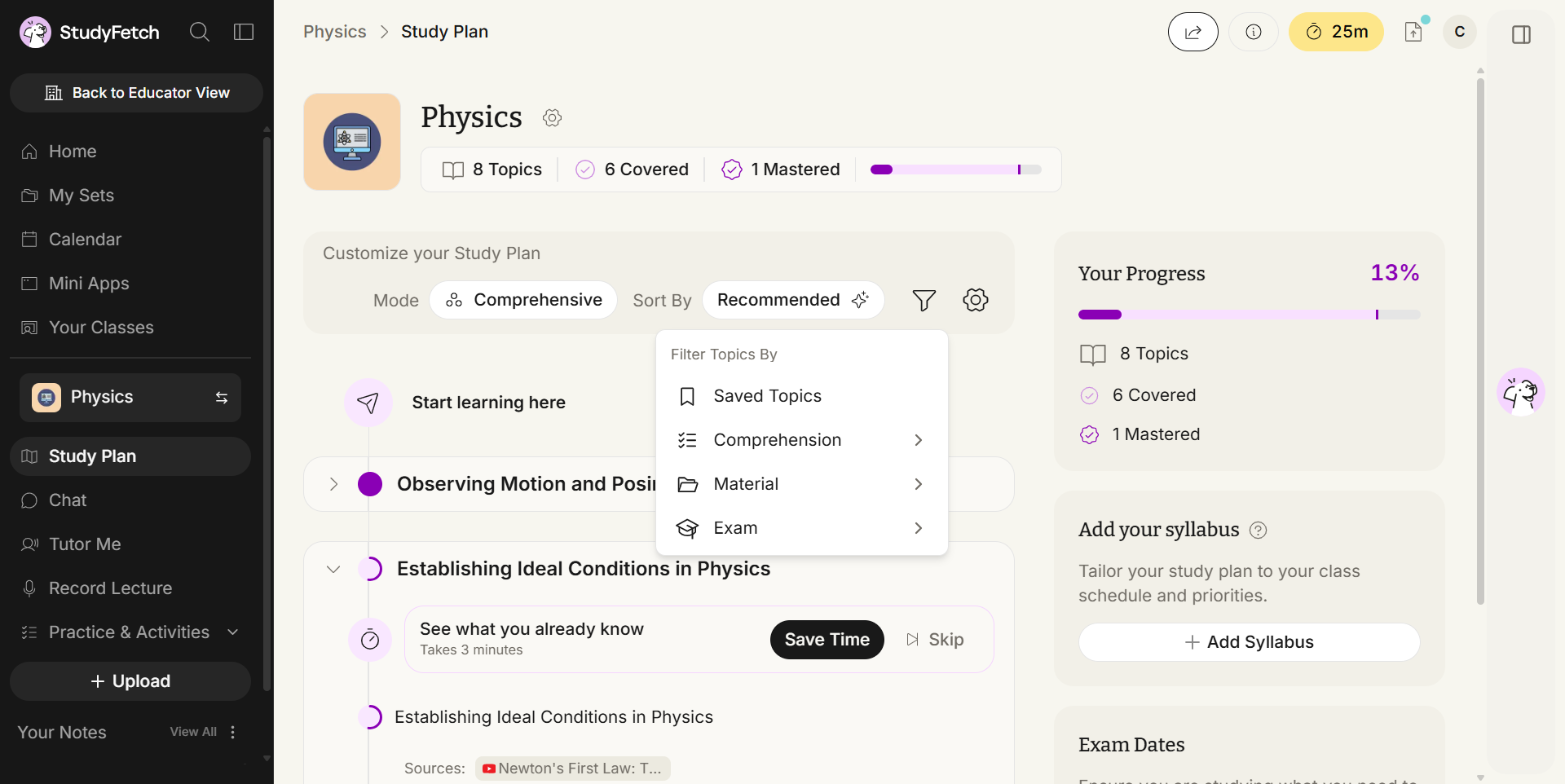
The settings menu also includes a Show Topic Mastery Progress toggle, which controls whether mastery indicators appear next to each topic.
Giving the plan your syllabus and exam dates lets it tailor the order and recommendations to your course.
Select Add Syllabus to tailor the plan to your class schedule and priorities. Once it is processed, the Syllabus panel shows the course, instructor, and a "Synced with syllabus" status. StudyFetch then proposes topics drawn from the syllabus, which you can review and add.
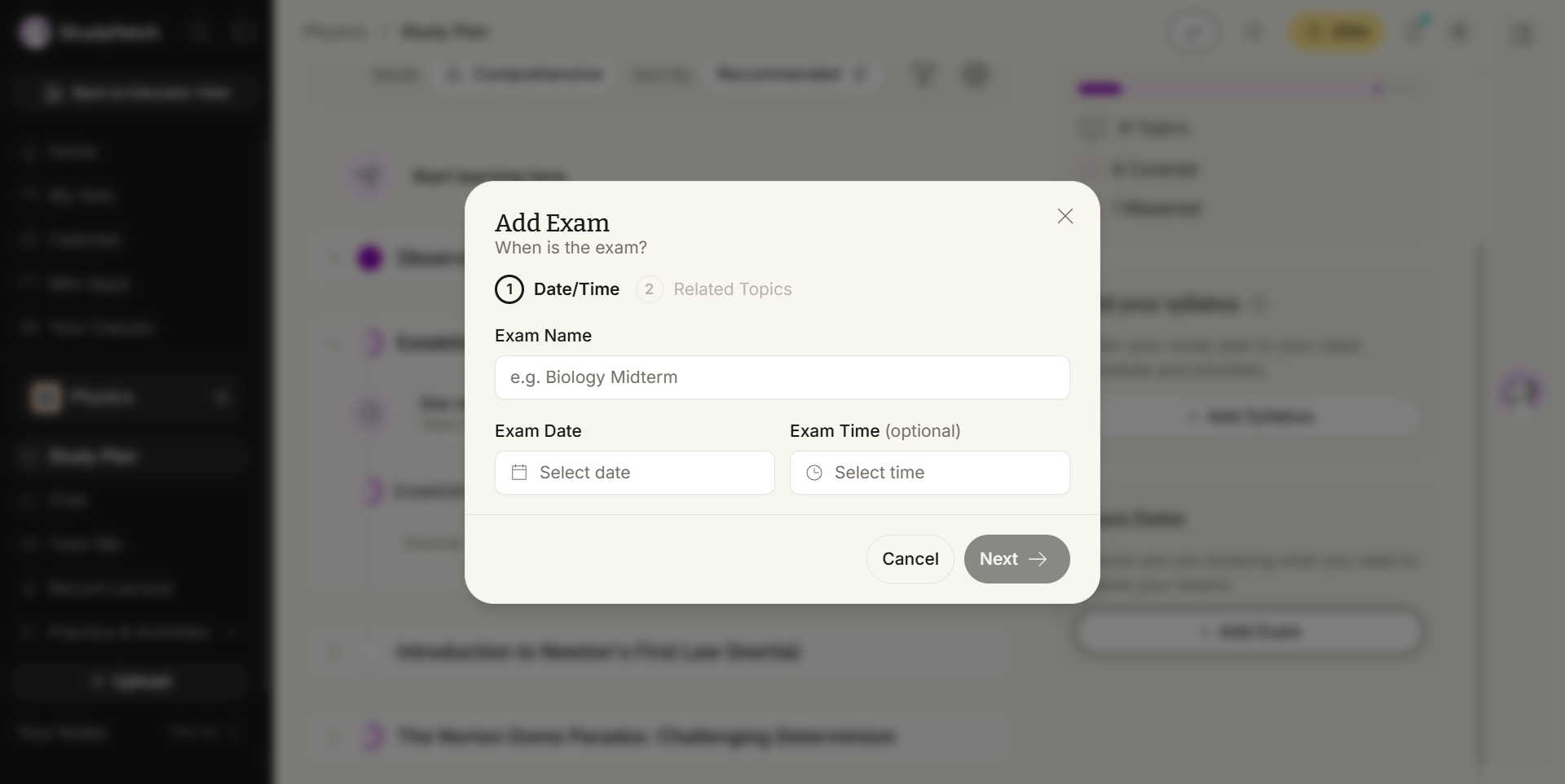
Select Add Exam to open a two step dialog:
Date/Time. Enter the exam name and date, with an optional time.
Related Topics. Search and select the topics the exam covers, then choose Create Exam.
Exams appear as dated markers within the plan and in the Exam Dates panel. Select View Schedule to see them on your calendar.
The plan reads from top to bottom, starting at "Start learning here." Each unit groups related topics.
See what you already know runs a short pre-assessment so the plan can skip what you have already mastered.
Make sure you know your stuff confirms mastery at the end of a unit. Select Lock In to start it. Scores and the number of topics marked as Mastered appear inline.
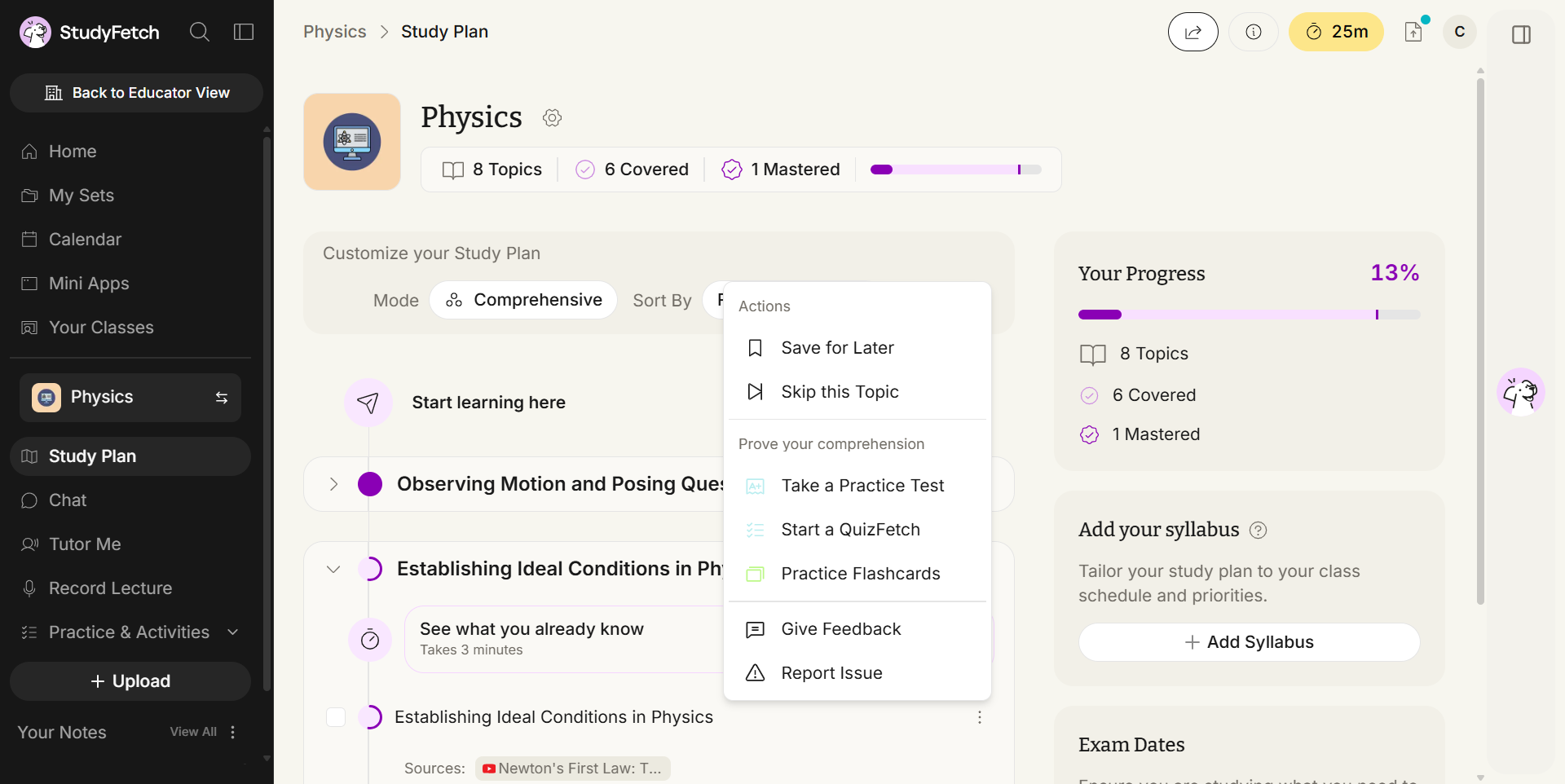
Each topic has an actions menu with Save for Later, Skip this Topic, Move to another unit, and Remove topic from unit. Under Prove your comprehension you can Take a Practice Test, Start a QuizFetch, or Practice Flashcards. Give Feedback and Report Issue are also available here.
Select multiple topics to act on them at once, including Save for later, Skip, Practice Flashcards, Quiz Myself, and Test Myself.
The plan stays current as your materials change.
When you upload new materials or sync a new syllabus, StudyFetch proposes new topics. A banner reading "You have N proposed new topics" and the "Topics proposed from..." dialog let you Accept All or add topics individually.
Build your own unit with Add Unit: name it and choose its topics. A topic that already belongs to another unit is not available to add again.
Newly added topics are flagged New until you review them.
The Your Progress panel summarizes your Topics, Covered, and Mastered counts with a progress bar. Topic mastery indicators fill in as you demonstrate understanding, and the "Show Topic Mastery Progress" setting controls whether they are shown.