Name and length
Add a title and choose how long the recap should be.
 StudyFetch Academy
Product docs
After you choose a source, customize the title, length, recap type, voice, and language before generating the final Audio Recap.
Add a title and choose how long the recap should be.
Choose Summary, Lecture, Podcast, Audio Book, or Music.
Select the speaker setup and output language where available.
Name your Audio Recap in the Title your Audio Recap field, and optionally add a Focus Topic to steer what the recap emphasizes. If you leave the title blank, StudyFetch names the recap for you.
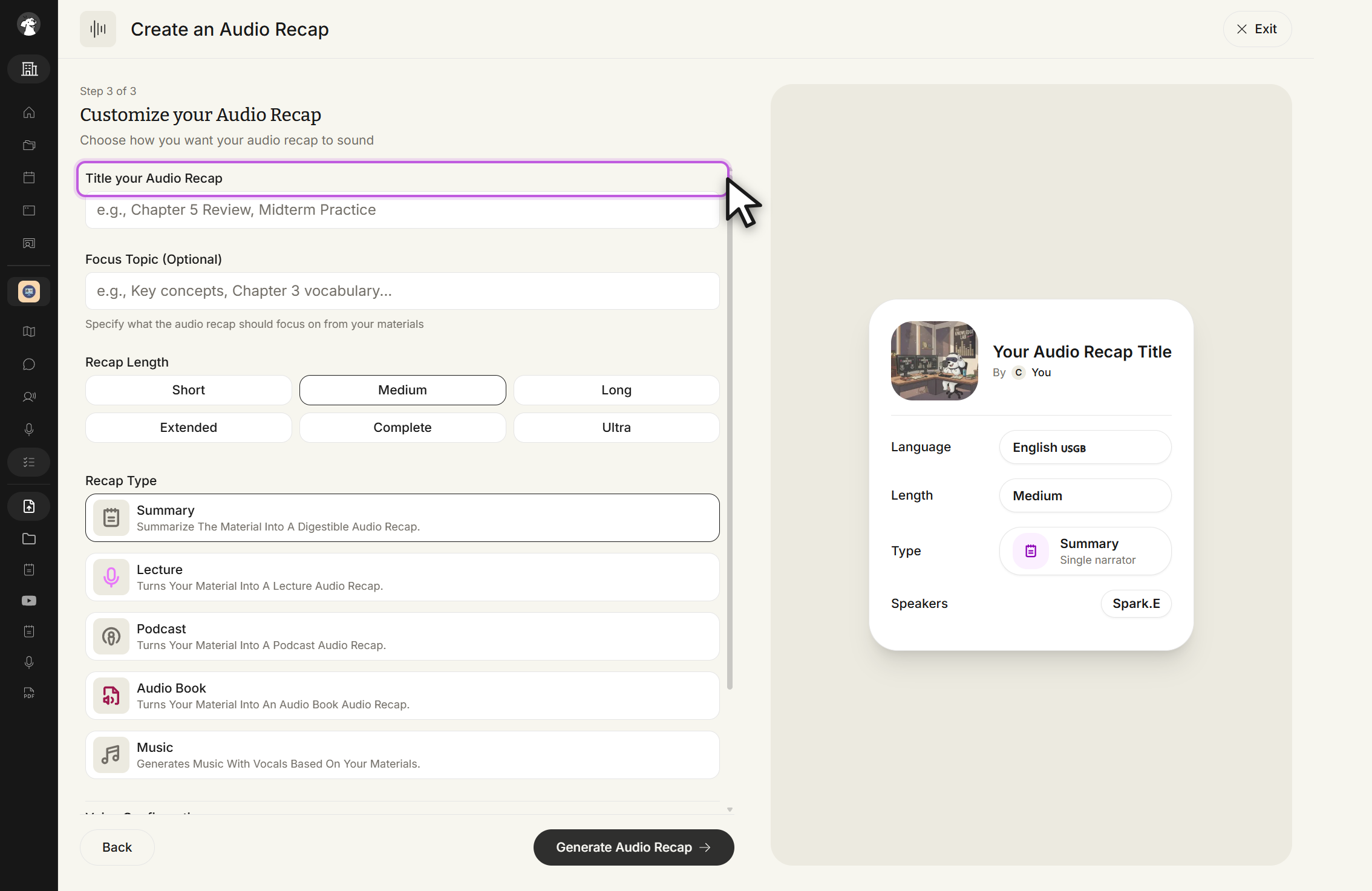
Choose a recap length from Short, Medium, Long, Extended, Complete, or Ultra.
Scroll down to Recap Type and select one format: Summary, Lecture, Podcast, Audio Book, or Music. A Voice Configuration section appears below the list once you've picked a type.
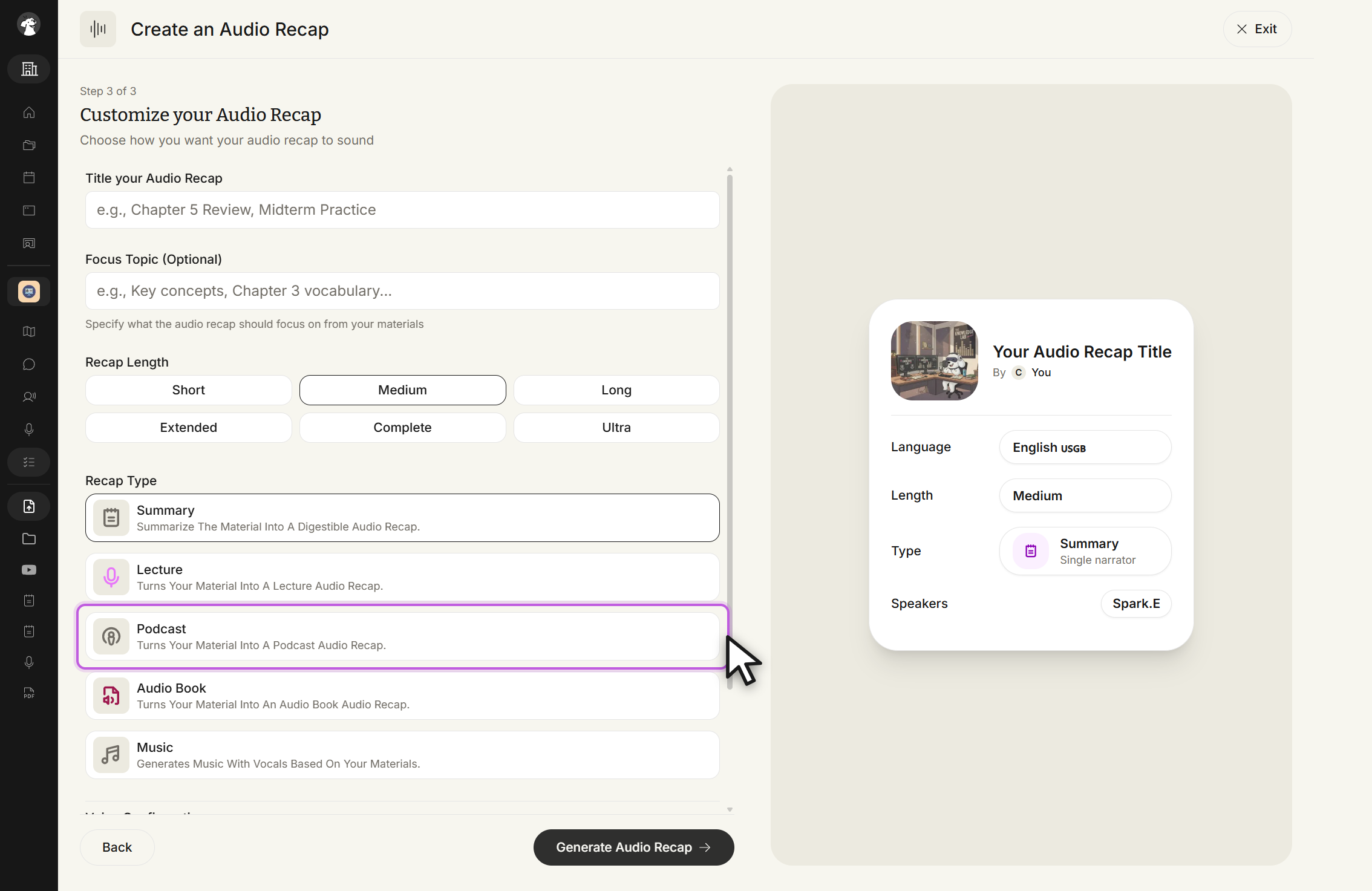
A concise audio overview for reviewing key concepts quickly.
A structured lecture-style explanation for deeper understanding.
A conversational format for learning while on the go.
A narration-driven format for comprehensive review.
A custom song with vocals based on your study content.
These recap types use a single speaker. Open the Voice dropdown shown above to change the narrator.
Choose Single Voice for one narrator, or Multi Voice for two speakers who trade off during the conversation. Selecting Multi Voice adds a second voice picker.
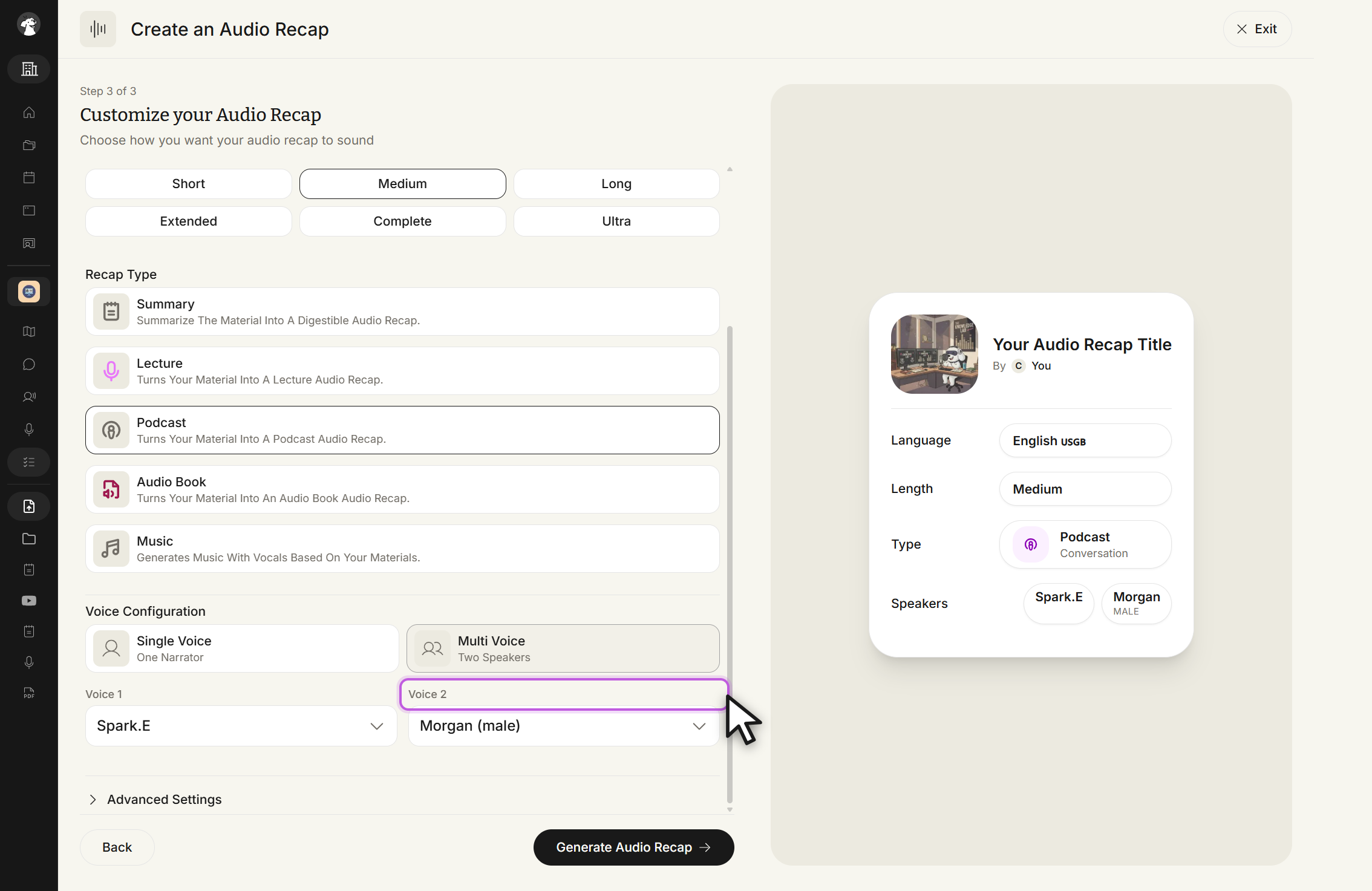
Music recaps don't offer voice customization, but they do use their own length options instead of the standard Short–Ultra scale.
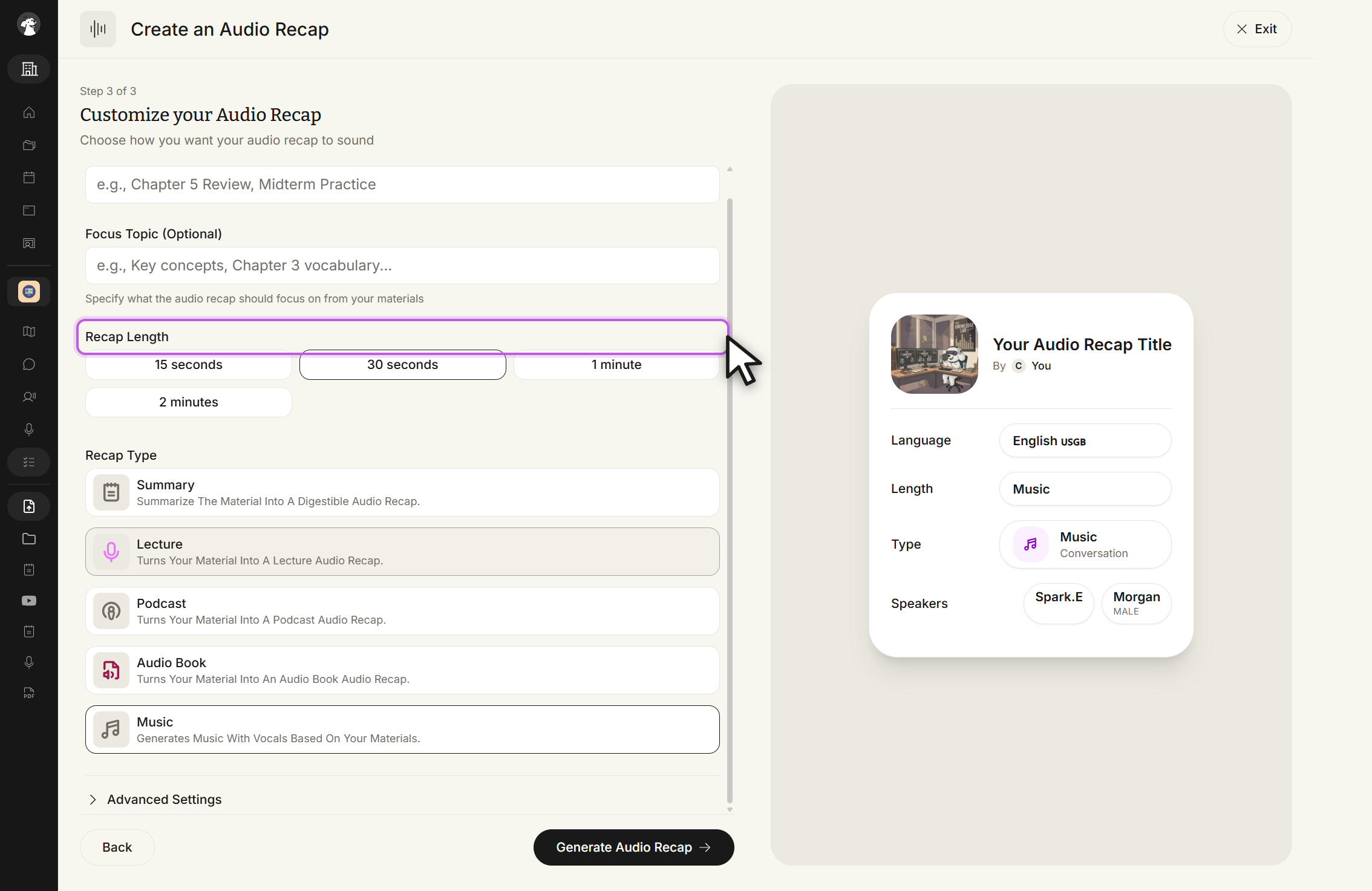
Open Advanced Settings to set the output language if you need something other than the default. The preview card on the right always shows the language, length, type, and speaker(s) currently selected.
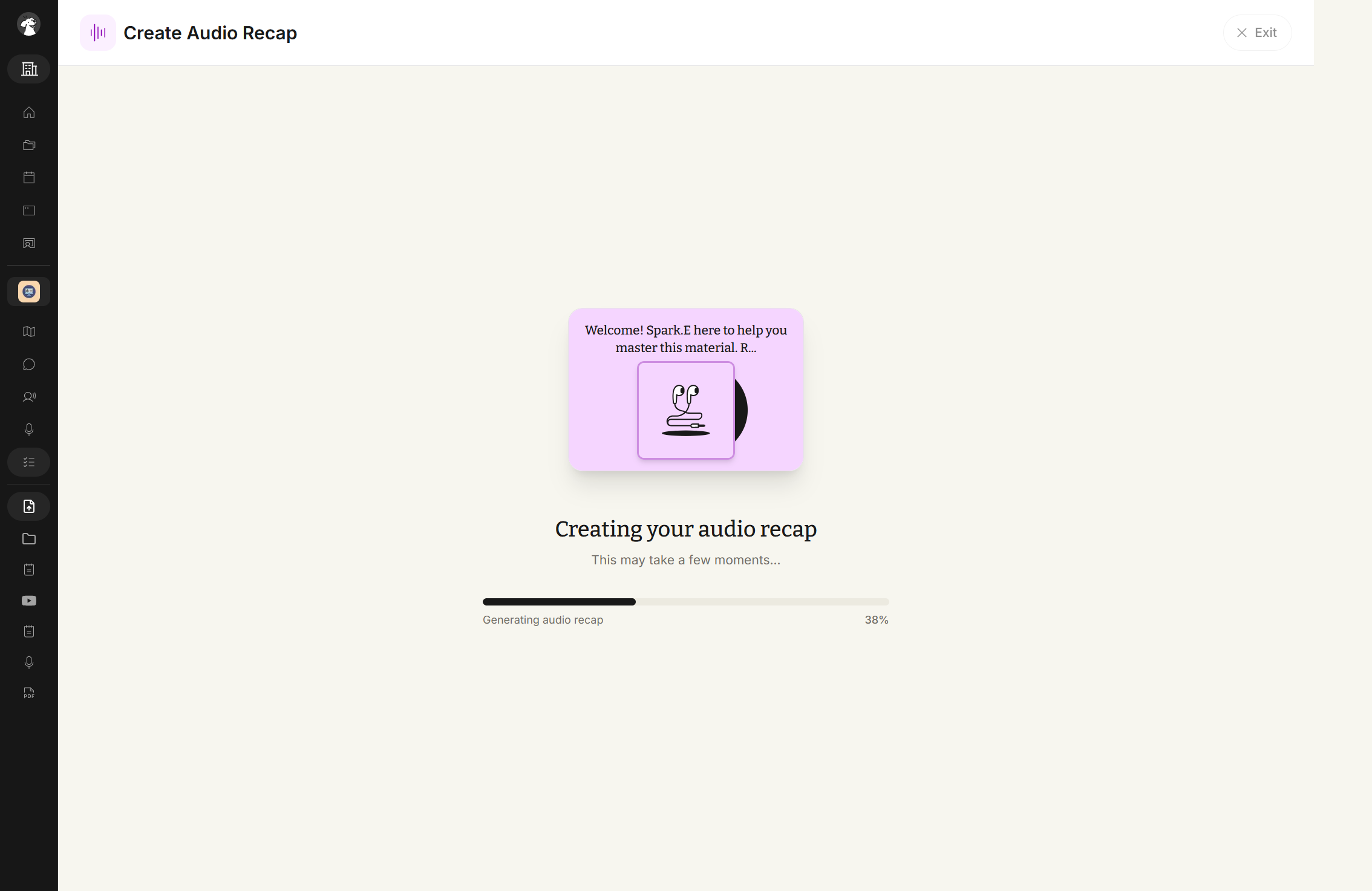
Click Generate Audio Recap. StudyFetch analyzes the source materials and builds the recap.