Product docs
Create a QuizFetch Quiz
Creating Your Quiz
Step 1: Start a New Quiz
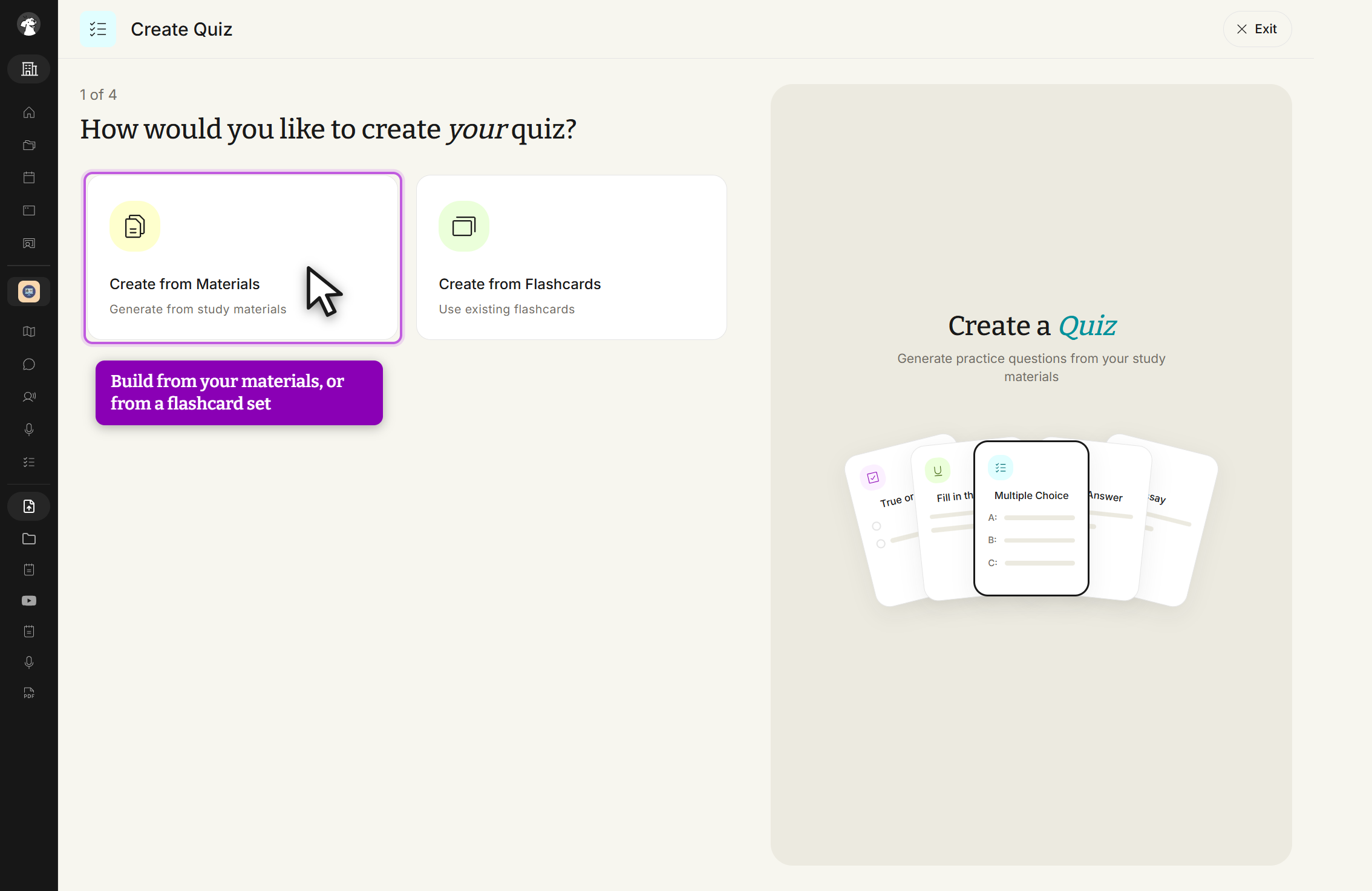
From Practice > QuizFetch, select + New QuizFetch (or click the arrow next to + Create and choose Create QuizFetch). You'll then choose how to build your quiz: Create from Materials generates questions from your study materials, while Create from Flashcards generates a quiz from an existing flashcard set.
Step 2: Select Materials and Customize Question Types
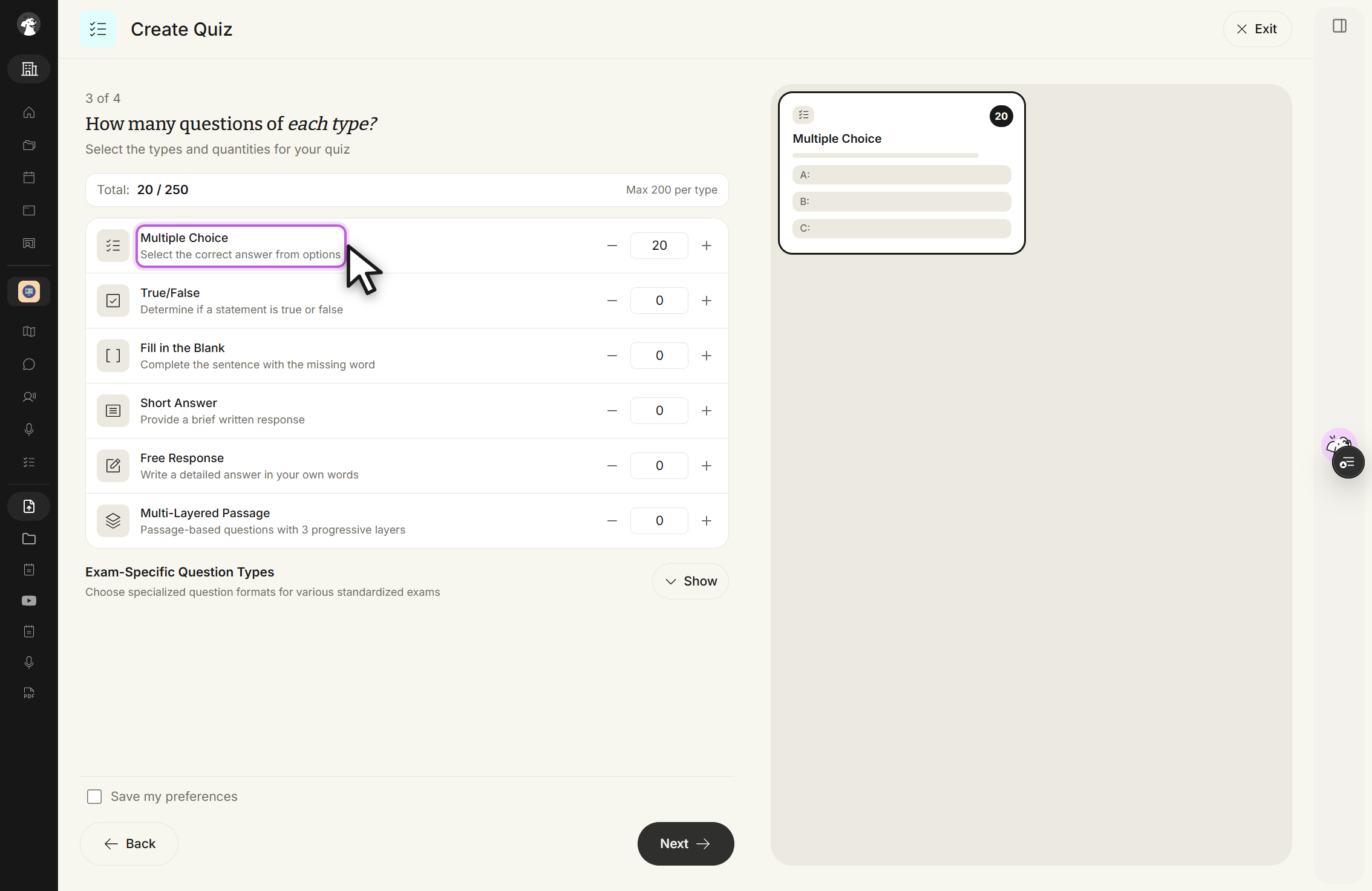
If creating from materials, choose which uploaded material(s) to generate from (or upload something new) and click Next. Then customize your quiz by choosing how many questions of each format to include: Multiple Choice, True/False, Fill in the Blank, Short Answer, Free Response, and Multi-Layered Passage, using the - / + controls or preset buttons. Under Exam-Specific Question Types you can also align questions to a real exam format (USMLE Step 1, MCAT, NCLEX, AP Exams, and more) — see Exam-Specific Question Types for details. Each selected type appears as its own card on the right with a running question count.
Step 3: Optional Settings
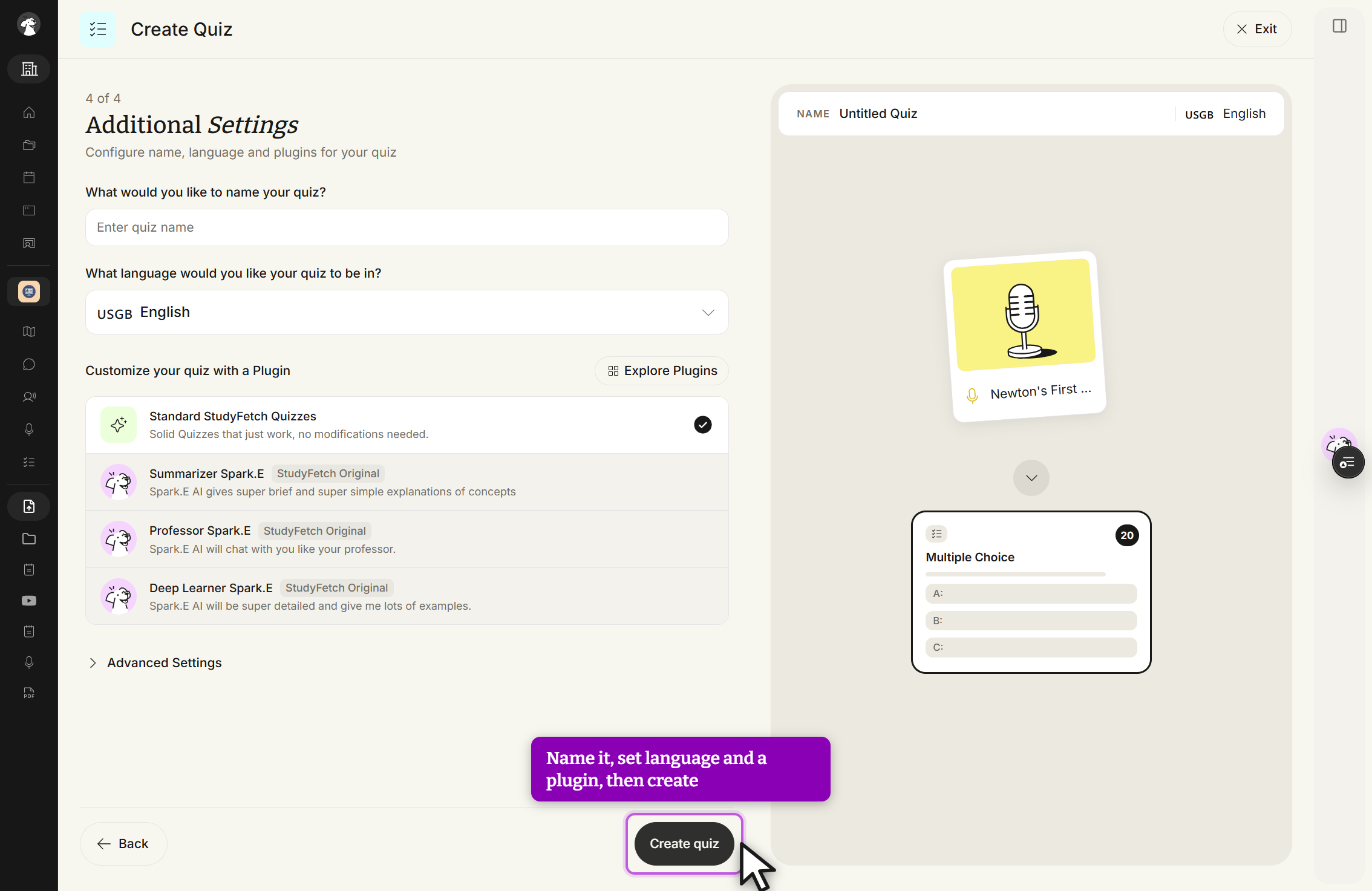
Optionally name your quiz (StudyFetch will name it for you if left blank), choose the quiz's language, and select a customization plugin from Summarizer Sparky, Professor Sparky, Deep Learner Sparky, or explore other plugins. You can also specify a focus topic to tailor the generated questions to your learning goals.
Step 4: Generate Your Quiz
Select Create quiz and StudyFetch will automatically generate your customized quiz from the selected materials and settings.