Skip to content
StudyFetch Academy

Product docs

Manage Study Sets

Managing Your Study Sets

Viewing Your Study Set

Opening a Study Set now lands you on a Study Plan view: recommended topics, quick access to QuizFetch, Flashcards, and Tutor for the current topic, plus Add your syllabus and Exam Dates panels on the right. Scroll down to Or start learning your own way for direct actions like Add More Materials, Take a Quiz, or Create a Flashcard Set. Uploaded materials remain listed under Your Notes in the left sidebar.
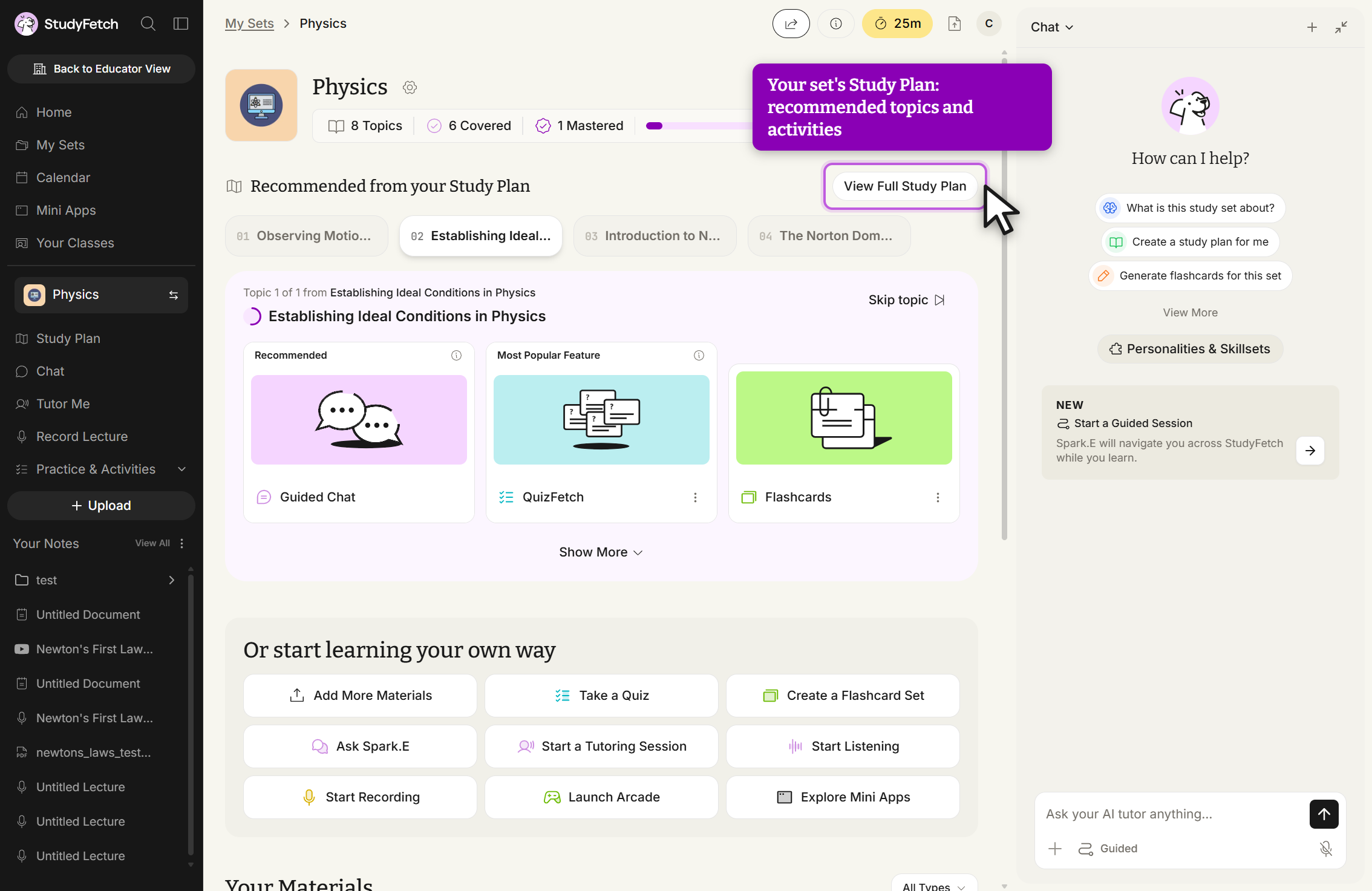
A study set page reached from the My Sets breadcrumb, with Topics, Covered and Mastered counters at the top. A Recommended from your Study Plan section has a View Full Study Plan button and a row of topic tabs, with one topic open and offering three cards: Guided Chat, QuizFetch and Flashcards, above a Show More link. An Or start learning your own way section holds nine buttons: Add More Materials, Take a Quiz, Create a Flashcard Set, Ask Spark.E, Start a Tutoring Session, Start Listening, Start Recording, Launch Arcade and Explore Mini Apps. The left sidebar lists uploaded files under Your Notes and a Chat panel is open on the right.
Study set page, Recommended from your Study Plan. The open topic offers Guided Chat, QuizFetch and Flashcards.

Editing an Existing Study Set

  1. Open the Study Set you want to edit, then click the gear icon next to its title.
  2. In the General tab, update the Cover Image, Title, Description, and Visibility (Private or Public) all from one screen.
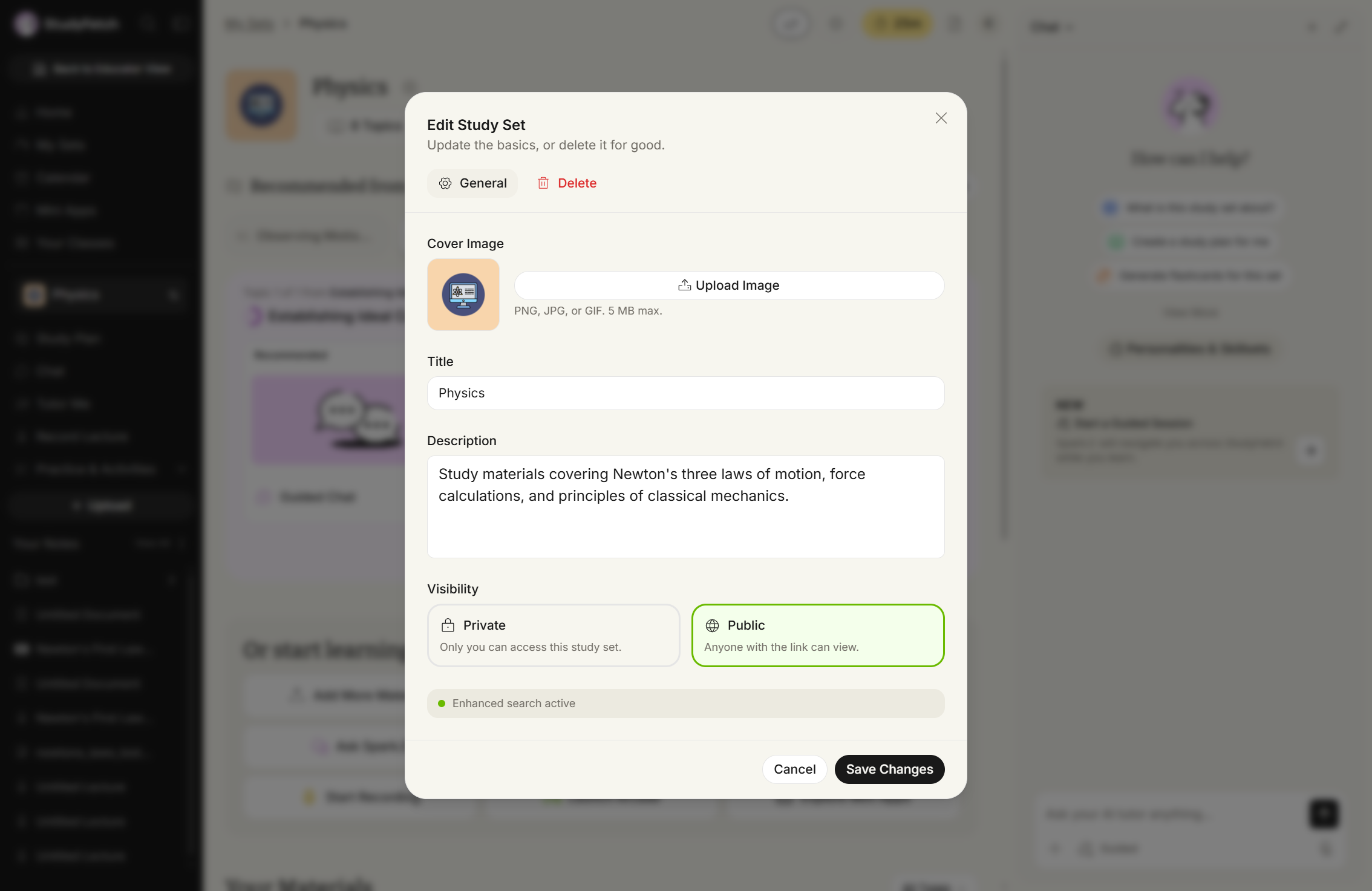
The Edit Study Set modal, subtitled "Update the basics, or delete it for good.", with General and Delete tabs and General selected. It shows a Cover Image thumbnail with an Upload Image button and the note "PNG, JPG, or GIF. 5 MB max.", a Title field, a Description field, and a Visibility choice between Private and Public with Public selected. A status line reads "Enhanced search active", and Cancel and Save Changes buttons sit at the bottom.
Edit Study Set modal, General tab. Update Cover Image, Title, Description and Visibility, then click Save Changes.
  1. In the Delete tab, type the Study Set's exact name to confirm, then click Delete Study Set.
  2. When done editing, click Save Changes.
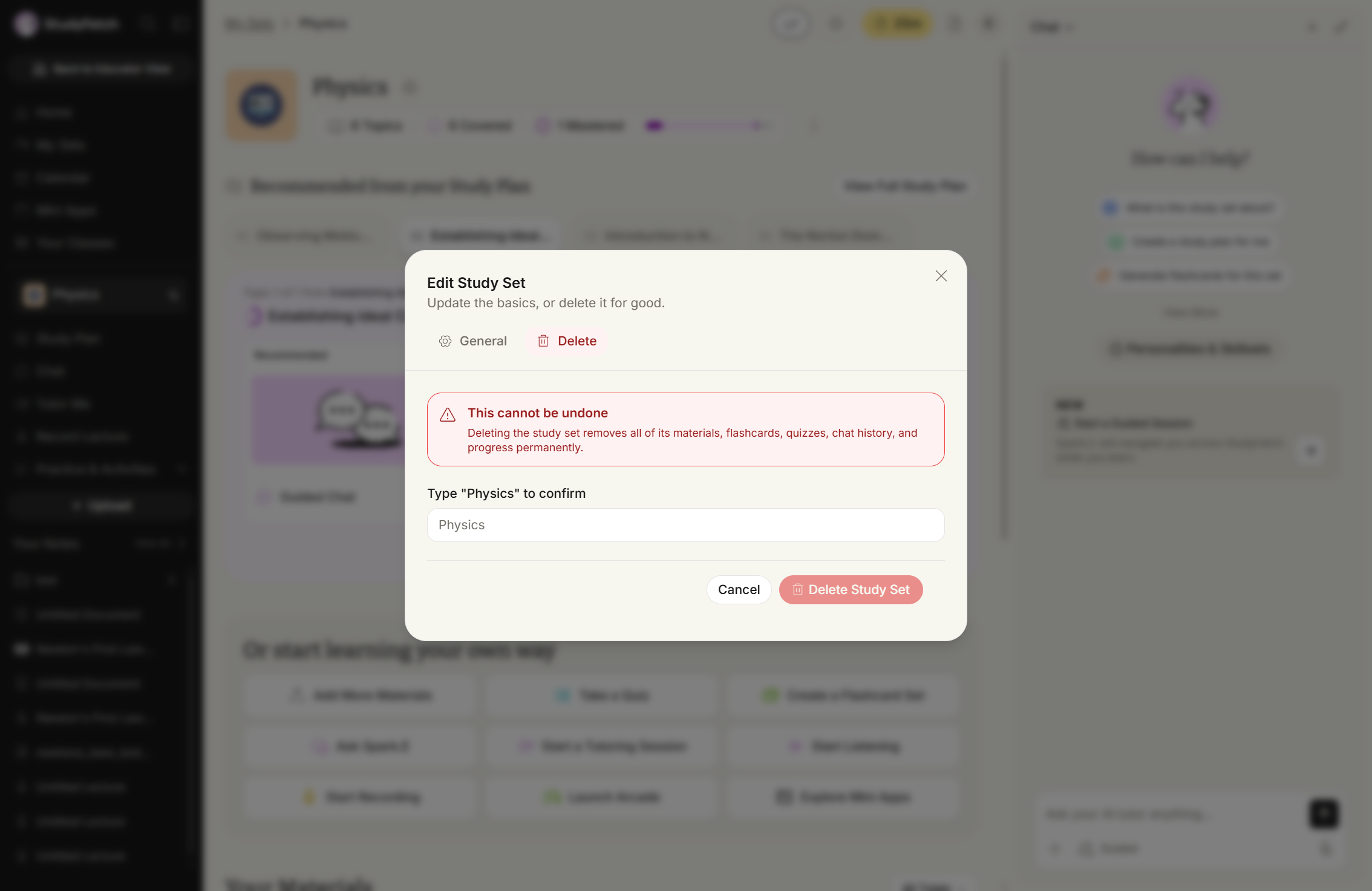
The Edit Study Set modal with the Delete tab selected. A red panel headed "This cannot be undone" warns that deleting the study set removes all of its materials, flashcards, quizzes, chat history and progress permanently. Below it, an empty confirmation field asks you to type the study set's name, and Cancel and Delete Study Set buttons sit at the bottom.
Edit Study Set modal, Delete tab. Type the study set's name to confirm, then click Delete Study Set.