
Product docs
Take and Review a Practice Test
Taking Your Test
Step 1: Choose your layout
- By default, questions are presented one at a time.
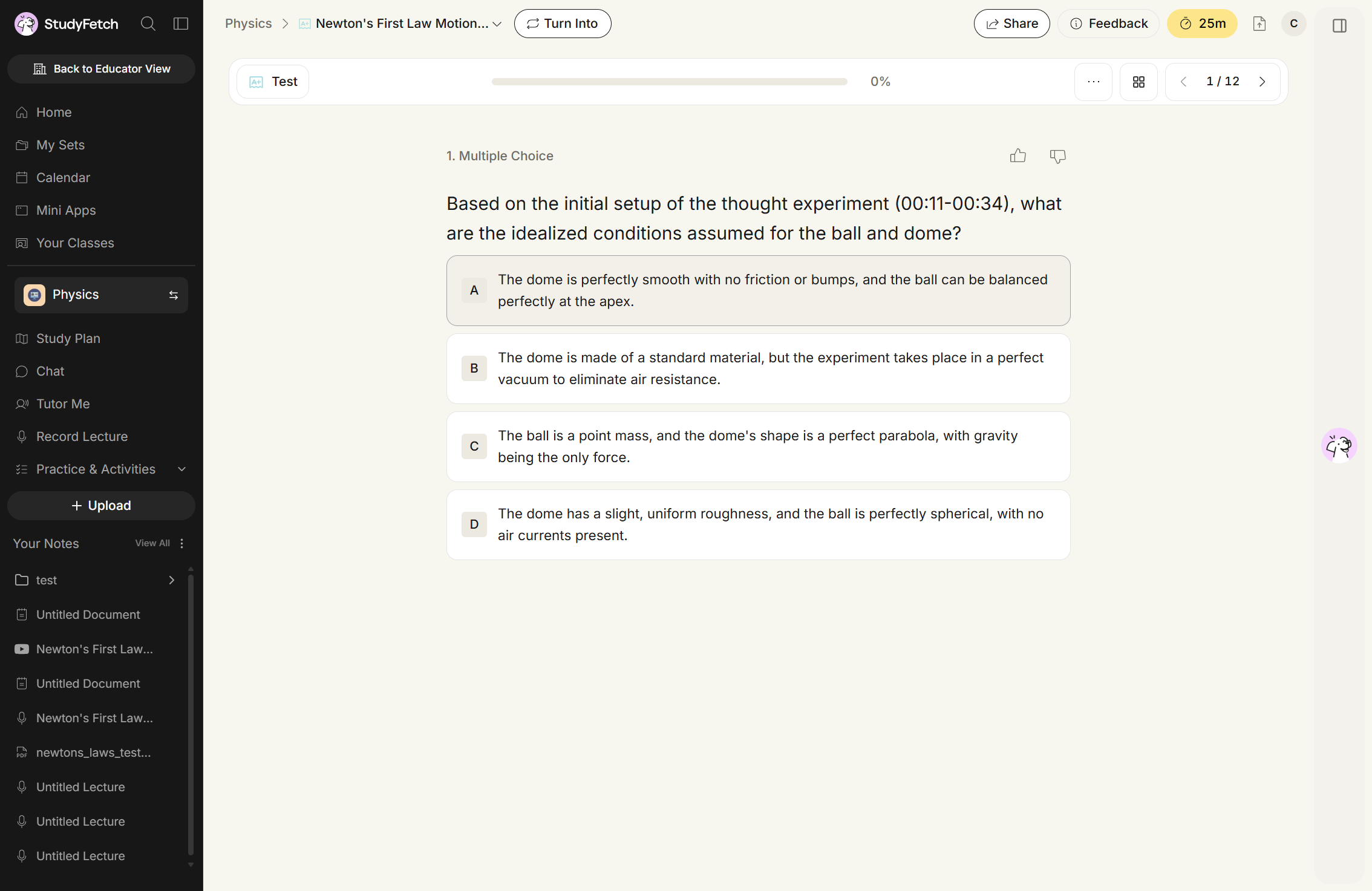
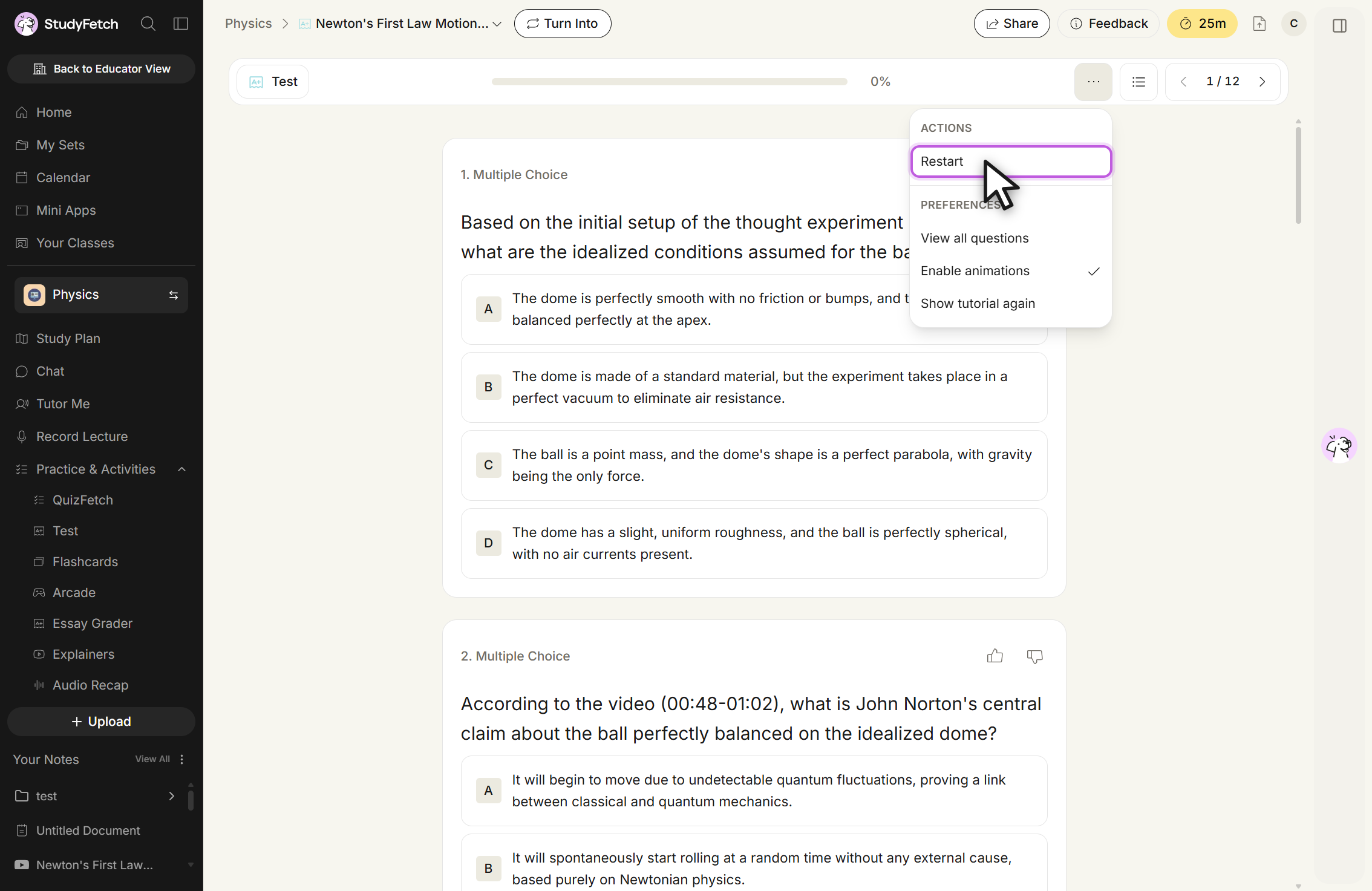
- To view all practice test questions at once, select the ... (Settings) button and choose View all questions. Select it again to remove the checkmark and return to single-question view.
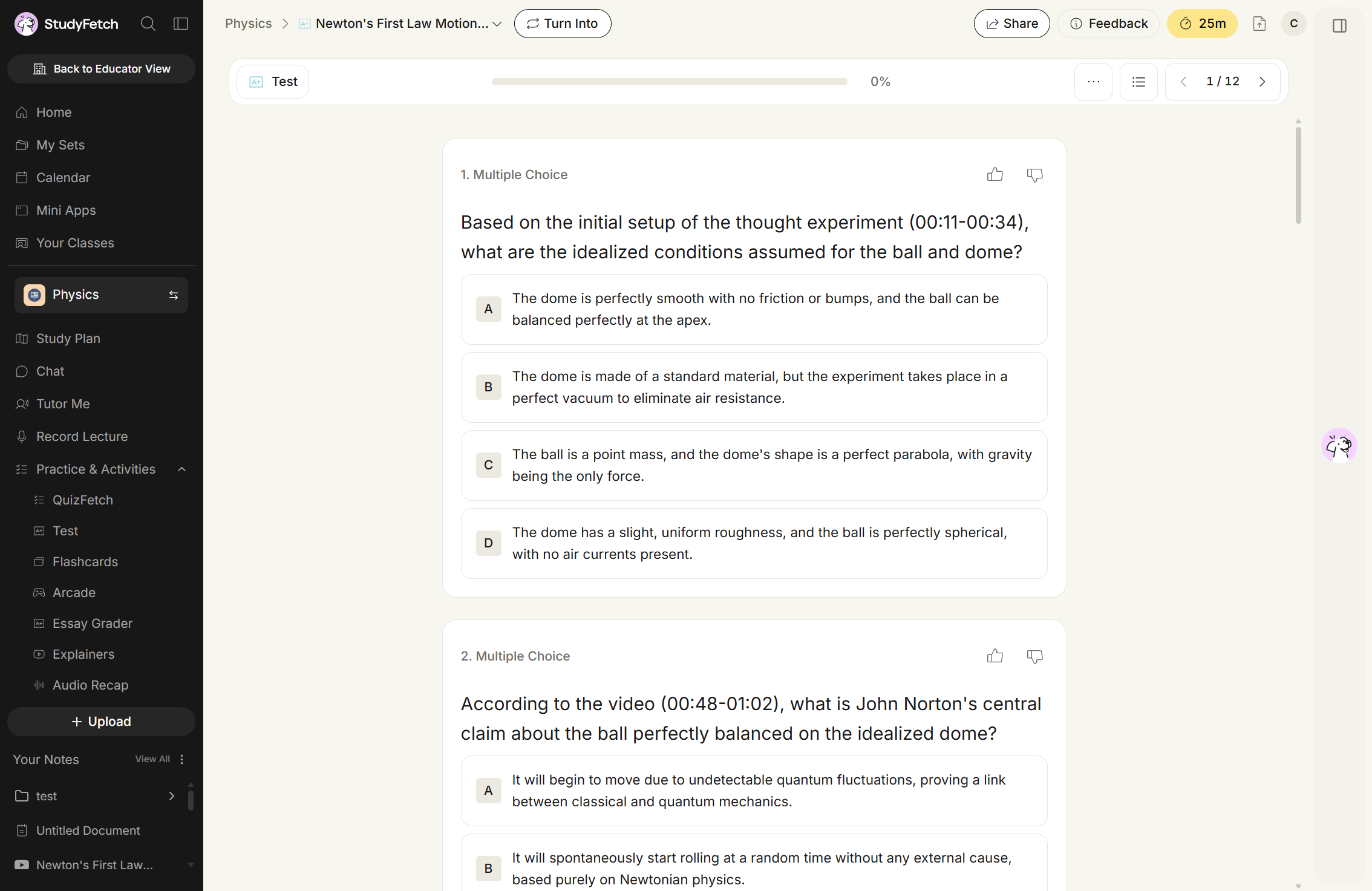
Step 2: Answer questions
- Choose your answer by selecting an option, or entering your response in the answer field when a typed response is indicated.
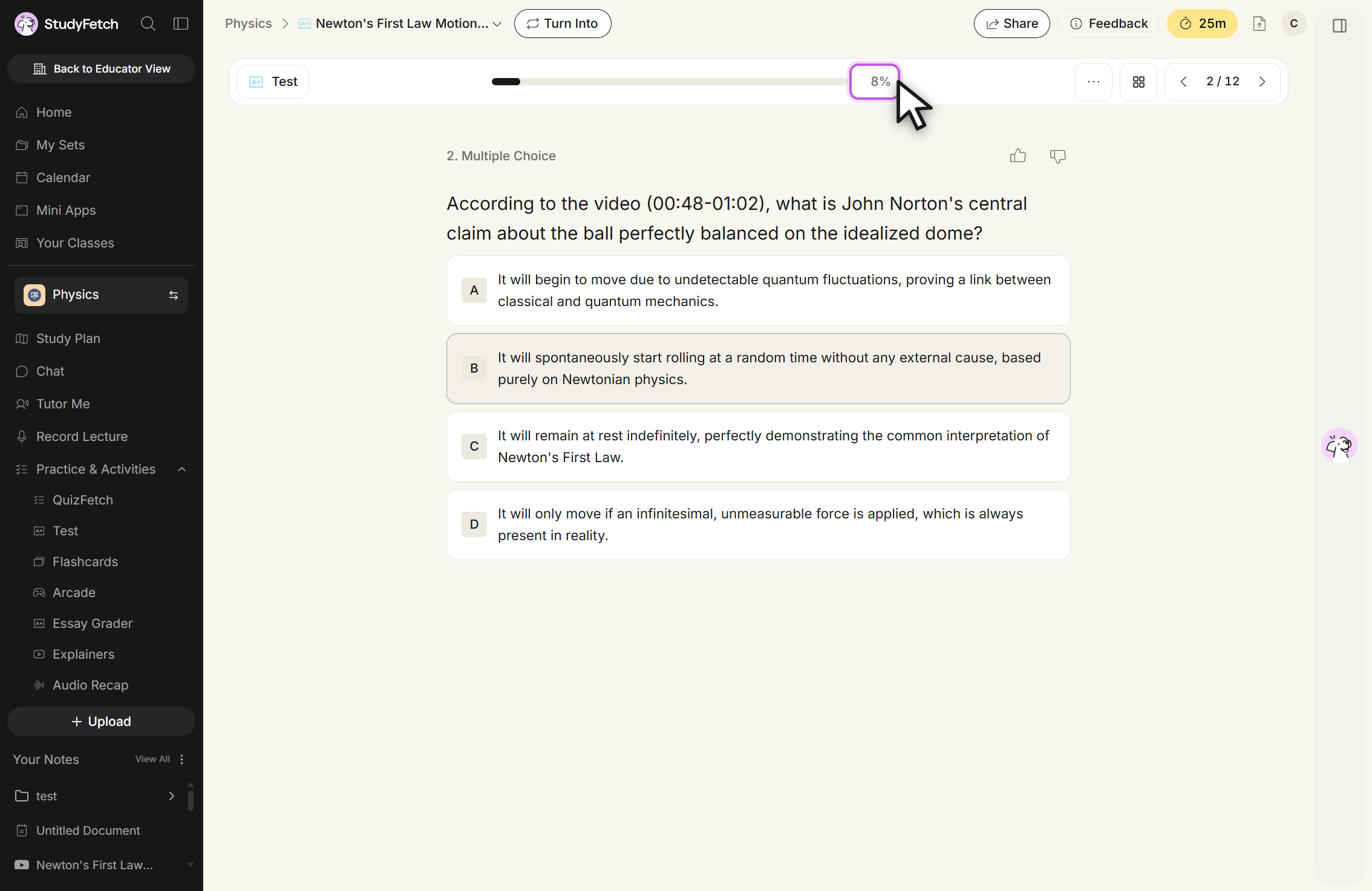
- In single-question view, selecting an answer automatically advances you to the next question and updates the progress bar — there's no separate "next" click required. You can still return to any question and change your answer at any time before submitting.
Step 3: Navigation tools
- A progress bar at the top of the practice test fills as you answer questions, with your completion percentage shown on the right.
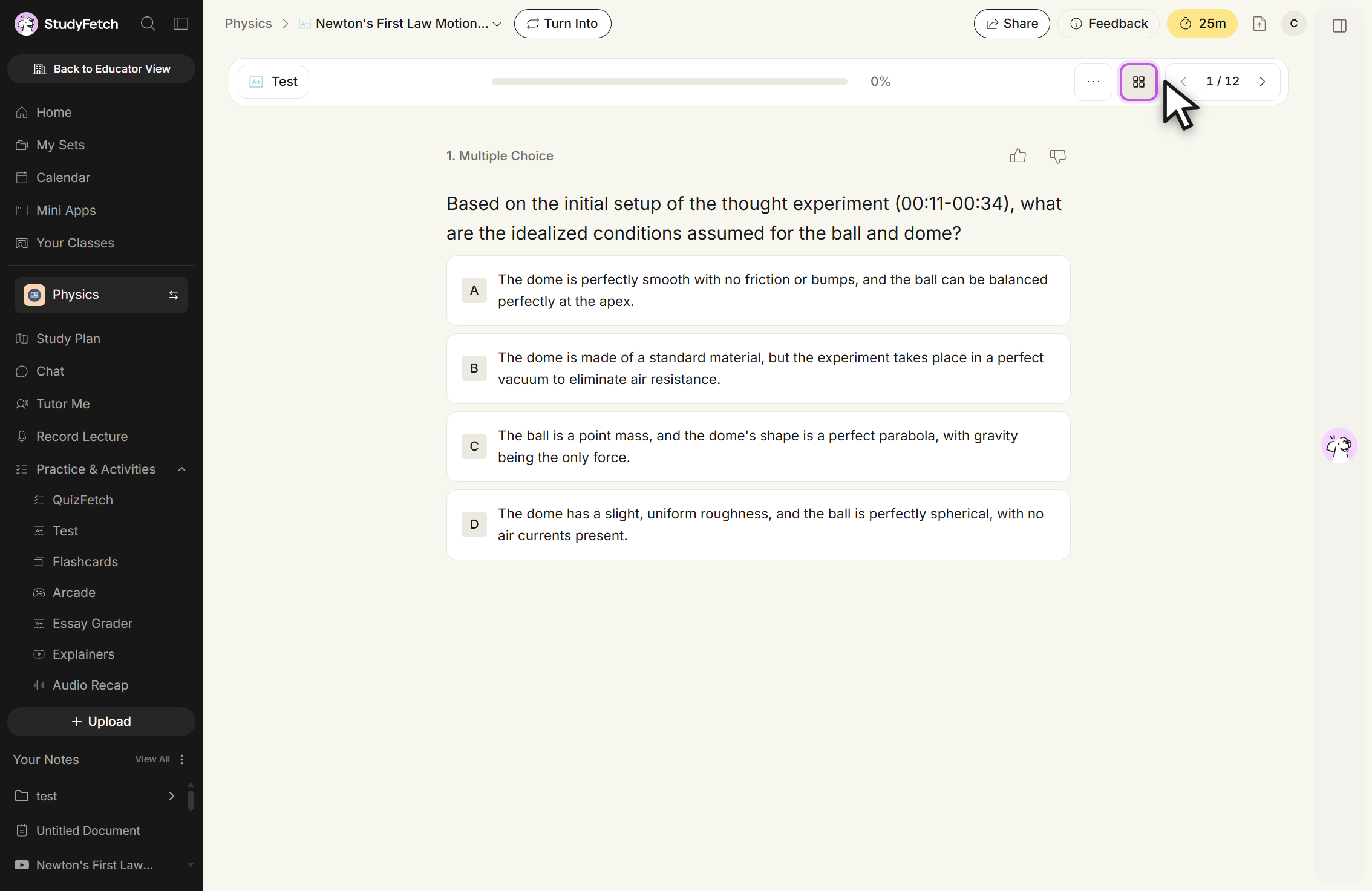
- Use the < (Previous) and > (Next) buttons on the toolbar to move between questions in any order. Select the grid icon next to Settings to jump straight to any question — a numbered list opens showing which questions are Answered and which are Unanswered.
- If you want to restart your practice test, select the ... (Settings) button on the toolbar and choose Restart. The same menu also lets you toggle Enable animations and re-open the onboarding walkthrough with Show tutorial again.
Step 4: Submit and view your score
- Once you've answered all the questions, the Submit Test button becomes active. Click it to confirm you're ready for grading.
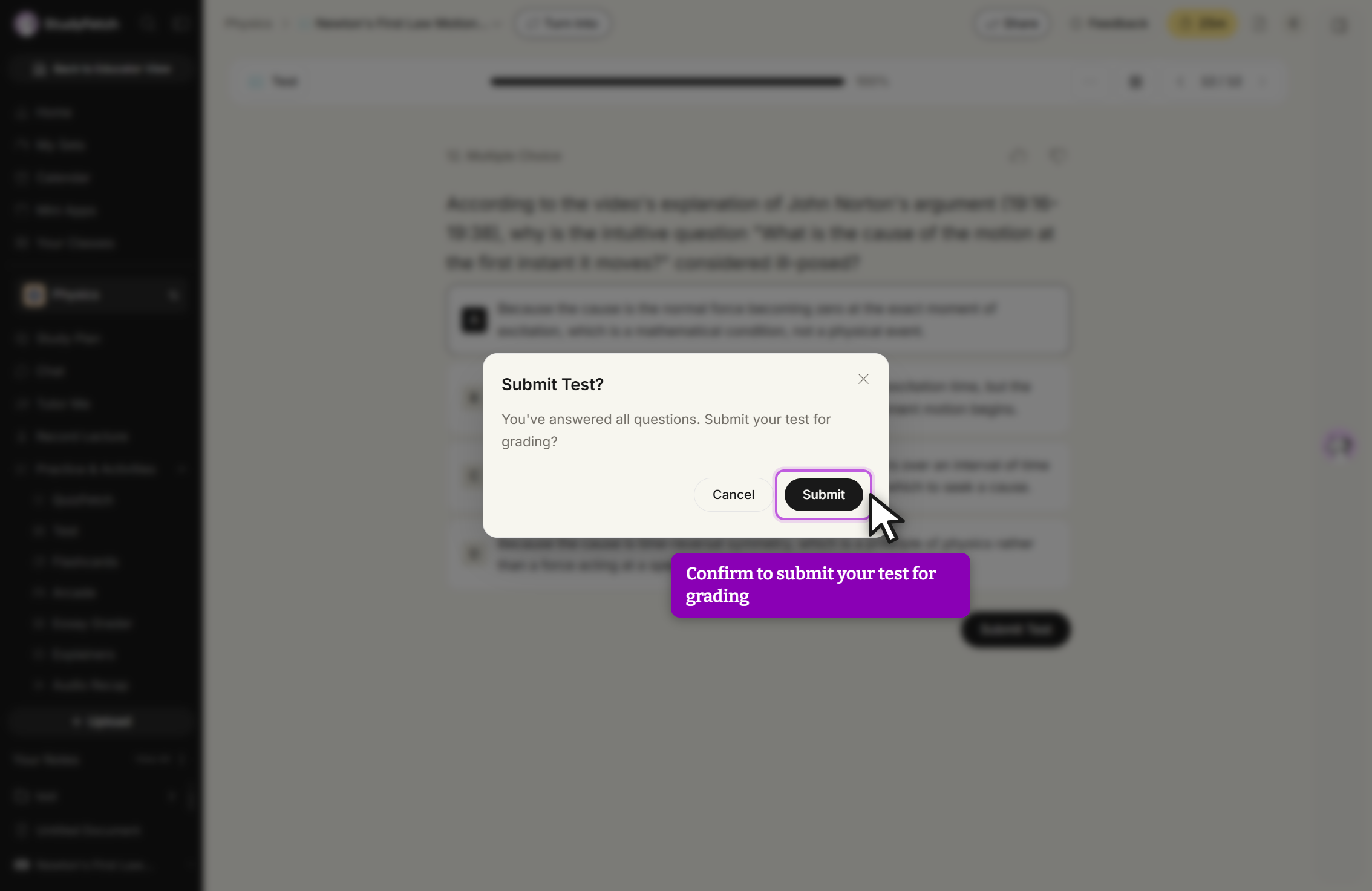
- StudyFetch briefly shows a Grading your test... loading screen, then instantly displays your score percentage, the number of questions answered correctly, and a topic-by-topic performance breakdown.
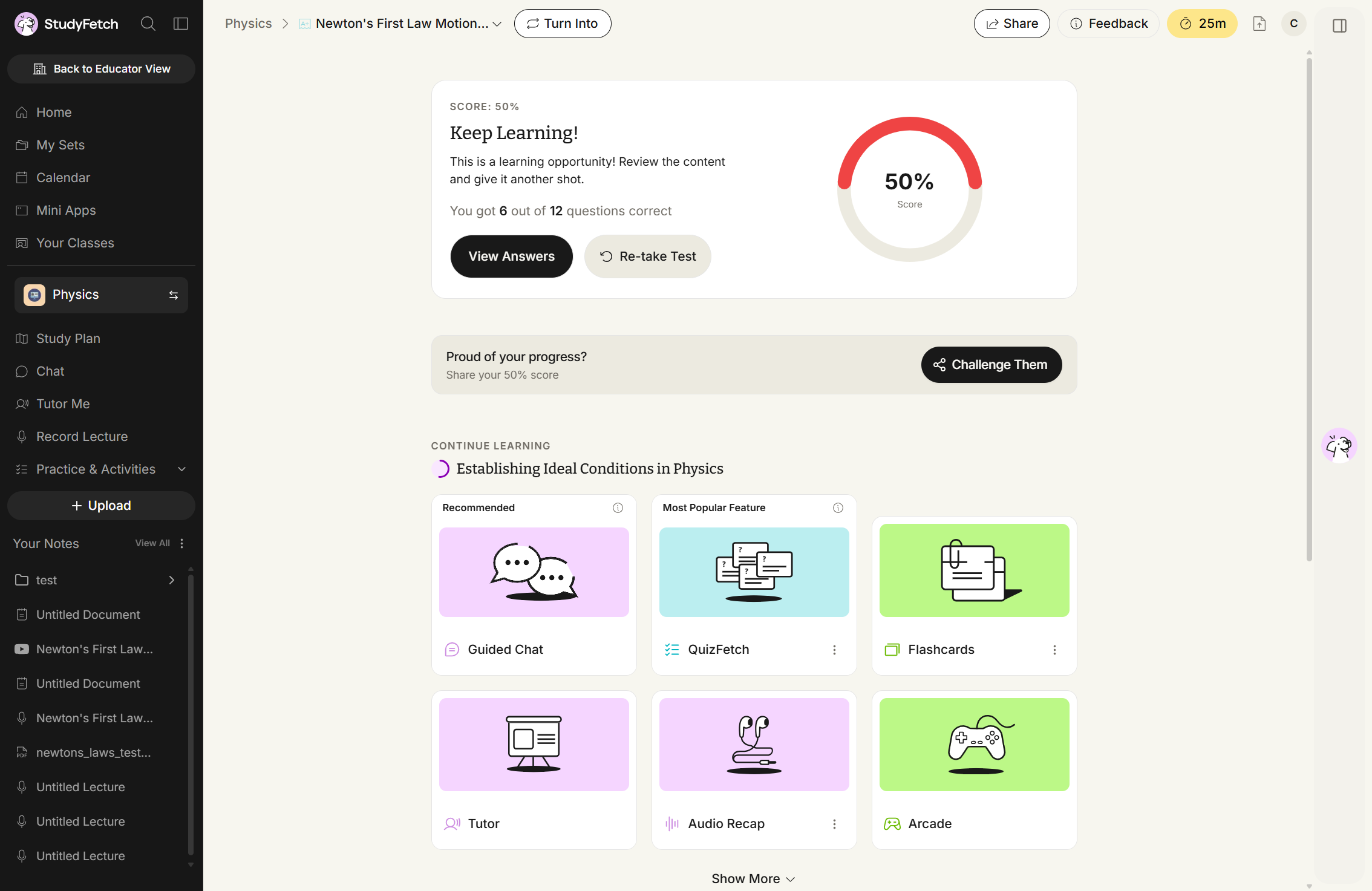
If you'd like to try again before reviewing this attempt, select Retake Test. Otherwise, continue to the next step to review your practice test.
Step 5: Review your results and learn with Sparky
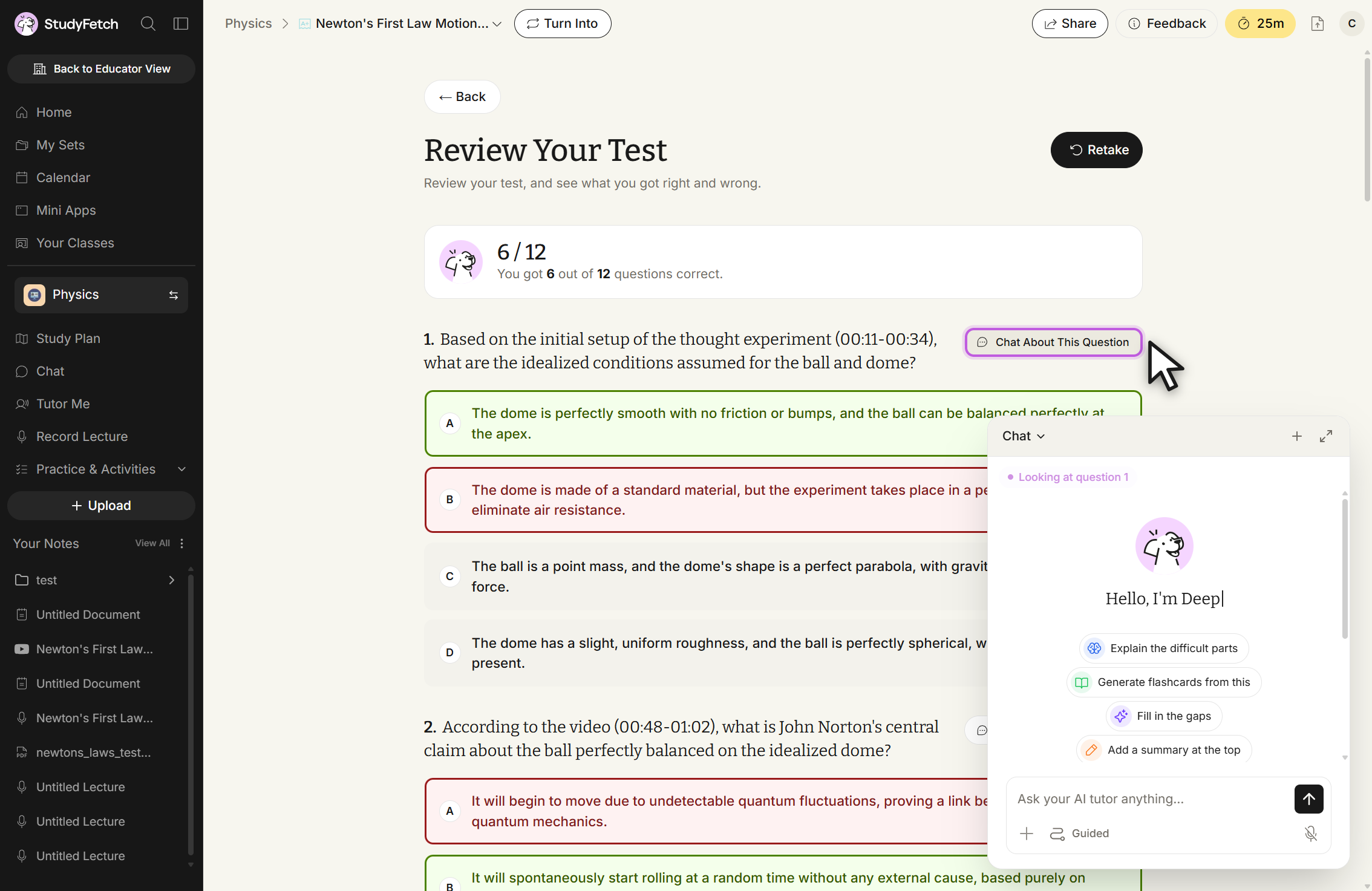
- Select View Answers to open the Review Your Test page. Scroll through to see each question with your answer and the correct answer highlighted — correct in green, incorrect in red. A Retake button in the top right lets you start a fresh attempt directly from this page.
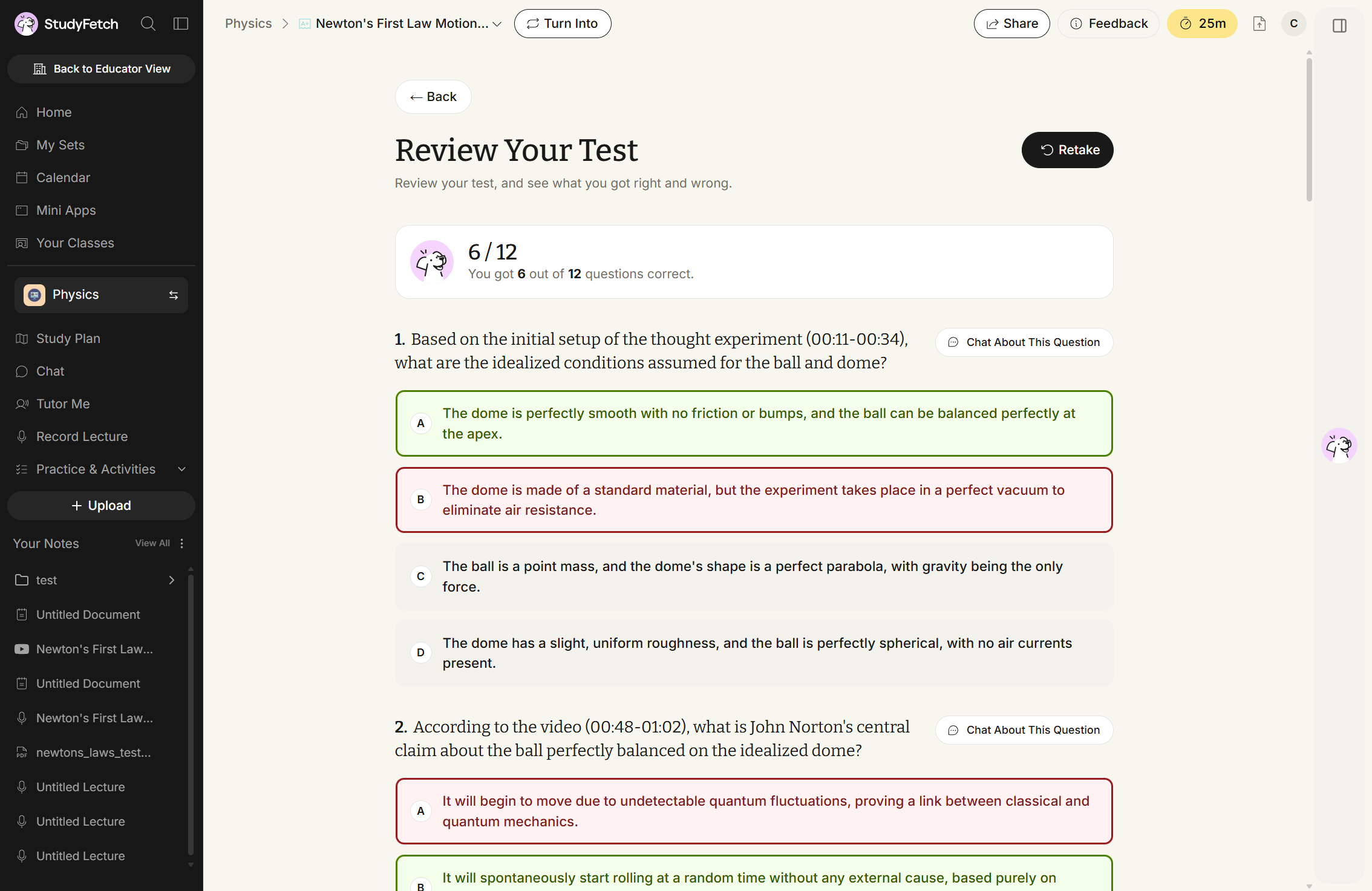
- Select Chat About This Question next to any question to open the Sparky chat panel, already scoped to that question. Type your own message or choose a suggested prompt to get a personalized explanation.
Use your results to guide targeted study, then retake the practice test to reinforce mastery — either from the Review page's Retake button, or from the Test feature page by opening a completed test's ⋮ menu and choosing Retake.