
Product docs
Review Enhanced Notes, Transcript, and Audio
Enhancing Your Live Lecture Notes with AI
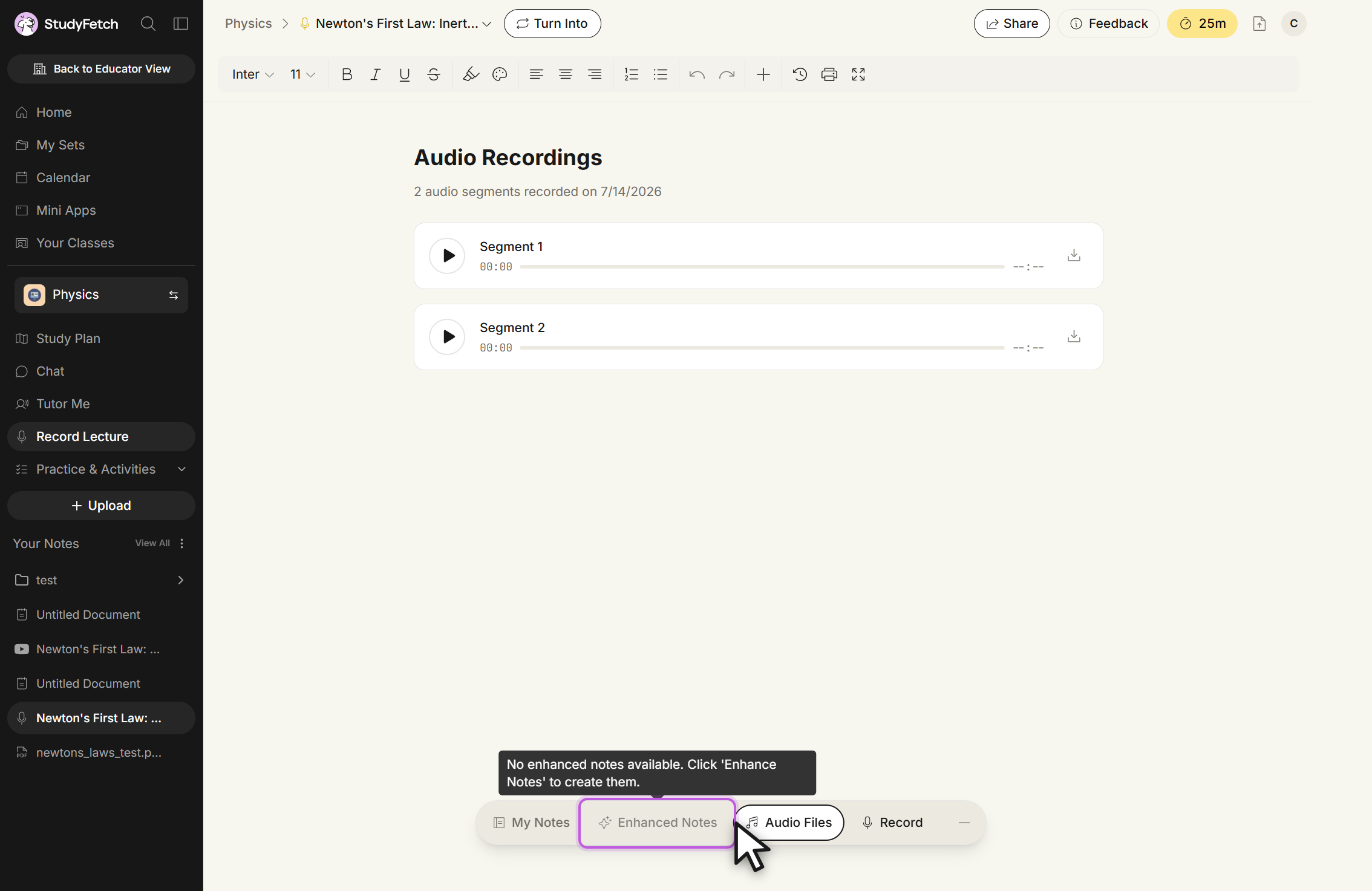
To have Sparky automatically generate AI-enhanced notes from your live lecture recording, open the session and select Enhance Notes. Choose your preferred note format — Summarized (key points, for a quick review), In-Depth (expanded context and explanations), or Comprehensive (retains every detail) — and optionally specify your current skill level on the topic, then confirm to have Sparky analyze your lecture and generate personalized, enhanced notes.
Editing and Customizing
Once generated, notes are fully editable, allowing you to customize content directly within the document. Simply click into the note to select, add, or delete text as needed, and use the editing tools at the top of the notes editor to further format your notes.
Accessing the Live Lecture Transcript and Audio
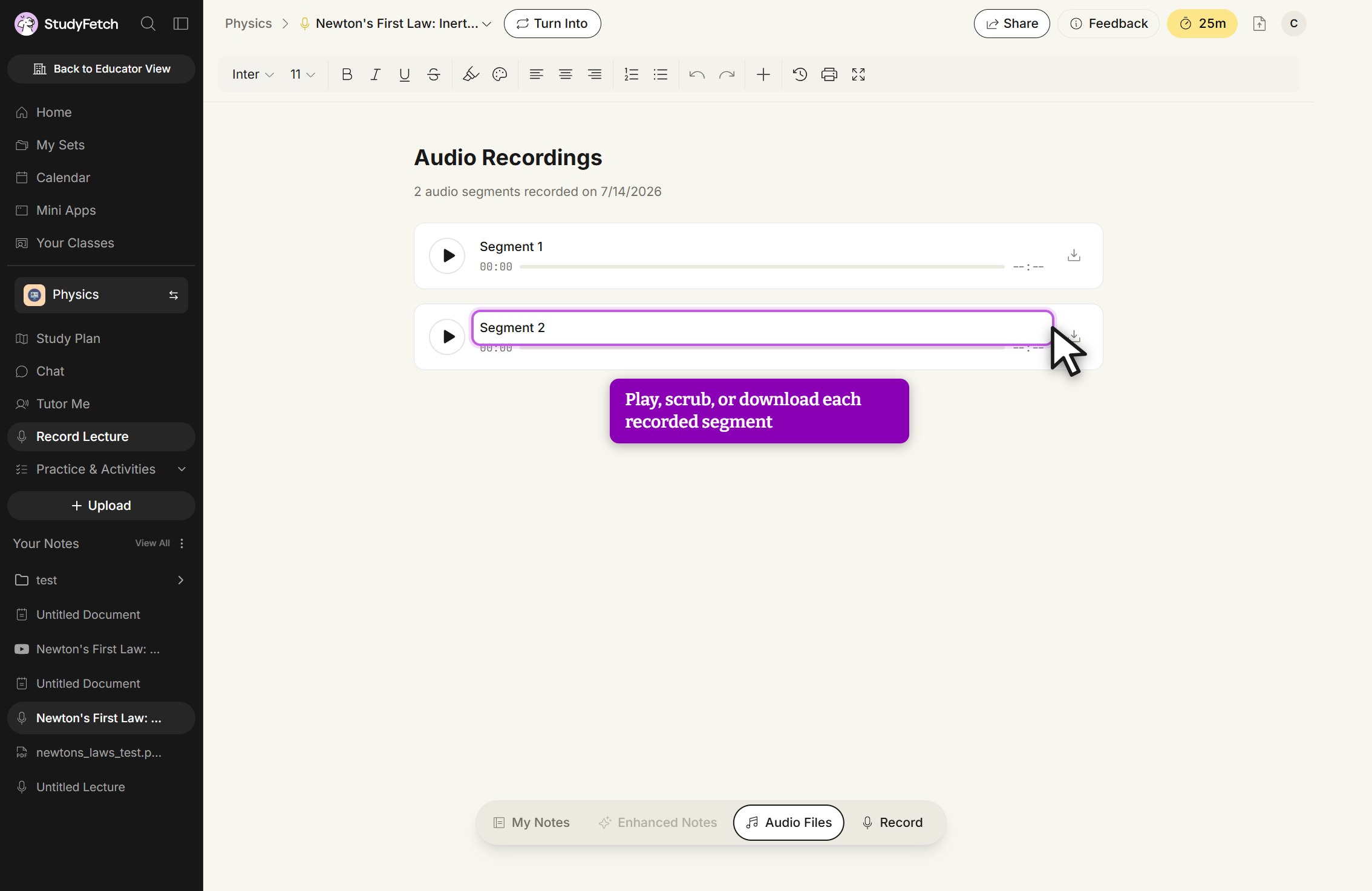
To view the transcript of your Live Lecture session, click the Transcript tab in the bottom toolbar — the side panel opens on the right, where you can scroll through the entire transcript of your recording. To access the audio recording itself, click the Audio Files tab instead; you'll see every audio segment from the session, with play, scrub, pause, and download controls for each.
Resuming a Live Lecture Session
To resume a previous Live Lecture Session, select Record Lecture from the left sidebar, choose the session you'd like to continue, and click Resume. Confirm that all participants consent to being recorded, and Sparky will pick up right where you left off — continuing to capture audio, transcribe, and take notes within the same session.