
Product docs
Take Notes and Ask Spark.E During Live Lecture
Navigating Your Live Lecture Session
Taking Manual Notes During Live Lecture
During your Live Lecture session, Sparky automatically listens to your lecturer and takes notes for you in real time, so you can stay focused on the lecture without needing to type. If you prefer to take notes manually or want to quickly jot something down, you can still add your own notes during the session — just click anywhere inside the blank note area on the left that says "Take your own notes here" and start typing.
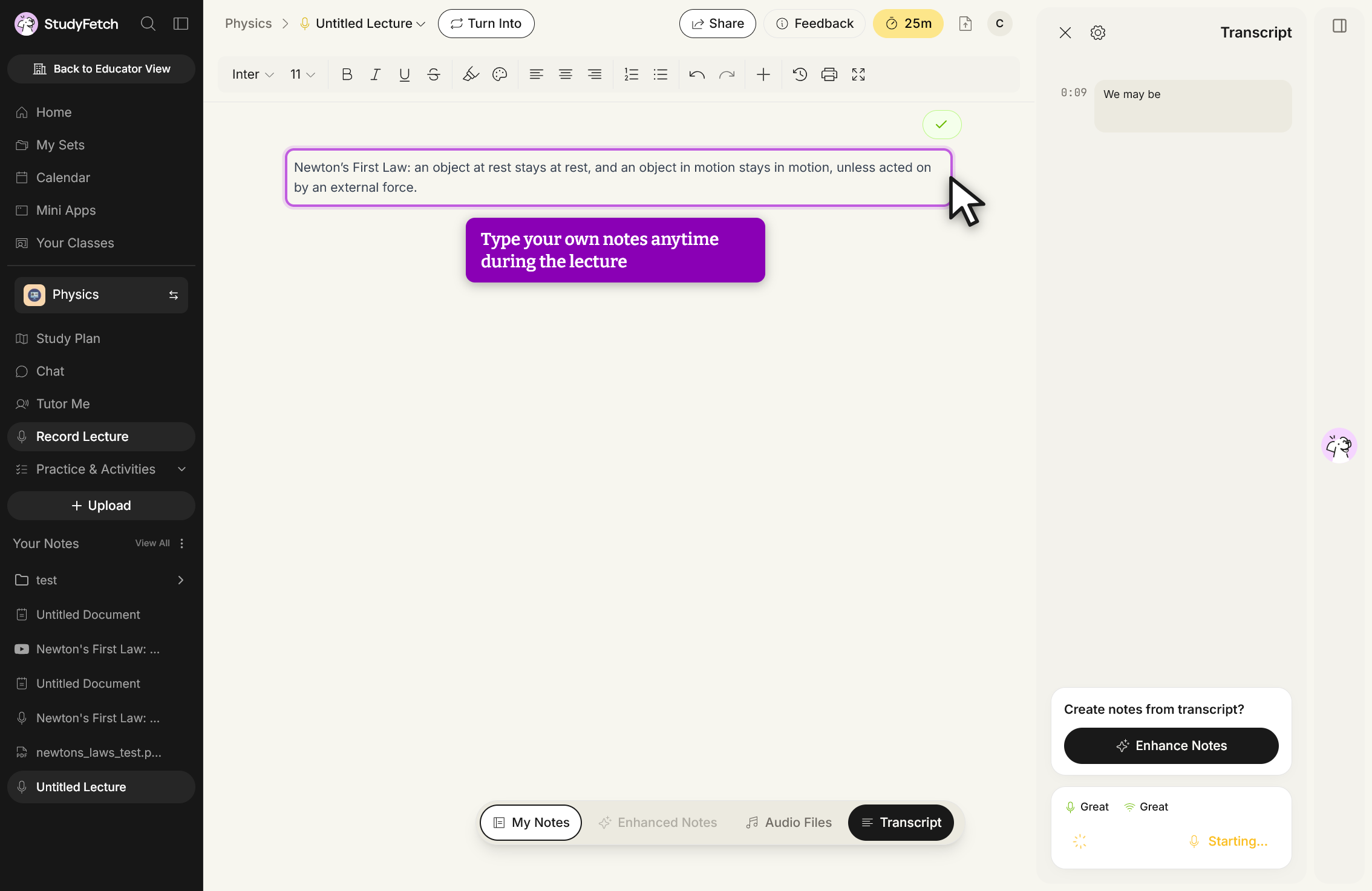
As you type, StudyFetch's AI analyzes both your notes and the exact moment in the recording when each note was created, so Sparky can later enhance your notes by expanding on key ideas and filling in missing information. If you switch to Enhanced Notes or Audio Files, you can return to your manual notes at any time via the My Notes tab in the bottom toolbar.
Getting Help from Sparky
One of the most powerful features of Live Lecture is the ability to ask Sparky questions in real time while your lecture is happening. Open the chat by clicking the floating Sparky icon on the right side of the screen, then type your question and press Enter — or choose from the suggested prompts if you're not sure what to ask.
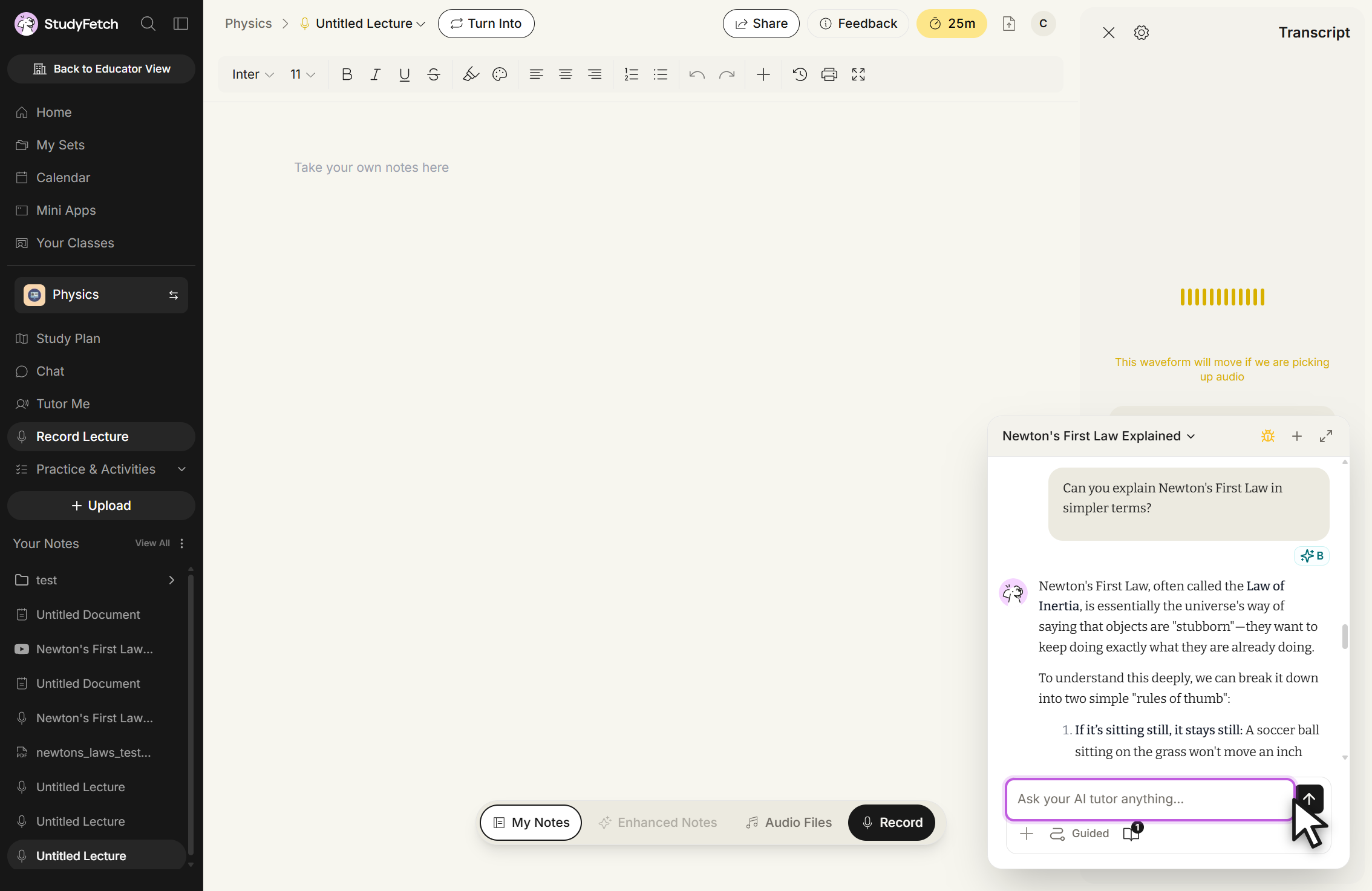
Sparky responds with a detailed explanation tailored to the material being discussed, so you can get help instantly without interrupting the lecture or waiting to ask your professor later.
Pausing and Ending Your Session
To pause or end your recording, click the stop button next to the recording timer in the bottom toolbar. This stops the recording and saves your progress immediately, so you can safely leave the page. If you navigate away mid-session, StudyFetch will prompt you to confirm before stopping the recording. If you're taking a short break, you can resume a saved session at any time from the Live Lecture List — see Manage Live Lecture Sessions.