Product docs
Manage and Share Practice Tests
Managing your Test
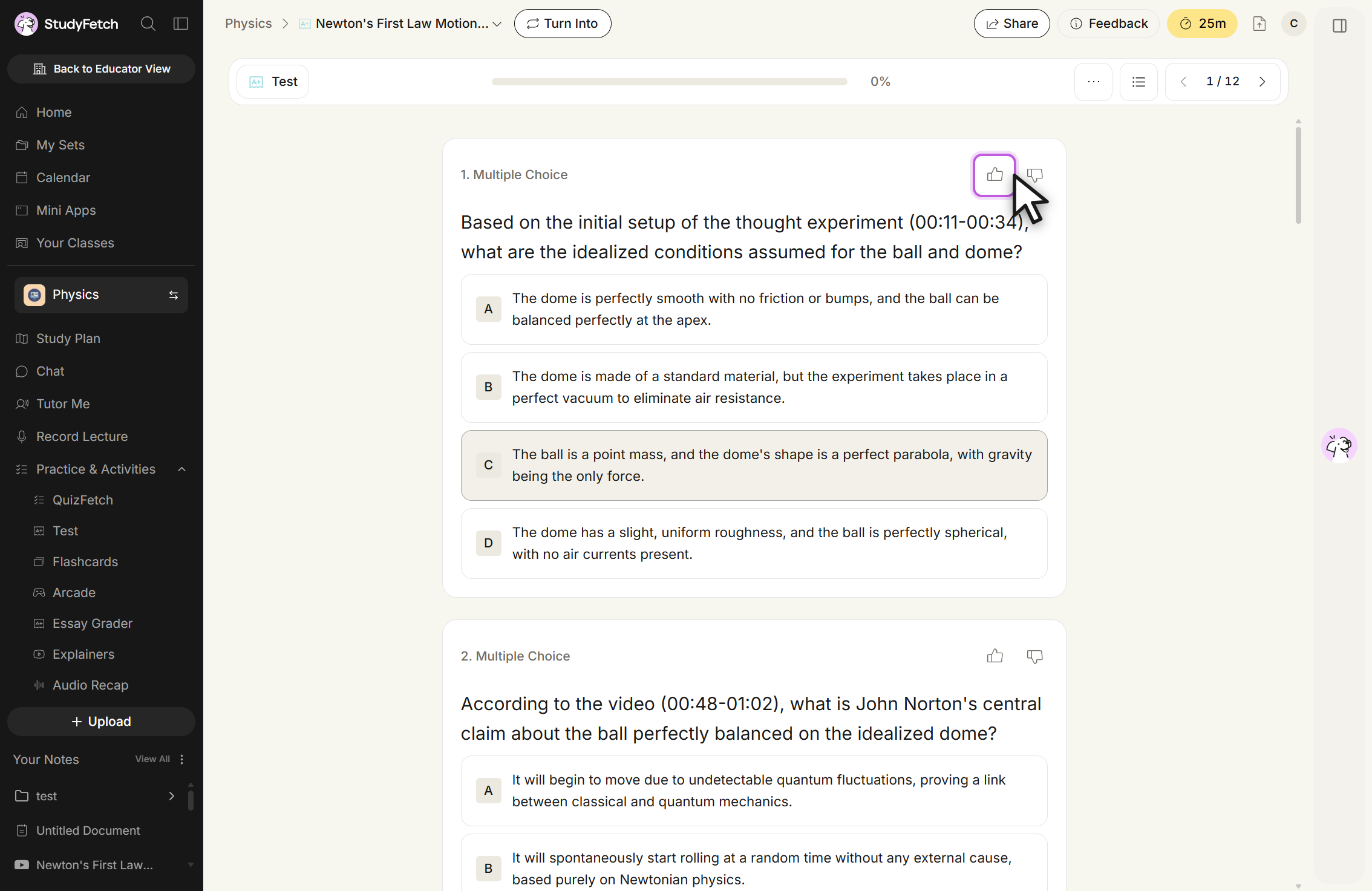
Rate Your Questions
How do you like your practice test questions? Let us know what is working and what isn't. The more feedback provided, the better future questions become over time.
- Use the thumbs up or thumbs down buttons located in the top right above each question to provide feedback on your AI-generated practice test questions. A thumbs up indicates the question contains helpful content, while a thumbs down indicates the content needs improvement.
Changing the Name of Your Test
Test names can be updated while taking a test or from the Test feature page. Both lead to the same rename dialog.
While taking a test:
- Click the downward chevron next to your test name in the breadcrumb to open the test menu, which offers Rename, Share, Create Practice Test, and a Recents list.
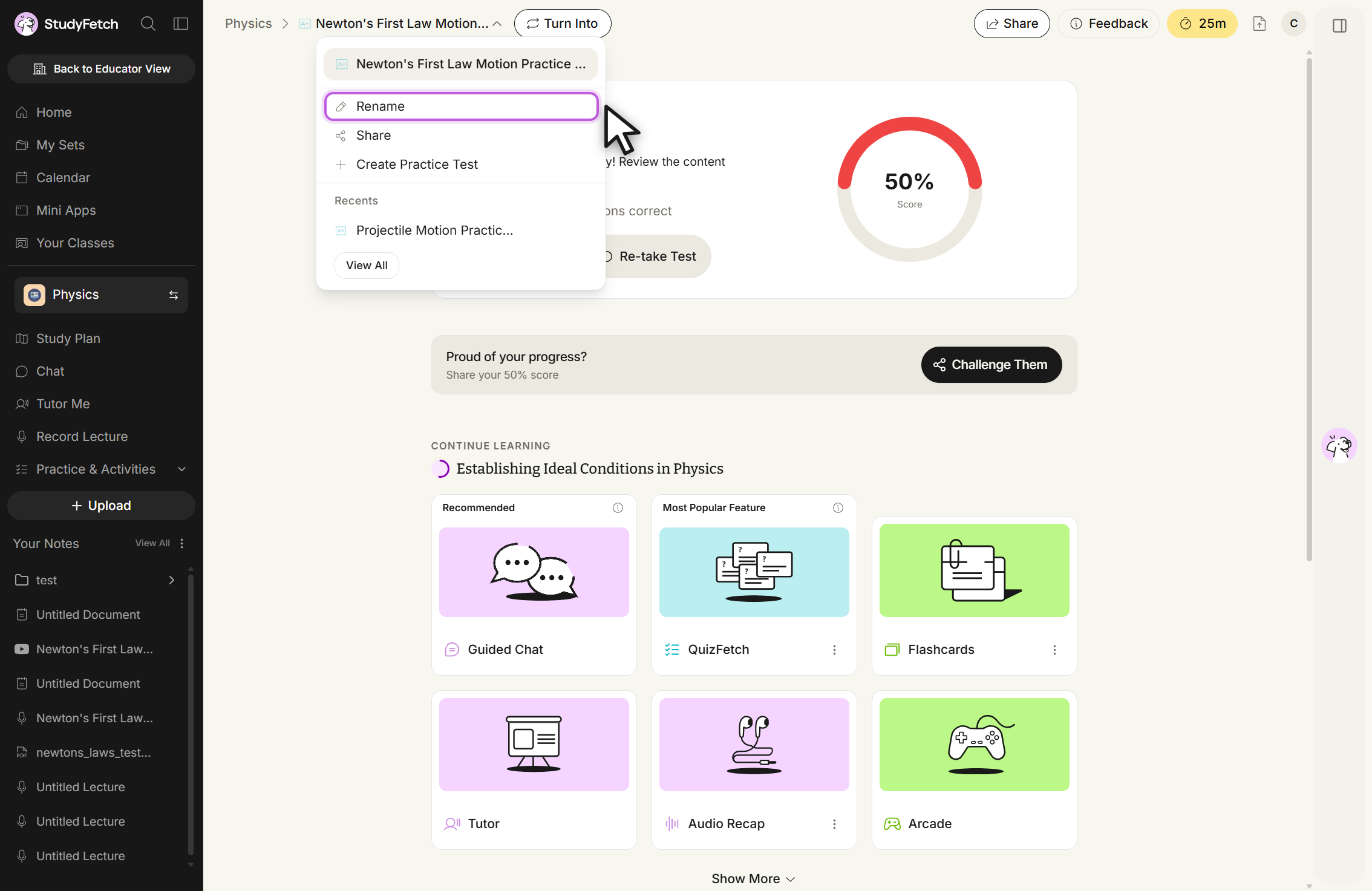
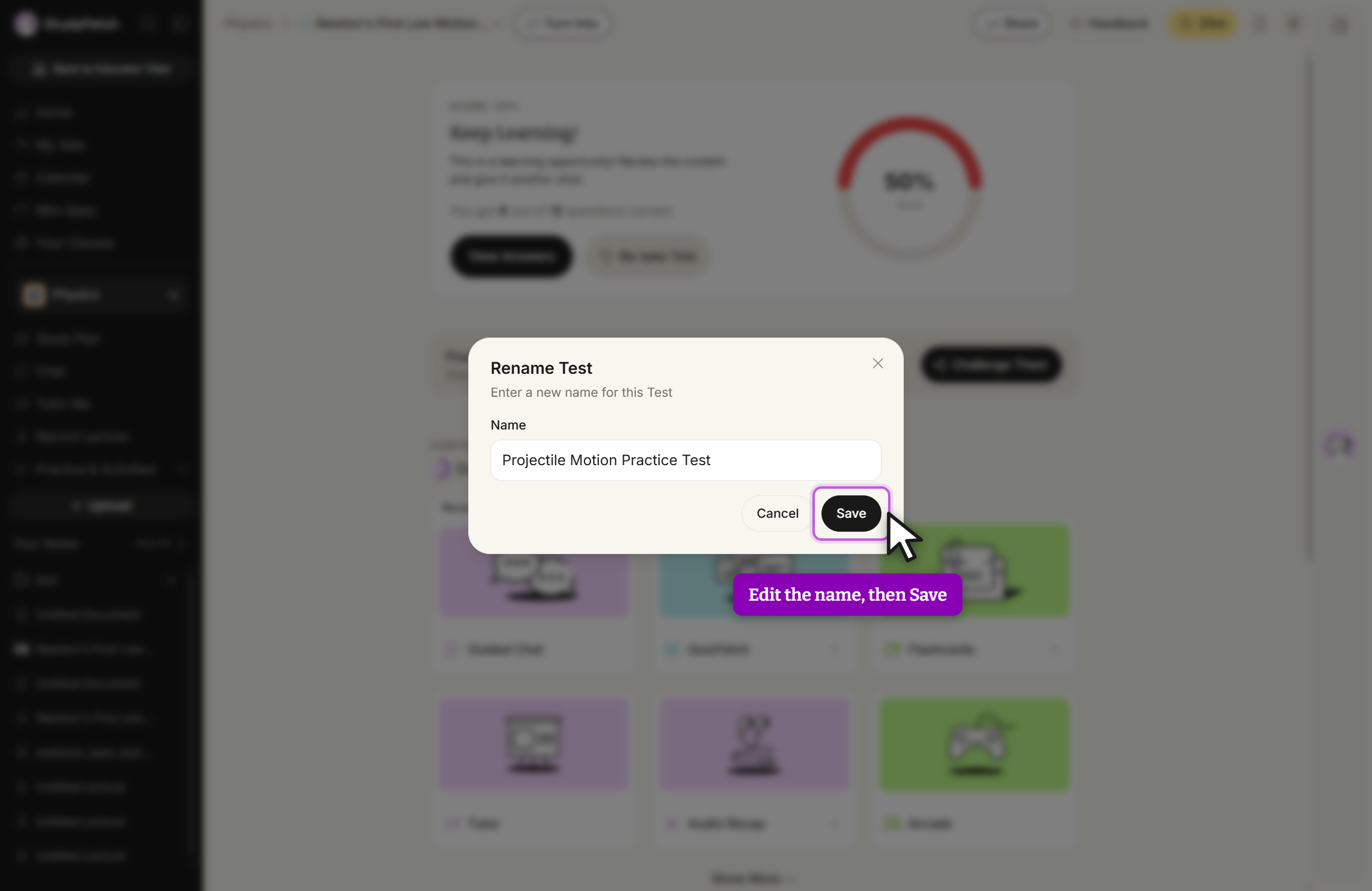
- Select Rename, edit the name in the field, and click Save.
From the Test feature page:
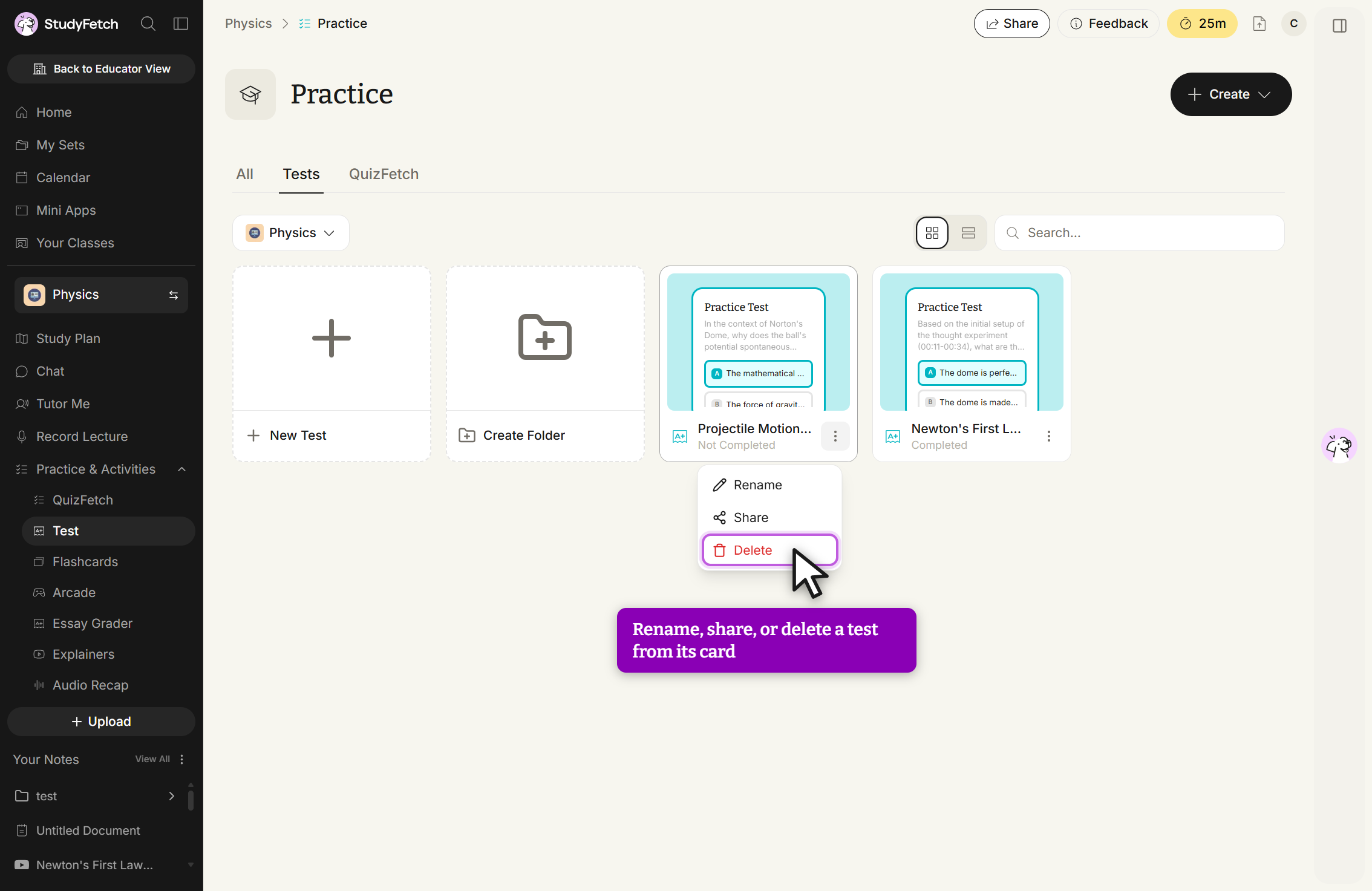
- Navigate to Practice → Test from the left-hand dashboard. Select the ⋮ button on the desired test card and choose Rename, Share, or Delete — all three actions live in this one menu.
Share Your Test
Found your test helpful? Share it during the test or from the Test Results page, and optionally include your score to challenge friends or highlight your achievement.
During a test:
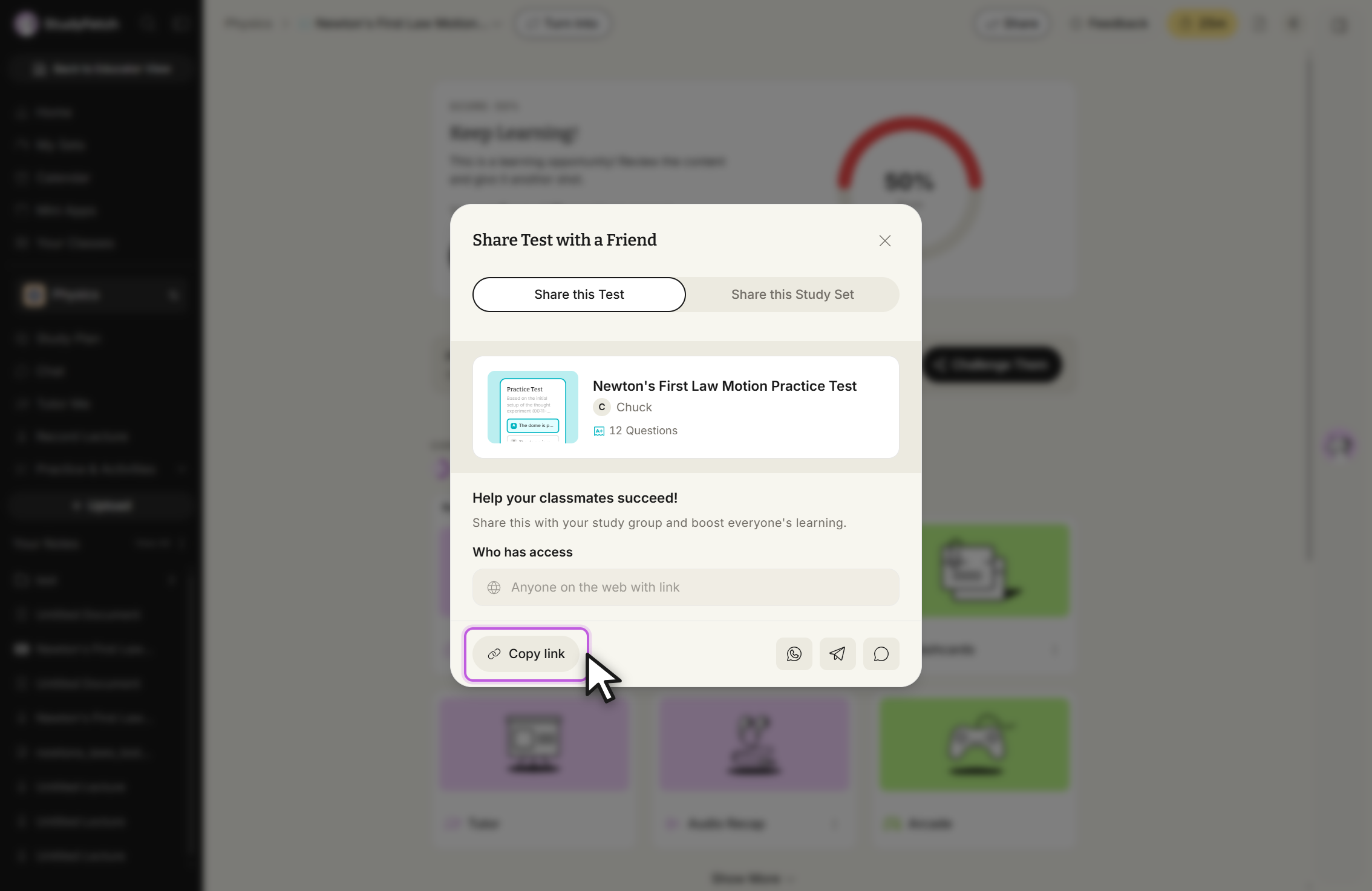
- Open the test menu and select Share. The Share Test with a Friend dialog opens with tabs to share this Test or this Study Set, a preview card, and controls for who has access.
- Select Copy Link, or share directly via the WhatsApp, Telegram, or Text icons at the bottom.
From the Test Results page:
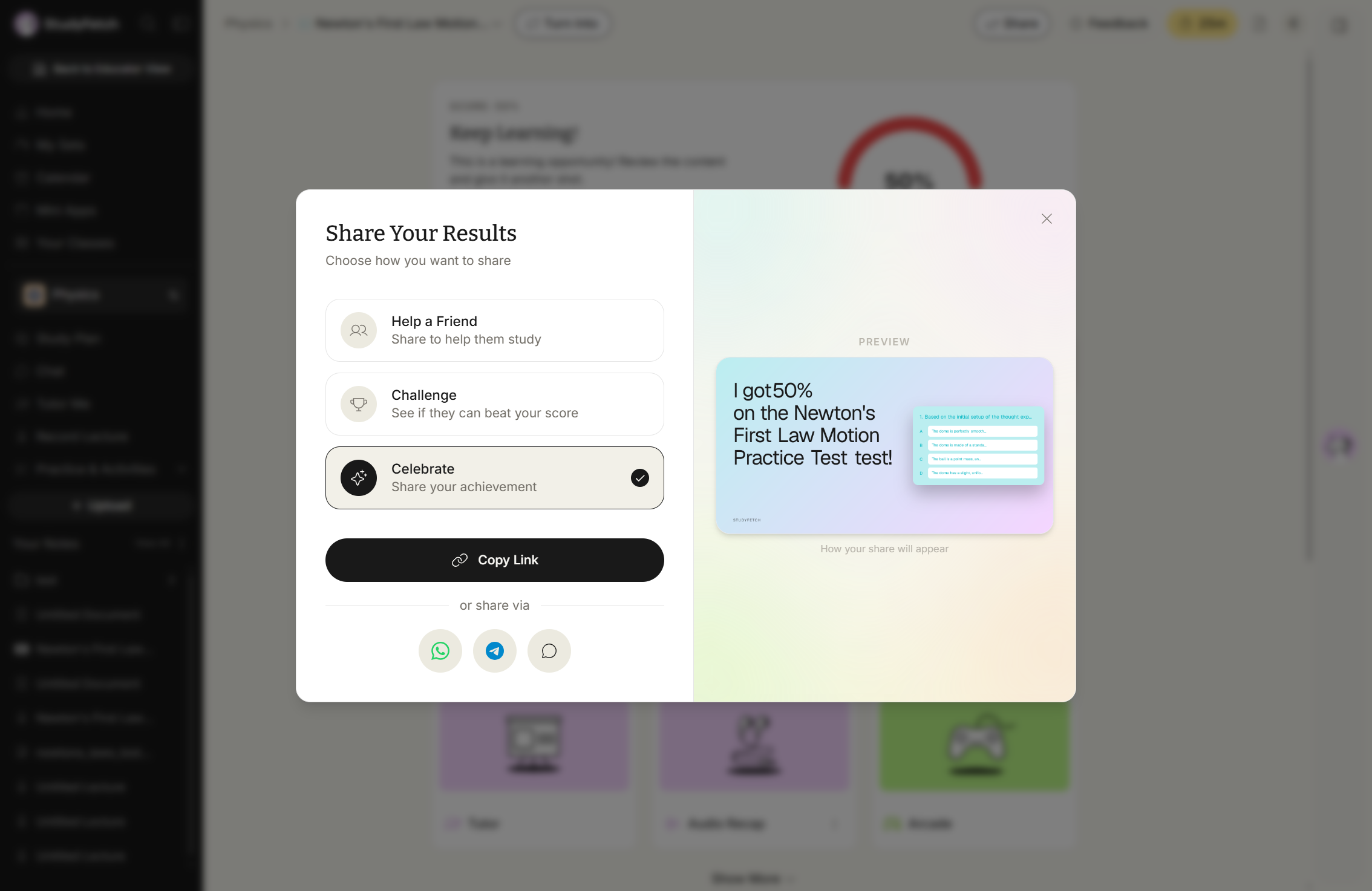
- Select Challenge Them within the Proud of your progress? prompt to open Share Your Results.
- Choose how to share: Help a Friend shares the test without your score, Challenge shares it with your score so a friend can try to beat it, and Celebrate highlights your achievement. A live preview of the shareable card updates as you choose.
- Select Copy Link, or share directly via WhatsApp, Telegram, or Text.
Delete Your Test
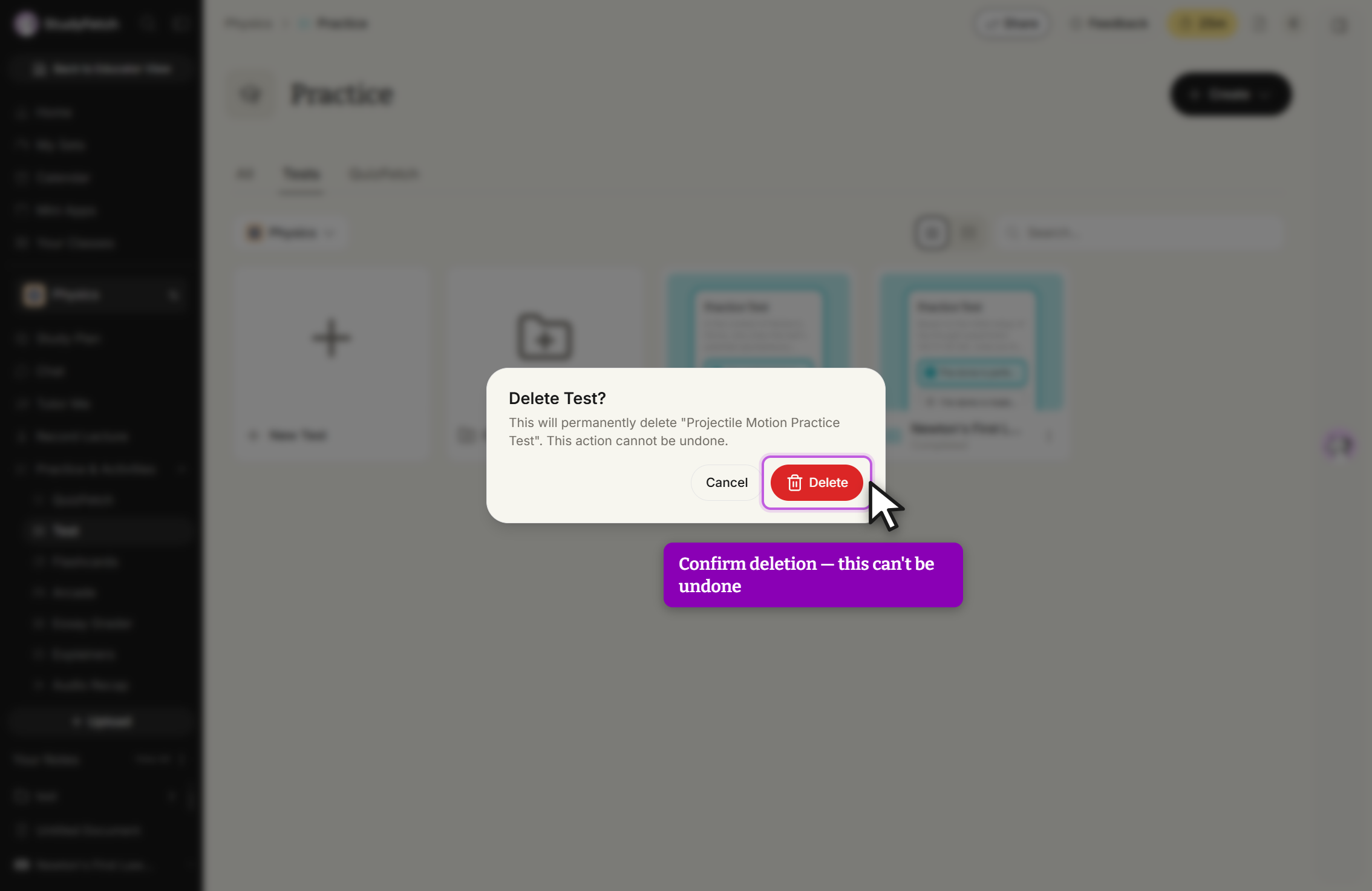
- Navigate to Practice → Test, select the ⋮ button on the desired test card, and choose Delete.
- Confirm by selecting Delete in the dialog. This action is permanent.