Navigate through cards, choose a study mode, use spaced repetition, and review bookmarks.
Navigate cards
Move, flip, shuffle, and jump through the set.
Choose a mode
Use Standard, Spaced Repetition, or Bookmarked Flashcards.
Track mastery
Use spaced repetition ratings and focus on bookmarked cards.
Using your Flashcards
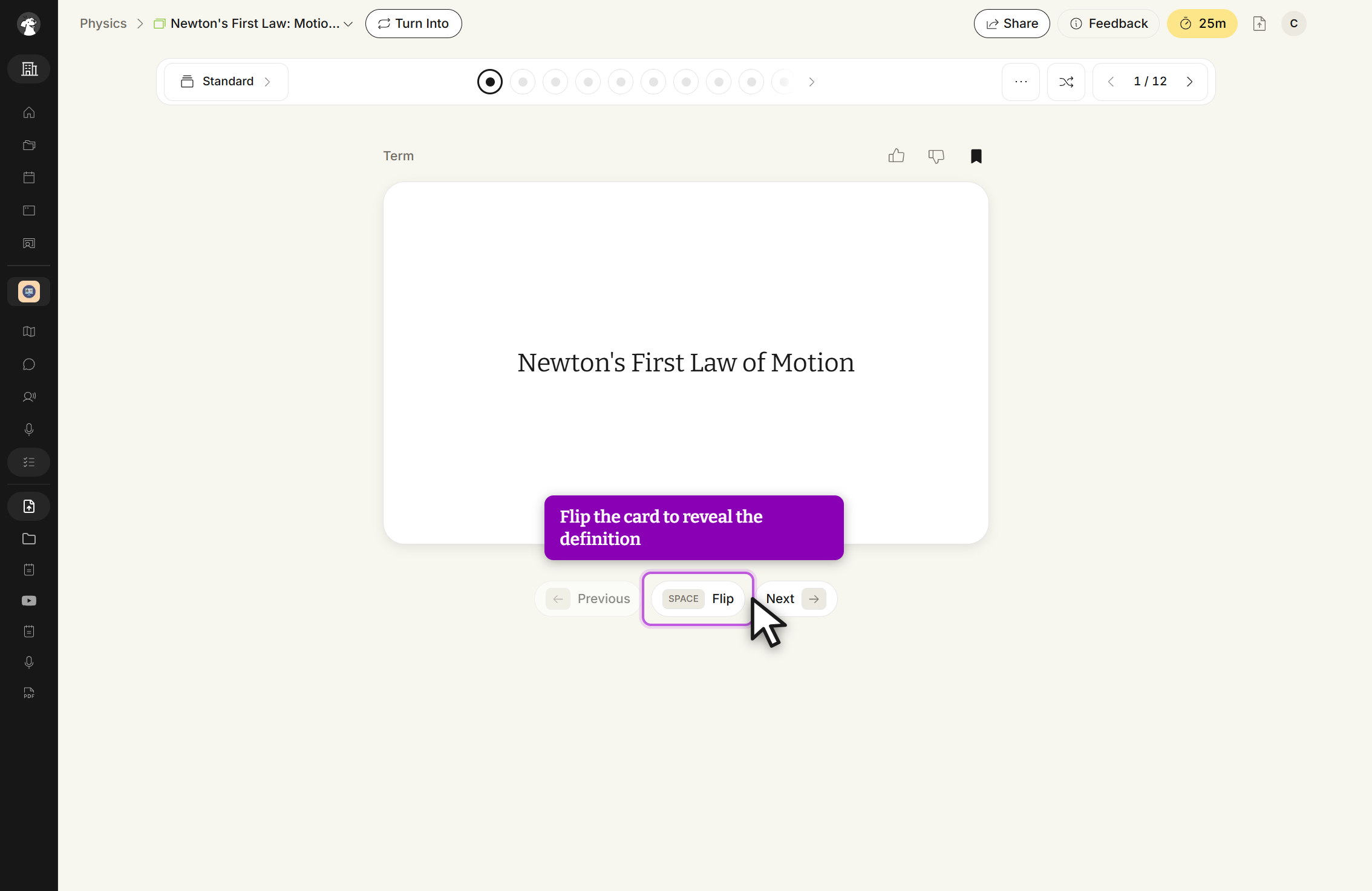
Flashcard study screen, Standard mode, card front. The card shows the Term, with Previous, Flip and Next below it.
Navigation Keys
To navigate between flashcards click the ← Previous or Next → buttons below the flashcard, or use the left and right arrow keys on your keyboard.
To flip a flashcard and reveal the back, click anywhere on the card, select the Flip button below the flashcard, or press the space bar on your keyboard. Use any of these methods again to return to the front of the card.
Above your flashcards, you'll see a progress bar made up of dots. Each dot represents an individual flashcard and fills in as you move through the set. You can also click any dot to jump directly to that flashcard.
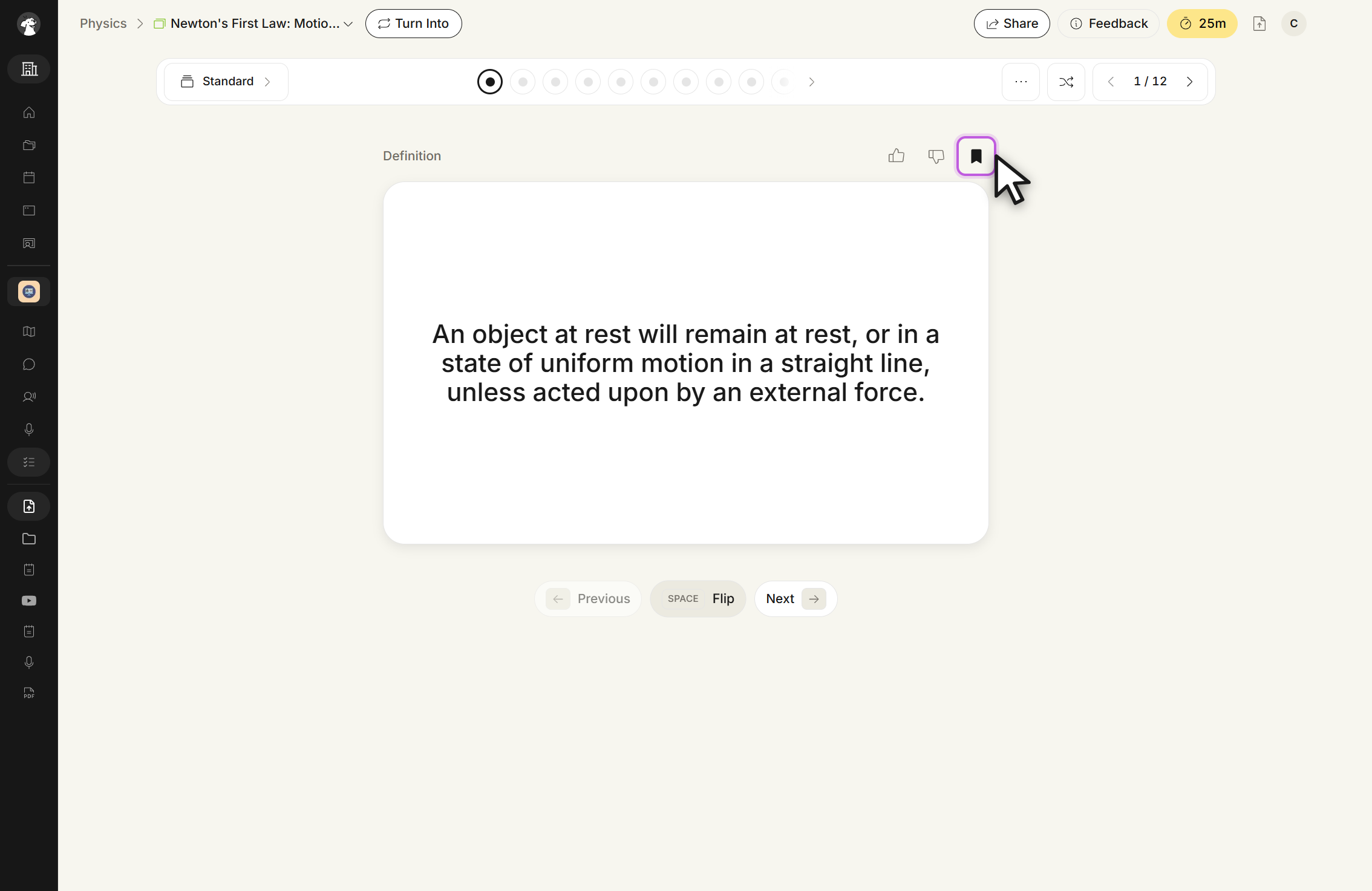
Flashcard study screen, Standard mode, card flipped. The back shows the Definition, with thumbs up, thumbs down and bookmark icons above the card.
Select the Shuffle button in the top right toolbar to randomize the order of your flashcards.
How do you like your flashcards? Use the thumbs up or thumbs down buttons above your flashcards to provide feedback on AI-generated flashcards. The more feedback provided, the better the flashcards become over time.
Choosing a Study Mode
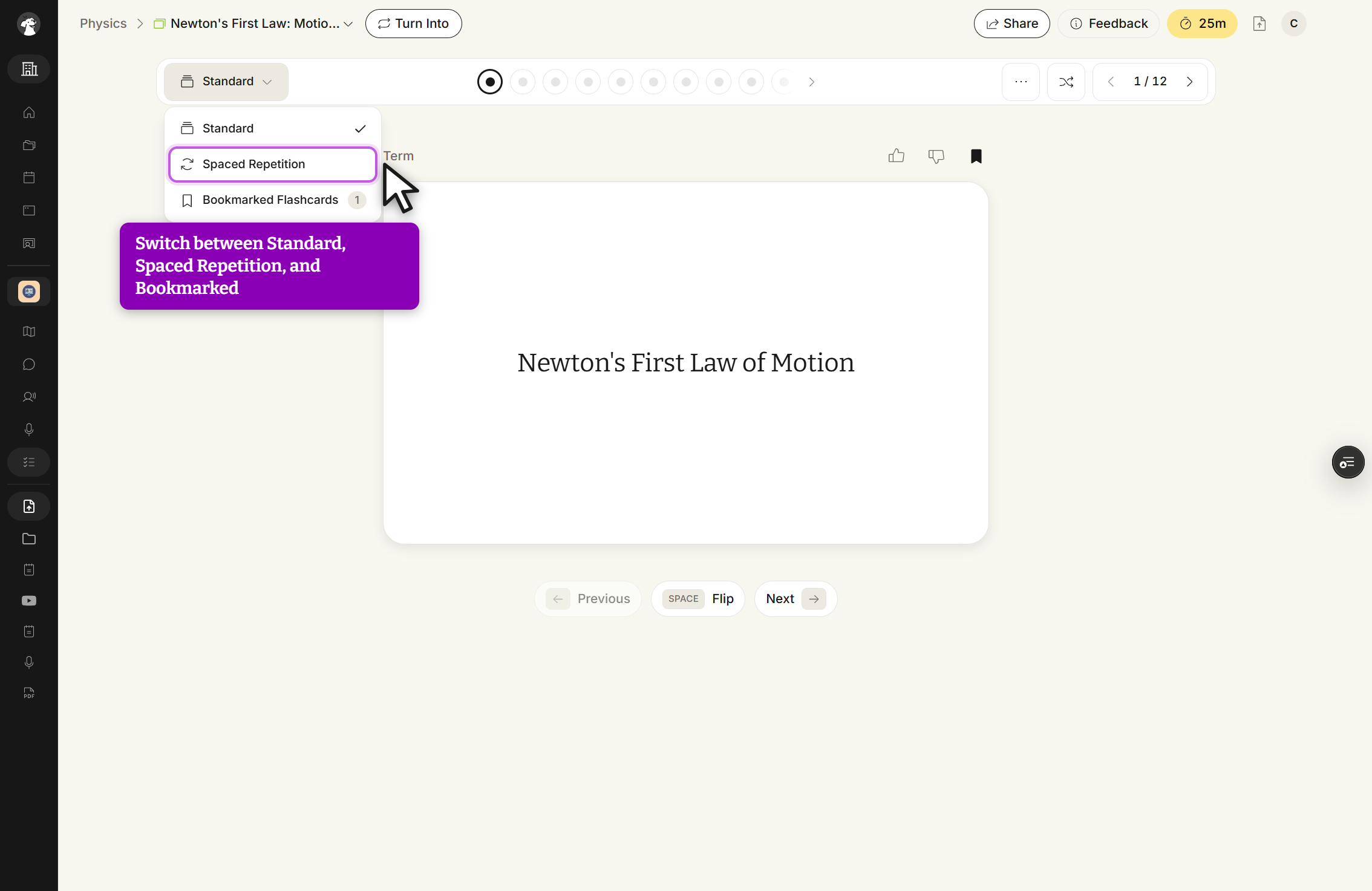
On the top left of the toolbar above your flashcards, you can choose how you want to study. Click the downward arrow to select from the following study modes:
Flashcard study screen, study mode dropdown open. Choose Standard, Spaced Repetition, or Bookmarked Flashcards.
Standard: Review all flashcards in order. Ideal for initial learning or quick review sessions.
Spaced Repetition: Uses smart scheduling based on how well you know each card. Cards you struggle with appear more frequently to optimize retention.
Bookmarked Flashcards: Focus only on flashcards you've bookmarked. Perfect for reviewing challenging topics you want to master.
How to use Spaced Repetition Study Mode
Spaced repetition strengthens long-term memory through timed review intervals. Follow the steps below to activate this mode while studying your flashcards in StudyFetch.
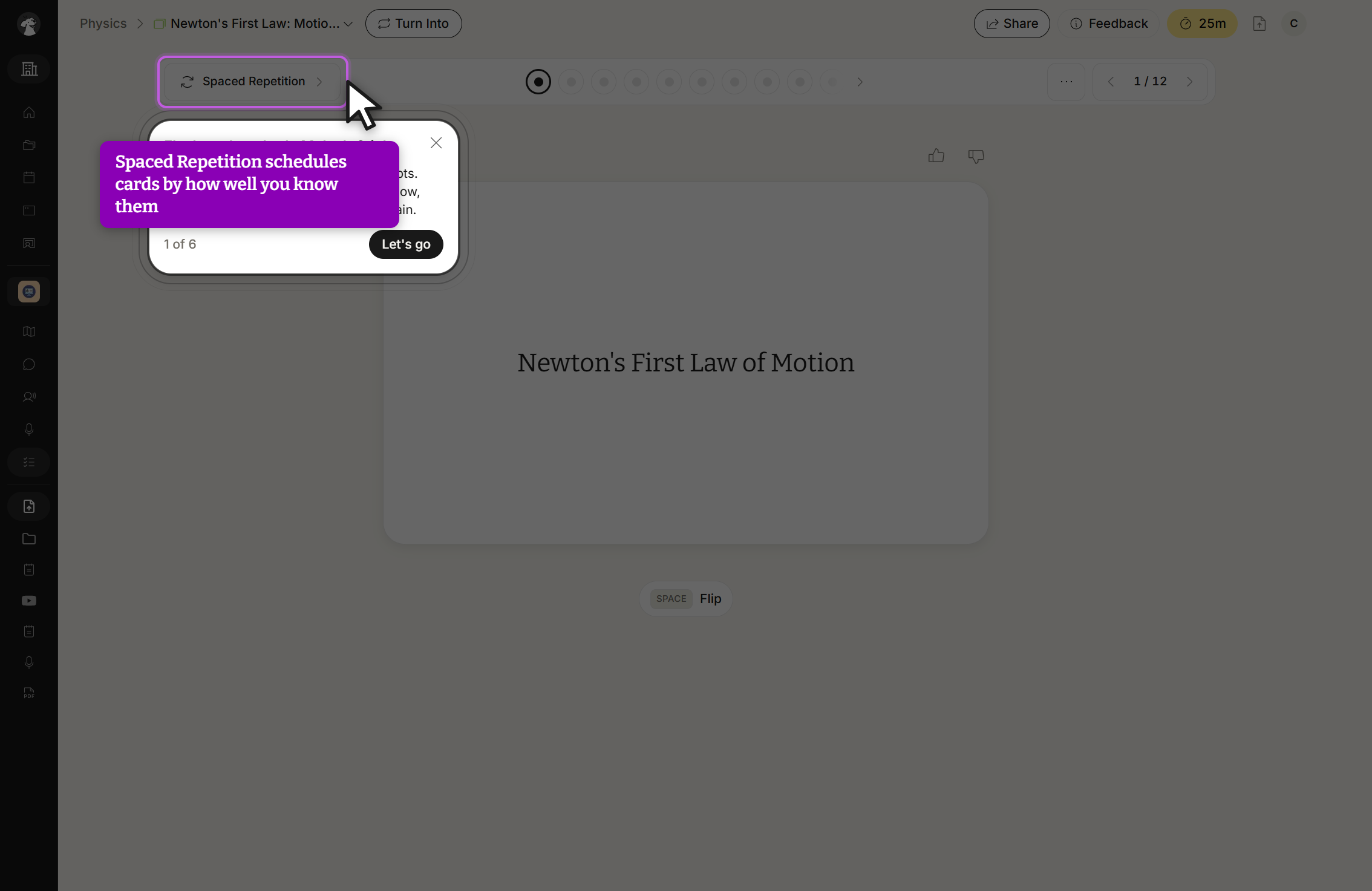
To start studying with spaced repetition, select Spaced Repetition from the top left of the toolbar.
Flashcard study screen, Spaced Repetition mode, first run. The mode selector reads Spaced Repetition and a walkthrough step 1 of 6 opens with a Let's go button.
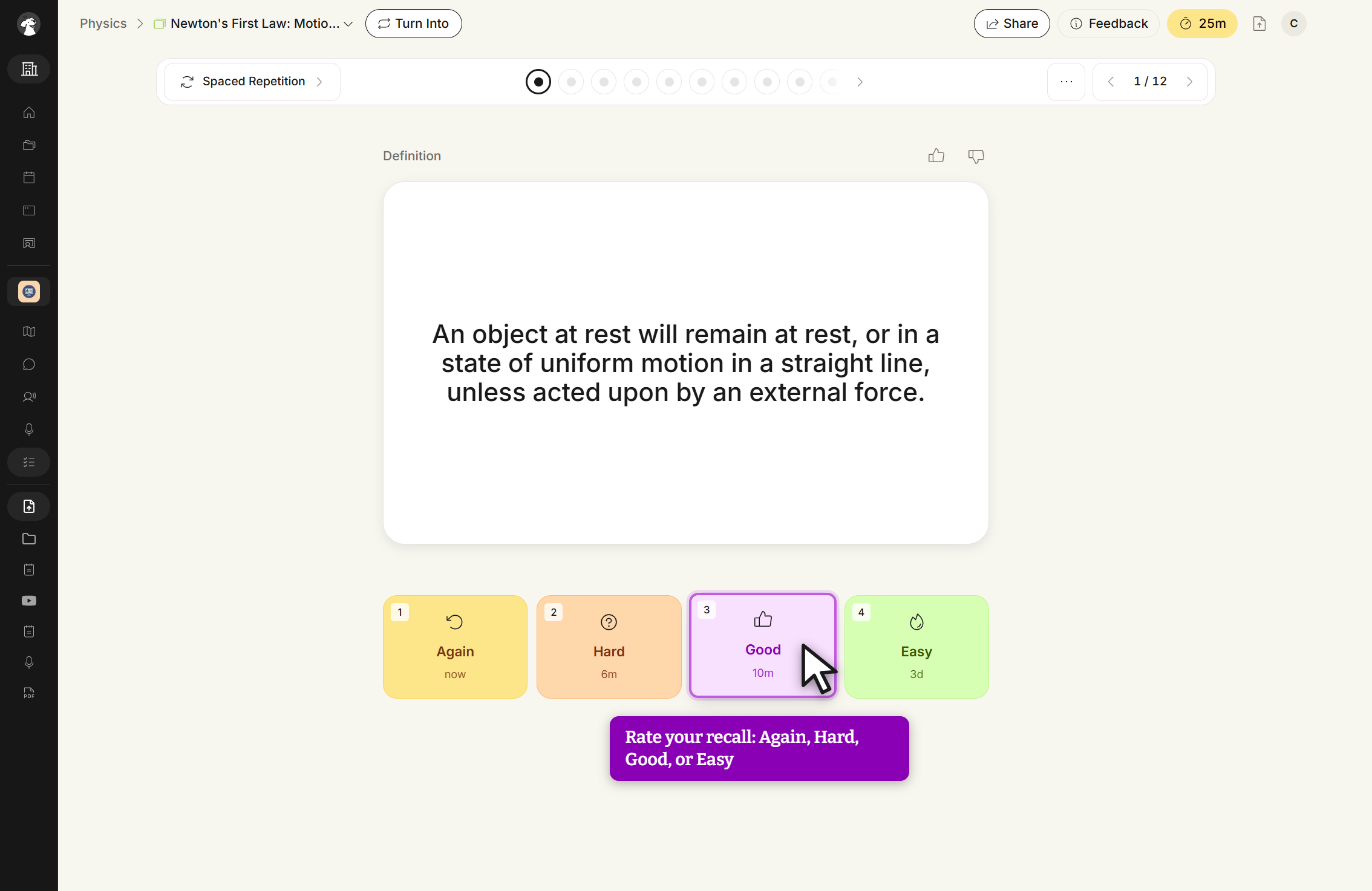
While studying, once you flip a flashcard or reveal the answer, you will be asked to rate your confidence level using Again, Hard, Good, or Easy.
Flashcard study screen, Spaced Repetition mode, card flipped. Rate the card with Again now, Hard 6m, Good 10m, or Easy 3d.
Rate each flashcard using the buttons below the card or by pressing the 1, 2, 3, or 4 keys on your keyboard. Your selection determines when the card will appear again:
Again (1): Shows again in 1 minute
Hard (2): Shows again in 10 minutes
Good (3): Shows again in 1 hour
Easy (4): Shows again in 24 hours
In spaced repetition mode, the progress bar appearance of each dot updates based on your ratings to reflect your learning progress. Cards will continue to reappear at scheduled intervals until you've mastered all flashcards.
When you're finished studying, switch to a different study mode from the toolbar, or simply leave the page — your progress is automatically saved, so you can return to Spaced Repetition mode anytime and continue right where you left off.
Using Bookmarks
When studying flashcards in Standard mode, you can use bookmarks to tag cards you want to review later — ideal for mastering challenging topics.
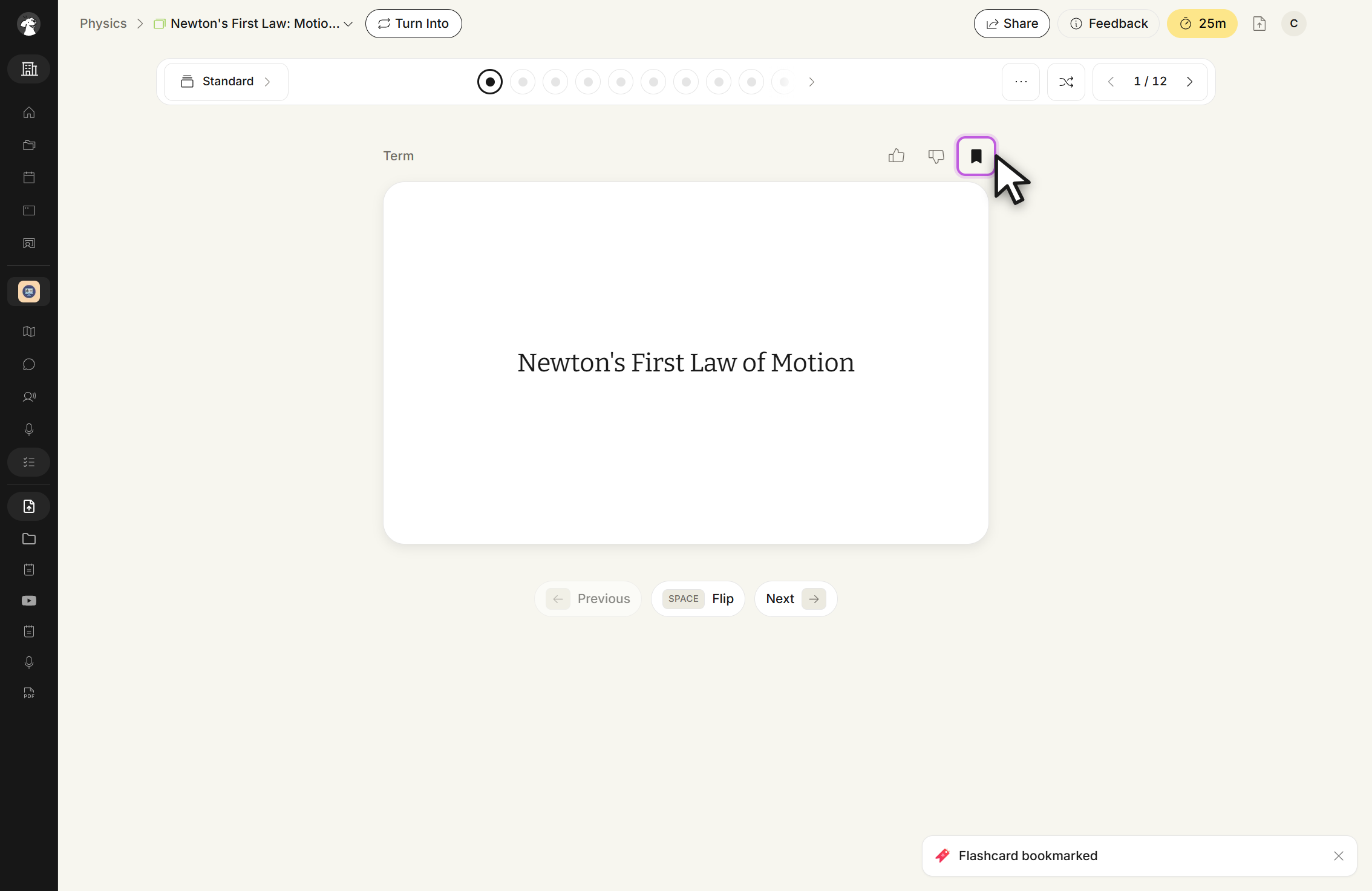
Bookmark flashcards you want to revisit by selecting the bookmark icon located in the top right above your flashcard. When bookmarked, the icon will turn dark and a confirmation appears.
Flashcard study screen, Standard mode, card bookmarked. The bookmark icon above the card is filled in and a Flashcard bookmarked message appears in the bottom right.
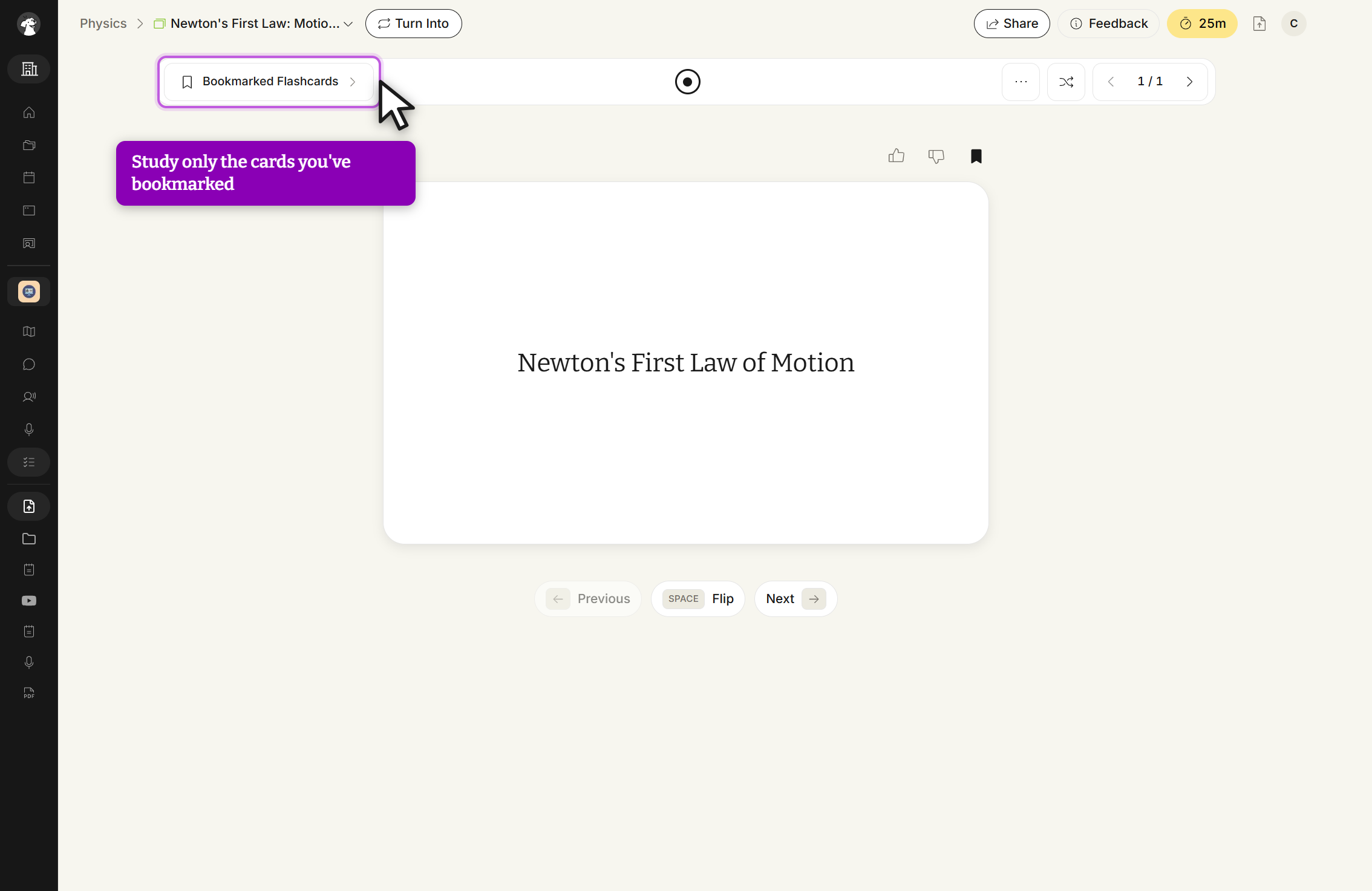
To review your bookmarked flashcards, click the downward arrow next to the current mode and select Bookmarked Flashcards. This will switch your study session to focus only on your bookmarked cards.
Flashcard study screen, Bookmarked Flashcards mode. The session holds only the cards you bookmarked.
After you've mastered a flashcard, remove the bookmark by selecting the same bookmark icon above the flashcard. The card is taken out of your Bookmarked Flashcards rotation, but it's still available in Standard mode.
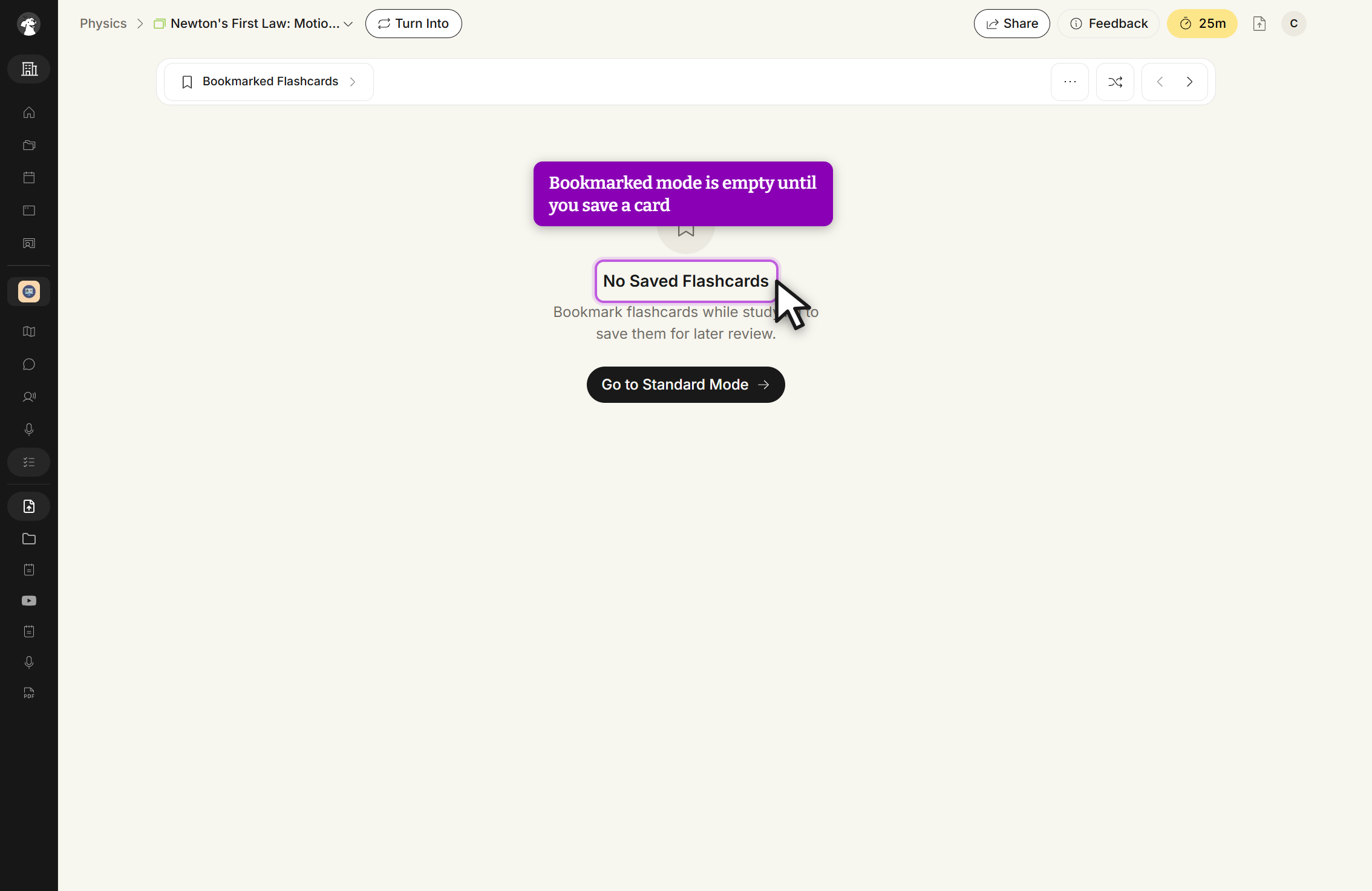
Once all bookmarks have been removed, you'll see an empty state with a shortcut back to Standard mode.
Bookmarked Flashcards study mode, empty. The screen reads No Saved Flashcards, with a Go to Standard Mode button.
 StudyFetch Academy