Skip to content
StudyFetch Academy

Product docs

Navigate a Tutor Me Session

Once a session starts, you can learn by speaking with Sparky, typing in chat, following the lesson plan, moving between pages, and pausing or ending the session when needed.

Speak or type

Use your microphone for conversation or open Chat to type messages.

Track progress

Use the progress bar and Plan panel to follow each lesson topic.

Control the session

Move between pages, pause, resume, and end the lesson from the toolbar.

Enable microphone access

Allow microphone access when your browser prompts you, then start the session with Sparky. To mute or unmute at any time, click the microphone icon next to the pause and play control.
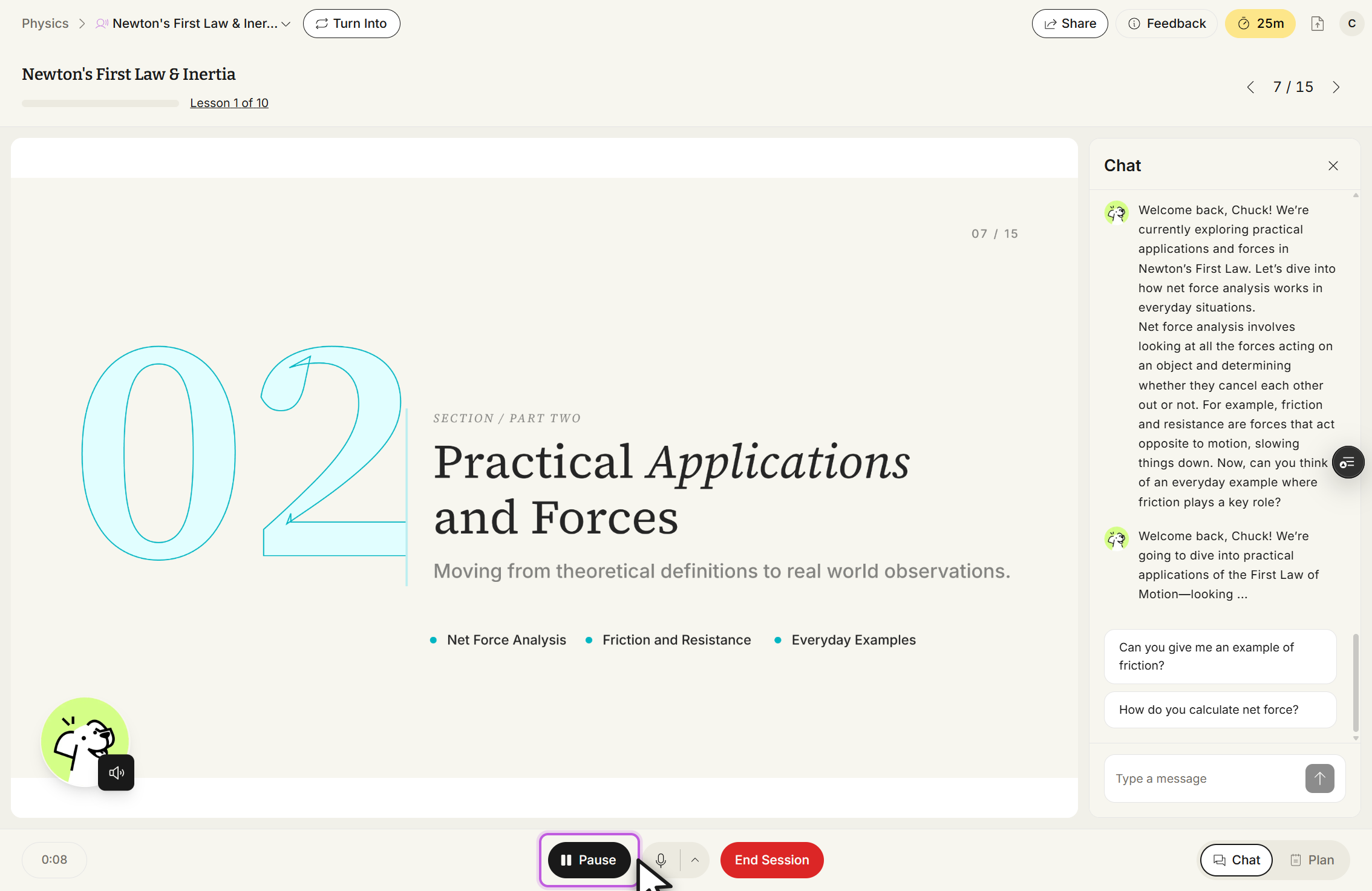
Tutor Me session titled Newton's First Law & Inertia, marked Lesson 1 of 10, on page 7 / 15. The slide reads SECTION / PART TWO, Practical Applications and Forces, Moving from theoretical definitions to real world observations, with the bullets Net Force Analysis, Friction and Resistance, and Everyday Examples. The Chat panel on the right holds tutor messages, the suggested questions Can you give me an example of friction? and How do you calculate net force?, a Type a message box, and a close X. The bottom toolbar shows a Pause button outlined in purple with the cursor on it, a microphone button, a red End Session button, and Chat and Plan buttons at the right. A timer at the bottom left reads 0:08.
Newton's First Law & Inertia, Lesson 1 of 10. The bottom toolbar holds Pause, the microphone button, End Session, Chat, and Plan.

Interact with Sparky

Speak directly through your microphone, or click Chat on the right side of the bottom toolbar to type instead. The chat panel keeps the full session transcript visible for review — to hide it, click the X in the top right of the panel.

View the lesson plan and progress

Use the progress bar near the top left to see your current lesson topic and how far you've advanced. To view the full lesson plan, click Plan on the far right of the bottom toolbar, or click the progress bar itself.
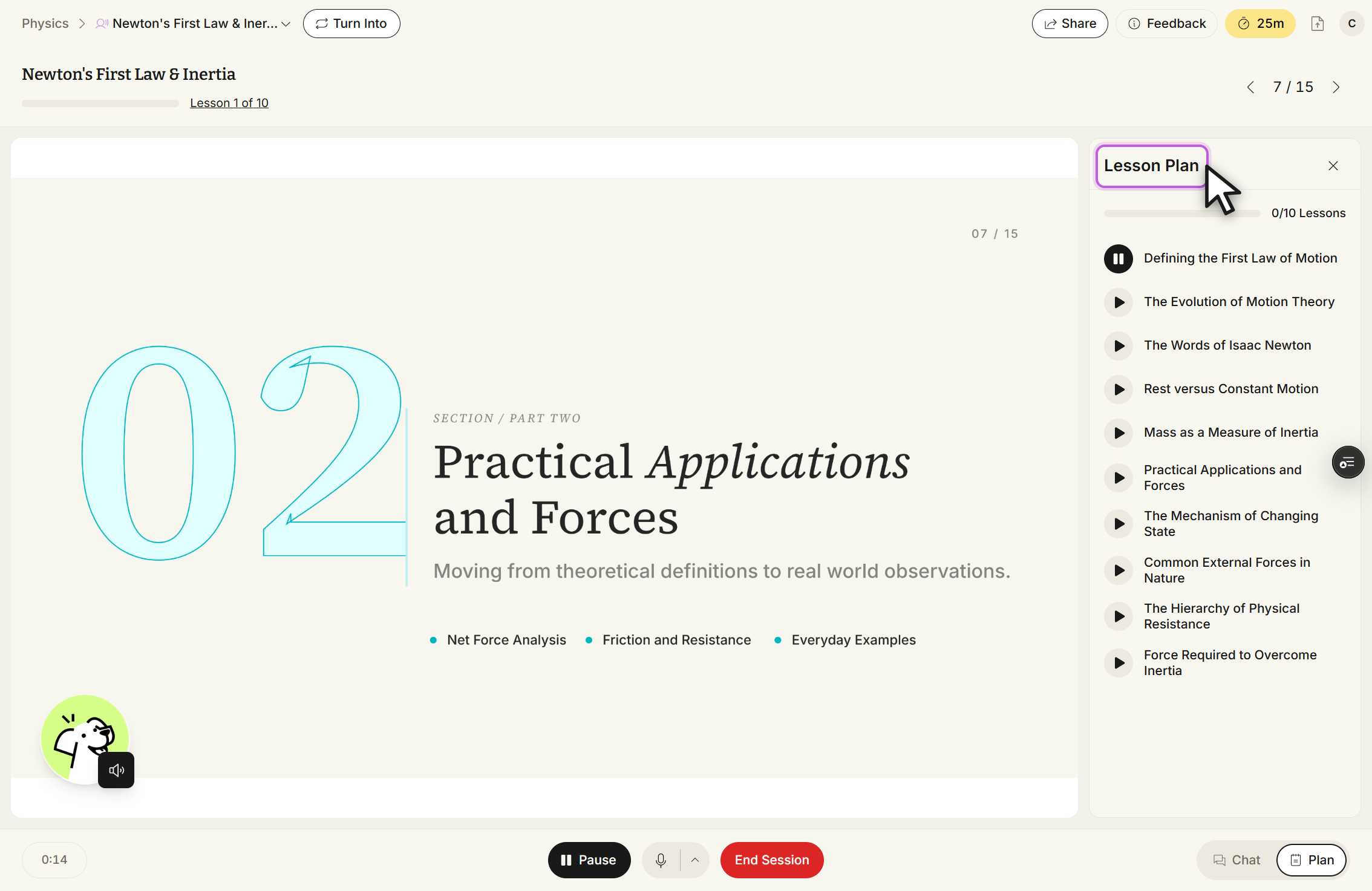
Tutor Me session Newton's First Law & Inertia with the Lesson Plan panel open on the right; the panel title is outlined in purple with the cursor on it and a close X sits beside it. The panel reads 0/10 Lessons and lists Defining the First Law of Motion, The Evolution of Motion Theory, The Words of Isaac Newton, Rest versus Constant Motion, Mass as a Measure of Inertia, Practical Applications and Forces, The Mechanism of Changing State, Common External Forces in Nature, The Hierarchy of Physical Resistance, and Force Required to Overcome Inertia. The header shows the progress bar and Lesson 1 of 10 at the top left and page 7 / 15 at the top right. The bottom toolbar holds Pause, a microphone button, End Session, Chat, and Plan.
Newton's First Law & Inertia, Lesson Plan panel open. The panel reads 0/10 Lessons and lists the ten lesson topics.

To move to a topic, tell Sparky which topic you want or click the topic directly in the Lesson Plan panel. To hide the panel, click the X in the top right.

Use the page count and arrows in the top right to move between presentation pages, or ask Sparky to move to a page for you.

To pause the session, click Pause on the bottom toolbar — this also mutes your microphone.
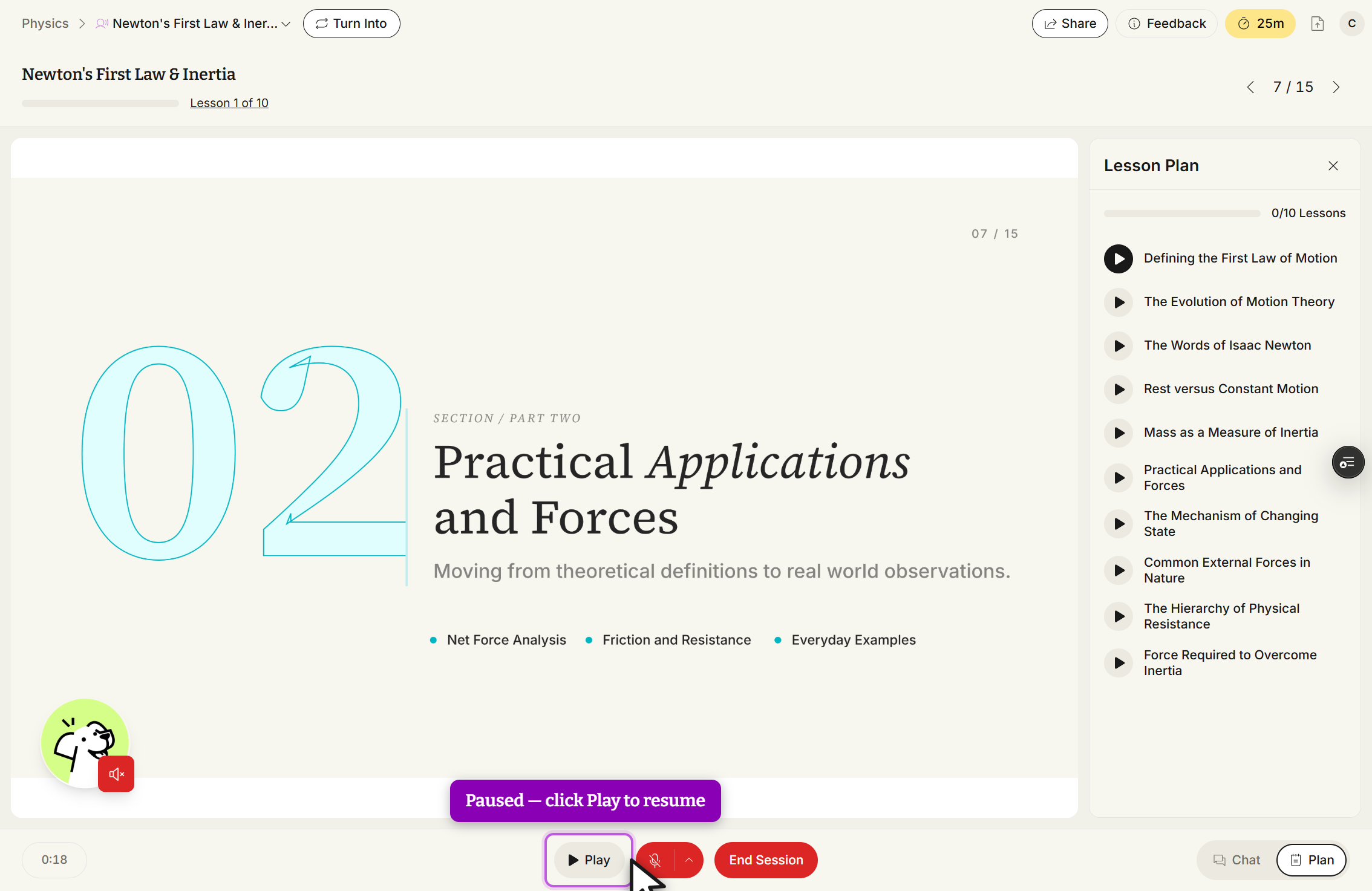
Tutor Me session Newton's First Law & Inertia paused on page 7 / 15, with the page arrows at the top right. A purple banner over the slide says the session is paused and to click Play to resume. The bottom toolbar shows a Play button outlined in purple with the cursor on it, a red muted microphone button, and a red End Session button; the timer reads 0:18 and the tutor avatar carries a red muted speaker badge. The Lesson Plan panel on the right still reads 0/10 Lessons.
Newton's First Law & Inertia, paused. Play replaces Pause on the toolbar and the microphone button turns red.

To resume, click Play — your microphone automatically unmutes and the session continues. When finished, click End Session; you can return to it later from the Tutor Me page.
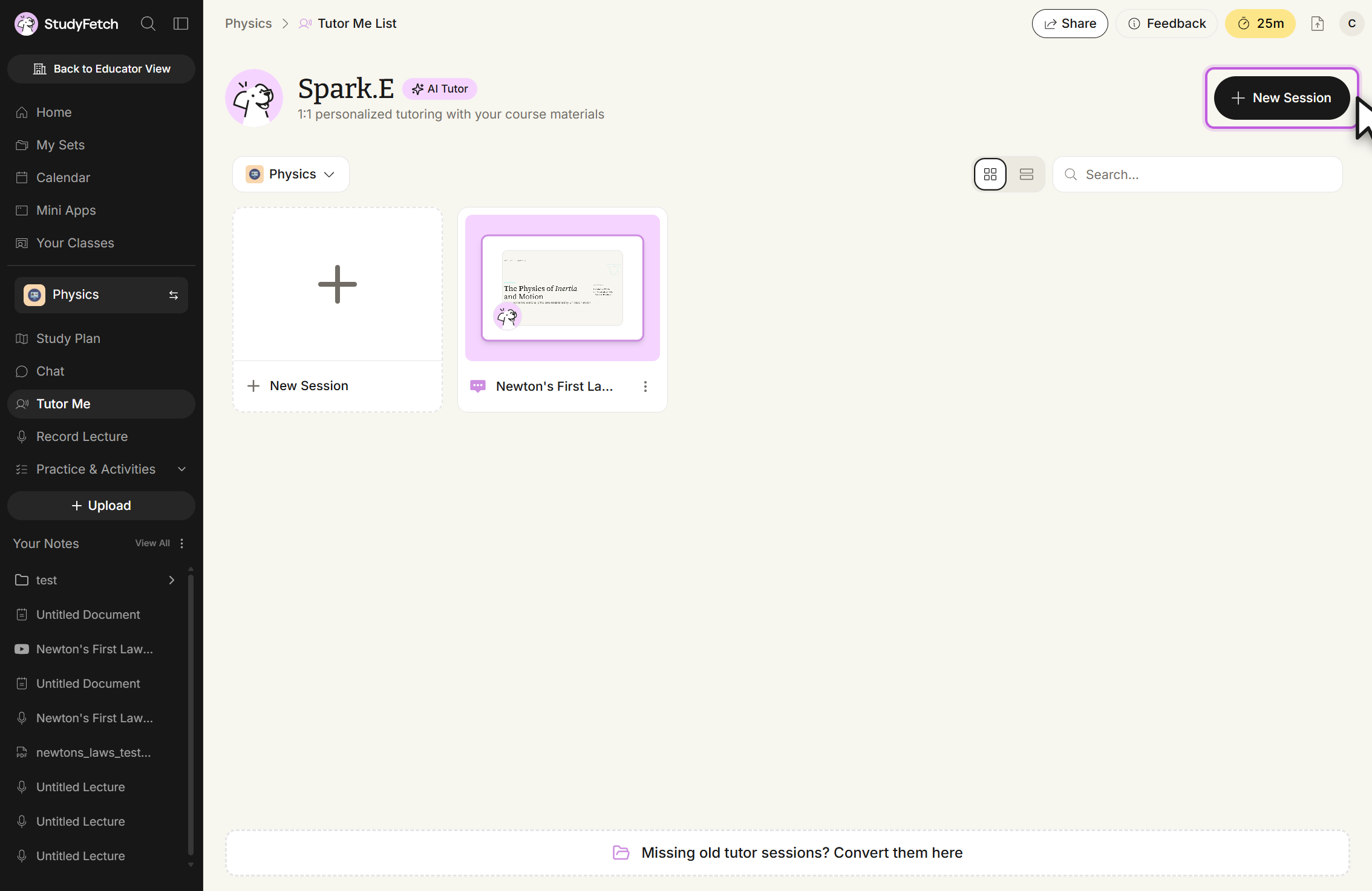
Tutor Me List page for the Physics set. The heading reads Spark.E with an AI Tutor badge and the line 1:1 personalized tutoring with your course materials. A New Session button at the top right is outlined in purple with the cursor beside it. The grid holds a New Session tile and one session card named Newton's First La..., above a Physics filter, grid and list view toggles, a Search box, and a Missing old tutor sessions? Convert them here link at the bottom.
Tutor Me List. The ended session, Newton's First La..., stays in the grid next to the New Session tile.