
Product docs
Watch an Explainer Video
Navigating Your Explainer Video
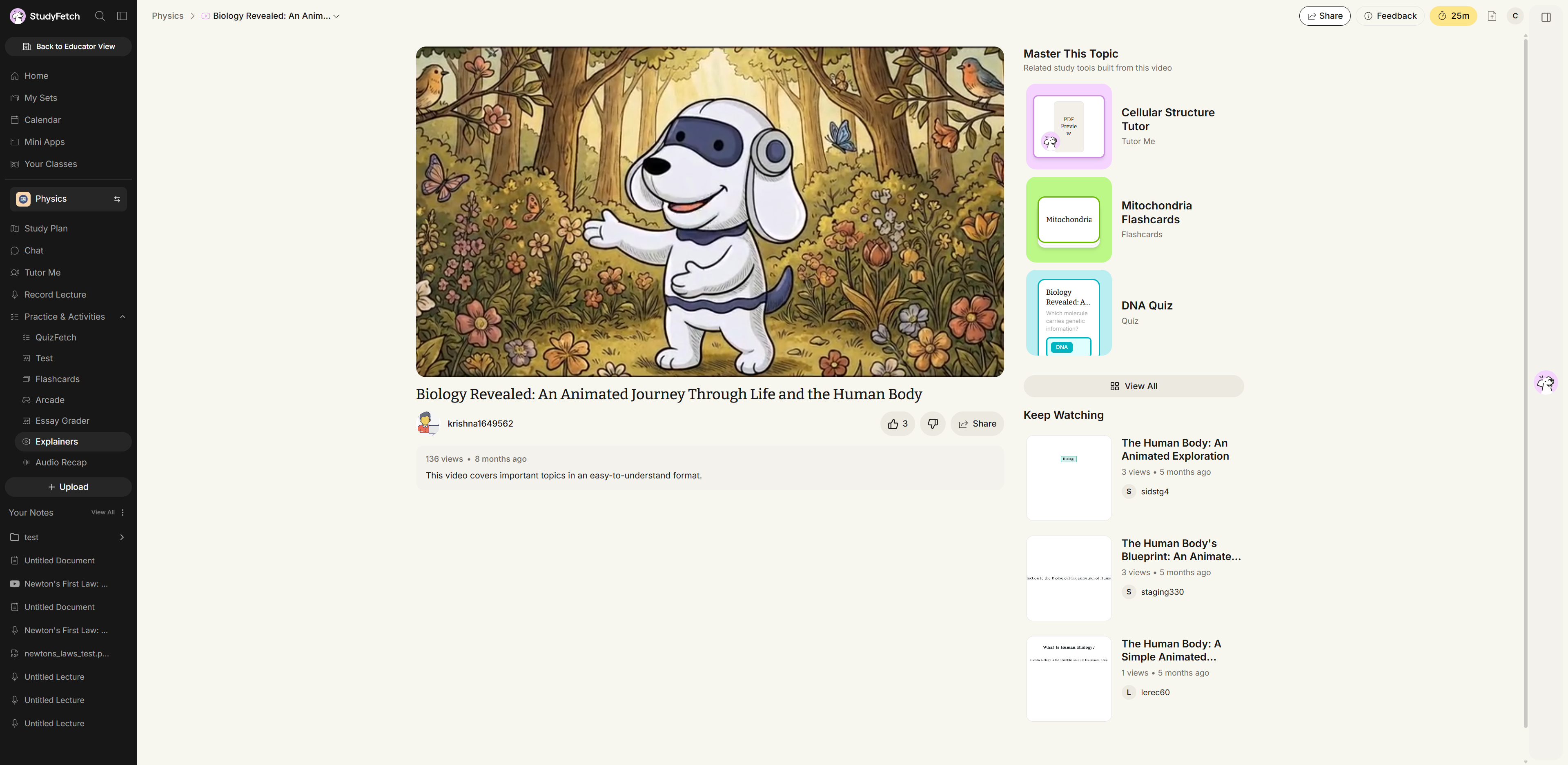
Once a video is ready, opening it brings you to its watch page: the player is front and center, with the title, creator, view count, and description below it. On the right, a Master This Topic panel suggests related study tools (a Tutor session, Flashcards, or a Quiz) built directly from the video's subject matter, and a Keep Watching list surfaces similar explainers.
Playback Controls
Standard video controls are available along the bottom of the player when you move your mouse over it:
- Click the video, or the Play/Pause icon, to start or pause playback.
- Click and drag the progress bar to jump to any point in the video.
- Use the Sound icon to mute, unmute, or drag its slider to adjust volume.
- Open the Settings (gear) icon to change playback Speed or video Quality.
- Click the Full Screen icon to expand the player, and press Esc or the Minimize icon to return to the standard view.
Video Outline
Click ...more below the video to expand a structured outline of everything the video covers; click Show less to collapse it again.