Open Calendar
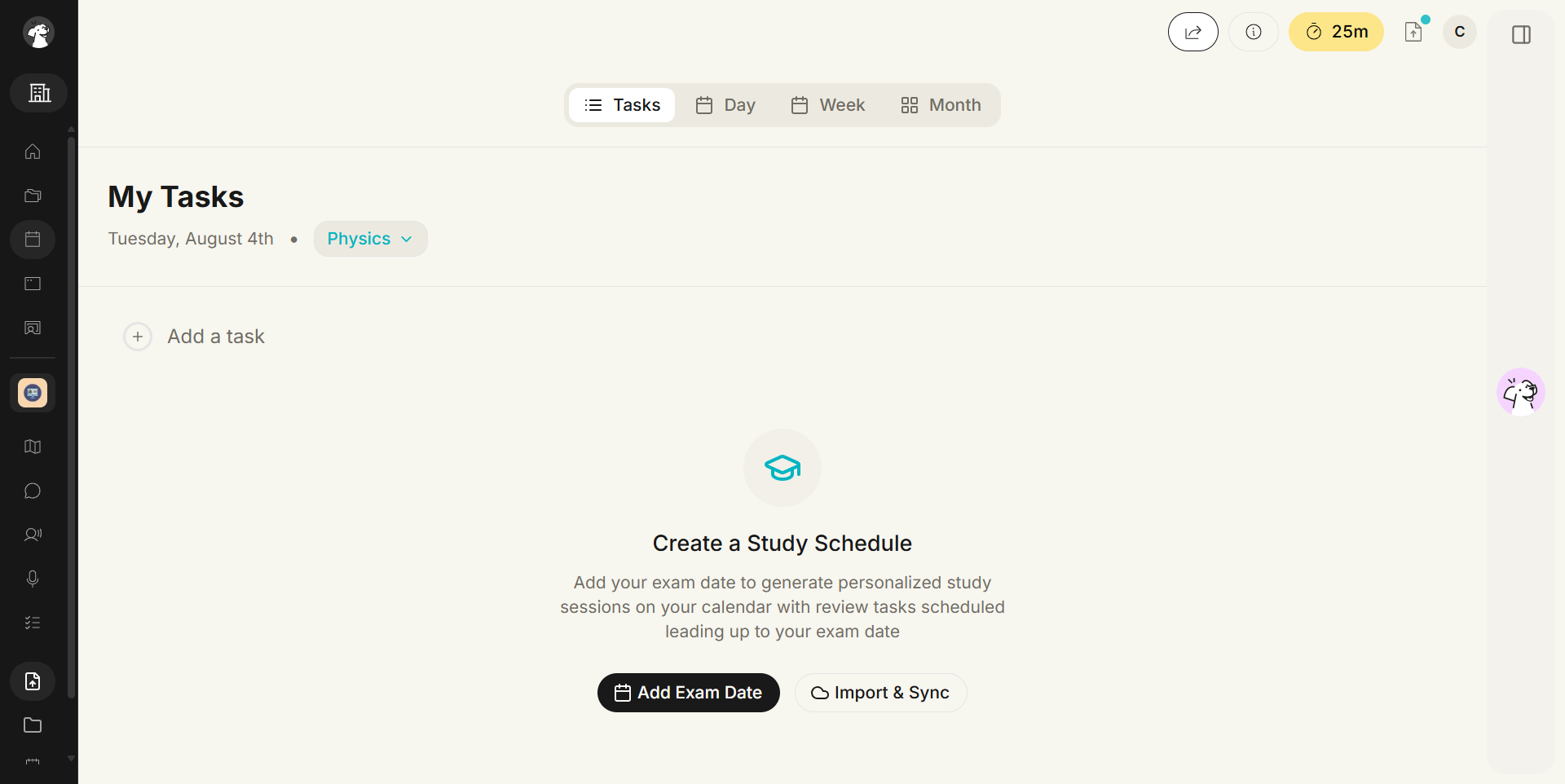
Start from the left-hand navigation. You land on My Tasks by default, with Day, Week, and Month views alongside it.
 StudyFetch Academy
Product docs
Use the Calendar to manage tasks and events manually or set an exam date to generate personalized study sessions that place review activities directly on your schedule.
Start from the left-hand navigation. You land on My Tasks by default, with Day, Week, and Month views alongside it.
Create custom events or tasks from the Month view, and use Filters to focus what you see.
Set an exam date and StudyFetch builds a personalized study schedule around it, right on your Calendar.
On the left-hand side of your dashboard, click Calendar.
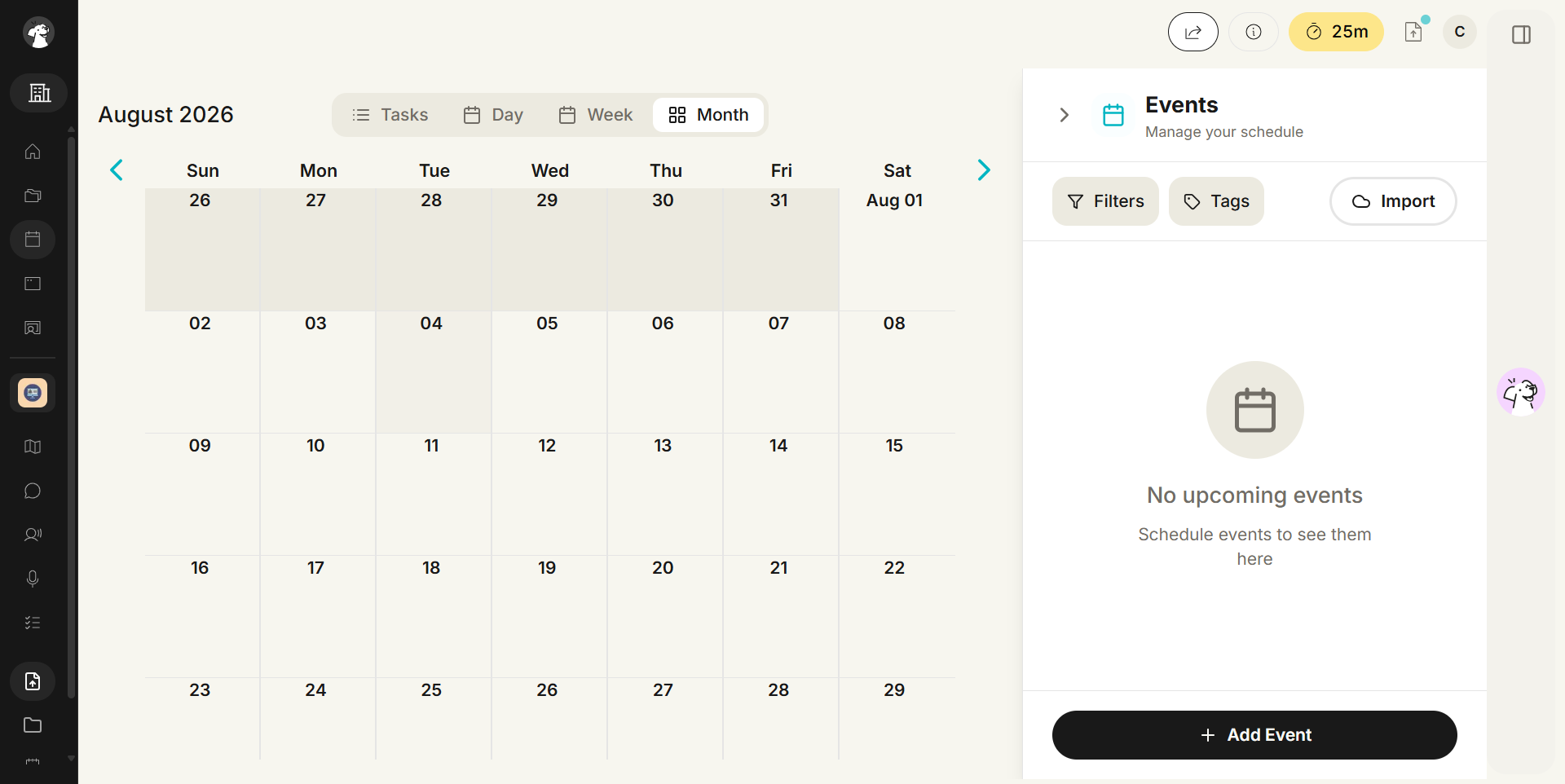
Switch to Month to see the full calendar grid alongside an Events sidebar (Filters, Tags, Import, and Add Event).
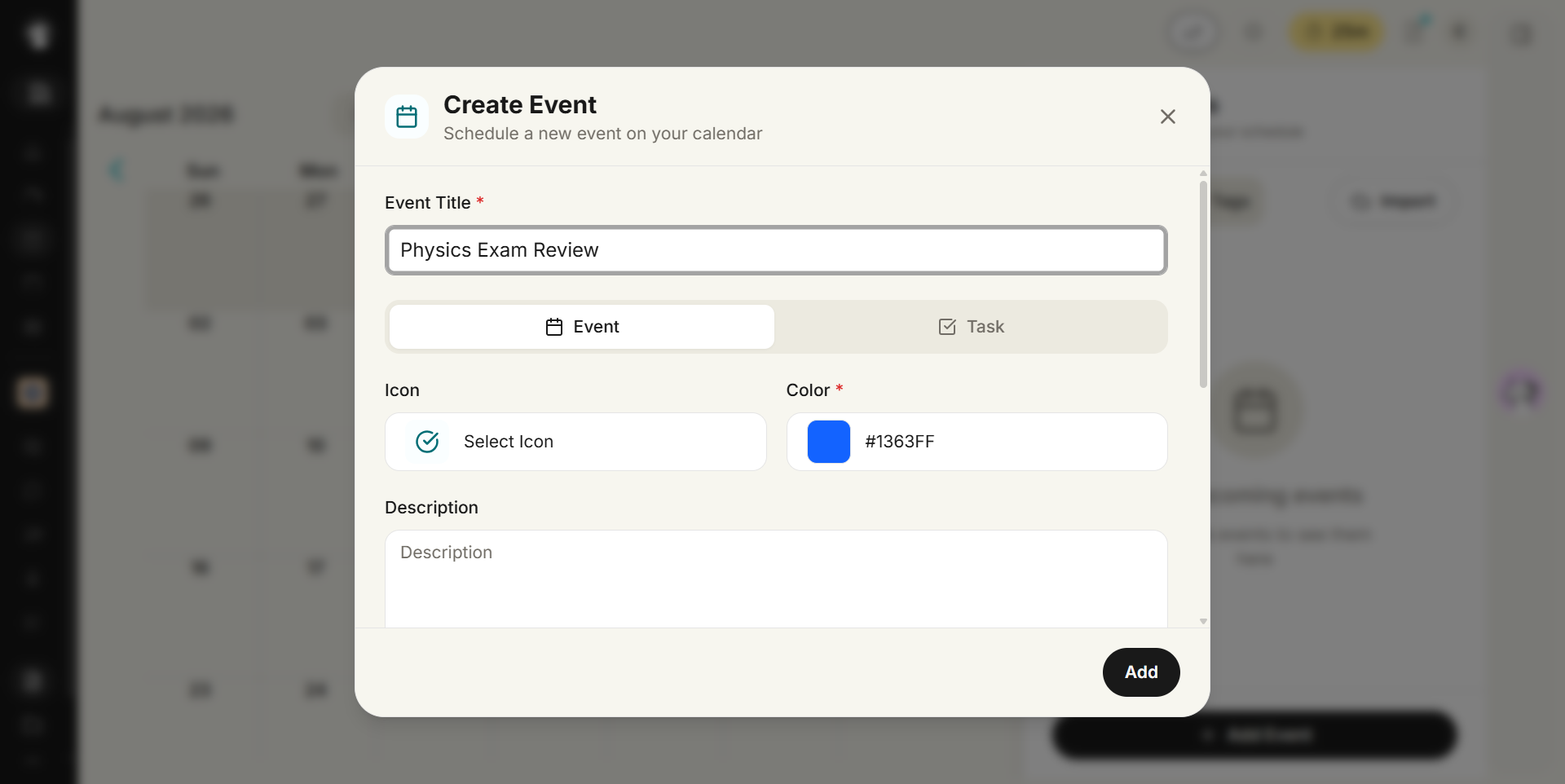
Click a day on the calendar, or click + Add Event in the Events sidebar. Fill out the title, choose Event or Task, pick an icon and color, add a description, and set start/end times, then click Add.
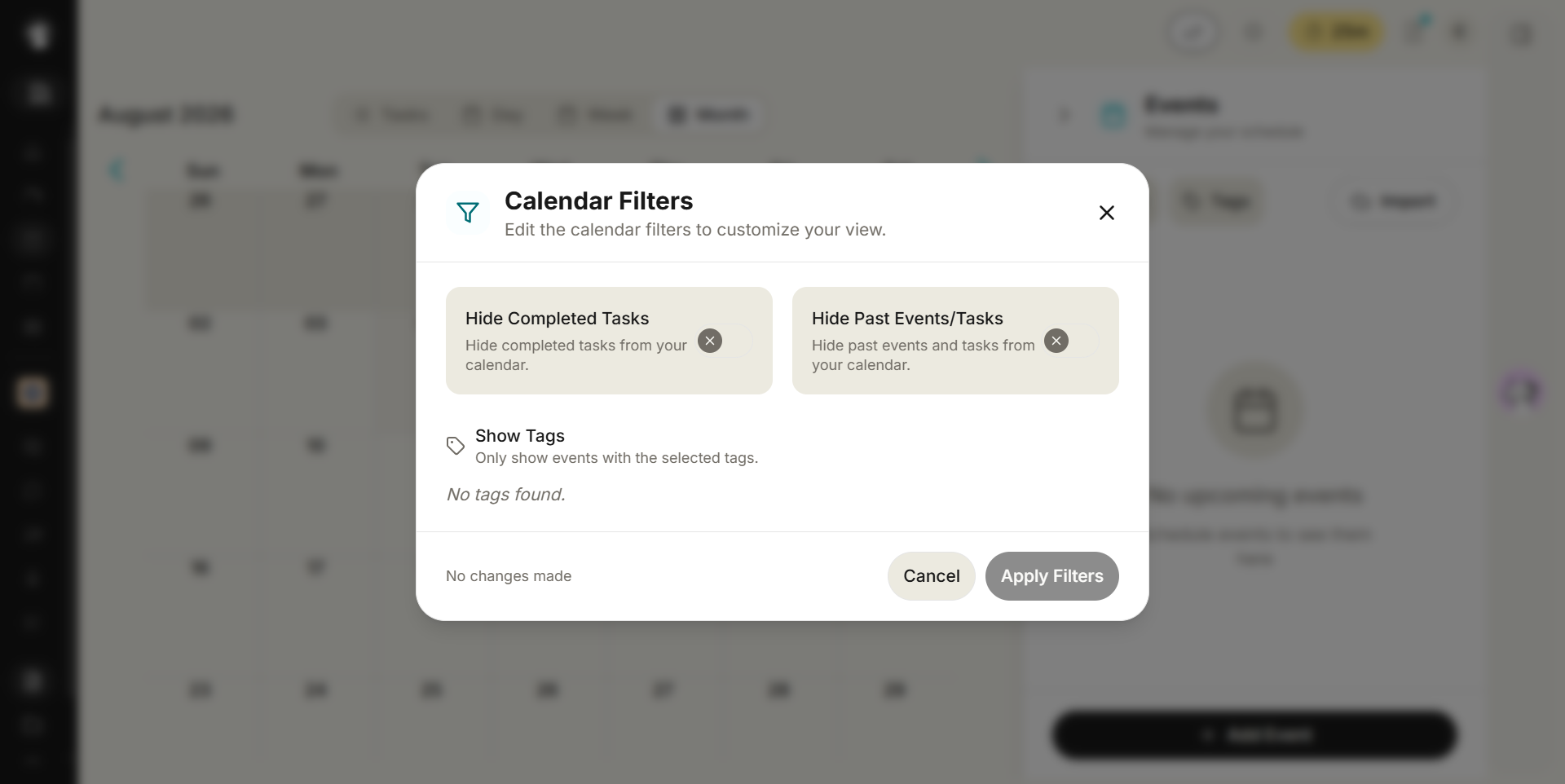
To find a specific event, click Filters. You can hide completed tasks, hide past events/tasks, or show only selected tags.
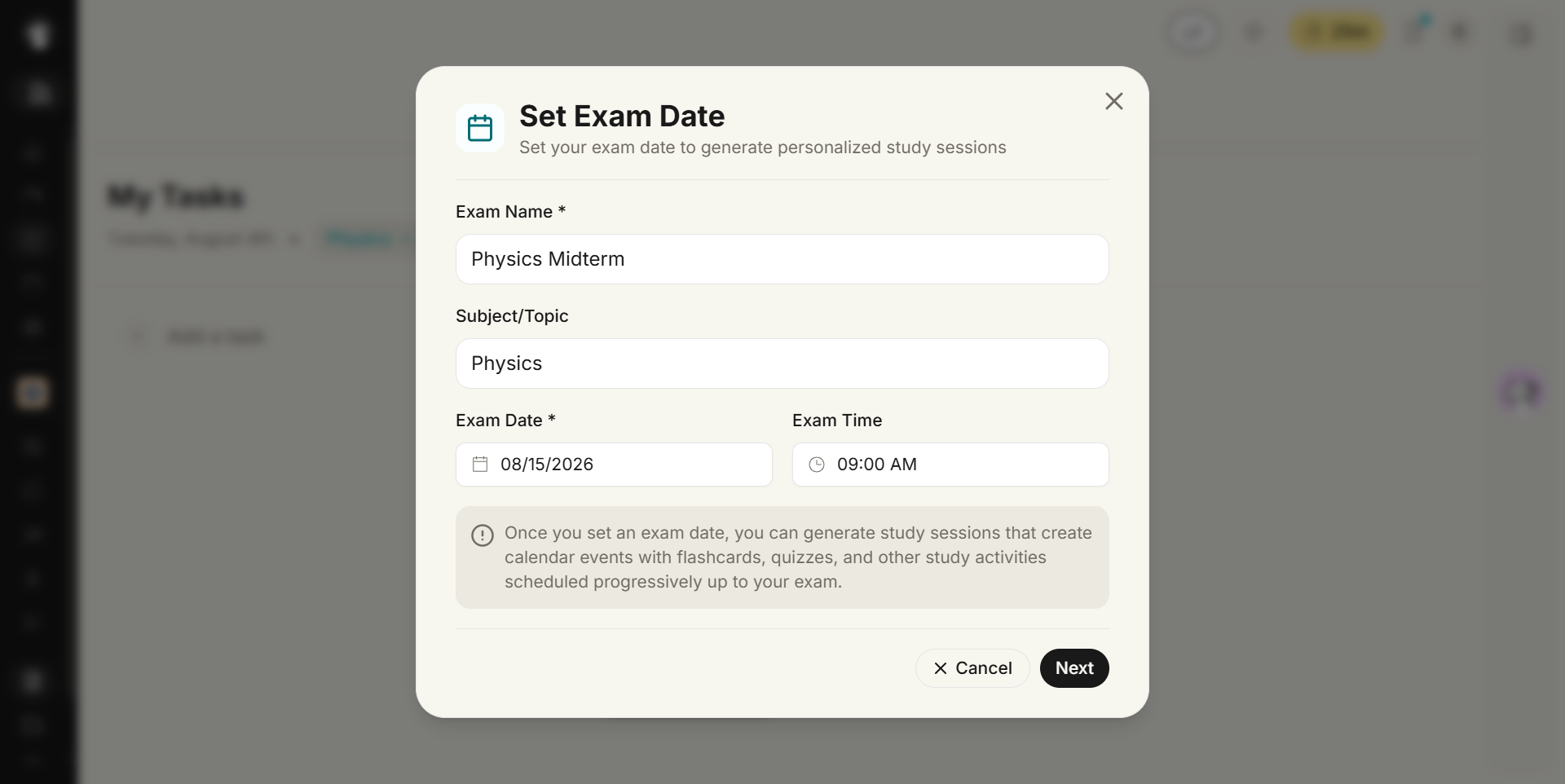
From My Tasks, click Add Exam Date (or the + next to Upcoming Exams). Enter an exam name, subject/topic, date, and time, then click Next.
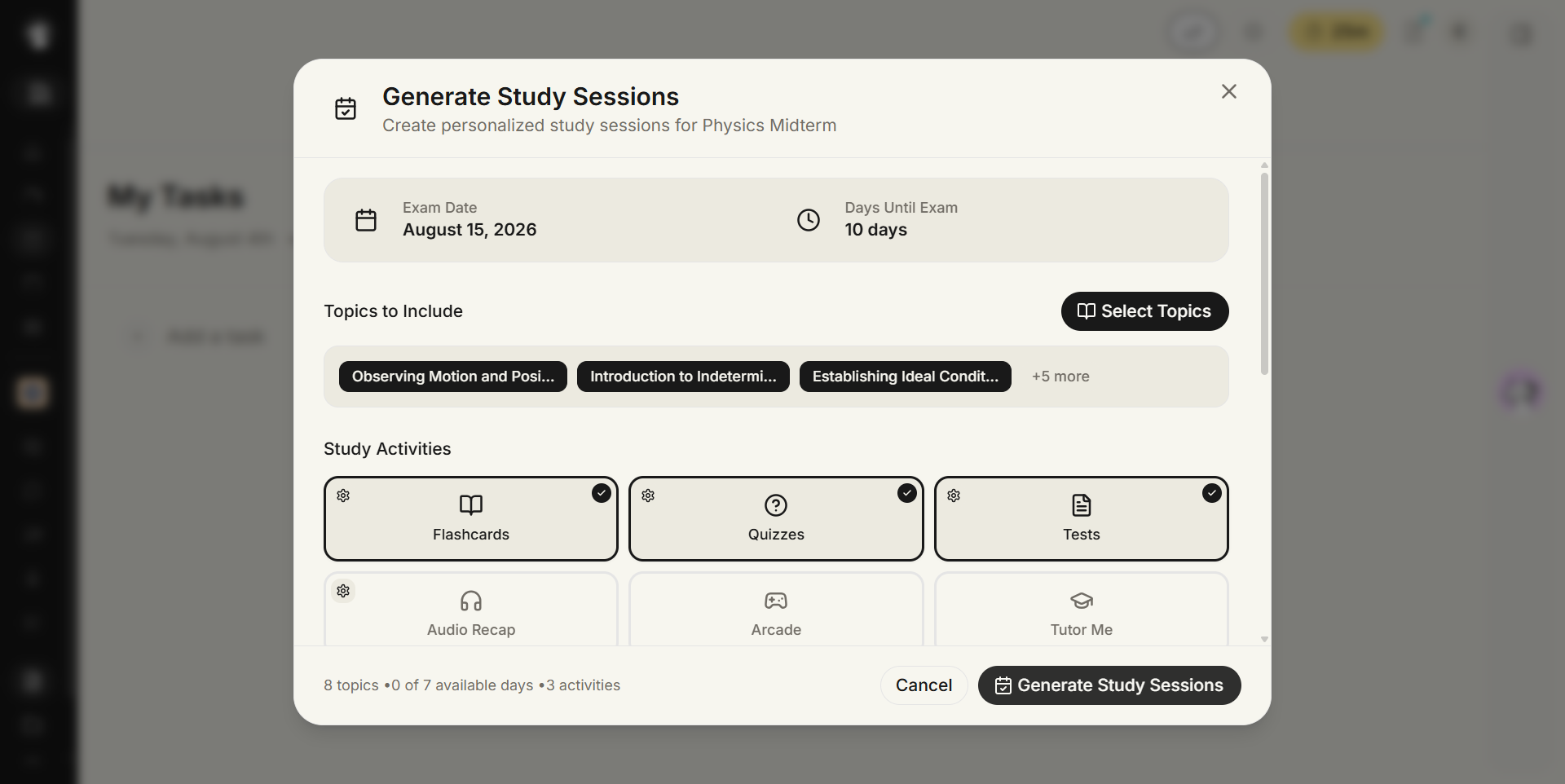
On Generate Study Sessions, review the days until your exam, pick which topics to include, choose your study activities (Flashcards, Quizzes, Tests, Audio Recap, Arcade, Tutor Me), and select which days and time slots to study. Click Generate Study Sessions when ready.
The generated sessions are added to Calendar as scheduled events leading up to your exam date, each linked to the study activity you chose.