Product docs
Submit New Attempts and Manage Assignments
Submit a new attempt
After reviewing feedback from Sparky, revise your work and click New Attempt to submit another round for grading. Each attempt is tracked separately, and your best attempt is highlighted at the top.
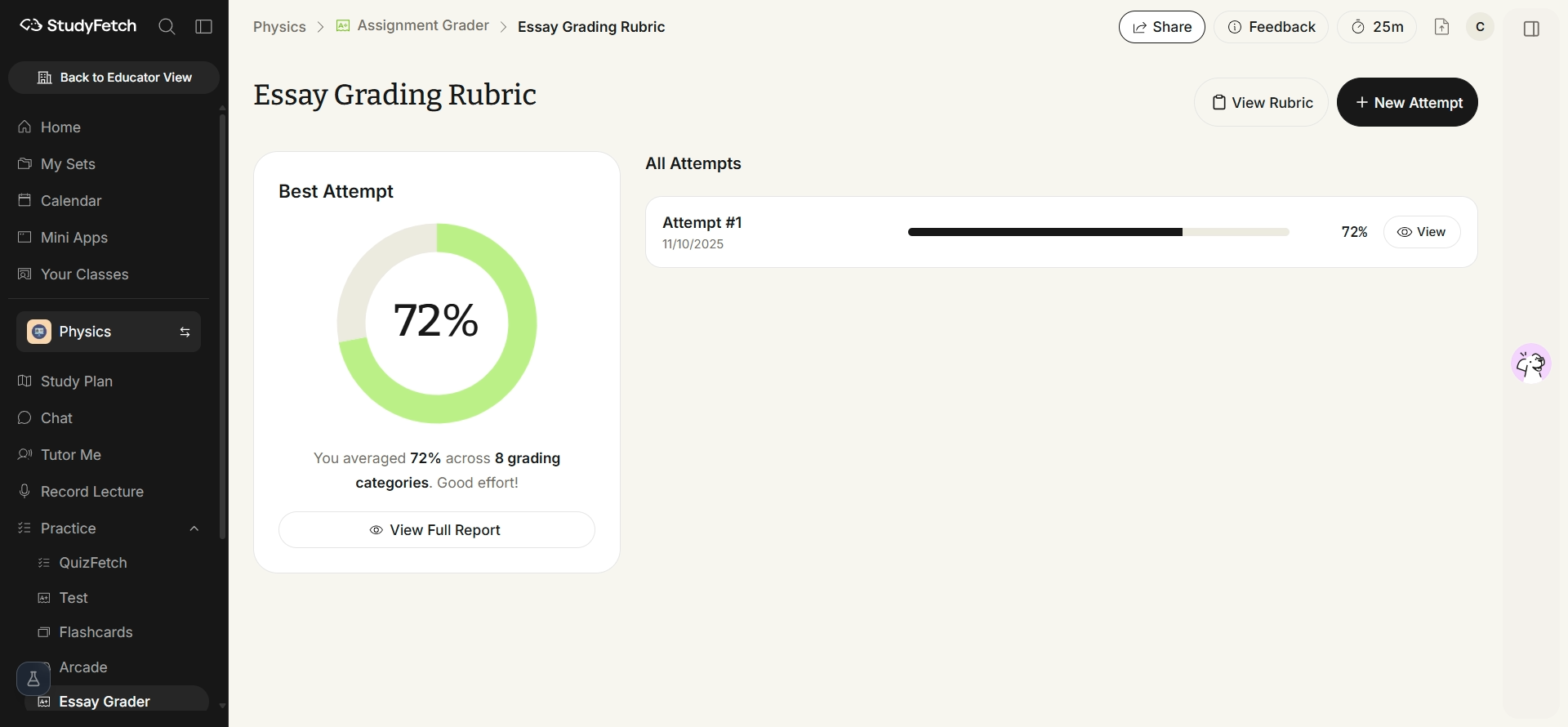
New attempts follow the same submission flow as your first — upload a file, use the text editor, or use your phone camera — and are graded against the same rubric so you can track improvement across attempts.
Manage assignments
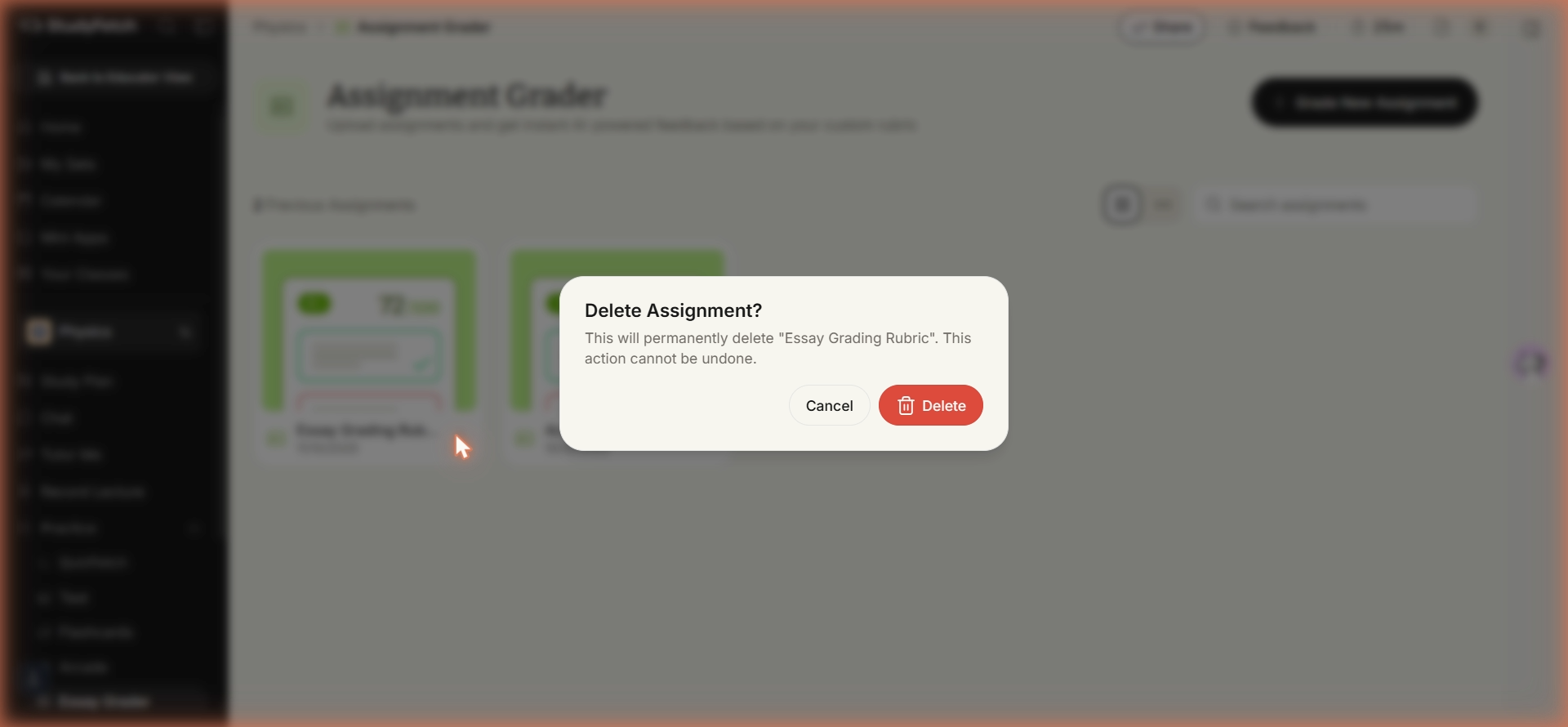
From the Assignment Grader list, click the ⋮ menu on any assignment card to view or delete it.
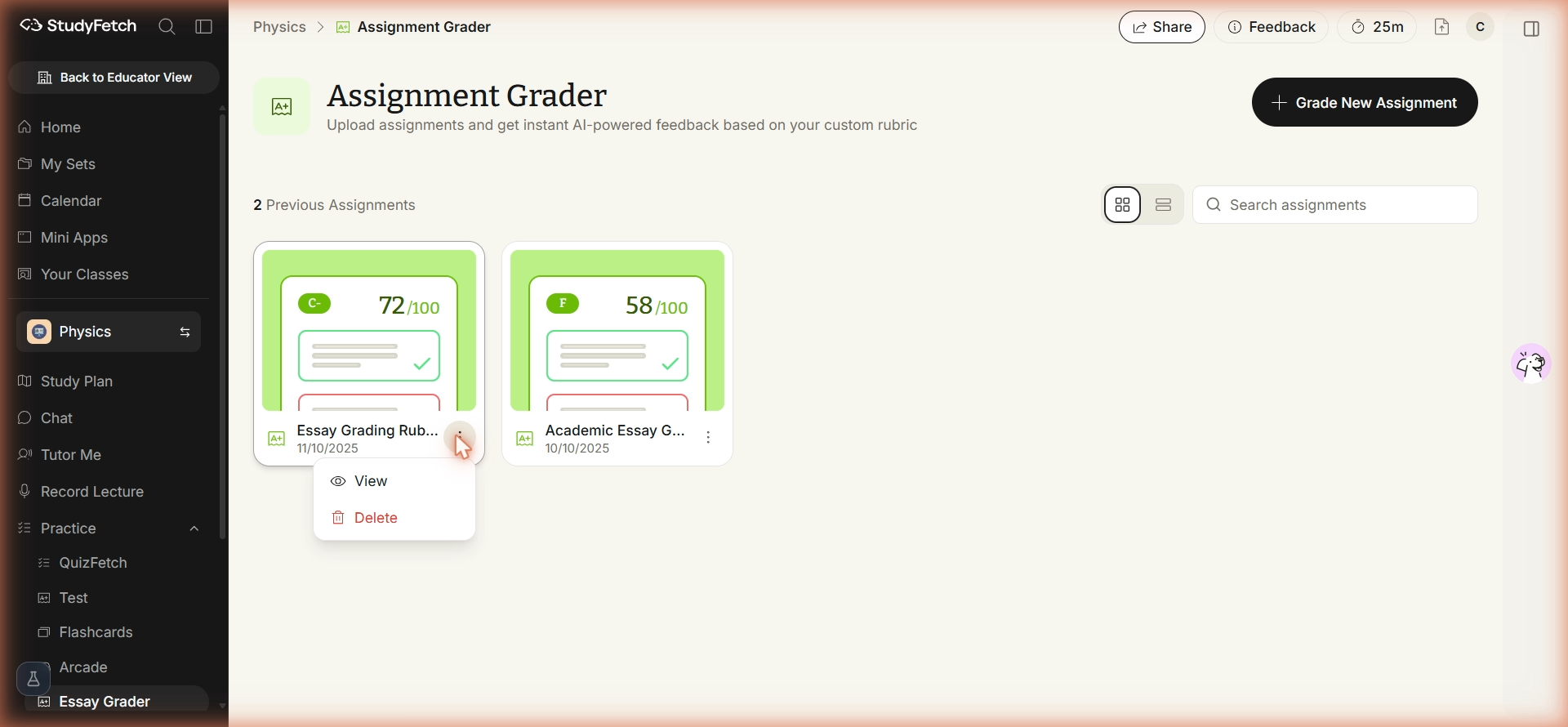
Deleting an assignment is permanent and removes all of its attempts.